
- Samsung voice typing settings at a glance
- What Is Samsung Voice Typing?
- How to Enable Voice Typing on Samsung Keyboard
- Where Did the Voice-to-Text Button Go on Samsung Keyboard?
- How to Enable Google Voice Typing on Samsung
- Samsung Voice Input vs Google Voice Typing: What’s the Difference?
- How to Use Voice to Text in Different Samsung Apps
- How to Convert an Audio Recording to Text on Samsung
- Samsung Keyboard Voice Typing Not Working? Try These Fixes
- Google Voice Typing Not Working on Samsung
- How to Improve Samsung Voice Typing Accuracy
- When Samsung Voice Typing Isn’t Enough
- Bottom Line
- Frequently Asked Questions
Voice to Text on Samsung: Enable It & Fix Missing Mic
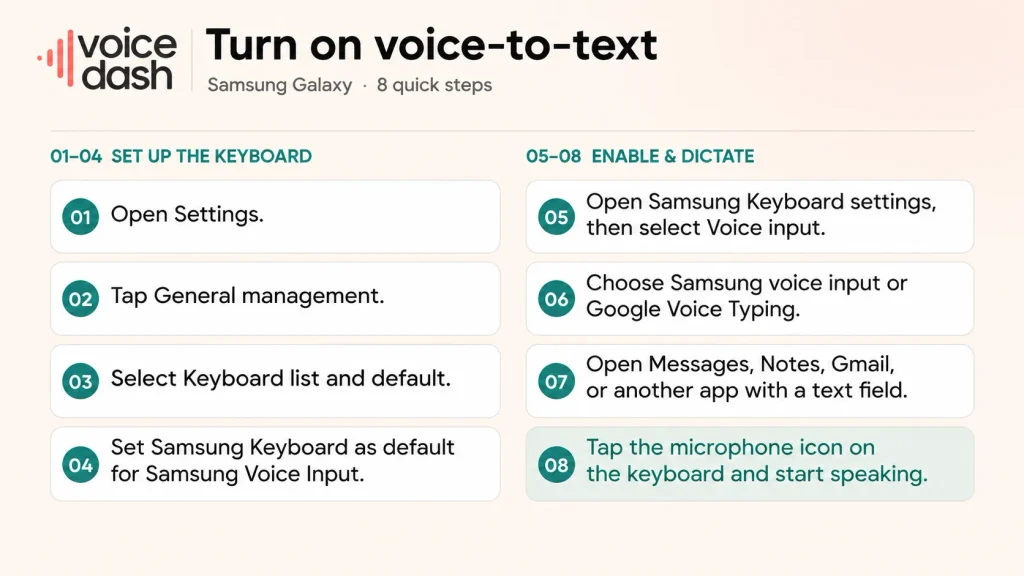
- Open Settings.
- Tap General management.
- Select Keyboard list and default.
- Make sure Samsung Keyboard is your default keyboard if you want Samsung Voice Input.
- Open Samsung Keyboard settings and select Voice input.
- Choose Samsung voice input or Google Voice Typing.
- Open Messages, Notes, Gmail, or another app with a text field.
- Tap the microphone icon on the keyboard and start speaking.
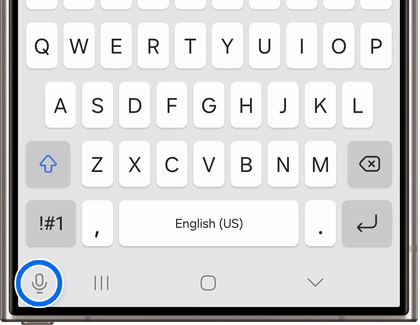
Your words should appear in the text field while voice input is active. On some Galaxy devices, the microphone appears at the lower-left edge of the keyboard or navigation area rather than on the main toolbar.
Samsung voice typing settings at a glance
| What you want to do | Where to find it |
|---|---|
| Enable Samsung Voice Input | Settings > General management > Samsung Keyboard settings > Voice input |
| Enable Google Voice Typing | Settings > General management > Keyboard list and default |
| Choose the active voice engine | Samsung Keyboard settings > Voice input |
| Restore the lower keyboard control | Keyboard list and default > Keyboard button on navigation bar |
| Change voice-input language | Samsung Keyboard settings > Voice input |
| Start dictating | Open a text field and tap the keyboard microphone |
Menu labels can differ slightly by device, software version, and region.
What Is Samsung Voice Typing?
Samsung voice typing is a free speech to text feature so that you can dictate messages, emails, notes, and other text directly into an app.
Instead of using the on-screen keyboard, you speak into your phone’s microphone while a voice-input service converts your speech into text.
Samsung Galaxy phones offer two main voice-input services through Samsung Keyboard:
- Samsung Voice Input: Samsung’s own speech-to-text service, available when using Samsung Keyboard.
- Google Voice Typing: Google’s speech-input service, which can also be selected inside Samsung Keyboard settings.
There is also Gboard, Google’s separate keyboard app. It has its own microphone button and voice-typing interface.
These options are related, but they are not identical.
Voice typing is useful for everyday activities such as replying to WhatsApp messages, drafting emails, writing Samsung Notes, entering search queries, and preparing text in Google Docs.
It is different from recording an audio message. Voice typing produces editable text in the current field, while an audio recorder saves spoken audio for playback or later transcription.
For instructions covering other Android brands, see our guide to enabling voice typing on Android.
How to Enable Voice Typing on Samsung Keyboard
The most reliable starting point is Samsung’s keyboard settings. You do not need to install a separate app to use Samsung Voice Input.
Step 1: Open General Management
Open the Settings app on your Samsung Galaxy phone.
Scroll down and select:
Settings > General management
This area includes keyboard, language, and input options.
Step 2: Check Your Default Keyboard
Tap Keyboard list and default, then open Default keyboard.
Select Samsung Keyboard if you want to use Samsung Voice Input.
This matters because Samsung Voice Input is specifically designed to work with Samsung Keyboard. If you are using Gboard or another keyboard, its dictation controls may be different.
Step 3: Enable Your Preferred Voice Input
Open Samsung Keyboard settings, then select Voice input.
Depending on your device, you may see:
- Samsung voice input
- Google Voice Typing
- None
Choose the service you want to use.
If Google Voice Typing is unavailable, return to Keyboard list and default and check whether its switch is enabled.
Step 4: Check the Microphone Location
Open an app where you can type and tap a text field.
The Samsung Keyboard should appear.
Look for the microphone icon in the keyboard toolbar or near the lower-left keyboard/navigation area.
If you cannot find it, check the Keyboard button on navigation bar setting, explained in the next section.
Step 5: Start Speaking
Tap the microphone and begin dictating.
For example, you could say:
“Hi Alex, I reviewed the document and will send my feedback tomorrow morning.”
The phone converts your speech into text that you can review and edit before sending.
For longer messages, speak in manageable sections rather than trying to dictate everything in one uninterrupted sentence.
Where Did the Voice-to-Text Button Go on Samsung Keyboard?
If the Samsung keyboard microphone has disappeared, it may have moved rather than been removed.
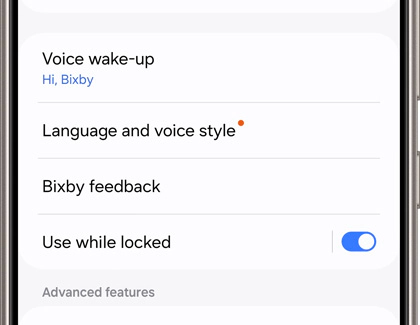
On some newer Galaxy interfaces, the voice-input control appears near the bottom-left keyboard or navigation area. Users accustomed to seeing it on the keyboard toolbar can easily overlook the new location.
Fix 1: Enable the Keyboard Button on Navigation Bar
- Open Settings.
- Select General management.
- Tap Keyboard list and default.
- Find the Keyboard button on navigation bar.
- Enable the option if available.
- Reopen an app with a text field.
Look near the bottom-left area of the keyboard.
If a keyboard-selection icon appears instead of a microphone, try touching and holding it to see whether Voice input is an available option.
Fix 2: Check Samsung Keyboard Voice Input
Go to:
Settings > General management > Samsung Keyboard settings > Voice input
Make sure Samsung voice input or Google Voice Typing is selected.
If voice input is set to None, select an available service.
Fix 3: Look for a Voice Input Shortcut
Some Samsung Keyboard versions allow you to assign voice input to a touch-and-hold gesture on the spacebar.
Check Samsung Keyboard settings under options such as Swipe, touch, and feedback.
If your version offers Touch and hold spacebar > Voice input, you can use that shortcut to start dictating.
This option is not available on every Galaxy model or One UI version.
What if the Microphone Still Does Not Appear?
Try opening a different app, such as Samsung Notes or Messages, to see whether the problem is specific to one text field.
If the keyboard itself is not a Samsung Keyboard, switch to the correct keyboard or use the voice-input controls provided by your current keyboard app.
How to Enable Google Voice Typing on Samsung
You can use Google’s speech recognition without switching away from Samsung Keyboard.
Method 1: Use Google Voice Typing with Samsung Keyboard
- Open Settings.
- Go to General management.
- Select Keyboard list and default.
- Enable Google Voice Typing if the switch is available.
- Open Samsung Keyboard settings.
- Tap Voice input.
- Choose Google Voice Typing.
Then open an app with a text field and tap the microphone.
This lets you keep the Samsung Keyboard interface while using Google’s voice-input service.
Method 2: Use Gboard Instead
If you prefer Google’s complete keyboard experience, install or enable Gboard:
- Open an app such as Gmail or Google Keep.
- Tap an editable text field.
- Tap the microphone near the top of Gboard.
- Wait for the voice-typing prompt.
- Speak the text you want to enter.
Gboard voice typing supports multiple languages, but speech recognition and command availability vary by language and device.
You do not need to use both keyboards. Choose the setup that works more reliably for your writing habits.
Samsung Voice Input vs Google Voice Typing: What’s the Difference?
Both services convert speech into text, but they differ in keyboard integration, available controls, and language settings.
| Feature | Samsung Voice Input | Google Voice Typing |
|---|---|---|
| Speech-to-text dictation | Yes | Yes |
| Available through Samsung Keyboard | Yes | Yes |
| Requires Samsung Keyboard | Yes | No, also available through Gboard |
| Integration | Samsung’s native input service | Google’s voice-input service |
| Language support | Depends on Samsung service and device | Depends on Google service and device |
| Offline options | Supported language packs on eligible configurations | Varies by feature, device, and language |
| Best starting point | Users who prefer Samsung’s input service | Users who prefer Google’s dictation workflow |
How to Use Voice to Text in Different Samsung Apps
Once voice typing is enabled, you can use it in many apps that accept keyboard input.
The workflow is usually the same: open a text field, activate the keyboard microphone, dictate, and review the result.
Messages and WhatsApp
- Open an existing conversation or start a new one.
- Tap the message field, then tap the keyboard’s microphone icon.
- Speak your message and check the resulting text before sending.
- Be careful not to confuse the keyboard microphone with WhatsApp’s audio-message button.
- The keyboard microphone produces written text. WhatsApp’s recording button sends audio.
Do not miss out to read How to Use Voice Typing in WhatsApp!
Gmail and Outlook
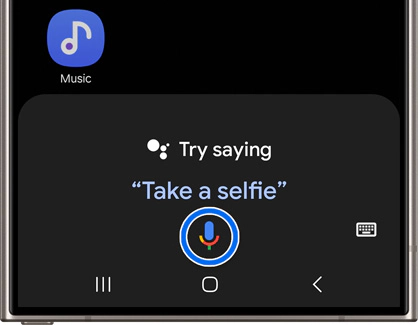
Voice typing can be useful when you need to draft an email without typing every sentence.
Start by speaking the main message naturally. Then review the subject, names, dates, and any important details.
For example:
“Hi Sarah, I checked the latest proposal and the budget looks reasonable. I have two questions about the delivery timeline. Can we discuss them tomorrow?”
After dictation, add paragraphs and correct any terminology the recognition service missed. A useful habit is to separate drafting from editing. Focus on getting your thoughts into the text field first, then refine the result.
Dictate Email for free with voicedash
Samsung Notes
Samsung Notes is useful for capturing ideas, planning tasks, creating outlines, and writing quick reminders.
- Open a note, select the editing area, and activate the keyboard microphone.
- You can dictate a rough outline for an article, a shopping list, or notes for an upcoming meeting.
- If you need to preserve the original audio, use a recording feature instead of relying only on keyboard dictation.
Google Docs
You can dictate into editable fields in the Google Docs Android app using your active keyboard’s voice-input service.
This is useful for rough drafts, outlines, and quick revisions.
For longer documents, however, typing the words may be only one part of the work. You may also need to rearrange sections, shorten paragraphs, or change formatting.
If your writing continues across mobile and desktop, a tool such as VoiceDash can provide a consistent live voice-to-text workflow on Android, iOS, Mac, and Windows. Its command mode also supports editing and formatting text by voice.
For browser-specific workflows, see our comparison of speech-to-text extensions for Chrome.
How to Convert an Audio Recording to Text on Samsung
Live voice typing and audio-file transcription are different tasks.
Samsung Keyboard voice typing listens while you speak and enters text into the currently selected field. It is not designed to import an existing audio recording.
You can also convert your audio into clear, accurate text effortlessly with VoiceDash. Try Free Audio to Text
If you already recorded a meeting, interview, or voice memo, look for a transcription feature that supports saved audio. On compatible Galaxy devices, Samsung’s Voice Recorder app includes Transcript Assist. To use it:
- Open Samsung Voice Recorder.
- Select a recording.
- Tap Transcript assist if available.
- Choose Transcribe.
- Review the transcript and share or copy the text as needed.
This feature is available only on supported Galaxy devices and software versions, and supported languages vary. For a live message, use keyboard dictation. For an existing audio file, use an appropriate recording-transcription tool.
Turn Every Meeting into Actionable Insights. Capture key discussions, summarize important decisions, and identify next steps with VoiceDash AI-powered meeting summaries. Explore VoiceDash Meeting Summary
Samsung Keyboard Voice Typing Not Working? Try These Fixes
If Samsung voice typing suddenly stops working, start with the basic settings before changing unrelated phone options. A missing microphone, a disabled voice engine, and inaccurate recognition can have different causes.
Common Samsung Voice Typing Mistakes
Some dictation problems come from workflow confusion rather than a broken feature.
- Tapping the wrong microphone: Messaging apps may have an audio-recording button separate from the keyboard’s speech-to-text microphone.
- Using the wrong keyboard: Samsung Voice Input requires Samsung Keyboard. Gboard uses a different interface.
- Assuming the microphone was removed: The icon may have moved to the lower keyboard or navigation area after an interface change.
- Expecting every language to behave the same: Voice recognition, punctuation commands, and offline availability differ by service and language.
- Skipping the final review: Even a good transcript may contain mistakes in names, numbers, punctuation, or formatting.
Recognizing these differences can save more time than repeatedly switching settings.
| Problem | What to check first |
|---|---|
| Microphone icon missing | Keyboard button on navigation bar and microphone location |
| Samsung Voice Input unavailable | Confirm Samsung Keyboard is selected |
| Google Voice Typing greyed out | Google Voice Typing toggle and active input configuration |
| Microphone opens but no text appears | Permissions, listening state, and a different editable field |
| Wrong language appears | Selected voice-input language |
| Punctuation not working | Supported commands and language |
| Voice typing works in one app only | App-specific text-field compatibility |
| Feature stopped working after an update | Keyboard selection, voice-input settings, and app updates |
Fix 1: Confirm the Active Keyboard
Open:
Settings > General management > Keyboard list and default
Check which keyboard is currently selected.
If you are trying to use Samsung Voice Input, make sure Samsung Keyboard is active.
If you use Gboard, use Gboard’s microphone and settings instead.
Fix 2: Recheck Voice Input Settings
Open Samsung Keyboard settings and select Voice input.
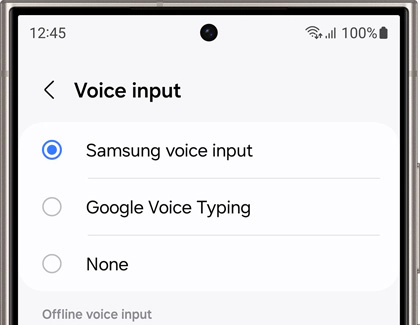
Confirm that your preferred service is selected.
If you use Google Voice Typing, check whether the corresponding Google Voice Typing option is enabled under Keyboard list and default.
You may need to reopen the keyboard after making changes.
Fix 3: Check Microphone Permissions
Voice typing needs microphone access.
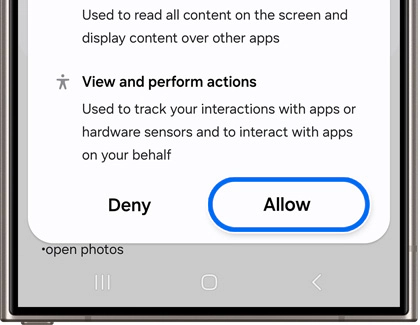
If Android displays a microphone-permission prompt, allow access when appropriate.
If you previously denied permission, open Settings > Apps, find the relevant keyboard or voice-input app, and review its permissions if that option is available.
Also check whether microphone access has been disabled through your device’s privacy controls.
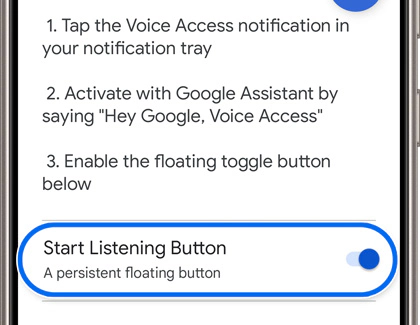
The exact location of these controls varies by Android and One UI version.
Fix 4: Match the Voice Input Language
If your Samsung keyboard produces words in the wrong language, check the language selected for voice input.
Go to:
Samsung Keyboard settings > Voice input
Choose the appropriate language where supported.
Samsung also documents offline voice-input language packs for supported languages and configurations.
Do not assume that every available language supports offline dictation.
Fix 5: Update the Relevant Apps
If the problem started after a software update, check for available updates to Samsung Keyboard, Gboard, the Google app, or relevant speech-input components.
Then restart the phone and test dictation in a simple app.
An update may resolve a compatibility issue, but it is not a guaranteed fix for every missing-microphone or greyed-out-setting problem.
Fix 6: Test a Different App
Open Samsung Notes or Messages.
Tap an editable text field and try voice typing.
If dictation works in one app but not another, the issue may involve the original app’s text field or permissions rather than your phone’s voice-input service.
This test helps narrow down the problem before you reset settings or reinstall apps.
Google Voice Typing Not Working on Samsung
Toggle Google Voice Typing Off and Back On
Go to:
Settings → General management → Keyboard list and default
Disable and re-enable:
Google Voice Typing
Download Offline Language Packs
Go to:
Google Voice Typing settings
Download your preferred language pack.
This improves:
- reliability
- speed
- offline performance
Disable Battery Optimization
Samsung battery optimization sometimes interferes with speech recognition.
Go to:
Settings → Battery → Background usage limits
Exclude:
- Google app
- Speech Services by Google
Why Is Google Voice Typing Greyed Out on Samsung?
Start by checking the Google Voice Typing toggle under Keyboard list and default.
Then confirm that Google Voice Typing is selected inside Samsung Keyboard’s Voice input settings.
The Keyboard button on navigation bar setting can help restore a missing input control, but it should not be treated as a guaranteed solution for every greyed-out voice-typing option.
If Google Voice Typing remains unavailable, check software updates and test Gboard separately to determine whether the problem affects the Google speech service or the Samsung Keyboard integration.
How to Improve Samsung Voice Typing Accuracy
A few practical adjustments can make dictation more reliable without changing your keyboard or buying additional hardware.
Speak at a Natural Pace
Speaking too quickly or running sentences together can make some words harder to recognize.
Aim for a steady conversational pace, especially when dictating names, dates, addresses, and technical terms.
You do not need to exaggerate every syllable. Clear, consistent speech is more useful than speaking unnaturally slowly.
Reduce Background Noise
Background conversations, television audio, wind, and other noise can interfere with speech recognition.
For important dictation, move to a quieter environment or try a headset microphone that captures your voice clearly.
A better microphone may help in noisy conditions, but it will not solve every language or software-related recognition problem.
Use Voice Punctuation Commands
Gboard supports spoken punctuation commands in supported languages.
| Say this | Intended result |
|---|---|
| Period / Full stop | . |
| Comma | , |
| Question mark | ? |
| Exclamation point | ! |
| New line | Moves to a new line |
| New paragraph | Starts a new paragraph |
For example, you could dictate: “Please review the report comma and send your feedback tomorrow period”
The intended result is: “Please review the report, and send your feedback tomorrow.”
Command support varies by language and voice-input service. Test the commands on your own device before relying on them for longer documents.
Review Important Details
Voice typing can misrecognize proper names, uncommon words, numbers, and abbreviations.
Before sending a professional email or saving important notes, check those details manually.
The goal is not a perfect first transcript. It is to finish the writing task accurately with less effort.
Dictate in Smaller Sections
For longer messages, pause between ideas and review the text periodically.
This makes it easier to spot mistakes while the original meaning is still fresh in your mind.
It also gives you natural opportunities to add paragraph breaks and improve readability.
Consider Privacy Before Dictating Sensitive Information
The privacy and processing behavior of voice typing can depend on the selected service, device, settings, and features.
Before dictating confidential client information, medical details, passwords, or other sensitive content, review the relevant service’s privacy documentation and your organization’s policies.
Do not assume that all speech-input tools process audio entirely on your device.
Want to Get More Out of Voice Typing? Explore our complete guide on how to use voice to text to learn practical dictation techniques for Android, iPhone, Windows, and Mac.
When Samsung Voice Typing Isn’t Enough
Samsung’s built-in dictation is a practical solution for quick mobile communication.
It is often all you need for short messages, search queries, simple notes, and occasional emails.
The limitations become more noticeable when voice input is central to your work rather than an occasional convenience.
For example, you might regularly:
- Draft longer emails and documents.
- Move between a Samsung phone and a Windows or Mac computer.
- Write in multiple applications throughout the day.
- Edit paragraphs after dictating them.
- Reformat spoken ideas into structured text.
In those situations, the challenge is not only recognizing your speech. It is also managing what happens to the text afterward.
Built-In Samsung Dictation vs a Cross-Platform Voice Writing Tool
| Workflow | Built-in Samsung voice typing | VoiceDash |
|---|---|---|
| Quick text messages | Suitable | Supported as part of live dictation |
| Dictation on a Galaxy phone | Yes | Yes |
| Writing across Android, iOS, Mac, and Windows | Depends on separate tools on each platform | One cross-platform product |
| Writing in editable app fields | Through the active mobile keyboard | Designed for active text fields |
| Editing and formatting text by voice | Depends on service and available commands | Command Mode |
| Occasional mobile dictation | Usually sufficient | Often unnecessary |
| Frequent cross-device writing | May require different workflows | A more relevant use case |
VoiceDash focuses on live dictation wherever there is an active text cursor, including emails, documents, browser forms, notes, and chat fields. Its Command Mode can also help users revise or format text through spoken instructions.
That does not mean everyone needs a dedicated AI dictation tool.
If Samsung Keyboard already handles your messages and notes effectively, there may be no reason to change.
If you repeatedly move between devices or spend significant time editing dictated text, a broader voice-writing workflow becomes more useful.
For an overview of the category, see our guide to real-time transcription software.
Bottom Line
Using voice to text on Samsung is straightforward once you know where the input settings and microphone controls are located.
Start with:
Settings > General management > Keyboard list and default > Samsung Keyboard > Voice input
Choose Samsung Voice Input or Google Voice Typing, then use the microphone in an editable text field.
If the microphone is missing, check the keyboard/navigation area and the related visibility setting before attempting more complicated fixes.
For everyday messages and short notes, Samsung’s built-in tools are often enough.
For users who regularly write and edit across multiple devices, VoiceDash offers a separate approach built around live dictation and voice-controlled text editing.
The best voice-to-text workflow is the one that helps you finish your writing accurately without adding unnecessary steps.
Use VoiceDash Anywhere You Write
