
- Start here: match your symptom to the next check
- Before you troubleshoot: isolate the problem
- Windows voice typing not working
- Mac dictation not working
- iPhone speech-to-text not working
- Android voice typing not working
- Samsung Keyboard voice input not working
- Fix “No permission to enable voice typing” on Android
- Google Docs voice typing not working
- Voice typing not working on another website
- Voice typing hears you but types the wrong words
- Voice typing starts, then stops
- Still not working? Choose the next step
- When to consider VoiceDash
- Frequently Asked Questions
Voice Typing Not Working? Troubleshoot Your Device or App
Voice typing troubleshooting depends on the tool you use. Windows voice typing, Apple Dictation, Gboard, and Google Docs have different settings, even when they use the same microphone.
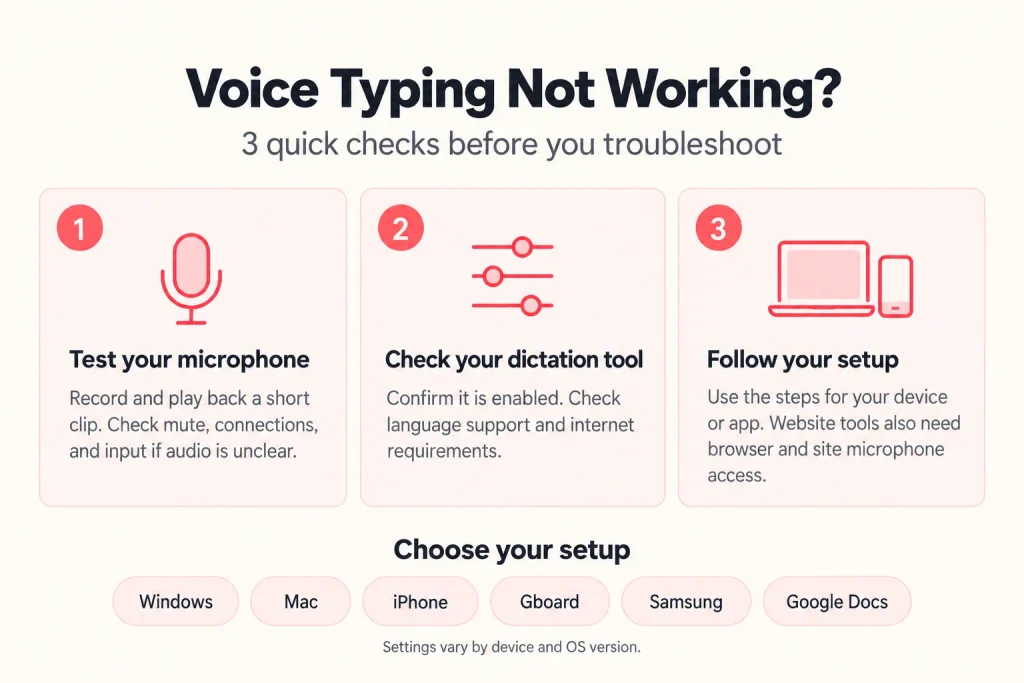
Quick Solution to Fix Speech-to-Text:
- Record a short audio clip and play it back. If it is silent or distorted, check mute controls, microphone connections, and the selected input.
- If the recording is clear, identify which dictation tool is failing and check its enablement, language support, and connection requirements.
- Follow the matching section below. A website’s microphone feature also needs access through the browser and site permissions.
Choose your setup: Windows, Mac, iPhone, Android and then Gboard, Samsung, or Google Docs. Settings labels vary by operating system version and device manufacturer. Use the linked support documentation if a setting differs from your screen.
Start here: match your symptom to the next check
| What Is Failing? | Check First | Follow This Path |
|---|---|---|
| Recording is silent or distorted | Mute controls, microphone connection, and input device | Test your microphone |
| Windows + H does not open | An active text field and whether the problem occurs in multiple apps | Windows voice typing |
| The iPhone Dictation button is missing | Enable Dictation, Apple keyboard, and restrictions | iPhone Dictation |
| Gboard’s microphone is missing or inactive | Voice typing enablement and microphone permission | Gboard troubleshooting |
| Gboard shows “No permission to enable voice typing” | Gboard microphone permission | Fix the permission error |
| Google Docs Voice typing is unavailable | Browser, document format, and organization policy | Google Docs troubleshooting |
| Dictation listens but produces no text | Input device, supported language, connection, and text-field focus | Follow your device or app section |
| Text appears but contains incorrect words | Audio quality, language, and specialist vocabulary | Fix inaccurate output |
| Dictation starts, then stops | Listening status, text-field focus, and connection if required | Fix interrupted dictation |
Download VoiceDash
Ready to write by voice? Get VoiceDash for Mac or Windows, and use the iOS or Android app when you’re on the go. Download the desktop and mobile apps to use VoiceDash at your desk and away from it.
Before you troubleshoot: isolate the problem
Before changing settings, identify the dictation tool you are using and check whether your microphone records clearly. These checks help you choose the right troubleshooting path: audio input, dictation settings, or a specific app.+
Test your microphone
Record a sentence using Sound Recorder on Windows, Voice Memos on Mac or iPhone, or your Android recording app. Play it back.
If the recording is silent or distorted, check physical mute switches, headset controls, microphone connections, and the selected input. Disconnect Bluetooth audio devices and repeat the test with the built-in microphone.
A clear recording confirms that one recording path works. Your dictation tool may still use a different input or lack the access it needs.
Identify the dictation tool
Are you using Windows + H, Apple Dictation, Gboard, Google Docs Tools > Voice typing, or another app?
Dictating into a browser with Windows + H is different from using the website’s own microphone button. Follow the settings for the tool that is actually failing.
Test a simple text field
Try the same dictation tool in Notepad on Windows, Notes on Apple devices, or a note-taking app on Android.
If it works there, focus on the original app or text field. For Google Docs’ own Voice typing, test a new Google document in a supported browser.
Check language support
- Select a language supported by the specific dictation tool. A language being available on your device does not mean every voice feature supports it.
- Continue with your platform section if recording works but dictation still fails.
Windows voice typing not working
These settings are for Windows 11 voice typing, started with Windows + H. Windows 10 dictation has different settings and supported features.
Windows voice typing requires internet access. Connect, open Notepad, click inside the document, and press Windows + H.
Windows + H does not open voice typing
- Try the shortcut in Notepad and another editable text field.
- If it fails everywhere, restart Windows and repeat the test. On a managed PC, ask your administrator whether voice typing is restricted.
- If the panel opens but does not transcribe, continue below.
Voice typing needs microphone access
- Open Start > Settings > Privacy & security > Microphone and turn on Microphone access. Test Windows + H again.
- If you are using a separate dictation app or website microphone feature, check the applicable app or desktop-app permissions too. Those are different recording paths.
Voice typing opens but cannot hear you
- Open Settings > System > Sound > Input and select the intended microphone.
- Speak and check the input level. If it does not respond, check mute controls and the connection, then try another microphone.
If recording also fails, use Windows’ microphone or audio troubleshooting options and investigate the device driver.
- Voice typing is unavailable in the current language
- Press Windows + Spacebar and select a supported input language.
- To add a language, open Settings > Time & language > Language & region > Add a language.
- Optional language features such as Speech recognition are not required for Windows 11 voice typing.
Windows + H works in Notepad but not another app
Test the same language and dictation method in both apps. If it works in Notepad, investigate the other app’s text-field compatibility. Website microphone permissions are relevant when using the website’s own voice feature, not simply because the destination is a browser.
Recording works, but voice typing still produces no text
Confirm internet access and supported input language, restart Windows, and test again in Notepad. Record the exact error before contacting support.
For Word-specific workflows, you can also read how to use voice to text in Word.
Mac dictation not working
First confirm whether you are using built-in macOS Dictation or a website’s own voice feature. Their settings differ.
The Dictation shortcut does nothing
- Open Apple menu > System Settings > Keyboard, find Dictation, and confirm that it is enabled.
- Check the configured shortcut. Open Notes, click inside a note, and use that shortcut to test.
- If Dictation is already enabled, turn it off and back on, then repeat the test.
Check whether Voice Control is enabled
Open System Settings > Accessibility > Voice Control.
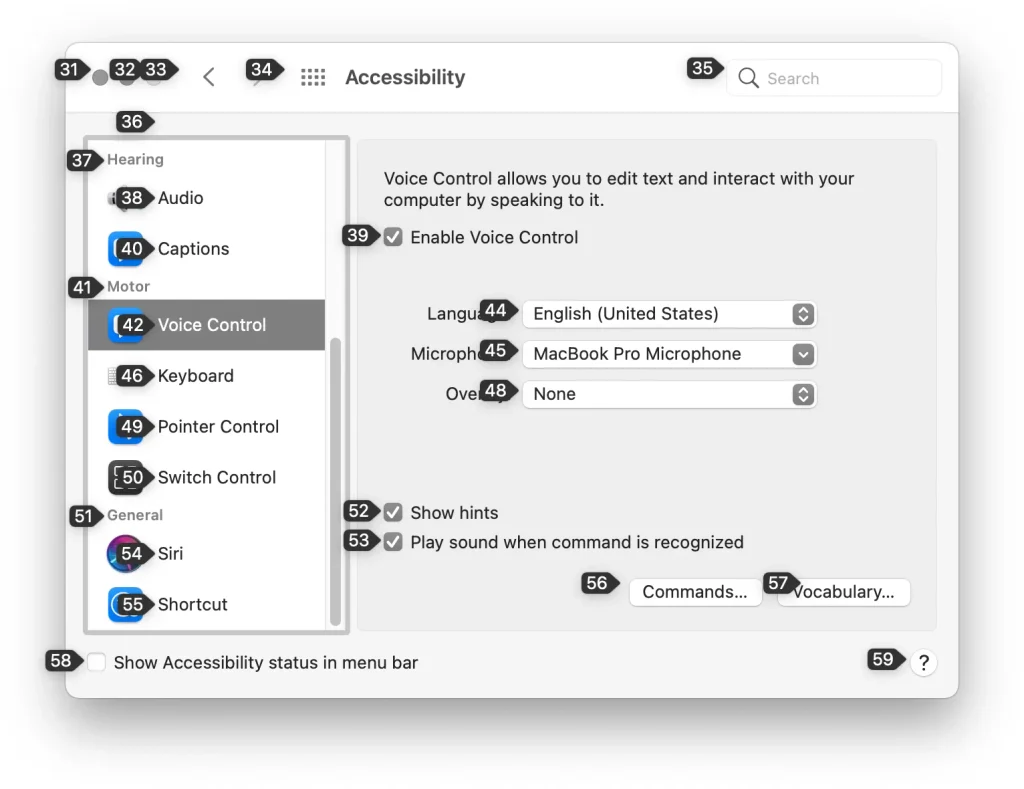
When Voice Control is enabled, standard macOS Dictation is unavailable. Dictate through Voice Control, or turn it off if you want to use standard Dictation.
Dictation cannot hear you
- In System Settings > Keyboard > Dictation, check Microphone source and select the intended microphone.
- Test a recording with that microphone. Disconnect Bluetooth devices temporarily if the selected input is unclear.
Dictation uses the wrong language
- In Keyboard settings, find Dictation’s language options and select the language and region you need.
- Availability and features vary by language and region. Check Apple’s supported features rather than assuming every installed keyboard language supports Dictation.
Dictation works in Notes but not another app
- Use the same shortcut, microphone, and language in both apps. If Notes works, investigate the original app’s editable field and support guidance.
- If you are using a website’s microphone button, check browser and website microphone permissions instead.
Dictation still fails
Restart the Mac and repeat the test in Notes. If recording also fails, investigate the microphone or audio input. If only Dictation fails, record your macOS version, language, and symptoms before contacting Apple Support.
For setup details, how to use speech to text on Mac can help you.
iPhone speech-to-text not working
For Apple keyboard Dictation, start with keyboard settings and restrictions. Microphone permissions for a separate recording app are a different check.
Enable Dictation
- Open Settings > General > Keyboard and turn on Enable Dictation.
- If it is already enabled, turn it off and back on, then test in Notes.
The Dictation microphone is missing
- In Notes, touch and hold the Globe or keyboard-switch key and choose an Apple keyboard.
- If needed, add one through Settings > General > Keyboard > Keyboards > Add New Keyboard.
- Check that Dictation supports the selected language. If Enable Dictation is unavailable or locked, investigate restrictions.
Check parental controls or device management
- Check Screen Time or parental controls for restrictions affecting Siri and Dictation. Labels and locations differ by iOS version and parental-control setup.
- On a work or school iPhone, ask the administrator whether device management restricts dictation.
Dictation cannot hear you
- Record a short clip in Voice Memos. If it is silent or distorted, disconnect Bluetooth devices, check for an obstructed microphone, and repeat the test.
- A clear recording confirms one audio path works; it does not rule out a Dictation setting or restriction.
Text appears in the wrong language
Select the appropriate keyboard language and confirm Dictation availability for it. Test a short sentence before returning to the original app.
Dictation still fails
Restart the iPhone and test again in Notes with an Apple keyboard. Note the iOS version, language, and whether the problem occurs in multiple apps before contacting support.
For setup details, don’t miss to read Voice to Text on iPhone.
Android voice typing not working
First identify your active keyboard. Gboard and Samsung Keyboard use different settings, and ordinary voice typing differs from advanced voice typing on supported devices.
Gboard’s microphone is missing or inactive
- Open an app where you can type. In Gboard, open Settings > Voice typing and enable voice typing.
- Return to the text field and test the keyboard microphone.
Gboard cannot access the microphone
Open Settings > Apps > Gboard > Permissions > Microphone and choose Allow only while using the app, or the equivalent option.
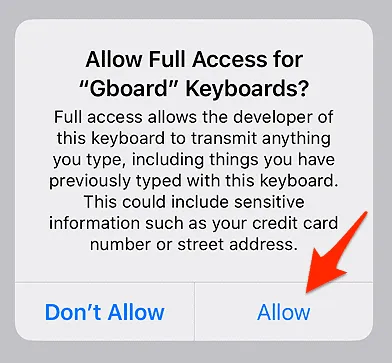
If the option is locked, check device or work-profile restrictions.
Gboard voice typing still fails
- Update Gboard through Google Play and restart the phone.
- If the problem remains, open Settings > Apps > Gboard > Storage & cache > Clear cache.
- Avoid clearing storage or data as an early step; it can reset keyboard preferences and learned information.
Advanced voice typing is unavailable
- If you use advanced voice typing on a supported Pixel device, check Google’s requirements for device support, languages, and software updates.
- Do not assume ordinary Gboard voice typing and advanced voice typing have the same requirements.
Samsung Keyboard voice input not working
- Confirm whether Samsung Keyboard or Gboard is active.
- On Samsung devices, check Settings > General management > Keyboard list and default, then open Samsung Keyboard settings and look for the available voice-input options.
- Choose the intended provider and test in Samsung Notes. Menu labels and available providers vary by model and One UI version.
Also check How to Enable Voice Typing on Samsung out for the setup walkthrough.
Fix “No permission to enable voice typing” on Android
When this error appears in Gboard:
- Open Settings > Apps > Gboard > Permissions > Microphone.
- Allow microphone access while using the app.
- Confirm that voice typing is enabled in Gboard settings.
- Return to a note and test the keyboard microphone.
- If permission cannot be changed, ask the device or work-profile administrator about restrictions.
- If permission is allowed but the error remains, follow the update, restart, and cache steps in the Android section above.
Avoid resetting all app preferences before completing these checks. A broad reset can affect settings beyond voice typing.
Google Docs voice typing not working
These checks apply to Tools > Voice typing inside Google Docs. Using Windows + H or Apple Dictation to enter text in Docs is a separate workflow.
Voice typing is missing or unavailable
Use the latest Chrome, Edge, or Safari. Firefox is not listed in Google’s current supported browsers for this feature.
Open a native Google document and check Tools > Voice typing.
- If you are editing a Word file, choose File > Save as Google Docs to create a Google Docs copy, then test there.
- On a work or school account, ask whether your administrator has disabled Voice typing.
The microphone appears but cannot hear you
Open the site controls near the browser’s address bar and allow microphone access for docs.google.com. Reload the document.
In Chrome or Edge, also check the microphone selected in browser settings.
The browser lacks operating system access
On Windows 11, open Settings > Privacy & security > Microphone and check microphone access, including the desktop-app setting applicable to your browser.
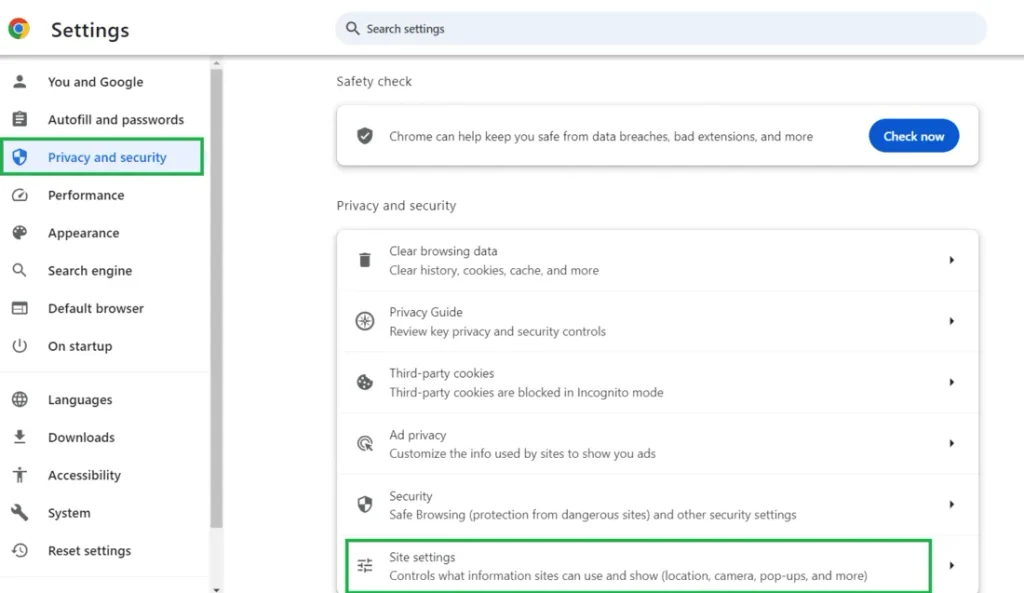
On Mac, open System Settings > Privacy & Security > Microphone and allow the browser.
Reopen the browser after changing permission.
Voice typing works in a clean browser profile only
- Test a new browser profile without extensions.
- If it works there, compare extensions and site permissions with your original profile. Disable suspected extensions one at a time and retest.
- A successful private-window test does not prove that an extension caused the problem; permissions and profile state may also differ.
Voice typing starts but stops
- Check whether the microphone has stopped listening and start it again if needed.
- If the problem repeats, test a new document, refresh the page, and temporarily close other recording or call apps. Note any error message and whether it occurs in another supported browser.
Also read How to Voice Type on Google Docs for setup details.
Voice typing not working on another website
For Google Docs, use the dedicated section above. For other websites:
- Confirm that the website’s voice feature supports your browser.
- Allow microphone access through the website’s site controls.
- Check operating system microphone access for the browser.
- Confirm the selected microphone where the browser offers an input selector.
- Test a clean browser profile without extensions.
If audio recording works but transcription fails, check the website’s supported languages and connection requirements. Receiving audio and recognizing speech are separate steps. Clear the affected website’s stored data only after these checks. This may sign you out or remove local preferences.
Voice typing hears you but types the wrong words
If voice typing is working but the output is inaccurate, the issue is usually not a broken setting. It is usually input quality, language mismatch, background noise, or the limits of basic dictation.
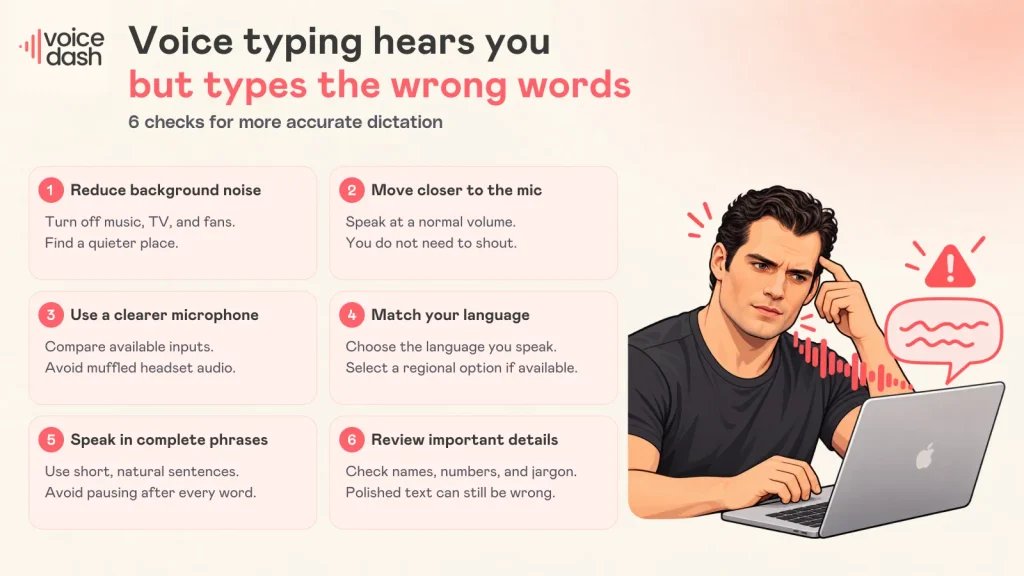
Fix 1: Reduce background noise
- Move to a quieter room.
- Turn off fans, music, TV, and nearby conversations.
- Speech recognition gets worse when it has to separate your voice from background sound.
Fix 2: Move closer to the microphone
- Speak close enough for the microphone to capture your voice clearly.
- You do not need to shout. Speak at a normal pace and volume.
- If you are too far from the mic, voice typing may miss words or invent similar-sounding words.
Fix 3: Use the right microphone
Built-in laptop microphones can be fine in quiet rooms, but they are not always ideal in noisy spaces.
Test:
- internal mic,
- wired headset,
- USB mic,
- phone mic,
- external webcam mic.
Avoid weak Bluetooth microphones if they produce muffled audio.
Fix 4: Match the language and accent settings
Make sure the dictation language matches what you are speaking.
If your tool allows regional variants, choose the closest option.
For example:
- English US,
- English UK,
- English India,
- Spanish Spain,
- Spanish Latin America,
- French France,
- French Canada.
Language mismatch is one of the fastest ways to ruin accuracy.
Fix 5: Speak in phrases, not single words
Voice typing works better with context. Instead of pausing after every word, speak in short complete phrases.
Bad: “Please… send… the… report… tomorrow…”
Better: “Please send the report tomorrow morning after the client meeting.”
Fix 6: Check names, numbers, and specialist terms
If audio is clear and the correct language is selected, review names, numbers, and technical vocabulary manually.
Grammar or punctuation cleanup can make a sentence easier to read, but it does not prove that the original words were recognized correctly. Compare the result with what you intended to say.
Get a Meeting Summary in Minutes! Skip rereading the whole conversation. Paste your transcript or notes into the Free AI Meeting Summary Generator, choose your language and summary length, and review the key topics and decisions. Then copy or download your summary. Try the Free AI Meeting Summary Generator
Voice typing starts, then stops
When dictation stops, check whether the listening indicator turns off, the text field loses focus, or an error appears.
The tool stops after a pause
Some tools end listening after silence. Restart listening and check the documented session behavior for your tool.
The cursor leaves the text field
Click back into the editable field and restart dictation. Test whether the problem occurs in a simple note as well.
The tool reports a connection problem
Check internet access if your tool requires it. Windows voice typing needs a connection; other tools’ requirements depend on their processing method, device, and language.
Another app may be affecting audio access
Temporarily close recording and call apps, then repeat the test. Change one thing at a time so you can identify what affects the result.
An Android problem follows locking or backgrounding
Check battery or background restrictions for the relevant app only when the failure follows that behavior. Restore any setting that does not improve the result.
Record the session length, error message, and conditions that trigger the stop before contacting support.
Still not working? Choose the next step
| Test Result | Next Step |
|---|---|
| Recording is silent or distorted in multiple apps | Investigate the microphone, connection, and input settings; contact the device manufacturer if needed. |
| Recording works but one dictation tool fails | Contact that tool’s support with the exact error and setup details. |
| The same dictation tool works in one app only | Check the failing app’s text-field compatibility and support guidance. |
| Permission or feature settings are locked | Contact the parent, school, or organization administrator. |
| Recognition works but output is inaccurate | Review audio quality, language support, names, and specialist vocabulary. |
Before contacting support, collect your device model, operating system version, dictation tool, language, exact error, and the tests you have completed.
When to consider VoiceDash
If dictation works but your writing workflow still requires frequent copying, switching, or editing, you may want a dedicated voice-typing app.
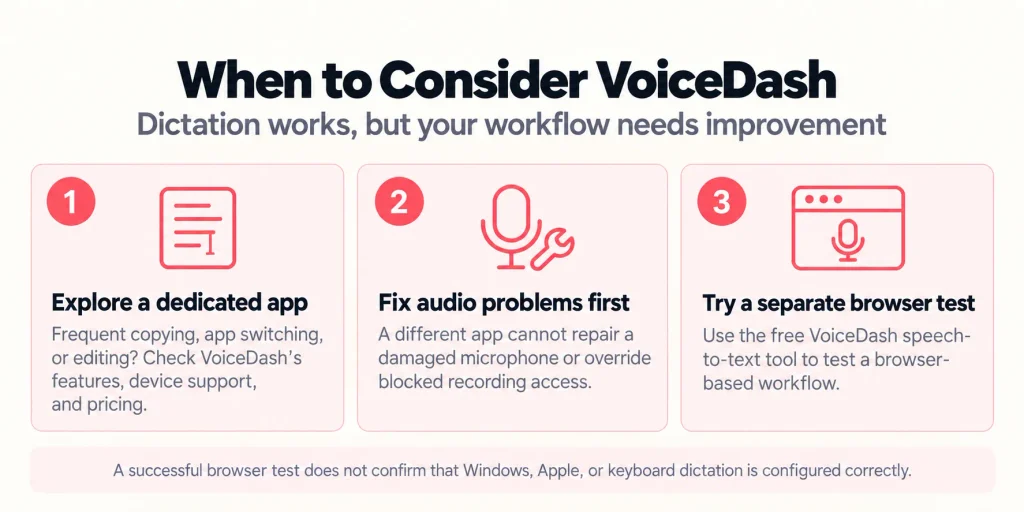
VoiceDash is an option to evaluate. Check its current features, device support, and pricing before choosing a plan. A different app cannot repair damaged microphone hardware or override blocked recording access.
You can try the VoiceDash free speech-to-text tool as a separate browser test. Success there does not confirm that Windows, Apple, or keyboard dictation is configured correctly.
