
- TL;DR
- Firefox Speech to Text Options at a Glance
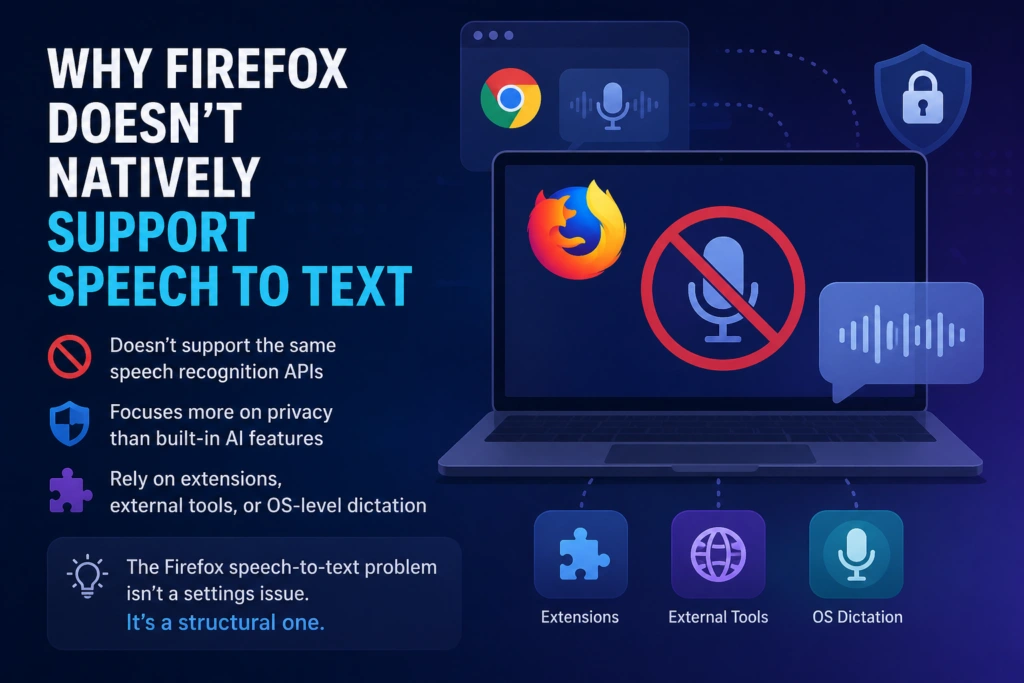
- Why Firefox Doesn’t Natively Support Speech to Text
- How to Use Voice Typing in Firefox
- The Best Speech to Text Extensions for Firefox
- Why Firefox Speech to Text Extensions Still Fall Short
- Beyond Browser Limits: How VoiceDash Works Where Every Extension Fails
- Conclusion
- FAQs
- Frequently Asked Questions About Firefox Speech to Text
Firefox Speech to Text: Best Extensions & Smarter Alternative
Let’s be honest, the main reason you’re searching for the best Firefox speech to text extensions right now is because speed matters when it comes to your daily work tasks, am I right?
Every email, every support reply, and every idea you lose while switching tabs is a small leak in your productivity. So you try extensions, plugins, and voice typing tools in Firefox, expecting a simple fix. But instead, you get something frustratingly familiar: messy transcripts, broken formatting, and tools that still force you to stop and clean things up before you can actually use the output.
In this guide, we’ll break down the best speech to text extensions for Firefox you can try, why native dictation support is so limited, and why a smarter workflow with VoiceDash can save you from the usual browser drama.
TL;DR
If you just want the quick answer:
- Firefox doesn’t natively support reliable speech-to-text
- Extensions can help, but they come with limitations
- Most tools transcribe—but don’t produce clean, usable text
- The real bottleneck is not dictation—it’s editing and workflow friction
- VoiceDash solves this by turning speech into polished text across all apps
Now, let’s break it down visually so you can decide faster.
Firefox Speech to Text Options at a Glance
| Option | Works in Firefox | Output Quality | Ease of Use | Best For | Limitations |
| Transkriptor | ✅ Yes | High (for transcripts) | Medium | Long recordings, notes | Not ideal for real-time typing |
| Voice-to-Text Assistant | ✅ Yes | Medium | Easy | Quick dictation | Needs cleanup, limited features |
| Speechfire | ✅ Yes | Medium | Medium | Browser-based typing | Inconsistent across sites |
| Voice TTSReaderIn | ✅ Yes | Medium | Easy | General web typing | Basic useBuilt for TTS, not dictation |
Why Firefox Doesn’t Natively Support Speech to Text
Here’s something most people don’t realize until they’ve already wasted 30 minutes troubleshooting: Firefox does not implement the Web Speech API by default.
Why?
- It doesn’t support the same speech recognition APIs
- Google keeps voice typing tightly integrated with its own ecosystem, which is why tools built as a speech to text extension for Chrome tend to feel more stable and accurate.
- Firefox focuses more on privacy than built-in AI features
So what does that mean for you? You’re left relying on:
- Extensions and Plugins
- External tools
- Or OS-level dictation
To put it simply, the Firefox speech-to-text problem isn’t a settings issue, but It’s a structural one, and solving it requires the right tools, not more troubleshooting.
How to Use Voice Typing in Firefox
You can easily dictate text in Firefox using the built-in dictation tools on macOS and Windows. On a Mac, enable Dictation in System Settings → Keyboard, then press Fn twice in any text field to start speaking. On Windows, click into a text field and press Windows + H to begin dictation. This allows you to quickly turn your spoken words into text without switching apps or typing manually, saving time and reducing strain.
The Best Speech to Text Extensions for Firefox
Enough context, time to look at the actual options. Here’s a breakdown of the Firefox speech to text extensions most users reach for when they need browser dictation, and what you should know about each one before you install anything.
1- Transkriptor
Transkriptor works best for users who want transcription and dictation combined in a single tool. Keep in mind, though, it doesn’t function like a quick Firefox speech to text extension for browser input. Rather, it’s built for recording-first workflows where transcription is the end goal.

Transkriptor Pros:
- Supports transcription-focused workflows.
- Useful for turning spoken content into text quickly.
- Can be a better fit for longer recordings than basic dictation tools.
Transkriptor Cons:
- May feel like more tools than you need if you only want quick browser typing.
- Still may require extra steps depending on where you’re dictating.
- Browser workflow can feel less seamless than a dedicated voice-first system.
Best For: People who want to turn speech into text for notes, transcripts, or content drafts rather than only short browser inputs.
2- Voice-to-Text Assistant
Voice-to-Text Assistant is the kind of extension people install when they want simple browser dictation without too much setup. It fits the classic “just let me speak and type” use case.

Voice-to-Text Assistant Pros:
- Easy to understand and usually beginner-friendly.
- Good for quick typing help in browser fields.
- Can be handy for short bursts of dictation.
Voice-to-Text Assistant Cons:
- May not handle complex workflows very well.
- Accuracy and formatting can vary depending on the site.
- Often more limited than a full productivity tool.
Best For: Users who want a lightweight Firefox speech to text extension for casual dictation and basic typing help.
3- Speechfire
Speechfire is another Firefox speech to text plugin that appeals to users who want a browser-native feel. It’s usually the kind of tool people try when they want quick voice input without leaving Firefox.

Speechfire Pros:
- Browser-focused and convenient.
- Good for direct dictation into web forms.
- Can reduce repetitive keyboard typing.
Speechfire Cons:
- May not be consistent across all websites.
- Editing is still often needed after dictation.
- Not always ideal for longer, more structured content.
Best For: People who mostly want to speak into forms, notes, or online editors while staying inside Firefox.
4- TTSReader
TTSReader is the Firefox text to speech extension people reach for when they want zero friction upfront. No account, no signup, no configuration required.
Just open it and go. It’s not the most feature-rich option on this list, but for users who want something lightweight and immediately usable, that simplicity is exactly the point.
TTSReader Pros:
- No account or registration required, open it and start immediately.
- Clean, simple interface that doesn’t require any learning curve to navigate.
- Works directly in the browser without a complicated installation process.
TTSReader Cons:
- Limited functionality for users who need real-time voice input across different platforms and apps.
- Not a strong fit for any workflow that goes beyond basic, occasional browser use.
Best For: Users who occasionally need browser-based text read back to them rather than a full Firefox speech to text extension for active dictation and voice input throughout their workday.

Why Firefox Speech to Text Extensions Still Fall Short
Believe it or not, the real problem is not whether an extension works. The bigger issue is that most browser dictation tools only solve the first part of the job.
Once you test a few of them, a pattern starts to show: they’re solving the wrong problem. They can capture words, sure, but they often get stuck inside their own little browser popup instead of helping you work where your actual tasks live.
You still end up dealing with:
- Editing awkward phrasing.
- Cleaning up filler words and messy output.
- Switching between tabs, docs, and apps.
- Starting the same voice input process all over again.
That’s why even solid Firefox speech to text extensions can feel more like a patch than a real workflow. They help you speak faster, but they do not always help you produce usable text faster.
Additionally, it’s completely safe to argue that they’re trapped in the browser interface.
What I’m trying to mention is that, most Firefox speech to text extensions transcribe into their own interface, and that’s not where your work happens. Your real work is in Gmail, Notion, Jira, HubSpot, Slack, your CRM, or your support desk.
Prot tip: If you’re specifically focused on Apple devices, you might also want to explore the Best Dictation Software for Mac to compare native and third-party options.
Beyond Browser Limits: How VoiceDash Works Where Every Extension Fails
Here’s where the story changes. Once you’ve used a few Firefox speech to text extensions, the pattern is hard to ignore: they help you dictate, but they rarely help you finish the job.
VoiceDash is built for the part those tools keep missing. Instead of trapping you inside a browser popup, it fits into the places where your work actually happens, so you can move from speaking to usable text without the usual stop-and-start routine. Here’s the main benefits of voiceDash:
- VoiceDash works across all major devices and various operating systems
In contrast to the majority of platforms that are totally incapable of being responsive across different operating systems, it is designed to serve you well on Android, iOS, Windows, macOS, and even Linux. So regardless of your OS, you can have the assurance that it will work seamlessly for you.
- Filler word elimination and turning speech into polished text
The frustrating part about most voice tools isn’t the dictation, it’s everything after. The editing, the reformatting, the filler words you have to hunt down manually. That whole post-dictation cleanup routine — hunting filler words, adding commas, fixing sentence structure — VoiceDash handles it automatically.
- Supports more than 50 languages
We’ve all had the experience where, although the voice tool works quite well in English, it completely falls apart in other languages, am I right? The good news is that VoiceDash supports 50 languages across the board. If you’re managing a multilingual team, regardless of their language, VoiceDash handles dictation in a matter of seconds.
- Works on all platforms where you write
Jira. Slack. Google Docs. Cursor. ChatGPT. VoiceDash works across all of them, and that’s the point. You don’t reshape your workflow around the tool. The tool fits into the workflow you already have, on whatever platform you happen to be writing in.
- Includes custom prompts for tone control
Most voice tools give you one output style and leave the tone adjustment entirely up to you. VoiceDash lets you set the tone before the text even arrives, professional, casual, persuasive, whatever the moment calls for. Want it to sound formal? Done. Casual? Done. Persuasive enough to move someone? Also done.
Conclusion
At the end of the day, Firefox speech to text is not really a “which extension should I click?” problem. It’s a workflow problem. You can keep patching the gaps with plugins and browser add-ons, but if the output is still messy, the formatting still breaks, and the tool still stops at the browser edge, you are only solving part of the real issue.
Stop retrofitting your work around a browser limitation. VoiceDash turns your voice into clean, structured text across every device and operating system you already work on, no browser dependency, no popup detours, no cleanup pass waiting at the end. It works the way your actual day works, which is more than most extensions can honestly claim.
Ready to write faster and cleaner? Start downloading VoiceDash for free and turn every spoken thought into polished text without the usual browser drama.

