
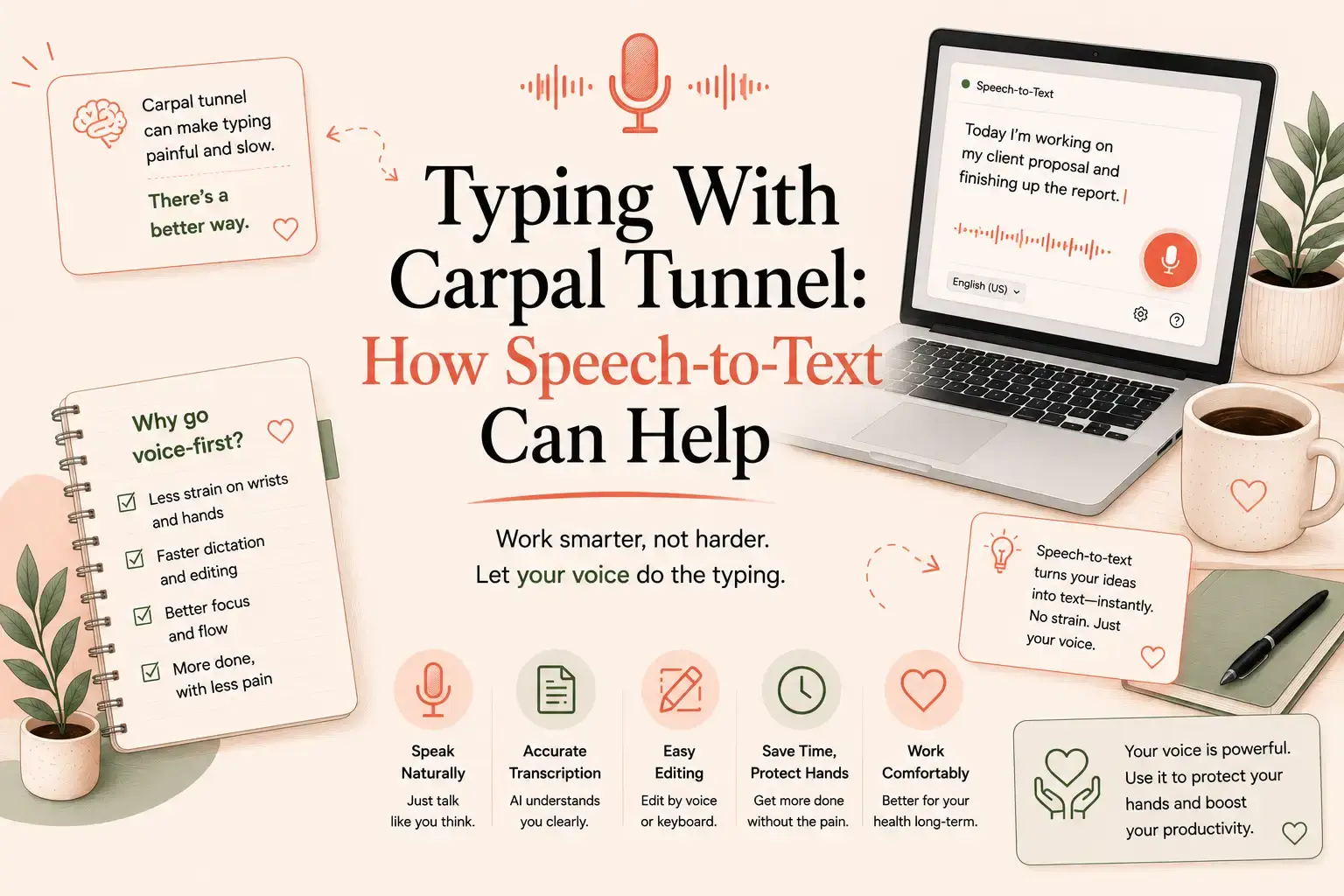
- Key takeaways
- Can speech-to-text help with carpal tunnel?
- What is carpal tunnel syndrome?
- Does typing cause carpal tunnel syndrome?
- Which tasks work well with voice typing?
- Test whether voice typing helps your own workflow
- What features matter in speech-to-text software for carpal tunnel?
- A practical voice-first workflow
- Voice typing is not the same as complete voice control
- Limitations of voice typing
- How VoiceDash fits into a lower-typing workflow
- When typing pain requires medical evaluation
- Editorial disclosure
- Frequently Asked Questions
- Sources
Typing With Carpal Tunnel: How Speech-to-Text Can Reduce Keyboard Use
Speech-to-text can reduce the amount of keyboard input required for emails, documents, notes, messages, and other writing-heavy tasks. For someone typing with carpal tunnel syndrome or persistent hand pain, this can make parts of the workday easier to manage.
Voice typing is not a treatment for carpal tunnel syndrome. It cannot diagnose the cause of hand pain, decompress the median nerve, or guarantee symptom relief. Its practical role is simpler: replacing some repetitive keyboard input with spoken input.
Key takeaways
- Speech-to-text works best for emails, messages, notes, reports, and first drafts.
- It is less effective for spreadsheets, detailed formatting, design work, and some coding tasks.
- Correction workflow matters as much as transcription accuracy.
- Voice typing replaces text entry, but it does not necessarily provide complete hands-free computer control.
- Persistent numbness, weakness, sleep disruption, or loss of hand function requires medical evaluation.
Can speech-to-text help with carpal tunnel?
Speech-to-text can help reduce keyboard use during writing-heavy work. Instead of pressing a key for every character, you speak naturally and the software converts your words into text.
This change in input method may reduce some of the physical workload associated with typing, although the available research does not show that speech recognition treats carpal tunnel syndrome itself.
A 2004 experimental study found that using speech recognition for text entry and editing reduced static muscle activity in the forearm and neck and, to a lesser extent, the shoulder compared with traditional keyboard and mouse input. The researchers presented speech recognition as an alternative computer-input method rather than a medical treatment.
A separate study involving 15 participants found improvements in wrist, forearm, upper-arm, shoulder, and neck posture after speech-recognition training. However, productivity decreased for most participants, and the researchers concluded that speech recognition was better suited to some tasks than others.
The evidence supports a realistic conclusion: voice input can shift part of the computer workload away from the hands, but its usefulness depends on the task, software, correction process, and individual user.
What speech-to-text can help with
Voice typing can reduce keyboard input when you are:
- Writing email replies
- Drafting documents
- Sending workplace messages
- Recording notes and ideas
- Preparing project updates
- Writing customer-support responses
- Adding comments to project-management tools
- Drafting explanations or reports
- Creating prompts for AI tools
A 500-word first draft may require hundreds or thousands of individual key presses. Dictating the same draft can replace much of that text-entry work, although reviewing and editing may still require some hand input.
What speech-to-text cannot do
Speech-to-text cannot:
- Diagnose carpal tunnel syndrome
- Treat median-nerve compression
- Guarantee pain reduction
- Prevent every type of repetitive strain injury
- Replace every keyboard or mouse action
- Make every computer task suitable for dictation
- Determine why your hand or wrist hurts
The practical objective is not to eliminate every keystroke. It is to identify which parts of your workload can be completed with less repetitive hand input.
What is carpal tunnel syndrome?
Carpal tunnel syndrome occurs when the median nerve becomes compressed or squeezed at the wrist. The median nerve travels through a narrow passage called the carpal tunnel and provides sensation to the thumb, index finger, middle finger, and part of the ring finger.
Common symptoms include:
- Tingling or numbness
- Burning or electric-shock sensations
- Symptoms that wake you at night
- Weakness in the hand or thumb
- Difficulty holding small objects
- Dropping objects
- Symptoms that travel from the wrist into the arm
The little finger is usually not affected because it is not supplied by the median nerve.
The National Institute of Arthritis and Musculoskeletal and Skin Diseases explains that carpal tunnel syndrome may result from a combination of factors that increase pressure on the median nerve. In many cases, no single cause can be identified.
Does typing cause carpal tunnel syndrome?
Typing and carpal tunnel syndrome are often discussed as though the relationship were simple. It is not.
According to Mayo Clinic, there is not enough evidence to establish computer use as a direct risk factor for carpal tunnel syndrome. Some evidence suggests that mouse use may be more relevant than keyboard use, but the research is not conclusive.
Computer use can still cause or aggravate other forms of hand, wrist, arm, neck, and shoulder discomfort. Typing may also become difficult after carpal tunnel symptoms have already developed, regardless of what originally caused them.
This distinction matters. Speech-to-text should be presented as a method for reducing keyboard workload, not as a proven way to prevent or cure carpal tunnel syndrome.
Which tasks work well with voice typing?
The following ratings are practical workflow assessments, not clinical findings. Suitability varies according to the software, profession, document, and individual user.
| Task | Suitability for dictation | Hand input still required | Main challenge |
|---|---|---|---|
| Email replies | High | Low | Names, links, and final review |
| Slack or Teams messages | High | Low | Correcting short phrases |
| First drafts | High | Low | Organizing thoughts aloud |
| Meeting notes | High | Low | Background noise |
| Reports | High | Medium | Headings, references, and layout |
| Project tickets | High | Low | Product terminology |
| Customer-support replies | High | Low | Account details and templates |
| Code-review comments | High | Low | Technical vocabulary |
| Academic writing | Medium | Medium | Citations and notation |
| Legal writing | Medium | Medium | Defined terms and quotations |
| Coding | Low to medium | High | Symbols and navigation |
| Spreadsheet work | Low | High | Cells, formulas, and selection |
| Graphic design | Low | High | Pointer-based interaction |
Voice typing is usually most effective when the task consists of continuous language. It is less effective when the work depends on symbols, precise visual positioning, or frequent navigation between interface elements.
Test whether voice typing helps your own workflow
General claims such as “three times faster than typing” are not useful unless they reflect your speaking style, typing speed, vocabulary, microphone, and correction process.
A personal comparison gives you more relevant information.
Step 1: Measure your typing baseline
Use the 15-second no-punctuation typing test to establish a short baseline.
Record:
- Words completed
- Typing errors
- Interruptions
- Perceived hand effort from 0 to 10
The perceived-effort score is subjective and is not a clinical measurement. It is only a way to compare two input methods under similar conditions.
Stop immediately if the test increases your symptoms.
Step 2: Dictate a similar passage
Open the free VoiceDash speech-to-text tool and dictate a passage of similar length.
The tool supports live speech-to-text in the browser without requiring an account. Review the transcript before comparing it with your typed result.
Record:
- Speaking time
- Correction time
- Keyboard corrections
- Mouse actions
- Errors involving names or technical terms
- Final errors
- Perceived hand effort from 0 to 10
Step 3: Compare the complete task
Do not compare typing time with speaking time while ignoring corrections.
| Measurement | Manual typing | Voice typing |
|---|---|---|
| Drafting time | ||
| Correction time | ||
| Total completion time | ||
| Keyboard actions | ||
| Mouse actions | ||
| Final errors | ||
| Perceived hand effort, 0–10 |
Voice typing may still be useful when the total completion time is similar. Completing the task with fewer repetitive hand movements may matter more than achieving the highest words-per-minute score.
The opposite can also happen. If transcription errors force you to make constant keyboard corrections, the voice workflow may not yet be suitable for that task.
What features matter in speech-to-text software for carpal tunnel?
Someone trying to reduce hand input needs more than basic transcription accuracy.
Low-friction activation
Dictation must be easy to start and stop.
Common activation methods include:
- Holding a keyboard shortcut
- Pressing a shortcut once to start and once to stop
- Clicking a microphone button
- Using a voice-activation mode
- Issuing a spoken activation command
Each method has a tradeoff.
A hold-to-talk shortcut provides control but requires continuous pressure. A toggle reduces sustained pressure but may record unintended speech if it remains active. A mouse-only control may be unsuitable when mouse use already causes discomfort.
The best activation method is the one that reduces physical effort within your actual workflow.
Efficient corrections
Recognition errors are unavoidable. The important question is how much hand input is required to fix them.
An inefficient workflow looks like this:
Speak → notice one error → stop → reach for the keyboard → correct the word → restart dictation
Repeated throughout the day, this can remove much of the benefit.
A more efficient workflow is:
Dictate a complete thought → review the paragraph → correct related issues together → continue
Useful correction features include:
- Rewriting a selected phrase
- Automatic punctuation
- Grammar cleanup
- Filler-word handling
- Personal dictionaries
- Reusable text snippets
- Voice editing commands
- Search-and-replace functions
Check which functions genuinely work by voice. Some products describe themselves as hands-free even though text selection, correction, and navigation still require a keyboard or mouse.
Personal vocabulary
Names, abbreviations, product terms, medical language, legal phrases, and technical vocabulary are common sources of errors.
A personal dictionary can help with terms such as:
- Company names
- Customer names
- Product names
- Industry abbreviations
- Medical terminology
- Legal terminology
- Programming frameworks
- Preferred spellings
Correcting a recurring term once in a personal dictionary is more efficient than manually repairing the same error every day.
Reusable snippets
Many people repeatedly type the same material:
- Email signatures
- Customer-service answers
- Meeting-summary formats
- Addresses
- Status-update templates
- Disclaimers
- Appointment instructions
- Standard project notes
A reusable snippet lets you insert a longer block of text from a short trigger. This reduces both typing and repeated dictation.
Cross-application support
A voice typing tool is most useful when it works where your writing happens.
Test it inside:
- Email clients
- Word processors
- Browser forms
- Messaging applications
- Project-management platforms
- Note-taking software
- Customer-support systems
- AI chat tools
- Desktop applications
Avoid relying on an absolute claim such as “works everywhere.” Secure fields, remote desktops, specialist editors, and unusual applications may behave differently.
Realistic accuracy
Speech-recognition performance can change according to:
- Microphone quality
- Background noise
- Speaking pace
- Accent
- Language
- Technical terminology
- Sentence complexity
- Internet quality
- The type of text being dictated
Test a product with your real vocabulary in your normal working environment. A percentage measured with clean general-language audio may not predict performance with specialist terms in a noisy office.
Privacy
Dictated content can include private emails, customer information, health-related notes, workplace data, or unpublished ideas.
Review the provider’s current documentation to determine:
- Whether audio is processed locally or in the cloud
- Whether recordings are retained
- Whether transcripts are stored
- How long data is retained
- Whether content is used for model training
- Which third parties process the data
- Whether the service meets your workplace requirements
Do not assume that all speech-to-text tools process data in the same way.
A practical voice-first workflow
The easiest way to adopt speech-to-text is to replace one suitable task at a time.
1. Find your highest-volume writing task
For many knowledge workers, the largest typing load does not come from one long report. It comes from dozens of smaller actions:
- Email replies
- Workplace messages
- Notes
- Search queries
- Project comments
- Support responses
- AI prompts
- Status updates
Start with the task that creates the most continuous text.
2. Begin with prose, not precision work
Good starting tasks include:
- Email drafts
- Notes
- Summaries
- Explanations
- First drafts
- Project updates
Do not begin with your most complex spreadsheet, codebase, or heavily formatted document.
3. Speak in complete thoughts
Speech recognition generally benefits from context.
Speak in complete clauses or sentences rather than isolated fragments. Pause briefly between ideas instead of stopping every few words.
You do not need to speak unnaturally. A steady pace and clear audio usually matter more than sounding formal.
4. Review text in blocks
Constantly switching between speech and keyboard creates friction.
Finish a paragraph, message, or complete thought before reviewing it. Correct several related issues together rather than interrupting every sentence.
5. Keep precision tasks manual when they are genuinely easier
A short URL, spreadsheet formula, citation, keyboard shortcut, or code symbol may be easier to enter manually.
The goal is to reduce unnecessary keyboard work, not force every computer action through dictation.
6. Alternate input methods
Speech-to-text should not automatically replace an entire day of typing with an entire day of speaking.
A 2001 computer-work study found that scheduled microbreaks reduced reported discomfort, particularly when breaks occurred at 20-minute intervals, without showing a detrimental effect on productivity. The study did not establish that microbreaks prevent carpal tunnel syndrome, but it supports the broader value of interrupting prolonged computer work.
A sustainable workflow may combine:
- Voice typing
- Short keyboard sessions
- Alternative pointing devices
- Touch input
- Microbreaks
- Changes between tasks
Voice typing is not the same as complete voice control
Voice typing primarily converts speech into written text. Depending on the product, it may also support punctuation, cleanup, snippets, vocabulary, and limited editing commands.
Complete voice-control systems may additionally handle:
- Pointer movement
- Clicking
- Window switching
- Menu navigation
- Opening applications
- File management
- Interface selection
- Specialist coding commands
Someone who can use a keyboard or mouse briefly but wants to reduce writing load may only need voice typing.
Someone who cannot reliably use a keyboard or mouse may require a broader assistive system that controls the interface as well as text entry.
Limitations of voice typing
Voice input can reduce one type of workload while introducing other limitations.
Vocal fatigue
Extended dictation can place greater demands on the voice.
A retrospective case series described five people with workplace upper-extremity repetitive strain injuries who developed muscle-tension dysphonia after beginning frequent computerized speech-recognition use. A five-person case series cannot establish how common this problem is, but it shows that continuous voice use is not physically neutral.
Avoid replacing prolonged typing with prolonged, forceful speaking.
Cognitive effort
Some people organize ideas more easily through a keyboard. Speaking complete thoughts can initially feel mentally demanding.
This may improve with practice, but dictation will not feel equally natural to everyone.
Background noise
Shared offices, cafés, and busy households can affect recognition quality and make private dictation inappropriate.
Remaining hand input
Voice typing may reduce text entry while leaving navigation, links, formatting, corrections, and interface controls unchanged.
Task-dependent results
General emails may transcribe well. Code, formulas, citations, names, and specialist terminology may require more correction.
How VoiceDash fits into a lower-typing workflow
VoiceDash is an AI voice-typing and speech-to-text platform designed for writing across desktop and mobile workflows.
VoiceDash currently supports live dictation, automatic punctuation, AI-assisted text cleanup, and filler-word handling. Eligible paid plans can also include personal dictionaries and reusable snippets. VoiceDash is available on Windows, Mac, iPhone and Android, and Linux.
The desktop application is intended for system-wide dictation, allowing users to enter text in applications where they would normally type. Compatibility should still be tested inside the exact software and fields you use.
People who have difficulty typing because of disability, injury, chronic pain, fatigue, or mobility limitations can also review the VoiceDash accessibility page.
VoiceDash is a writing-input tool, not a medical product. Its relevant role is helping users move suitable writing tasks from keyboard input to speech.
When typing pain requires medical evaluation
Seek medical advice when symptoms are persistent, worsening, or affecting normal function.
Warning signs include:
- Frequent or constant numbness
- Tingling that interrupts sleep
- Weakness in the hand or thumb
- Dropping objects
- Difficulty gripping or fastening buttons
- Loss of coordination
- Symptoms that continue after reducing workload
- Sensory changes that do not follow the usual median-nerve pattern
Mayo Clinic recommends seeing a healthcare professional when symptoms interfere with normal activities or sleep. Untreated carpal tunnel syndrome can result in lasting nerve and muscle damage.
Speech-to-text may help manage computer input while you obtain appropriate care. It should not delay evaluation or treatment.
Editorial disclosure
This guide is published by the VoiceDash Editorial Team. VoiceDash is a speech-to-text platform and is mentioned in the article.
VoiceDash does not provide medical diagnosis or treatment. Medical and ergonomic statements in this guide were checked against established medical sources and peer-reviewed research. Product statements reflect current public VoiceDash documentation and may change as the platform is updated.
Frequently Asked Questions
It does not treat median-nerve compression or guarantee symptom improvement.
An ergonomic keyboard changes the position or motion used while typing. Voice typing replaces some typing entirely. Some users may benefit from combining both approaches.
A tool with a personal dictionary is useful for names, acronyms, product terms, medical terminology, and specialist vocabulary.
Use a normal speaking volume, alternate input methods, and avoid long uninterrupted dictation sessions. Persistent voice problems require professional evaluation.
Review where audio is processed, whether recordings or transcripts are retained, which third parties receive the data, and whether dictated content is used for model training.
Sources
- Mayo Clinic. Carpal tunnel syndrome: Symptoms and causes.
- National Institute of Arthritis and Musculoskeletal and Skin Diseases. Carpal Tunnel Syndrome.
- Juul-Kristensen B, et al. Physical workload during use of speech recognition and traditional computer input devices. Ergonomics. 2004;47(2):119–133.
- de Korte EM, van Lingen P. The effect of speech recognition on working postures, productivity and the perception of user friendliness. Applied Ergonomics. 2006;37(3):341–347.
- McLean L, Tingley M, Scott RN, Rickards J. Computer terminal work and the benefit of microbreaks. Applied Ergonomics. 2001;32(3):225–237.
- Olson DEL, Cruz RM, Izdebski K, Baldwin T. Muscle tension dysphonia in patients who use computerized speech recognition systems. Ear, Nose & Throat Journal. 2004;83(3):195–198.

AI Logo Generator
07/16/2026One thing that stood out to me is that reducing strain isn’t just about typing less, but also about changing how weSpeech-to-Text Blog Comment interact with our devices. It would also be helpful to mention that combining speech-to-text with ergonomic habits, regular breaks, and proper wrist positioning can make a big difference for people managing carpal tunnel symptoms over the long term.
Sahar Haghshenass
07/20/2026Thanks for the thoughtful suggestion! We completely agree. Speech-to-text can help reduce repetitive typing, but it’s most effective when combined with good ergonomic practices, regular breaks, and proper workstation setup. We’ll keep this in mind for future updates to the article. Thanks for sharing!