
- Does LinkedIn Have Built-In Voice Typing?
- How to Use Voice Typing on LinkedIn with VoiceDash
- You Do Not Need to Dictate Punctuation
- What VoiceDash Does Automatically
- How to Voice Type a LinkedIn Post
- How to Voice Type LinkedIn Comments
- How to Voice Type LinkedIn Messages and InMail
- What VoiceDash Can Do Beyond Basic Dictation
- VoiceDash vs. Basic Dictation
- How to Get Better LinkedIn Voice-Typing Results
- Troubleshooting Voice Typing on LinkedIn
- Is Voice Typing Faster Than Typing?
- Voice Typing and Accessibility
- Privacy When Dictating LinkedIn Content
- Start Voice Typing on LinkedIn
- Frequently Asked Questions
How to Use Voice Typing on LinkedIn
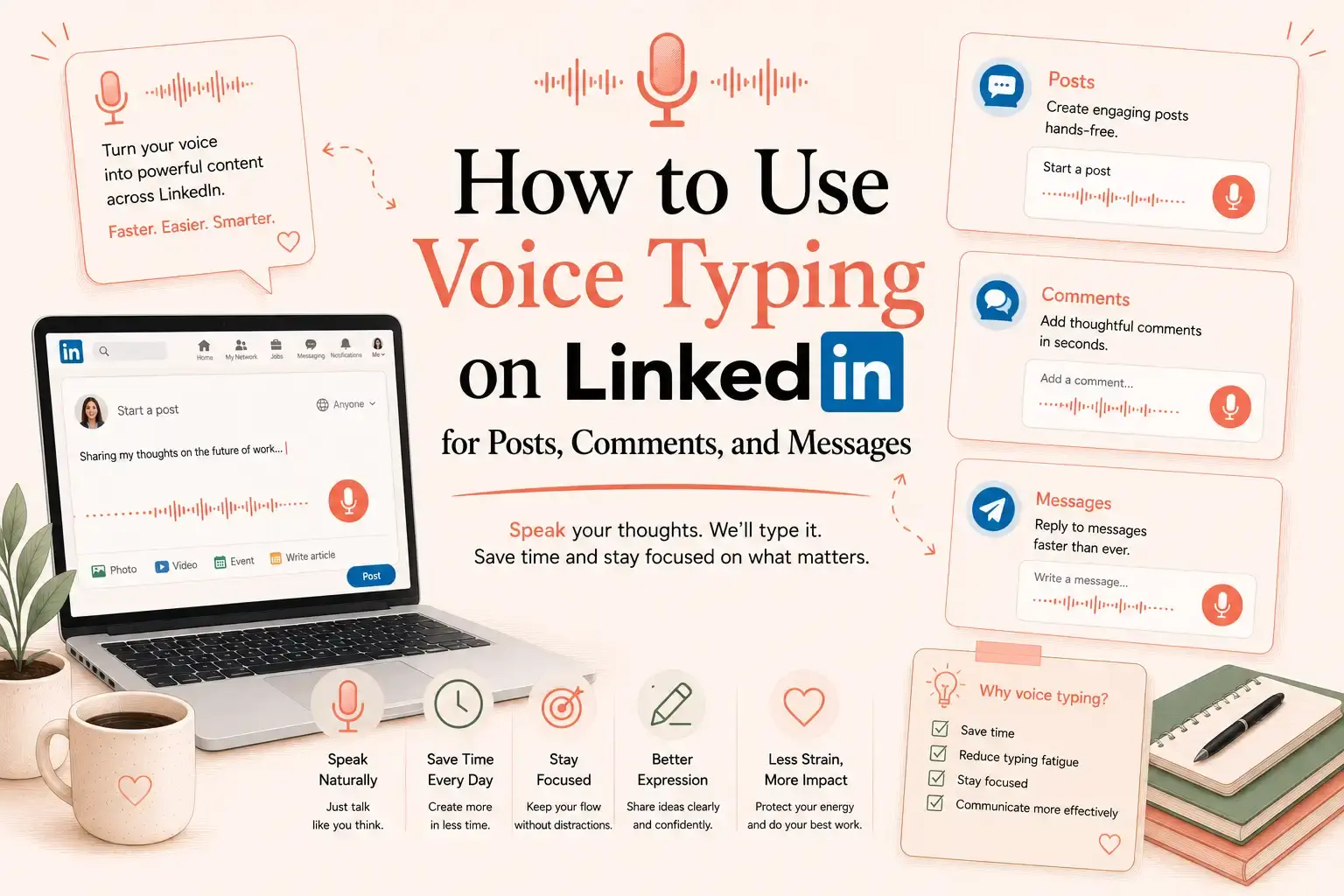
To use voice typing on LinkedIn, click inside a post, comment, message, InMail, article, or profile field, activate VoiceDash, and speak naturally. VoiceDash turns your speech into clean written text, removes filler words, adds punctuation, structures paragraphs, and inserts the result where your cursor is active.
You do not need to say “comma,” “period,” or “new paragraph.”
Does LinkedIn Have Built-In Voice Typing?
LinkedIn does not currently provide a documented built-in feature that converts speech into editable text inside its post, comment, or message fields.
LinkedIn does offer voice messages in its mobile app, but these are recorded audio clips. They are not converted into written text. LinkedIn states that voice messages are limited to one minute and are available only through the mobile app.
The distinction is simple:
| Method | Creates editable text? | Main purpose |
|---|---|---|
| LinkedIn voice message | No | Sends a recorded audio clip |
| Built-in device dictation | Yes | Produces a basic speech transcript |
| VoiceDash | Yes | Turns natural speech into cleaned and structured text |
A LinkedIn voice message lets the recipient hear your recording. Voice typing creates text that you can review, edit, publish, or send.
How to Use Voice Typing on LinkedIn with VoiceDash
VoiceDash works inside the app or website where you are already writing. You do not need to record your idea in a separate tool and copy the transcript back into LinkedIn.
1. Install VoiceDash
Download VoiceDash for your device and complete the microphone and shortcut setup.
VoiceDash is available on Mac, Windows, iPhone, and Android. It is designed to work across the apps, browser fields, documents, messages, and tools you already use.
2. Open the LinkedIn Field
Open LinkedIn and navigate to the place where you want to write:
- A new post
- A comment or reply
- A direct message
- An InMail
- A connection note
- Your About section
- Your profile headline
- An experience description
- A LinkedIn article or newsletter
Click or tap inside the field. Make sure the cursor is visible before starting.
3. Activate VoiceDash
Start VoiceDash using the microphone button or your configured shortcut.
Speak naturally. Explain the idea as if you were talking to one informed colleague rather than presenting to an audience.
You can pause, restart a sentence, or use filler words. VoiceDash cleans the result after processing your speech.
4. Review the Text
VoiceDash inserts the cleaned text into the active LinkedIn field.
Check the details that matter most:
- Names
- Company names
- Numbers
- Dates
- Links
- Technical terms
- Confidential information
Then publish or send the text.
For a broader explanation of the workflow, read the complete guide to using voice-to-text.
You Do Not Need to Dictate Punctuation
Traditional dictation tools often require users to speak formatting instructions.
A traditional dictation might sound like this:
We launched the new product comma but customer adoption was lower than expected period new paragraph the problem was not the product itself period
That forces you to think about punctuation while you are still developing the idea.
With VoiceDash, you can speak normally:
We launched the new product, but customer adoption was lower than expected. The problem was not the product itself. We explained the features without making the use case clear.
VoiceDash handles:
- Sentence boundaries
- Punctuation
- Paragraph structure
- Filler-word removal
- Basic grammar
- Accidental repetition
- Contextual formatting
The no-punctuation typing test demonstrates how much punctuation interrupts the normal flow of writing.
What VoiceDash Does Automatically
VoiceDash is not limited to creating a literal transcript.
It turns natural speech into text that is closer to a finished draft by:
- Removing filler words such as “um,” “uh,” and unnecessary uses of “like”
- Adding punctuation automatically
- Breaking ideas into readable paragraphs
- Correcting basic grammar
- Removing repeated fragments
- Preserving the speaker’s intended meaning
- Keeping the output close to the user’s natural tone
- Inserting the result into the active text field
The purpose is not to replace your ideas with generic AI-generated content.
The experience, opinion, examples, and conclusion still come from you. VoiceDash handles the editing work between the spoken thought and the usable written version.
VoiceDash explains this workflow in more detail on its AI voice typing features page.
How to Voice Type a LinkedIn Post
A LinkedIn post is easier to dictate when you follow a simple sequence:
- State what happened.
- Explain why it mattered.
- Give one concrete example.
- End with the lesson or conclusion.
What the user says
So we changed our customer onboarding process last month, and I expected the main improvement to come from adding more documentation. But what actually worked was removing three meetings and giving every customer one checklist. Customers completed setup faster, and our team got fewer repetitive questions. I think the lesson is that better support does not always mean more calls. Sometimes it just means making the next step clear.
Cleaned VoiceDash output
We changed our customer onboarding process last month.
I expected the biggest improvement to come from adding more documentation. Instead, it came from removing three meetings and giving every customer one clear checklist.
Customers completed setup faster, and our team received fewer repetitive questions.
Better support does not always mean more calls. Sometimes it means making the next step clear.
The final version keeps the same experience and conclusion. It removes hesitation and repetition without inventing a different story.
How to Voice Type LinkedIn Comments
Comments usually need less structure than posts. A useful comment should contribute a specific example, disagreement, or observation.
Spoken comment
I agree with the point about customer research, but interviewing customers does not automatically mean the team understands the problem. We used to ask customers which features they wanted, and we ended up with a misleading roadmap. Things improved when we started asking what they were trying to accomplish.
Cleaned comment
I agree that customer research matters, but interviewing customers does not automatically mean the team understands the problem.
We used to ask users which features they wanted and ended up with a misleading roadmap. The quality of our research improved when we started asking what they were trying to accomplish instead.
The result adds something useful to the conversation without requiring several minutes of typing and editing.
How to Voice Type LinkedIn Messages and InMail
Voice typing can also help with:
- Recruiter replies
- Event follow-ups
- Client conversations
- Connection requests
- Prospecting messages
- Partnership discussions
- InMail
Spoken message
Hi Sarah, it was great meeting you at the product conference yesterday. I liked your point about separating customer urgency from actual business impact when planning a roadmap. We are working through the same problem, and I would like to stay connected and compare notes.
Cleaned message
Hi Sarah, it was great meeting you at the product conference yesterday.
I especially liked your point about separating customer urgency from actual business impact when planning a roadmap. We are working through a similar problem and would be interested in staying connected and comparing notes.
The message remains personal because the conference, topic, and reason for connecting came from the sender.
VoiceDash should not be used to send identical outreach messages at scale. It should make personalized communication faster, not remove the personal context.
What VoiceDash Can Do Beyond Basic Dictation
Personal Dictionary
LinkedIn writing often includes words that general speech-recognition systems may mishear:
- People’s names
- Company names
- Product names
- Acronyms
- Job titles
- Technical terms
- Industry-specific language
The VoiceDash Personal Dictionary lets you save recurring vocabulary so it can be recognized more consistently.
A software professional might add:
- WebRTC
- Supabase
- PostgreSQL
- RevOps
- VoiceDash
- Product-led growth
This reduces repeated manual corrections when writing posts, comments, and messages.
Snippet Library
The Snippet Library stores text that you use regularly.
Useful LinkedIn snippets may include:
- A meeting-booking link
- Contact details
- A short company description
- A standard disclosure
- An event follow-up structure
- A frequently shared resource
Insert the reusable information, add personal context through voice typing, and review the complete message before sending it.
A snippet should reduce repetitive typing. It should not turn professional networking into automated spam.
Command Mode
Dictation Mode turns speech into written text.
Command Mode lets you tell VoiceDash what to do with existing text.
Examples include:
- “Make this more concise.”
- “Fix the grammar without changing the meaning.”
- “Turn this into a LinkedIn post.”
- “Rewrite this in a professional tone.”
- “Convert this paragraph into bullet points.”
- “Shorten this message.”
- “Translate this into German.”
- “Summarize the selected text.”
Command Mode works inside the writing workflow where you are already working. You do not need to copy the draft into a separate AI chat, write a prompt, copy the answer, and paste it back into LinkedIn.

VoiceDash vs. Basic Dictation
| Capability | Basic device dictation | VoiceDash |
|---|---|---|
| Converts speech into text | Yes | Yes |
| Requires spoken punctuation | Sometimes | No |
| Removes filler words | Usually no | Yes |
| Organizes paragraphs | Limited | Yes |
| Improves grammar | Limited | Yes |
| Personal Dictionary | Varies | Yes |
| Reusable snippets | Usually no | Yes |
| Voice-based editing | Limited | Command Mode |
| Works across apps and websites | Varies | Yes |
Built-in dictation can be enough for a short search, note, or simple reply.
VoiceDash is better suited to users who regularly write professional posts, messages, documents, emails, comments, and other text that would otherwise require manual cleanup.
The free online speech-to-text tool provides a simple way to test voice input before installing the full app.
How to Get Better LinkedIn Voice-Typing Results
Lead with the main point
Avoid starting with:
I wanted to come on here and share something I have been thinking about.
Start with the actual idea:
Our onboarding improved after we removed three meetings.
This gives both VoiceDash and the reader a clearer starting point.
Dictate one idea at a time
Do not combine several unrelated arguments in one recording.
A focused dictation gives the AI clearer context and produces a more coherent result.
Include specific details
Specific details make professional content more useful.
Include:
- Dates
- Percentages
- Timeframes
- Results
- Examples
- Process changes
Verify every factual claim before publishing.
Speak conversationally
Do not imitate formal corporate writing while dictating.
Explain the idea as if you were speaking to one colleague who already understands the subject. VoiceDash can clean the structure without removing your natural tone.
Use a clear microphone
Background conversations, echo, and unstable microphone levels can reduce recognition quality.
Use the free VoiceDash microphone quality tester to check signal clarity, background noise, and dictation readiness.
Review before publishing
VoiceDash reduces editing work, but no voice-to-text system should remove the final human review.
Pay particular attention to proper nouns, statistics, quotations, and confidential information.
Troubleshooting Voice Typing on LinkedIn
| Problem | Likely cause | Fix |
|---|---|---|
| No text appears | The LinkedIn field is not active | Click inside the field and confirm the cursor is visible |
| Text appears in the wrong place | Focus moved to another field | Stop dictation and reactivate the correct field |
| VoiceDash cannot hear you | Microphone access is blocked | Enable microphone access in system settings |
| A name is repeatedly incorrect | The word is unfamiliar | Add it to Personal Dictionary |
| The output is too long | Several ideas were dictated together | Record one section at a time |
| LinkedIn behaves unexpectedly | Browser or extension conflict | Refresh the page or test another browser |
If the problem affects voice typing in other applications as well, use the voice typing troubleshooting guide to check microphone permissions, input settings, browser conflicts, language selection, and device issues.
Is Voice Typing Faster Than Typing?
Voice typing can reduce the time required to create a first draft, but raw speaking speed is not the only useful measurement.
The complete measurement is:
Dictation time + review time + correction time
A fast transcript that requires extensive rewriting may not save time.
The main advantage of AI voice typing is that it can reduce both the initial typing and the cleanup afterward.
Use the Voice vs. Typing WPM Calculator to compare your own typing speed with voice input instead of relying on a universal speed claim.
Voice Typing and Accessibility
Voice typing can provide an alternative to prolonged keyboard use for people experiencing:
- Hand fatigue
- Repetitive strain
- Limited mobility
- Temporary injury
- Chronic pain
- Difficulty using a physical keyboard
It is an alternative input method, not a medical treatment.
The VoiceDash guide to voice-to-text for people with disabilities explains how voice input can support communication when typing creates pain, fatigue, or accessibility barriers.
Privacy When Dictating LinkedIn Content
LinkedIn posts and messages may contain client information, recruiting discussions, internal projects, sales details, or personal data.
VoiceDash states that it uses Zero Data Retention processing and that voice recordings and transcriptions are not stored or used to train AI models.
Before dictating sensitive information:
- Check your organization’s security policy.
- Avoid speaking passwords or authentication codes.
- Confirm that the content belongs in the selected LinkedIn field.
- Review the final text before sending it.
Start Voice Typing on LinkedIn
LinkedIn voice messages create audio. Voice typing creates editable text.
With VoiceDash, place the cursor inside a LinkedIn post, comment, message, InMail, article, or profile field and speak naturally. VoiceDash handles filler words, punctuation, grammar, and structure without requiring spoken formatting commands.
Download VoiceDash and start voice typing on LinkedIn.
