
- What Is Voice to Text?
- How to Use Voice to Text: The Basic Workflow
- Why Professionals Use Voice Dictation
- How to Enable Voice Typing on Windows
- How to Use Voice to Text on Mac
- How to Use Voice to Text on iPhone
- How to Use Voice to Text on Android
- Essential Voice Commands
- Formatting and Editing with Voice
- How to Improve Dictation Accuracy
- Native Dictation vs AI Voice Tools
- AI Cleanup Workflows for Voice-to-Text
- Real Professional Voice-to-Text Workflows
- Voice Typing for Productivity
- Dictation vs Audio Transcription
- Browser-Based Voice Typing
- Privacy and Security Considerations
- Common Voice Typing Problems and Troubleshooting
- Best Practices for Professional Voice-to-Text
- Conclusion: Voice-to-Text Is Becoming a Professional Writing Workflow
- Frequently Asked Questions About Voice to Text
How to Use Voice to Text: The Complete Professional Guide to Voice Typing, Dictation, and AI Speech-to-Text Workflows
Voice-to-text is one of the fastest ways to turn spoken ideas into written work, but most people only use the most basic version of it: tap the microphone, speak a sentence, fix the mistakes, and move on.
That is why voice typing often feels inconsistent. The words appear, but the punctuation is off. Names are wrong. The structure feels messy. You spend so much time cleaning up the result that typing starts to look easier.
Used properly, voice-to-text is not just a hands-free typing shortcut. It is a writing workflow.
You can use it to draft emails, capture meeting notes, write reports, brainstorm outlines, document product ideas, create client updates, dictate long-form content, and turn rough thoughts into usable text before they disappear. The biggest productivity gain usually comes from pairing dictation with a simple system: speak clearly, structure your thoughts, use commands where they help, and rely on AI cleanup when raw dictation creates too much editing work.
This guide explains how to use voice-to-text on Windows, macOS, iPhone, Android, browsers, and AI-powered dictation tools. It also covers essential voice commands, formatting, accuracy, privacy, troubleshooting, professional workflows, and the difference between basic native dictation and advanced AI voice-to-text tools like VoiceDash.
What Is Voice to Text?
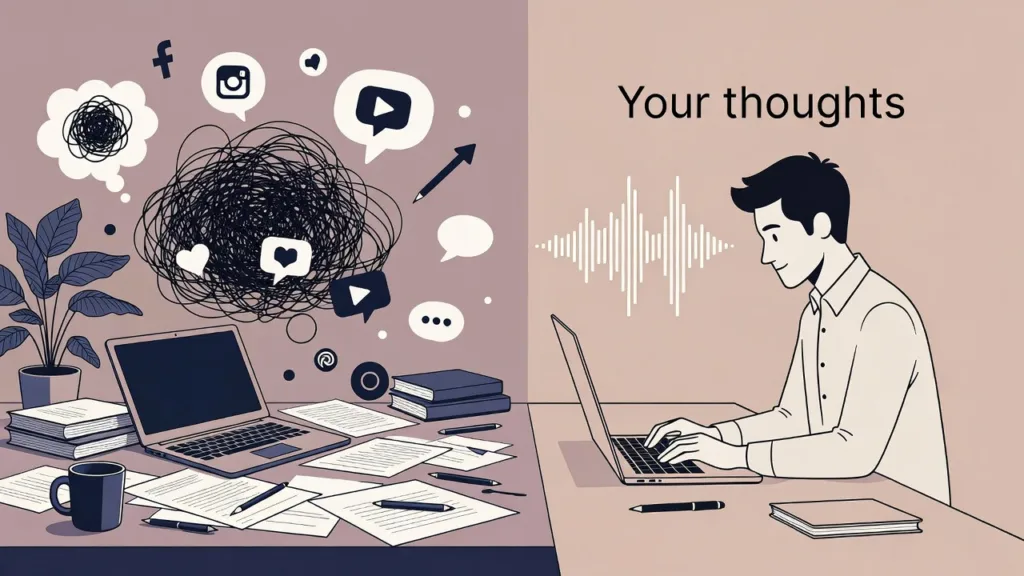
Voice-to-text is technology that converts spoken words into written text. You speak into a microphone, and speech recognition software turns your voice into text on your screen.
Voice-to-text is also commonly called:
- speech-to-text
- voice typing
- dictation
- speech recognition
- AI dictation
- audio transcription, in some contexts
These terms overlap, but they do not always mean the same thing.
Voice typing or dictation usually means speaking live into a device and seeing text appear immediately. For example, you dictate an email in Gmail, a message on iPhone, or a note in Apple Notes.
Transcription usually means converting an existing audio or video file into text. For example, you upload a recorded meeting, interview, podcast, lecture, or voice memo and receive a transcript.
That distinction matters because the workflow is different. Dictation is for creating new text in real time. Transcription is for turning recorded speech into readable text after the fact.
If your goal is to convert a recorded file instead of speaking live, you may want a dedicated workflow for transcribing audio to text with AI or a free option to transcribe audio to text free.
How to Use Voice to Text: The Basic Workflow
To use voice-to-text, click or tap where you want text to appear, activate dictation, speak clearly, add punctuation or let the tool handle it, then review and edit the output.
A simple voice typing workflow looks like this:
- Open the app where you want to write.
- Click or tap inside the text field.
- Turn on voice typing or dictation.
- Speak in complete phrases.
- Say punctuation commands if needed.
- Pause between sections, not between every word.
- Stop dictation.
- Review names, numbers, punctuation, and formatting.
- Edit the final text before sending, publishing, or saving.
The final review is not optional. Even strong dictation tools can mishear names, acronyms, product terms, industry language, and words that sound similar.
One of the biggest mistakes professionals make is expecting voice-to-text to produce final copy with no editing. A better expectation is this: dictation creates the first version faster, then editing turns it into finished work.
A simple example
You say:
“Send a note to Jordan saying I reviewed the client feedback and the main issue is not the design direction but the onboarding flow. Ask if we can review the first screen together tomorrow morning.”
Raw voice typing may produce a rough paragraph.
A better voice-to-text workflow turns it into:
Hi Jordan,
I reviewed the client feedback. The main issue does not seem to be the design direction; it is the onboarding flow.
Can we review the first screen together tomorrow morning?
That is the real value. You are not trying to speak perfect prose. You are getting the idea out of your head, then shaping it into usable writing.
Why Professionals Use Voice Dictation
Professionals use voice dictation because it reduces typing friction, captures ideas faster, lowers keyboard fatigue, and makes it easier to turn spoken thoughts into written work.
Typing is linear. You think, type, pause, correct, think again, type again. Dictation lets you capture rough ideas at the speed of speech, then refine them afterward.
For most professionals, voice-to-text is useful for six reasons.
1. It captures ideas before they disappear
Many people think better out loud than through a keyboard. Voice typing helps capture early thoughts while they are still fresh.
This is especially useful for:
- first drafts
- meeting reflections
- project notes
- product ideas
- client follow-ups
- sales call summaries
- daily planning
- personal knowledge management
The draft does not need to be perfect. It needs to exist.
2. It reduces typing fatigue
People who write all day often underestimate how much physical effort typing adds to their work. Voice-to-text can reduce keyboard strain, especially during long writing sessions or for users dealing with wrist pain, repetitive strain, or accessibility needs.
Voice typing is not a replacement for every type of input, but it can remove a lot of unnecessary keyboard work.
3. It makes mobile writing practical
Typing long thoughts on a phone is slow. Dictation makes mobile writing more useful.
You can dictate a paragraph while walking, capture an idea between meetings, add notes after a call, or reply to a message without fighting the small keyboard.
This is why iPhone and Android voice typing are often the first places people discover the value of dictation. For deeper mobile comparisons, see our guide to the best voice to text app for iPhone.
4. It speeds up routine communication
Voice typing works well for recurring professional formats:
- status updates
- daily standups
- CRM notes
- meeting summaries
- bug reports
- internal documentation
- support replies
- project handoffs
If you regularly write the same kind of update, dictation can become much faster than typing.
5. It helps you think through complex ideas
Some ideas are easier to talk through before they are easy to write. Dictation lets you explain the idea first, then edit the explanation into something clearer.
This is useful for strategy notes, product thinking, research summaries, content outlines, and executive communication.
6. It becomes much stronger with AI cleanup
Raw dictation often sounds like speech. It may include filler words, repeated phrases, half-finished thoughts, or loose structure.
AI-powered voice tools improve this by turning spoken thoughts into cleaner written output. This is where VoiceDash fits naturally. Instead of only transcribing words, VoiceDash helps solve the problems professionals repeatedly run into with basic dictation: cleanup fatigue, formatting friction, filler words, app switching, and messy raw text.
Microsoft is also moving toward more intelligent dictation. Its Windows voice typing support explains that standard Windows voice typing uses online speech recognition, while newer Fluid Dictation on Copilot+ PCs can correct grammar, punctuation, and filler words using on-device models.
How to Enable Voice Typing on Windows
On Windows, place your cursor in a text field and press Windows key + H to start voice typing. You need a working microphone, an internet connection, and a text box selected for standard Windows voice typing.
Windows includes built-in voice typing for entering text on your PC by speaking. Microsoft says Windows voice typing uses online speech recognition powered by Azure Speech services and requires an internet connection, a working microphone, and your cursor in a text box.
How to start voice typing on Windows
- Open the app where you want to type.
- Click inside the text field.
- Press Windows key + H.
- Select or allow the microphone if prompted.
- Start speaking.
- Press the microphone button or Windows key + H again to stop.
This works in many places where you can type, including documents, emails, browser forms, chat apps, and note-taking tools.
Useful Windows voice typing settings
| Setting | What it does | When to use it |
|---|---|---|
| Automatic punctuation | Adds punctuation while you speak | Useful for emails, notes, and general writing |
| Voice typing launcher | Makes voice typing easier to start in text fields | Useful if you dictate often |
| Profanity filter | Blocks or allows dictated profanity | Helpful for exact transcripts, casual notes, or workplace settings |
| Wait time before command action | Adjusts how long Windows waits before acting on commands | Useful for slower speech patterns or accessibility workflows |
Windows voice typing is best for
- quick notes
- emails
- short messages
- browser text fields
- simple document drafting
- users who want built-in dictation without installing another app
Windows voice typing may not be enough if
- you dictate long professional documents
- you need advanced formatting
- you want AI cleanup
- you use technical vocabulary
- you need consistent tone across apps
- you want reusable templates or structured outputs
In those cases, native dictation is a starting point. A professional AI voice-to-text tool can handle the next layer: cleaning up, formatting, and converting rough speech into usable writing.
How to Use Voice to Text on Mac
On Mac, turn on Dictation in Keyboard settings, then use your Dictation shortcut anywhere you can type.
Apple describes Dictation on Mac as a way to speak text anywhere you can type. Apple also notes that users can check Keyboard settings to see whether general text Dictation is processed on-device or sent to Siri servers.
How to turn on Dictation on Mac
- Open the Apple menu.
- Go to System Settings.
- Select Keyboard.
- Find Dictation.
- Turn Dictation on.
- Choose your language, microphone, and shortcut options.
How to dictate text on Mac
- Open any app with a text field.
- Place your cursor where you want text to appear.
- Press your Dictation shortcut or microphone key.
- Speak naturally.
- Say punctuation commands or rely on automatic punctuation where supported.
- Stop dictation and review the output.
Apple’s Mac support also notes that if Dictation does not work as expected, users should check whether Dictation is enabled, confirm the correct language and region, verify the shortcut, and make sure the correct microphone is selected.
Mac Dictation is best for
- Apple Notes
- Messages
- Pages
- browser writing
- short-form drafting
- hands-free capture across Apple devices
Mac Dictation vs Voice Control
Mac Dictation is for entering text.
Voice Control is for controlling your Mac with spoken commands. Apple explains that Voice Control lets you enter text and control your Mac using voice commands, while standard macOS Dictation is not available when Voice Control is on.
Use Dictation if your goal is faster writing. Use Voice Control if your goal is hands-free computer control.
How to Use Voice to Text on iPhone
On iPhone, tap the microphone icon on the keyboard, speak your text, then tap again or return to the keyboard when finished.
Apple says Dictation on iPhone works anywhere you can type. The keyboard stays open during Dictation, which means you can switch between speaking and typing without ending the writing flow. Apple also notes that Dictation requests are processed on-device in many languages, with no internet connection required for those supported languages.
How to enable Dictation on iPhone
- Open Settings.
- Go to General.
- Tap Keyboard.
- Turn on Enable Dictation.
- Confirm if prompted.
How to dictate text on iPhone
- Open Messages, Notes, Mail, Safari, or any app with a text field.
- Tap the text field.
- Tap the microphone icon on the keyboard.
- Speak your message.
- Tap the keyboard or microphone icon to stop.
- Review before sending.
iPhone dictation is best for
- text messages
- quick emails
- notes
- reminders
- social posts
- voice journaling
- mobile idea capture
Common iPhone dictation issue: the microphone icon is missing
If the microphone icon is not showing:
- Check Settings > General > Keyboard > Enable Dictation.
- Make sure the correct keyboard language is added.
- Check Screen Time or device restrictions.
- Restart the iPhone.
- Update iOS if needed.
- Test dictation in another app.
If you use voice typing heavily on mobile, native iPhone Dictation is a good baseline. A dedicated AI voice-to-text app becomes more useful when you want cleaner formatting, fewer filler words, and better long-form output.
How to Use Voice to Text on Android
On Android, you can usually use voice typing through Gboard by tapping a text field, pressing the microphone icon, and speaking when you see “Speak now.”
Google’s Gboard help explains that Android users can talk to write in most places where they can type. The basic process is to open an app like Gmail or Keep, tap where text can be entered, tap the microphone at the top of the keyboard, and speak when prompted.
How to use voice typing on Android with Gboard
- Install or enable Gboard if it is not already active.
- Open an app where you can type.
- Tap the text field.
- Tap the microphone icon on the keyboard.
- Wait for “Speak now.”
- Say what you want written.
- Review and edit the result.
Android punctuation commands
Google notes that punctuation support varies by language, but common phrases include:
| What you want | What to say |
|---|---|
| End a sentence | “Period” or “Full stop” |
| Add a comma | “Comma” |
| Add emphasis | “Exclamation point” |
| Ask a question | “Question mark” |
| Start a new line | “New line” |
| Start a new paragraph | “New paragraph” |
Advanced voice typing on Pixel and Gboard
Google’s advanced voice typing documentation says that some advanced Gboard voice typing features add punctuation automatically and can insert emoji by voice. It also notes that, with advanced voice typing, spoken text stays on the device except when using certain features such as “Fix it” or detailed edits.
Android voice typing is very convenient for mobile capture, but performance can vary by phone model, keyboard, language, app, and microphone settings. If Android voice typing starts failing, check microphone permissions, keyboard settings, Gboard updates, and whether the issue happens across multiple apps.
Essential Voice Commands
Voice commands let you add punctuation, line breaks, and basic formatting while dictating. The exact commands vary by platform, but many common commands work across Windows, Mac, iPhone, Android, and Google Docs.
| What you want | What to say |
|---|---|
| End a sentence | “Period” or “Full stop” |
| Add a comma | “Comma” |
| Ask a question | “Question mark” |
| Add emphasis | “Exclamation point” |
| Start a new line | “New line” |
| Start a new paragraph | “New paragraph” |
| Add a colon | “Colon” |
| Add a semicolon | “Semicolon” |
| Open quotes | “Open quote” |
| Close quotes | “Close quote” |
| Add parentheses | “Open parenthesis” / “Close parenthesis” |
| Delete recent text | “Delete that” or the platform-specific command |
| Stop listening | “Stop dictation” or tap the microphone |
Example of dictated text with commands
You say:
“Hi Sarah comma new paragraph I reviewed the proposal and the structure looks strong period My only concern is the timeline comma especially the handoff between design and development period new paragraph Can we review this tomorrow question mark”
The output should look like:
Hi Sarah,
I reviewed the proposal and the structure looks strong. My only concern is the timeline, especially the handoff between design and development.
Can we review this tomorrow?
Should you dictate punctuation manually?
Manual punctuation gives you more control. Automatic punctuation is easier when you are capturing rough thoughts.
A practical rule:
- Use automatic punctuation for notes, brainstorming, and quick mobile capture.
- Use manual punctuation for emails, formal documents, and client-facing writing.
- Use AI cleanup when you want spoken thoughts converted into polished written text.
For many professionals, the best workflow is not choosing one forever. Use automatic punctuation when you are thinking out loud. Use manual punctuation when precision matters. Use AI cleanup when formatting and readability matter more than exact spoken wording.
Formatting and Editing with Voice
Voice typing is strongest for drafting. Keyboard, mouse, and AI cleanup are usually better for precision editing.
Formatting is where many people get frustrated. Basic dictation is good at capturing words. It is less reliable at turning those words into a polished document.
That does not mean voice typing is bad. It means you need the right workflow.
Use voice for drafting, not perfect editing
For most professionals, the fastest workflow is hybrid:
- Dictate the rough content.
- Use voice commands for basic punctuation and paragraph breaks.
- Use the keyboard or mouse for precise edits.
- Use AI cleanup for structure, tone, and readability.
Trying to do every edit by voice can become slower than typing. This is one of the most common real-world frustrations with dictation: it feels fast during capture, then the cleanup takes too long.
The solution is not to force a fully hands-free workflow unless you need one. The solution is to use voice where it is strongest.
Voice is strongest for
- first drafts
- idea capture
- summaries
- routine updates
- long-form thinking
- brainstorming
- mobile writing
- low-friction note capture
Keyboard editing is still better for
- rearranging complex sections
- correcting names
- editing tables
- working with code
- fixing formulas
- precise formatting
- final proofreading
AI cleanup is best for
- removing filler words
- turning rambling notes into structured text
- converting spoken language into written language
- formatting bullet points
- summarizing dictated thoughts
- rewriting for tone
- preparing professional emails
VoiceDash fits especially well in this middle layer. It is not just about getting speech onto the screen. It is about turning spoken input into usable professional text without forcing you to manually fix every false start, filler phrase, and formatting issue.
How to Improve Dictation Accuracy
To improve voice-to-text accuracy, use a good microphone, reduce background noise, choose the correct language, speak in complete phrases, slow down slightly, and review names, numbers, and technical terms carefully.
Accuracy problems usually come from one of six sources:
- audio quality
- speaking style
- background noise
- language settings
- specialized vocabulary
- tool limitations
1. Use a better microphone for dictation
Your microphone matters more than most people expect.
A laptop microphone can work in a quiet room, but it often picks up keyboard noise, room echo, fans, and background voices. A wired headset, wireless earbuds, or a dedicated microphone usually improves results.
For professional use, the best microphone is not always the most expensive one. It is the one that keeps your voice close, clear, and consistent.
2. Reduce background noise
Speech recognition struggles when it has to separate your voice from competing sounds.
Improve your environment by:
- closing windows
- turning down music
- moving away from fans
- avoiding busy cafés for important dictation
- using noise suppression
- choosing a headset microphone
3. Speak in complete phrases
Do not dictate one word at a time. Most speech recognition systems perform better when they can understand context.
Instead of:
“Need. Send. Client. Update. Today.”
Say:
“I need to send the client update today.”
Context helps the tool choose the right words.
4. Slow down slightly
You do not need to speak unnaturally slowly. But if you talk very fast, mumble, or change direction mid-sentence, errors increase.
A good dictation pace is slightly clearer than normal conversation. Think “professional voicemail,” not “robot voice.”
5. Add custom vocabulary when possible
Professional dictation often fails on:
- product names
- client names
- acronyms
- medical terms
- legal terms
- technical terms
- brand names
- non-English names
Some tools allow custom vocabulary or learned corrections. If you dictate the same terms often, this can make a major difference.
6. Use the right language and accent settings
If the language setting is wrong, accuracy will drop immediately. Make sure your dictation language matches the language you are speaking.
Accents can work well with modern speech-to-text tools, but performance depends on the tool, microphone, language model, and speaking clarity. If one tool struggles with your accent, test another. AI-powered dictation tools often handle varied speech patterns better than older native systems.
7. Review high-risk details
Always check:
- dates
- times
- prices
- names
- emails
- URLs
- technical terms
- legal or medical wording
- action items
Voice typing mistakes in these areas can create real problems. Treat them as review checkpoints.
Native Dictation vs AI Voice Tools
Native dictation is best for quick text entry. AI voice tools are better when you need cleaner output, formatting, filler-word removal, summaries, cross-app workflows, or professional writing support.
Native dictation is built into your device. AI voice tools add more intelligence, formatting, cleanup, and workflow support.
Neither option is universally better. The right choice depends on how often you dictate and what kind of output you need.
| Feature | Native dictation | AI voice tools |
|---|---|---|
| Cost | Usually free | Free tier or paid plan |
| Setup | Built in | Requires app, browser tool, or extension |
| Best for | Quick text entry | Professional writing workflows |
| Accuracy | Good for general speech | Often better for complex or long-form use |
| Formatting | Basic | More advanced |
| Filler-word cleanup | Limited | Often supported |
| Tone adjustment | Usually not supported | Often supported |
| Summaries | Usually not supported | Often supported |
| Cross-app workflows | Varies | Often stronger |
| Custom vocabulary | Limited | Tool-dependent |
| Privacy model | Device/platform-dependent | Tool-dependent |
| Long-form dictation | Mixed | Usually better when cleanup is included |
When native dictation is enough
Use built-in dictation if you:
- dictate occasionally
- write short messages
- mostly use one device
- do not need advanced formatting
- are comfortable editing manually
- want a free option
When AI dictation is worth it
Use an AI voice-to-text tool if you:
- dictate daily
- write professionally
- need cleaner output
- want filler words removed
- work across multiple apps
- dictate long notes
- need summaries or structured formatting
- want spoken thoughts converted into polished writing
This is where VoiceDash should be evaluated as a workflow tool, not just a microphone button. A professional user does not only need transcription. They need usable text.
If you are comparing options by platform, workflow, and use case, start with our guide to the best speech to text software.
AI Cleanup Workflows for Voice-to-Text
AI cleanup turns rough dictated text into cleaner writing by removing filler words, improving punctuation, restructuring ideas, and formatting the output for a specific use case.
This is the part of voice-to-text that most basic guides miss.
Raw dictation captures what you said. AI cleanup helps produce what you meant to write.
What AI cleanup can improve
AI cleanup is useful for:
- removing “um,” “uh,” “like,” and repeated phrases
- fixing punctuation
- improving sentence structure
- turning rambling speech into organized notes
- converting casual spoken language into professional writing
- formatting summaries, bullets, or emails
- shortening long dictated paragraphs
- preserving meaning while improving clarity
Example: rough dictated note
“Okay so after the call with Nadia I think the main thing is that they are not blocked on budget exactly it is more that they do not know who owns the implementation on their side and we should probably send a cleaner rollout plan and maybe include the three phases and ask who owns each one.”
Cleaned professional note
After the call with Nadia, the main blocker does not appear to be budget. The issue is ownership. Their team has not clearly assigned responsibility for implementation.
Recommended next step: send a simplified rollout plan with three phases and ask them to confirm the owner for each phase.
That is the difference between transcription and usable output.
VoiceDash’s role in the cleanup layer
VoiceDash is most valuable when raw dictation is too messy to use directly. Instead of forcing you to copy text into another AI tool, clean it manually, and move it back into your work app, VoiceDash can sit closer to the actual writing workflow.
The practical benefit is simple: fewer steps between speaking and usable text.
That matters for professionals who dictate repeatedly throughout the day. The cost is not just a few typos. It is the repeated friction of cleaning, reformatting, and rewriting the same kinds of dictated notes.
Real Professional Voice-to-Text Workflows
The best way to use voice-to-text professionally is to assign it specific jobs: emails, meeting summaries, CRM notes, documentation, brainstorming, project updates, and first drafts.
Voice-to-text becomes more valuable when you stop treating it as a novelty and start using it for repeatable workflows.
Workflow 1: Email drafting
Best for: managers, founders, consultants, sales teams, customer support, recruiters
How to use it:
- Open your email app.
- Dictate the core message in a natural tone.
- Include the recipient’s context.
- Use AI cleanup to make it concise.
- Review names, dates, attachments, and tone.
- Send only after proofreading.
Dictated input
“Tell Maya I reviewed the onboarding plan and the structure looks good. Mention that I want to simplify the first week because there are too many meetings. Ask if she can send a revised version by Thursday afternoon.”
Polished output
Hi Maya,
I reviewed the onboarding plan, and the overall structure looks good. My main suggestion is to simplify the first week since the current version includes too many meetings.
Could you send a revised version by Thursday afternoon?
Thanks.
This is where AI dictation feels different from native dictation. You are not speaking the email word-for-word. You are giving the system the message, then shaping it into writing.
Workflow 2: Meeting notes and follow-ups
Best for: product managers, executives, agencies, suppor teams, operations teams
After a meeting, dictate:
- what was decided
- who owns each action
- blockers
- deadlines
- next steps
- open questions
A useful structure:
“Meeting summary. Decisions. Action items. Risks. Follow-up questions.”
Dictated input
“Meeting summary for the product launch call. We agreed to keep the beta invite list smaller for the first week. Elena owns the email copy. Marcus owns the onboarding checklist. The main risk is that support docs may not be ready by Monday. Follow up with support tomorrow.”
Cleaned output
Product Launch Meeting Summary
Decision: Keep the beta invite list smaller during the first week.
Action items:
- Elena: finalize email copy
- Marcus: complete onboarding checklist
- Support team: confirm documentation readiness
Risk: Support docs may not be ready by Monday.
Next step: Follow up with support tomorrow.
Workflow 3: Long-form writing
Best for: creators, marketers, consultants, researchers, founders
Dictation is useful for first drafts, but long-form writing needs structure.
Use this process:
- Create an outline first.
- Dictate one section at a time.
- Pause after each section.
- Clean up the section before moving on.
- Edit for flow after the full draft exists.
Do not dictate a 3,000-word article in one uninterrupted stream. That usually creates a cleanup problem. Dictate in sections.
Workflow 4: CRM and sales notes
Best for: sales reps, account managers, customer success teams
Immediately after a call, dictate:
- customer goal
- pain point
- objections
- buying timeline
- stakeholders
- next step
- promised follow-up
Dictated input
“Call note for Brightline. They are interested in the team plan but need security approval first. Main objection is whether transcripts are stored. Buyer is Priya. Technical reviewer is Daniel. Follow up with security documentation and offer a 20-minute technical review next week.”
Cleaned CRM note
Account: Brightline
Interest: Team plan
Main blocker: Security approval
Key concern: Transcript storage and data handling
Buyer: Priya
Technical reviewer: Daniel
Next step: Send security documentation and offer a 20-minute technical review next week.
This is one of the highest-value use cases because the information is freshest right after the conversation.
Workflow 5: Developer notes and technical documentation
Best for: engineers, product managers, QA teams
Voice-to-text is not always ideal for writing code, but it is excellent for explaining decisions.
Use it for:
- bug reproduction steps
- pull request summaries
- architecture notes
- incident reports
- product requirements
- QA observations
Dictated input
“Bug report. When the user changes the language setting during onboarding and then goes back to the previous screen, the selected language resets to English. This only happens on mobile Safari. I tested Chrome on Android and could not reproduce it.”
Cleaned bug report
Bug: Language selection resets during onboarding
Environment: Mobile Safari
Steps observed:
- User changes the language setting during onboarding.
- User returns to the previous screen.
- Selected language resets to English.
Expected behavior: The selected language should persist.
Notes: Could not reproduce in Chrome on Android.
Workflow 6: Personal productivity and planning
Best for: anyone managing tasks, notes, and ideas
Dictate:
- daily plans
- end-of-day reviews
- project thoughts
- reminders
- decision logs
- journal entries
- brainstorming notes
Voice is especially useful when the thought is too long for a task title but too important to lose.

Voice Typing for Productivity
Voice typing improves productivity when you use it for fast capture, first drafts, summaries, and recurring updates. It is less useful when precision editing matters more than speed.
Voice typing can make you faster, but not automatically.
Many people try dictation once, see errors, and give up. The problem is often not the technology. It is the workflow.
The best productivity use cases
Voice-to-text works best when speed of capture matters more than perfect formatting.
High-value examples:
- “Draft this email.”
- “Capture this idea.”
- “Summarize this meeting.”
- “Write rough notes from this call.”
- “Turn my thoughts into an outline.”
- “Create a first draft of this proposal section.”
- “Document what just happened.”
The worst productivity use cases
Voice-to-text is less useful when precision matters more than speed.
Poor-fit examples:
- editing dense legal language
- writing code character by character
- working with formulas
- formatting complex tables
- entering many names and numbers
- making final copy edits
A practical productivity rule
Use voice for creation and typing for correction.
That one rule solves a lot of frustration. Dictation helps you move faster at the beginning. The keyboard still helps at the end.
If your broader goal is input speed, voice typing is only one part of the system. You may also want to improve your keyboard workflow with our guide on how to type faster.
Dictation vs Audio Transcription
Dictation converts live speech into text as you speak. Transcription converts existing audio or video recordings into text after they have been recorded.
| Category | Dictation | Transcription |
|---|---|---|
| Input | Live speech | Recorded audio or video |
| Output | Real-time text | Transcript after processing |
| Best for | Writing new content | Converting existing recordings |
| Examples | Emails, notes, documents | Meetings, interviews, podcasts |
| Editing need | Usually immediate | Usually after transcript is generated |
| Tools | Voice typing, AI dictation | AI transcription software |
Use dictation when you want to create text
Examples:
- writing an email
- drafting a document
- taking a note
- brainstorming an idea
- entering text into a form
Use transcription when you already have audio
Examples:
- recorded meeting
- interview
- lecture
- podcast
- webinar
- voice memo
- customer call
Modern tools increasingly support both. The workflow is different, but the user need is similar: turn speech into usable text with less manual effort.
Browser-Based Voice Typing
Browser-based voice typing lets you dictate inside web apps such as Google Docs, Gmail, Notion, CMS editors, CRMs, and project management tools.
This is useful when you do not want to install desktop software or you work mainly in web-based tools.
Google Docs voice typing
Google Docs includes a voice typing feature. Google’s help documentation says users can turn on the microphone, open a document, choose Tools > Voice typing, click the microphone, speak clearly at a normal volume and pace, and click the microphone again when finished.
Google Docs voice typing is especially useful for:
- drafting documents
- student notes
- quick outlines
- browser-based writing
- people already working in Google Workspace
Limitations:
- it is mostly tied to Google Docs and Slides speaker notes
- browser support matters
- formatting commands require practice
- it may not behave the same across every web app
- workspace admins may disable the feature
Voice typing in Chrome
Chrome users often want speech-to-text across browser tools, not only inside Google Docs.
Common browser use cases include:
- Gmail
- Notion
- Google Docs
- CMS editors
- project management tools
- support dashboards
- CRM notes
- forms

Privacy and Security Considerations
Voice-to-text privacy depends on whether audio is processed on-device or in the cloud, whether transcripts are stored, how data is encrypted, and whether the provider uses your content for model training.
Voice-to-text involves audio, text, and sometimes cloud processing. Professionals should understand where their data goes.
Key privacy questions to ask
Before using any voice-to-text tool for sensitive work, ask:
- Is the audio processed on-device or in the cloud?
- Is the transcript stored?
- Can the company use audio or text for model training?
- Is data encrypted in transit and at rest?
- Can admins manage retention?
- Does the tool support business or enterprise controls?
- Can you delete recordings and transcripts?
- Does the tool meet your industry requirements?
On-device vs cloud processing
On-device processing keeps more of the work on your device. This can be better for privacy and speed, though features may be limited.
Cloud processing can provide stronger AI models, better cleanup, summaries, and cross-device access, but it requires sending audio or text to a server.
Apple says many iPhone Dictation requests are processed on-device and do not require an internet connection in supported languages. Google’s advanced Gboard voice typing documentation says spoken text stays on the device for those advanced features except when users choose certain editing features such as “Fix it” or detailed edits.
What not to dictate into unapproved tools
Avoid dictating highly sensitive information into tools that are not approved by your organization.
Be careful with:
- medical records
- legal documents
- passwords
- financial account details
- confidential strategy
- unreleased product information
- private customer data
- HR issues
- regulated data
For professional teams, privacy is not a small feature checkbox. It is part of the buying decision.
Common Voice Typing Problems and Troubleshooting
Most voice typing problems come from microphone permissions, incorrect language settings, poor audio quality, background noise, app limitations, or unrealistic expectations about cleanup.
Start with the simplest causes before blaming the tool.
Problem: Voice typing is not starting
Try this:
- Make sure your cursor is in a text field.
- Check that your microphone is connected.
- Grant microphone permission to the app or browser.
- Restart the app.
- Try another app.
- Check system dictation settings.
- Restart your device.
On Windows, standard voice typing requires a text box, microphone, and internet connection.
Problem: Dictation is inaccurate
Common causes:
- background noise
- poor microphone quality
- speaking too quickly
- wrong language setting
- unsupported accent or dialect
- technical vocabulary
- unstable internet connection
- app-specific limitations
Fixes:
- use a headset microphone
- speak in full phrases
- reduce noise
- switch tools
- add custom vocabulary where available
- use AI cleanup after dictation
Problem: Punctuation is missing
Try:
- turning on automatic punctuation
- saying punctuation commands manually
- using shorter sentences
- switching to a tool with better formatting
- using AI cleanup after dictation
Problem: Voice typing stops too soon
This often happens because of pauses, app focus issues, app timeouts, or system settings.
Try:
- speaking in shorter sections
- keeping the text field active
- checking microphone permissions
- disabling battery saver modes
- using a dedicated dictation app for longer sessions
Problem: It mishears names or technical terms
This is normal. Speech systems struggle with unfamiliar words.
Fixes:
- add custom vocabulary
- spell the term once
- create text replacements
- use a glossary
- correct the word consistently
- choose a tool better suited to professional vocabulary
Problem: Dictation feels slower than typing
This is the most important troubleshooting issue because it is about workflow, not settings.
Dictation feels slow when you try to produce perfect text in one pass.
Instead:
- Dictate a rough draft.
- Ignore small mistakes while speaking.
- Stop after one section.
- Clean up with AI or quick edits.
- Move to the next section.
That approach feels more natural and avoids the stop-start frustration that makes many people abandon voice typing.
Best Practices for Professional Voice-to-Text
The best professional voice-to-text workflow is simple: start with low-risk writing, dictate in sections, use repeatable structures, avoid editing while speaking, and run a final review before sending.
Start with low-risk writing
Do not begin with a legal memo, board update, or client proposal. Start with notes, drafts, and internal messages.
Build confidence before using dictation for high-stakes communication.
Dictate in sections
Long uninterrupted dictation creates messy text. Sections keep output manageable.
A good pattern:
- Dictate the introduction or context.
- Stop.
- Clean up.
- Dictate the next point.
- Repeat.
Use a repeatable structure
For example:
- Context
- Main point
- Details
- Action items
- Deadline
This helps both the dictation tool and your own thinking.
Do not edit while speaking
Stopping every sentence to fix small errors kills momentum. Capture first, edit second.
Keep a correction checklist
Before sending dictated text, check:
- names
- dates
- numbers
- tone
- missing words
- repeated phrases
- punctuation
- formatting
- unintended commands
Use AI cleanup intentionally
AI cleanup is most useful when you give it a clear job.
Useful cleanup instructions include:
- “Make this concise.”
- “Turn this into a client email.”
- “Remove filler words.”
- “Format this as meeting notes.”
- “Keep my meaning but improve clarity.”
- “Turn this into bullet points.”
- “Rewrite this as a professional status update.”
- “Create action items from this note.”
VoiceDash is designed for this type of workflow: speak naturally, clean up quickly, and move from rough thought to usable text without bouncing between too many tools.
Conclusion: Voice-to-Text Is Becoming a Professional Writing Workflow
Voice-to-text has moved beyond the microphone icon on a phone keyboard. Used well, it becomes a faster way to think, draft, document, and communicate.
The key is understanding what each layer does.
Native dictation on Windows, Mac, iPhone, Android, and Google Docs is useful for quick capture. It helps with messages, notes, emails, and simple documents. But professional workflows often need more than raw transcription. They need structure, cleanup, formatting, privacy, consistency, and reliable output across the tools people already use.
That is where AI-powered dictation changes the workflow.
The future of voice-to-text is not only about typing faster. It is about reducing the distance between thought and finished communication. A rough idea becomes an email. A meeting reflection becomes a structured summary. A voice memo becomes a usable document. A rambling thought becomes a clear next step.
For casual users, built-in dictation may be enough. For professionals who rely on writing every day, VoiceDash is a stronger long-term fit because it addresses the real friction points: messy raw dictation, filler words, formatting cleanup, repeated editing, and switching between tools just to make spoken text usable.
Voice-to-text works best when it becomes part of your workflow rather than a shortcut you occasionally try. Start with small tasks, build the habit, improve your setup, and use AI where native dictation falls short. Over time, your voice can become one of the most efficient input tools you have.
