
- Can You Use Voice-to-Text in Salesforce?
- How to Dictate Directly into Salesforce
- How to Use Voice-to-Text with Salesforce Log a Call
- What Should a Dictated Salesforce Note Include?
- How to Use Salesforce Dictation on iPhone
- How to Use Salesforce Dictation on Android
- How to Use Salesforce Dictation on Windows
- How to Use Salesforce Dictation on Mac
- Salesforce Voice Dictation vs Voice Notes vs Call Transcription
- Native Device Dictation vs VoiceDash for Salesforce
- How VoiceDash Command Mode Helps with Salesforce Notes
- Salesforce Dictation Use Cases
- Best Practices for Salesforce Voice Dictation
- Common Salesforce Dictation Problems
- Is Voice Dictation Secure for Salesforce Data?
- How VoiceDash Works with Salesforce
- Conclusion
- Frequently Asked Questions
How to Use Voice-to-Text Dictation in Salesforce
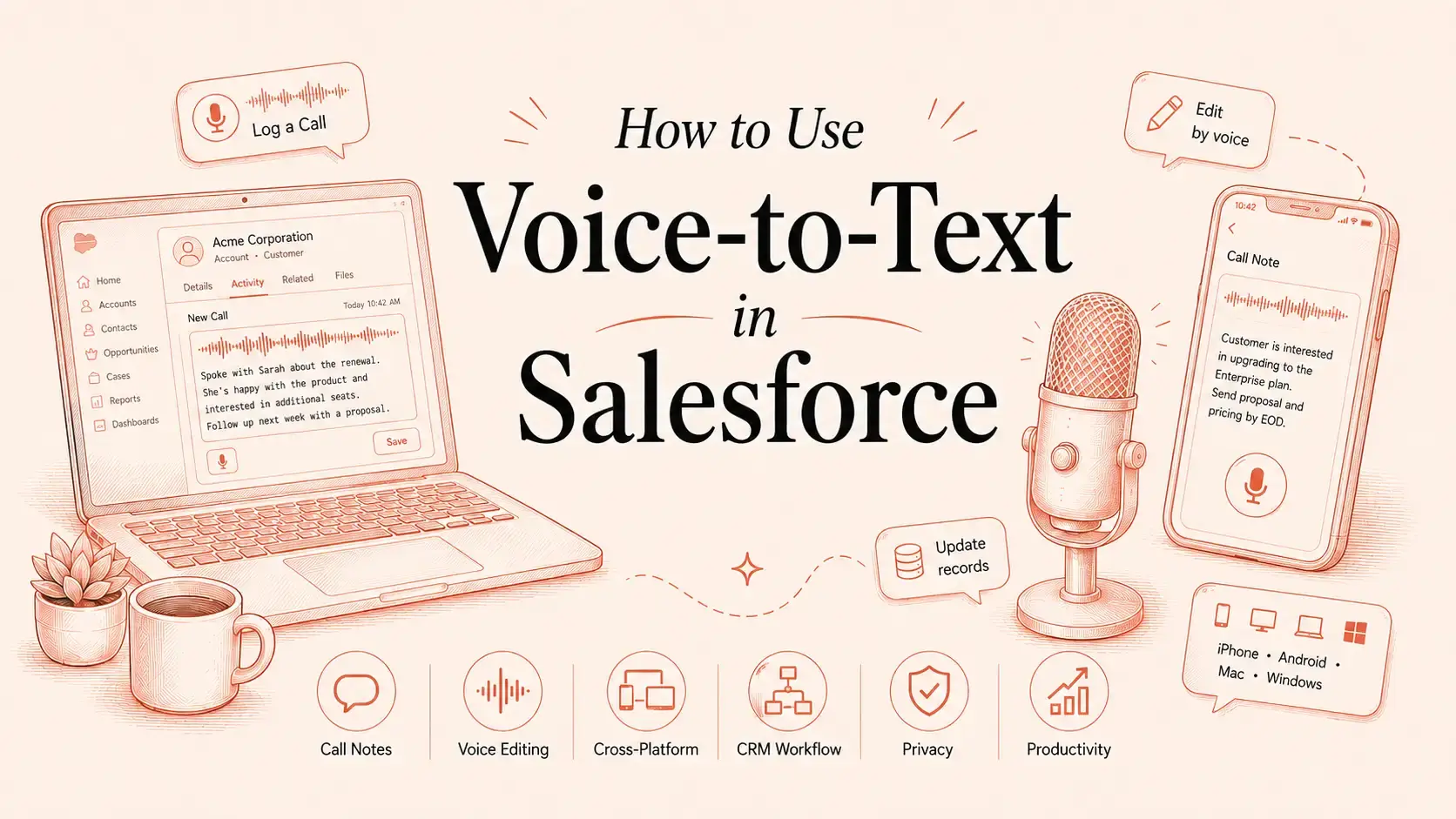
You can use voice-to-text in Salesforce by placing the cursor inside an editable field and activating your device’s dictation feature or a platform such as VoiceDash. This method works for call notes, tasks, emails, case comments, opportunity updates, contact notes, and custom text fields.
For basic dictation, Salesforce receives text from the operating system, mobile keyboard, or dictation software. VoiceDash adds a consistent workflow across iOS, Android, Mac, and Windows and lets users edit or format the result through voice commands.
Can You Use Voice-to-Text in Salesforce?
Yes. Voice-to-text can be used in Salesforce fields that accept normal text input.
The user selects a field, places the cursor inside it, activates dictation, and speaks. The resulting text appears in the active field and can be reviewed before the record is saved.
This usually works in:
- Log a Call notes
- Task descriptions
- Lead notes
- Contact notes
- Account notes
- Opportunity updates
- Case comments
- Internal comments
- Salesforce emails
- Activity records
- Custom text and long-text fields
Voice dictation does not normally control dropdown menus, checkboxes, date selectors, or other fields that do not accept free text.
How to Dictate Directly into Salesforce
The basic workflow is similar on desktop and mobile.
- Open Salesforce.
- Navigate to the record you want to update.
- Click or tap the relevant text field.
- Confirm that the cursor is visible inside the field.
- Activate device dictation or VoiceDash.
- Speak the note or update.
- Review names, dates, numbers, and technical terms.
- Save the activity or record.
The cursor position matters. Dictation software inserts text into the field that is active at the time, not necessarily the field the user intended to select five seconds earlier.
How to Use Voice-to-Text with Salesforce Log a Call
Log a Call is one of the clearest Salesforce dictation use cases.
A sales representative can dictate the call outcome immediately instead of waiting until several calls later, when customer details begin merging into one large and unreliable memory.
To dictate a call report:
- Open the relevant Lead, Contact, Account, or Opportunity.
- Select Log a Call.
- Click or tap inside the comments or notes field.
- Activate dictation.
- State what happened during the call.
- Include the outcome and next action.
- Review the text.
- Save the activity.
A representative might say:
Call with Sarah about the enterprise proposal. She is reviewing it with finance on Thursday. Her main concern is implementation time. Send the onboarding timeline today and follow up Friday morning.
A structured Salesforce note could read:
Call summary: Spoke with Sarah about the enterprise proposal. She will review it with the finance team on Thursday.
Main concern: Implementation time.
Next action: Send the onboarding timeline today and follow up on Friday morning.
The second version is easier to scan because it separates the discussion, concern, and next step.

What Should a Dictated Salesforce Note Include?
A useful CRM note should help the next person understand what happened and what must happen next.
Use this four-part structure.
Context
Identify the customer, participants, and reason for the interaction.
Key points
Record the customer’s requirements, questions, objections, risks, stakeholders, and timing.
Outcome
State what was agreed, rejected, delayed, or changed.
Next action
Include the action, responsible person, and expected date.
For example:
Context: Follow-up call with James regarding the enterprise plan.
Key points: The security team needs documentation covering data retention and access controls. Budget approval is complete, but legal review is pending.
Outcome: James agreed to introduce the legal contact.
Next action: Send the security documentation today and follow up next Wednesday.
This structure creates more useful Salesforce data than a note such as “Good call, follow up next week.”
How to Use Salesforce Dictation on iPhone
Users can dictate into the Salesforce mobile app through Apple Dictation or VoiceDash.
Using Apple Dictation
- Open the Salesforce mobile app.
- Navigate to the relevant record.
- Tap an editable field.
- Tap the microphone button on the iPhone keyboard.
- Speak the update.
- Review the text.
- Save the record.
Apple Dictation must be enabled under Settings > General > Keyboard > Enable Dictation.
The microphone function comes from iOS rather than Salesforce. Apple describes Dictation as a way to enter text wherever the onscreen keyboard is available.
Using VoiceDash on iPhone
Open the Salesforce field, place the cursor where the note should appear, and activate VoiceDash.
VoiceDash inserts the dictated text into the active field. Users can then use command mode to change wording, shorten the note, correct details, or apply a clearer structure.
This is useful when the same person also dictates into email, forms, documents, notes, and other mobile applications.
How to Use Salesforce Dictation on Android
Android users can use Gboard voice typing, another compatible keyboard, or VoiceDash.
Using Gboard Voice Typing
- Open the Salesforce mobile app.
- Tap the record you need to update.
- Tap inside an editable field.
- Tap the microphone button on Gboard.
- Speak the text.
- Review the result.
- Save the record.
Google states that Gboard voice typing works in most places where users can type with a keyboard. Availability and supported commands can vary by device, Android version, and language.
Using VoiceDash on Android
Activate VoiceDash after selecting the relevant Salesforce field. The dictated text appears where the cursor is active.
A cross-platform dictation workflow is particularly useful for field sales representatives who move between a mobile phone and a desktop computer during the same sales process.
How to Use Salesforce Dictation on Windows
Salesforce is usually accessed through a browser on Windows.
Using Windows Voice Typing
- Open Salesforce in the browser.
- Go to the required record.
- Click inside an editable field.
- Press
Windows + H. - Speak after the voice typing panel begins listening.
- Review the inserted text.
- Save the record.
Microsoft lists Windows + H as the shortcut for opening voice dictation. A working microphone and an active text field are required.
Using VoiceDash on Windows
VoiceDash can be used in Salesforce and other applications where a cursor is available.
This allows a sales representative to use the same dictation process for:
- Salesforce notes
- Follow-up emails
- Proposal documents
- Browser forms
- Internal messages
- Account plans
- Customer handovers
Teams comparing broader sales-focused options can review the guide to the best dictation software for sales reps.
How to Use Salesforce Dictation on Mac
Mac users can dictate through macOS Dictation or VoiceDash.
Using macOS Dictation
- Open System Settings.
- Select Keyboard.
- Turn on Dictation.
- Open Salesforce.
- Click inside the field you want to update.
- Use the configured Dictation shortcut.
- Speak the update.
- Review and save the text.
Apple allows users to configure the Dictation shortcut and microphone source. Automatic punctuation is available for supported languages.
Using VoiceDash on Mac
Place the cursor inside a Salesforce field and activate VoiceDash. The same method can be used in browsers, documents, emails, forms, chat boxes, and note-taking tools.
This matters for people who work across several applications rather than spending the entire day inside a single CRM tab. The guide to choosing the best remote work tool for productivity examines how dictation fits into a wider remote-work setup.
Salesforce Voice Dictation vs Voice Notes vs Call Transcription

Voice dictation, voice notes, and call transcription solve different problems.
| Method | What it captures | Best Salesforce use |
|---|---|---|
| Voice dictation | Text spoken directly by the Salesforce user | Notes, emails, tasks, comments, record updates |
| Voice note | A recorded spoken recap | Site visits, handovers, field reports, post-meeting summaries |
| Call transcription | A recorded conversation involving one or more speakers | Meeting records, call summaries, coaching, conversation analysis |
Use voice dictation when:
- The user already knows what needs to be entered
- Only the employee’s summary is required
- The text should appear directly in a Salesforce field
- Recording the customer is unnecessary
- The update is short or moderately detailed
Use a voice note when:
- The employee needs to capture a recap for later processing
- The update happens away from a desk
- The note may need to be summarized or assigned to a record later
Use call transcription when:
- The conversation itself must be preserved
- Several speakers need to be identified
- The organization requires searchable meeting records
- Call coaching or conversation analysis is needed
- Recording is permitted under company policy and applicable law
A team may use more than one method. A call transcript can preserve the original conversation, while a dictated Salesforce note records the representative’s conclusion and next action.
Native Device Dictation vs VoiceDash for Salesforce
Built-in dictation is often sufficient for occasional notes. A dedicated platform becomes more relevant when voice input is used throughout the working day.
| Capability | Native device dictation | VoiceDash |
|---|---|---|
| Inserts text into active Salesforce fields | Yes | Yes |
| Requires copying from a transcription page | No | No |
| Works across iOS, Android, Mac, and Windows | Limited to each device ecosystem | Yes |
| Provides a consistent cross-platform workflow | No | Yes |
| Removes filler words and cleans spoken text | Device-dependent | Yes |
| Supports natural-language editing commands | Usually limited | Yes |
| Supports voice-based formatting | Basic or device-dependent | Yes |
| Works outside Salesforce | Within supported device apps | In any app where there’s a cursor |
| Requires a Salesforce API integration for basic dictation | No | No |
VoiceDash does not need to record a complete customer call to create a Salesforce note. It converts the user’s live speech into text inside the active field.
It should not be confused with tools designed primarily for meeting recording, call intelligence, or automatic Salesforce record synchronization.
How VoiceDash Command Mode Helps with Salesforce Notes
Basic dictation converts speech into text. Command mode lets the user instruct VoiceDash to revise or restructure that text.
Examples include:
- “Delete the last sentence.”
- “Make this more concise.”
- “Turn the next steps into bullet points.”
- “Format this as a call summary.”
- “Replace Friday with Monday.”
- “Correct the company name.”
- “Move the objection before the outcome.”
- “Rewrite this in a professional tone.”
- “Add a next-action section.”
- “Remove repeated information.”
This is useful because spoken language and written CRM notes have different structures.
People naturally repeat themselves, change direction halfway through a sentence, and add context after stating the conclusion. Raw transcription preserves that disorder with impressive loyalty. Command mode can turn it into text that is easier to review and use.
Salesforce Dictation Use Cases
Sales call notes
Record the customer’s requirements, objections, buying signals, decision process, and next action.
Opportunity updates
Explain why the opportunity moved forward, stalled, or changed stage.
Follow-up tasks
Dictate the required action, responsible person, due date, and relevant context.
Customer emails
Create a personalized follow-up while the details of the conversation are still fresh.
Case comments
Summarize the reported issue, investigation, current status, and resolution steps.
Field reports
Capture details after site visits, inspections, property viewings, and customer meetings.
Mobile professionals often need to enter information before returning to a desk. The same considerations are examined in the guide to the Best Dictation Apps for Real Estate Agents, where field notes and immediate follow-ups are central requirements.
Internal handovers
Record what the next team member needs to know before contacting the customer.
Custom Salesforce records
Enter industry-specific observations into custom text fields and objects.
Best Practices for Salesforce Voice Dictation
Confirm the correct record first
Check the Lead, Contact, Account, Opportunity, or Case before speaking.
Attaching an accurate note to the wrong customer creates confident misinformation, which is much harder to notice than an empty field.
Dictate in short sections
Separate context, key points, outcome, and next action.
Short sections are easier to review and correct than a continuous two-minute monologue.
Use specific language
Avoid vague notes such as:
Customer interested. Follow up later.
Use:
The customer approved the technical scope but requested revised payment terms before signing. Send the updated payment schedule by Thursday.
Review critical details
Always verify:
- Names
- Company names
- Dates
- Prices
- Contract values
- Product names
- Email addresses
- Phone numbers
- Technical terms
- Legal terminology
Save important updates promptly
Do not leave a completed note unsaved while navigating through several other records.
Use a consistent template
A shared note structure improves readability and makes team reporting more reliable.
A basic template can include:
- Purpose
- Key points
- Objection or risk
- Outcome
- Next action
- Due date
Keep the note relevant
Dictation lowers the effort required to enter text. It does not create a requirement to preserve every thought.
The objective is usable customer context, not an oral history of the sales representative’s afternoon.
Common Salesforce Dictation Problems
Dictation does not start
Check:
- Microphone permissions
- Browser permissions
- Operating system privacy settings
- Keyboard voice-typing settings
- Whether the correct microphone is selected
- Whether the cursor is active in a text field
- Whether VoiceDash is running and activated
Text appears in the wrong field
Stop dictation, select the correct field, and resume.
Names or technical terms are incorrect
Correct the term before saving. Spell unusual names when necessary and use personal vocabulary features where available.
The note contains filler words or repetition
Use VoiceDash cleanup or command mode to shorten and restructure the text.
Voice commands appear as normal text
Confirm that command mode is active rather than standard dictation mode.
The microphone button is missing on mobile
Check whether Dictation or voice typing is enabled in the keyboard settings and whether microphone permission has been granted.
A custom Salesforce field does not accept dictation
Confirm that the field accepts free text and that the cursor can be placed inside it. Some custom components and rich-text editors may behave differently and should be tested directly.
Is Voice Dictation Secure for Salesforce Data?
Organizations should review how a dictation service processes audio and text before approving it for customer or commercial information.
Relevant questions include:
- Is audio processed locally or on remote servers?
- Is the original audio stored?
- How long are audio and text retained?
- Is information encrypted during transmission?
- Is customer data used for model training?
- Can administrators control retention or access?
- Does the workflow meet internal security policies?
- Are regulated or confidential data types involved?
- Does the employee have permission to enter the information into Salesforce?
Salesforce permissions still control access to the saved record. A dictation platform does not replace Salesforce roles, sharing rules, field-level security, access controls, or internal data policies.
Users should also avoid speaking confidential information where other people can hear it. Encryption has limited influence over the stranger sitting at the next table.
How VoiceDash Works with Salesforce
VoiceDash is a live voice-to-text platform for iOS, Android, Mac, and Windows.
It works wherever there is a cursor, allowing users to dictate directly into supported Salesforce fields rather than creating text in a separate transcription tool.
In Salesforce, VoiceDash can be used for:
- Call notes
- Task descriptions
- Opportunity updates
- Lead and contact notes
- Account records
- Case comments
- Internal comments
- Emails
- Custom text fields
VoiceDash also works in email platforms, documents, browsers, forms, chat boxes, notes applications, and other productivity tools.
Command mode lets users edit, format, shorten, correct, and restructure text by voice. This removes the need to dictate in one application, clean the text in another, and paste the final version into Salesforce.
Conclusion
Voice-to-text in Salesforce works by placing the cursor inside an editable field and using device dictation or a platform such as VoiceDash.
Built-in dictation on iPhone, Android, Mac, and Windows is suitable for basic notes. VoiceDash provides one workflow across all four platforms and adds voice-based editing and formatting.
The useful outcome is not simply producing text faster. It is recording clear customer context, outcomes, and next actions while the information is still accurate and attaching it to the correct Salesforce record.
