
- Quick fixes for Windows voice typing problems
- 1. Win+H not working? Test it in Notepad
- 2. Voice typing opens but no text appears
- 3. Fix the “Voice typing needs access to your microphone” error
- 4. Fix “Something went wrong” or connection errors
- 5. Fix “Voice typing isn’t available in the current language”
- 6. Voice typing works in Notepad but not in Word, Chrome, or another app
- 7. Fix voice typing that keeps stopping or produces incorrect text
- 8. Win+H still not working? Check Windows updates and other voice features
- What to use if Windows voice typing still doesn’t work
- Bottom line
- Frequently Asked Questions
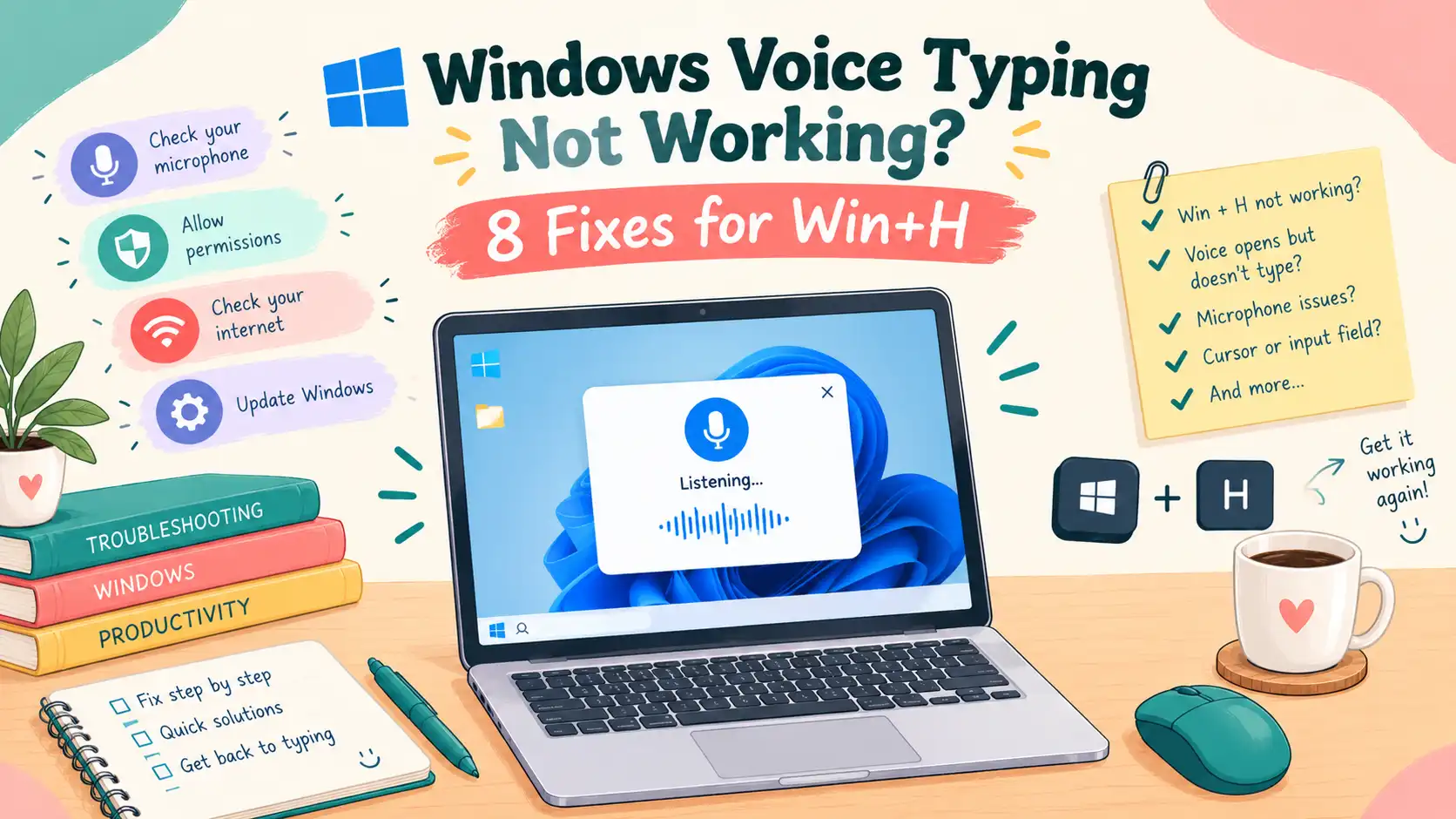
Windows Voice Typing Not Working? 8 Fixes for Win+H
Windows voice typing not working? Open Notepad, click inside a blank document, press Windows + H, and wait for “Listening.” If no text appears, check your microphone, microphone permissions, internet connection, and input language. Testing in Notepad first helps you determine whether the problem affects Windows or just one app.
These fixes cover built-in Windows voice typing on Windows 11 and Windows 10. You don’t need to reinstall Windows or download a speech recognition package to run the initial checks.
Quick fixes for Windows voice typing problems
Find your symptom below before changing any settings.
| Problem | Likely cause or first check | What to do |
|---|---|---|
| Win+H does nothing | No active text field or shortcut conflict | Click inside Notepad and press Win+H again. |
| Voice typing opens but doesn’t type | Microphone input or text-field issue | Test your microphone and cursor position. |
| “Voice typing needs access to your microphone” | Microphone access is disabled | Enable access in Windows privacy settings. |
| “Voice typing isn’t available in the current language” | Unsupported input language | Switch to a supported language using Win+Space. |
| “Something went wrong” | Speech service or connection problem | Check internet access and online speech settings. |
| Voice typing hears you but makes mistakes | Noise, weak microphone input, or language mismatch | Test the input signal and selected language. |
| Dictation keeps stopping | Listening session interruption | Check whether it happens after silence or during speech. |
| Win+H works in Notepad but not another app | Application or text-field issue | Test an editable field and restart the app. |
1. Win+H not working? Test it in Notepad
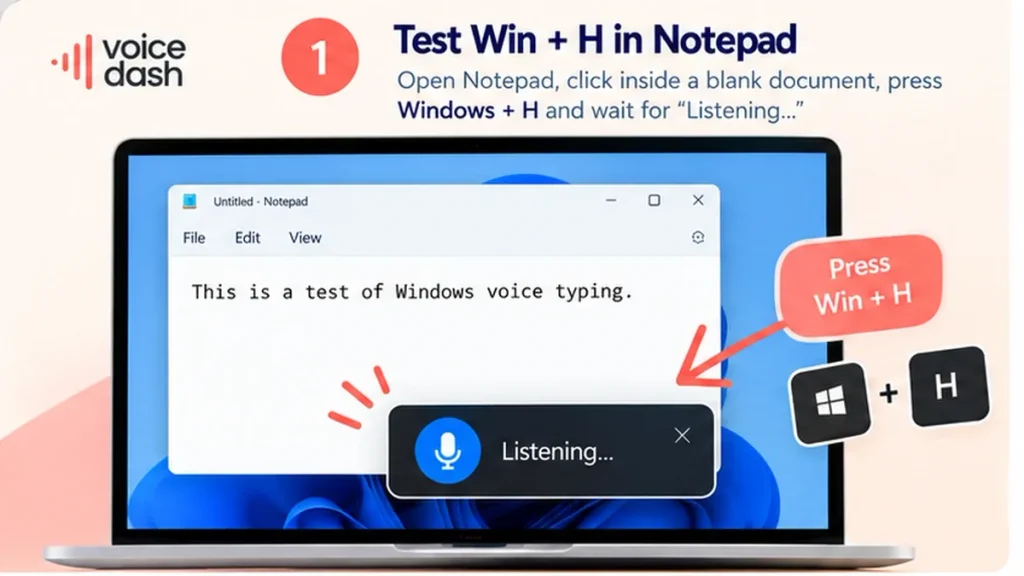
If pressing Windows + H does nothing, first check that your cursor is inside an editable text field. Windows voice typing needs an active text box before it can start.
- Open Notepad and create a new document.
- Click inside the blank editing area.
- Type a few characters to confirm the field is editable, then delete them.
- Press Windows + H.
- Wait for “Listening” and say a short sentence.
If Notepad displays your words, Win+H is working in that field. Return to the app where dictation failed and check whether you’re typing into an editable area rather than a toolbar, preview, or read-only document.
If the voice typing panel doesn’t appear at all:
- Press the Windows key alone to confirm it works.
- Check whether gaming mode or a keyboard lock has disabled the Windows key.
- Close any keyboard shortcut or hotkey-remapping software that could be intercepting Win+H.
- Restart Windows if the shortcut still fails.
Don’t confuse the Voice typing launcher with Win+H itself. The launcher setting controls convenient access to dictation when you’re in a text field. It isn’t a required switch for the keyboard shortcut.
2. Voice typing opens but no text appears
If Windows shows “Listening” but doesn’t type anything, check whether the microphone is capturing audio and whether the text field accepts input.
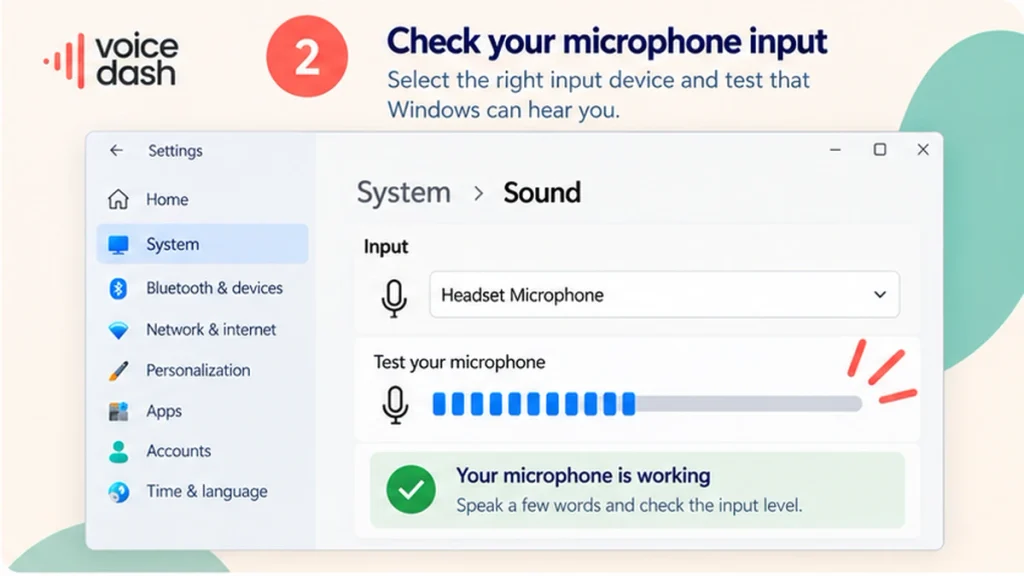
Open Settings → System → Sound and find the Input section.
- Select the microphone you want to use.
- Speak normally and check whether the input indicator responds.
- Check the physical mute switch on your headset or microphone.
- Reconnect USB or Bluetooth devices if necessary.
- Return to Notepad and test Win+H again.
If Windows detects no audio, try another working microphone. A built-in laptop microphone is useful for checking whether the problem affects only your headset.
You can also use the free VoiceDash Mic Quality Tester to check signal clarity and background noise through your browser.
If the microphone works in Windows Sound settings but fails in the browser tester, check the browser’s microphone permission and selected input device. Browser permissions and Windows microphone settings are separate checks.
If the microphone works everywhere except Win+H, continue with the Windows speech and privacy settings below.
3. Fix the “Voice typing needs access to your microphone” error
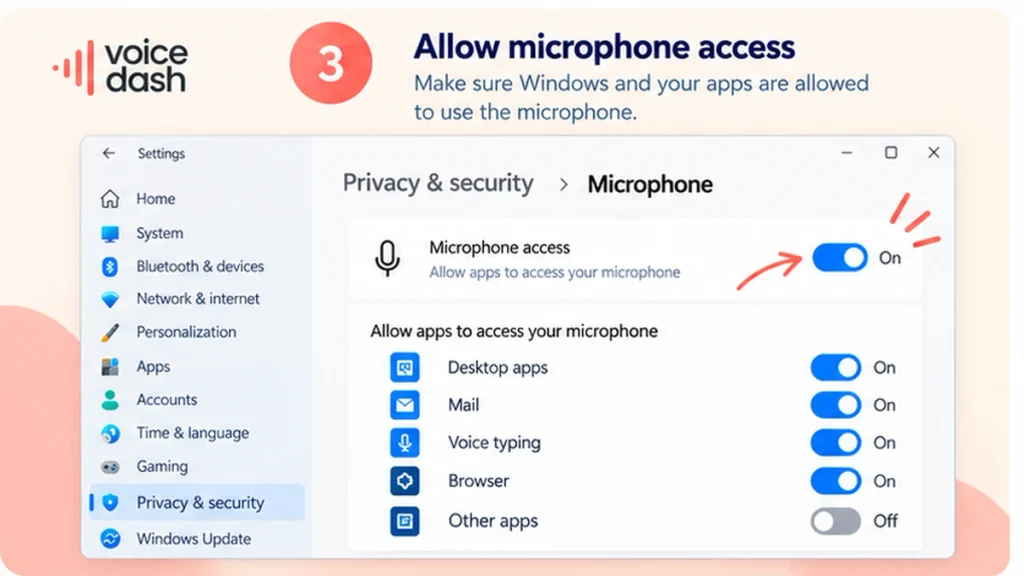
This error means Windows voice typing doesn’t have the microphone access it needs. Enable microphone access in Windows Settings, then reopen dictation.
Windows 11
- Open Settings → Privacy & security → Microphone.
- Turn on Microphone access.
- Check the relevant app-access settings.
- Enable desktop-app microphone access where required.
- Return to Notepad and test Win+H.
Windows 10
Open Settings → Privacy → Microphone and check the available microphone access controls.
A microphone can appear correctly in Sound settings while software access remains blocked. That’s why adjusting the input volume alone may not fix this error.
If a setting is disabled or says it’s managed by your organization, contact your IT administrator rather than changing security policies.
4. Fix “Something went wrong” or connection errors
Windows voice typing uses Microsoft’s online speech recognition service, so an internet connection is required. Connection failures or unavailable speech services can prevent Win+H from transcribing speech.
Check these items in order:
- Open a website to confirm that your internet connection works.
- Close and reopen the voice typing panel.
- On Windows 11, open Settings → Privacy & security → Speech.
- Check the Online speech recognition setting and enable it if it’s off.
- Return to Notepad and test another sentence.
On Windows 10, speech privacy settings are under Settings → Privacy → Speech.
If the problem occurs only on a company network, speech services may be restricted by network or organization policies. Report the exact message to IT rather than turning off the firewall.
Avoid treating every connection error as a missing language pack. “Something went wrong” doesn’t identify a single cause. Verify the connection and speech settings before trying more invasive repairs.
For the official requirements, see Microsoft’s Windows voice typing instructions.
5. Fix “Voice typing isn’t available in the current language”
This error appears when the current input language isn’t supported by Windows voice typing. Switch to a supported language and try dictating again.
- Press Windows + Space.
- Choose the language you intend to speak.
- Confirm that the language supports voice typing on your Windows version.
- Test Win+H in Notepad.
To add another language on Windows 11, open:
Settings → Time & language → Language & region → Add a language
Your display language doesn’t have to match your dictation language. Windows voice typing follows the active input language.
Microsoft’s supported voice typing languages differ between Windows 10 and Windows 11.
Do you need to install Enhanced Speech Recognition?
Not for ordinary Windows 11 voice typing. Microsoft states that the optional speech-recognition language features aren’t required for Win+H. Voice Access has separate language-model requirements.
6. Voice typing works in Notepad but not in Word, Chrome, or another app
If Win+H types correctly in Notepad but not in another app, check that application’s editing field before changing Windows-wide settings.
First, try typing a few characters manually in the same location. If the field is read-only or doesn’t have focus, speech input may have nowhere to insert the text.
Then try the following:
- Click directly inside the text-entry area.
- Confirm you can type normally.
- Close and reopen the affected app or reload the browser page after saving your work.
- Try a new document or text field.
- Test Win+H again.
If you’re using Google Docs, distinguish Windows voice typing from Google Docs’ built-in Tools → Voice typing feature. The latter has its own browser and website microphone permissions.
For problems with that feature, follow our Google Docs voice typing not working guide.
If the microphone button is greyed out in Microsoft Word, identify whether you’re using Word’s Dictate feature. Word Dictate has its own application, account, and connection requirements. A greyed-out button in Word doesn’t automatically mean Win+H is broken.
7. Fix voice typing that keeps stopping or produces incorrect text
If Windows voice typing stops unexpectedly, check whether it stops after silence or while you’re actively speaking. These symptoms can have different causes.
If dictation stops after a pause
Restart voice typing and try a longer sentence with fewer pauses. If the problem occurs consistently after silence, it may be related to how Windows handles the listening session rather than a microphone failure.
There’s no reason to reinstall audio drivers solely because dictation pauses after inactivity.
If dictation stops while you’re speaking
- Watch the microphone input level for interruptions.
- Check whether your USB or Bluetooth microphone disconnects.
- Confirm that the internet connection remains stable.
- Repeat the same test in Notepad.
If Windows types the wrong words
Start with the recording conditions:
- Move to a quieter room.
- Select the correct input language.
- Use a headset or an external microphone if the built-in microphone produces weak input.
- Review names, numbers, and technical terms before using the text.
You can enable Automatic punctuation from the voice typing panel’s settings. This changes how punctuation is inserted; it won’t resolve an unavailable microphone or a connection failure.
On supported Copilot+ PCs, Windows also offers Fluid dictation, which can improve grammar, punctuation, and filler-word handling. Its availability depends on the device and language.
8. Win+H still not working? Check Windows updates and other voice features
If the microphone, permissions, internet connection, and input language all work, restart Windows and check for applicable updates.
Open Settings → Windows Update → Check for updates.
If voice typing stopped after a recent Windows update, review the update history and look for a documented issue affecting your Windows build before rolling anything back.
Also check whether you’re using the correct speech feature.
Windows includes separate tools that are easy to confuse:
| Feature | Main purpose | Internet needed for speech recognition? |
|---|---|---|
| Windows Voice Typing (Win+H) | Dictate text into an active field | Yes |
| Windows Voice Access | Control the PC and dictate text | No, after initial language setup |
| Microsoft Word Dictate | Dictate inside supported Word experiences | Yes |
If Voice Access is already running, Windows may tell you to use Voice Access for typing instead of opening the normal Win+H interface.
Voice Access can be opened from Settings → Accessibility → Speech on supported Windows 11 versions.
If you’re still unable to use dictation, collect the following information before seeking technical support:
- Windows version: Press Windows + R, type
winver, and press Enter. - Error message: Record the exact wording.
- Microphone test: Note whether the input indicator moves.
- Notepad test: Note whether Win+H opens and inserts text.
These four details help narrow the problem without resetting unrelated Windows settings.
What to use if Windows voice typing still doesn’t work
If your microphone works but Win+H remains unreliable, you can use a separate speech-to-text tool instead of depending on Windows’ built-in dictation.
VoiceDash is an AI voice typing app for Windows, macOS, Android, and iOS. It converts spoken input into written text for emails, documents, notes, and AI prompts, with AI-assisted text cleanup.
There are two ways to use it:
For a quick browser-based test: Open the free VoiceDash speech-to-text tool. It supports live speech input, audio-file transcription, and text export. This is useful when you need a transcript you can review and copy into another app.
For regular desktop dictation: Use the installed VoiceDash app for writing workflows on Windows. VoiceDash also includes a meeting-summary feature, although that is separate from ordinary Win+H troubleshooting.
The browser tool and installed application are different experiences, so their available features shouldn’t be assumed to be identical.
VoiceDash won’t repair a broken microphone or remove Windows administrator restrictions. Resolve those issues first.
For setup and everyday dictation workflows, see our speech-to-text in Windows guide. For broader problems across devices and apps, read why voice typing isn’t working.
Bottom line
If Windows voice typing isn’t working, test Win+H in Notepad first. Then check the microphone input, privacy permissions, online speech recognition, and input language. If dictation works in Notepad, investigate the original app rather than changing Windows-wide settings.
If Win+H remains unreliable but your microphone is working, VoiceDash provides a separate way to convert speech into text.
