
- Quick answer: How to fix Google Docs Voice Typing
- Why is Google Docs Voice Typing not working?
- How to fix Google Docs Voice Typing
- Fix specific Google Docs Voice Typing problems
- Does Google Docs Voice Typing work on mobile?
- When Google Docs Voice Typing is not enough
- Google Docs Voice Typing vs VoiceDash
- How to use VoiceDash in Google Docs
- Conclusion
- Frequently Asked Questions
Google Docs Voice Typing Not Working? 9 Fixes for 2026
If Google Docs Voice Typing is not working, first allow microphone access for docs.google.com, confirm that your computer can hear the correct microphone, and reload the document in an updated supported browser.
If the feature opens but types words such as “comma” or “new paragraph” instead of following the command, check the selected language. In our testing, Google Docs did not consistently recognize punctuation and formatting commands, even when dictation itself was working.
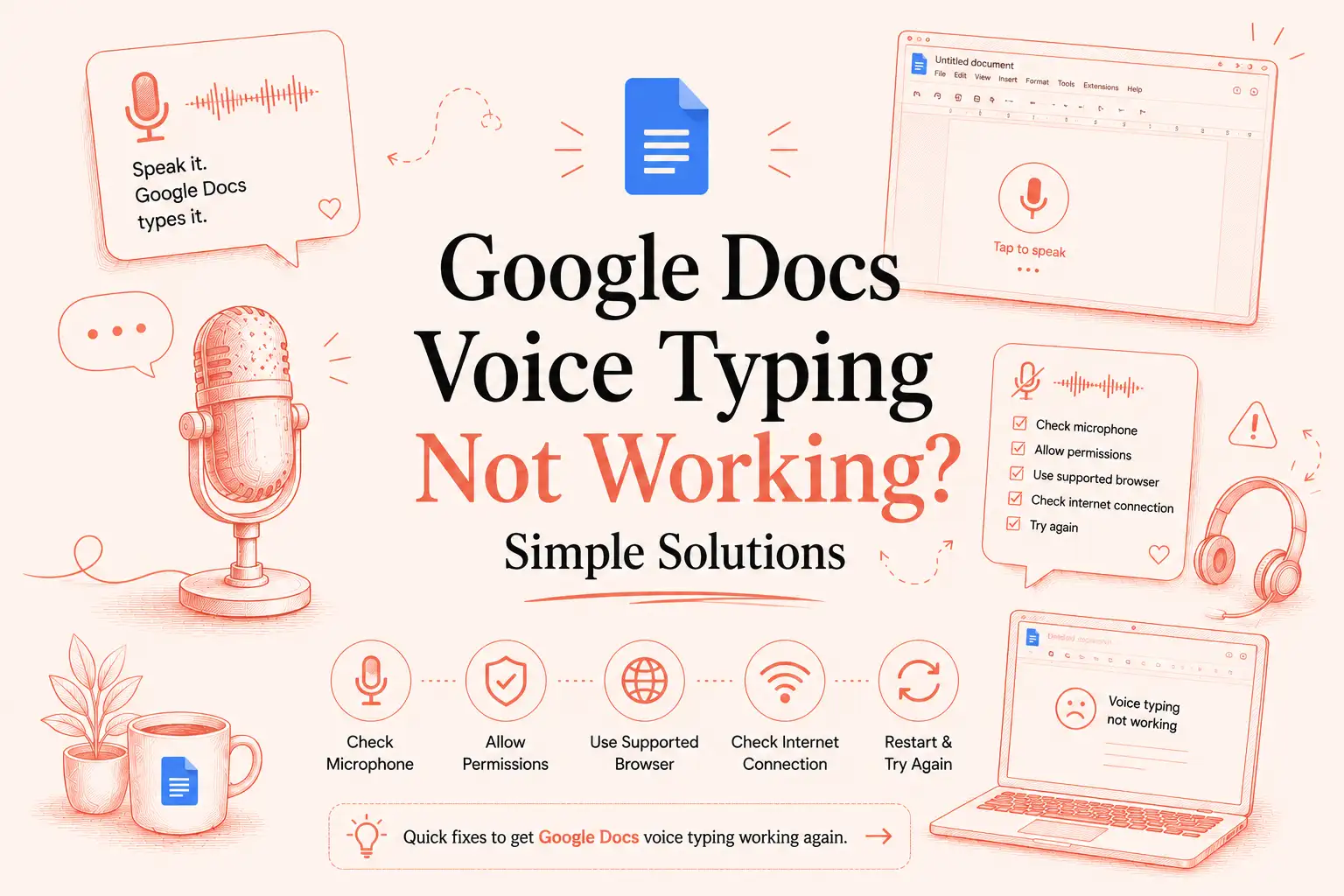
Quick answer: How to fix Google Docs Voice Typing
Work through these fixes in order:
- Open Google Docs in an updated supported desktop browser.
- Confirm that you can edit the document.
- Allow microphone access for
docs.google.com. - Enable microphone access for the browser in Windows or macOS.
- Select and test the correct microphone.
- Match the Voice Typing language to your speech.
- Test the document in a private browser window.
- Update and restart the browser.
- Check for school or workplace restrictions.
For complete setup instructions, read our guide on how to voice type on Google Docs.
Why is Google Docs Voice Typing not working?
The fastest way to find the problem is to match the symptom with its most likely cause.
| What happens | Most likely cause | First fix |
|---|---|---|
| Voice Typing is missing from Tools | Browser, document, access, or account restriction | Test a blank Google Doc in Chrome |
| The microphone icon does nothing | Browser or system permission is blocked | Allow microphone access |
| The microphone turns on but no text appears | Wrong input device or muted microphone | Test the selected microphone |
| Google Docs reports no permission | Site, operating-system, or organization policy | Check all permission levels |
| Punctuation is missing | The punctuation command was not recognized | Check the selected language |
| “New paragraph” appears as text | Google interpreted the command as dictation | Pause and repeat the command |
| Voice Typing keeps stopping | Browser session, extension, mic conflict, or connection issue | Test a private window |
| The words are inaccurate | Wrong language, noise, poor audio, or difficult terminology | Improve the microphone input |
How to fix Google Docs Voice Typing
1. Use an updated supported browser
Google Docs Voice Typing is a desktop-browser feature. Google currently supports the latest versions of Chrome, Edge, and Safari for Voice Typing. Firefox is not listed as supported.
Chrome is the best first browser for troubleshooting because its microphone and site-permission controls are easy to inspect.
To update Chrome:
- Open the three-dot menu.
- Select Help > About Google Chrome.
- Install any available update.
- Restart Chrome.
- Reopen the document.
- Select Tools > Voice typing.
If the feature works in Chrome but not in your usual browser, the problem is probably browser-specific rather than a microphone failure.
2. Allow microphone access for Google Docs
A blocked site permission is one of the most common reasons Google Docs Voice Typing fails.
In Chrome:
- Open the Google Doc.
- Select the site-information icon beside the address bar.
- Open Site settings.
- Find Microphone.
- Change the permission to Allow.
- Reload the document.
You can also go to:
Chrome > Settings > Privacy and security > Site settings > Microphone
Check that:
- Sites can request microphone access.
docs.google.comis not blocked.- The correct microphone is selected as the default device.
Chrome allows users to manage microphone permissions and select a default microphone from Site settings.
In Edge, open the site permissions for Google Docs and set the microphone to Allow.
In Safari, go to:
Safari > Settings > Websites > Microphone
Find Google Docs and select Allow.
Reload the document after changing a permission. The open Google Docs session may not recognize the new setting until the page refreshes.
3. Check microphone access in Windows or macOS
Browser permission is only one layer. Windows or macOS can still prevent the browser from accessing your microphone.
Windows 11
Go to:
Settings > Privacy & security > Microphone
Turn on:
- Microphone access
- Let apps access your microphone
- Let desktop apps access your microphone
Chrome and Edge are desktop applications, so the desktop-app setting must also be enabled.
Close and reopen the browser after changing the setting.
macOS
Go to:
Apple menu > System Settings > Privacy & Security > Microphone
Enable access for Chrome, Edge, or Safari, depending on which browser you use. Apple confirms that microphone access can be controlled separately for each application.
Quit the browser completely, reopen it, and test Google Docs again.
If voice typing also fails in other applications, use our broader guide to fixing voice typing that is not working.
4. Select and test the correct microphone
Your browser may have permission while listening to the wrong device.
This commonly happens when a computer has several audio inputs:
- Built-in laptop microphone
- Webcam microphone
- External monitor microphone
- USB microphone
- Wired headset
- Bluetooth headset
In Chrome, go to:
Settings > Privacy and security > Site settings > Microphone
Select the microphone you are actually using.
Then test it outside Google Docs:
- Open the computer’s sound settings.
- Speak at a normal volume.
- Check whether the input-level meter moves.
- Record a short audio clip.
- Play it back.
If the microphone does not work anywhere, Google Docs is not causing the problem.
If it works elsewhere but not in Docs, continue with the document, language, and extension checks.
Disconnect unused Bluetooth devices during testing. A headset that is disconnected or asleep may still remain selected as the active input.
5. Test a blank, editable Google Doc
Open a new blank Google Doc and test Voice Typing there.
This determines whether the issue is limited to one document.
Check that:
- You have Editor access.
- The cursor is active inside the document.
- You are not viewing a PDF preview.
- The document is not view-only or comment-only.
- You are using a native Google Docs file.
If you opened a Microsoft Word .docx file and Voice Typing is missing or unavailable, create a native Google Docs copy:
- Open the file.
- Select File.
- Choose Save as Google Docs.
- Open the new copy.
- Test Tools > Voice typing again.
A Word file is not always the cause, but converting it is a useful diagnostic step when Voice Typing works in a blank Google Doc but not in the original document.
6. Match the Voice Typing language to your speech
The language selected in the Voice Typing panel should match the language and regional variation you are speaking.
To change it:
- Select Tools > Voice typing.
- Open the language menu above the microphone.
- Choose the closest language variation.
- Restart Voice Typing.
For English, this may include options such as:
- English (United States)
- English (United Kingdom)
- English (India)
- English (Australia)
Using the wrong variation can increase errors with pronunciation, vocabulary, names, and regional expressions.
Google also places additional restrictions on editing and formatting commands. Voice commands are available only in English, and the Google account and document languages must also be English.
This explains why normal dictation may work while commands such as “select previous word” or “apply heading” fail.
7. Test punctuation and commands separately
Google officially documents spoken punctuation commands including:
- Period
- Comma
- Exclamation point
- Question mark
- New line
- New paragraph
Google also documents commands for selecting, editing, and formatting text.
However, documented support does not mean every command will execute consistently in every session.
In our hands-on use of Google Docs Voice Typing, punctuation was not reliably added from context. We usually had to say “comma” or “period” aloud. Google Docs also sometimes wrote the command itself instead of performing it.
For example:
| Spoken phrase | Expected result | What may happen |
|---|---|---|
| “Comma” | Insert a comma | The word “comma” appears |
| “Period” | End the sentence | The word “period” appears |
| “New paragraph” | Start a new paragraph | The phrase is typed |
| “Select previous word” | Select the previous word | Nothing happens |
| Formatting command | Format existing text | The command is ignored or transcribed |
If a command is typed as ordinary text:
- Confirm that the account, document, and Voice Typing languages are English.
- Pause briefly before saying the command.
- Say the command clearly.
- Wait for it to execute before continuing.
- Try the command in a blank document.
Google Docs supports punctuation commands, but it should not be treated as a consistently automatic punctuation system. Results can depend on language settings, pronunciation, context, and recognition accuracy.
8. Disable extensions and test a private window
Some browser extensions can interfere with page scripts, microphone access, or site permissions.
Possible conflicts include:
- Privacy extensions
- Script blockers
- Ad blockers
- Microphone-control tools
- VPN browser extensions
- Meeting-recording extensions
- Other speech-to-text extensions
Open the document in an Incognito or private window.
If Voice Typing works there, an extension or saved browser-profile setting is probably interfering.
Return to your normal profile and disable extensions one at a time. Reload Google Docs after every change and test the microphone again.
Do not permanently disable all extensions without identifying the actual conflict.
9. Restart the browser session and check account restrictions
If the hardware and permissions are correct, reset the active session.
Use this order:
- Reload the Google Doc.
- Close other applications using the microphone.
- Restart the browser.
- Sign out of Google and sign back in.
- Test a fresh browser profile.
- Restart the computer.
- Clear site data for Google Docs.
- Clear the broader browser cache only as a final step.
Video conferencing, screen recording, and audio applications may interfere with the selected microphone. Close them before testing.
School and workplace accounts may also be affected by managed browser, device, or microphone policies.
Test Google Docs with a personal Google account on the same computer. If Voice Typing works with the personal account but not the managed account, contact the administrator.
Ask them to check:
- Browser microphone policies
- Device microphone restrictions
- Permissions for
docs.google.com - Managed browser extensions
- Voice or accessibility feature restrictions
Do not attempt to bypass organizational security policies.
Fix specific Google Docs Voice Typing problems
Voice Typing is missing from the Tools menu
Check these items:
- Use an updated supported desktop browser.
- Confirm that you have Editor access.
- Test a new blank Google Doc.
- Convert an open
.docxfile to Google Docs format. - Check managed account or device restrictions.
Google has not removed Voice Typing. Its current help documentation still places the feature under Tools > Voice typing.
The microphone icon appears but does nothing
Check permission at three levels:
- Google Docs site permission
- Browser permission in Windows or macOS
- Managed account or device policy
Reload the document after every permission change.
The microphone turns on but no text appears
Check:
- The selected input device
- The microphone input level
- The headset mute switch
- The selected dictation language
- Other applications using the microphone
- Whether the same microphone works in another app
Google Docs types the wrong words
Improve the audio input:
- Use the correct language variation.
- Reduce background noise.
- Move closer to the microphone.
- Speak in complete phrases.
- Slow down around names and technical terms.
- Check that the browser selected the correct microphone.
Names, acronyms, specialist terminology, and mixed-language speech can still produce recognition errors. Review important text before sending or publishing it.
Voice Typing keeps stopping
There is no single cause for every case. Check:
- Browser session errors
- Extension conflicts
- Another app using the microphone
- Microphone disconnection
- Unstable connection
- Managed browser policies
- The cursor leaving the editable document area
Restarting the microphone may restore it temporarily, but repeated failures usually indicate an unresolved permission, input, browser, or account problem.
Does Google Docs Voice Typing work on mobile?
The Tools > Voice typing interface is a desktop-browser feature.
On Android and iPhone, voice input in the Google Docs app normally comes from the device keyboard:
- Android commonly uses Gboard voice typing.
- iPhone and iPad commonly use Apple Dictation.
- Other keyboard applications may provide their own voice-input systems.
A missing microphone on mobile is therefore usually a keyboard or operating-system problem rather than a missing Google Docs setting.
This is also why dictation can behave differently on a phone and computer, even when both devices are editing the same document.
When Google Docs Voice Typing is not enough
Google Docs Voice Typing is useful when you:
- Write mainly inside Google Docs
- Need basic free dictation
- Are comfortable saying punctuation commands
- Can manually review and correct the transcript
- Do not need the same workflow in other applications
The limitation is not that Google Docs has no commands. It officially supports several punctuation, editing, and formatting commands.
The problem is that command execution can be inconsistent, punctuation often has to be spoken, and the feature is tied to the Google Docs environment.
A normal workday may also include:
- Microsoft Word
- Slack
- Notion
- ChatGPT
- Browser forms
- Notes applications
- Customer-support tools
- Project-management platforms
- Messaging applications
Using a different dictation method in every application creates a fragmented workflow. Our guide to using voice to text explains the broader options across devices and applications.
Google Docs Voice Typing vs VoiceDash
VoiceDash is a live AI voice-to-text platform available across iOS, Android, Mac, and Windows. It is designed to enter text directly wherever there is an editable cursor, including Google Docs, emails, forms, chat boxes, notes, browsers, and productivity tools.
| Capability | Google Docs Voice Typing | VoiceDash |
|---|---|---|
| Dictation in Google Docs | Yes | Yes |
| Dictation in other applications | Requires another voice-input method | Works across supported editable fields |
| Desktop support | Supported browser workflow | Mac and Windows |
| Mobile support | Uses keyboard dictation | iOS and Android |
| Punctuation | Spoken commands may be required | AI-assisted punctuation |
| Filler-word cleanup | Raw dictation may retain filler words | Designed to remove filler words |
| Voice editing | Google Docs English commands | VoiceDash Command Mode |
| Voice formatting | Supported commands with limitations | Command Mode can edit and format text |
| Cross-application workflow | Limited to the Docs environment | One workflow across supported apps |
| Copying between applications | May be required | Text appears at the active cursor |
VoiceDash Command Mode separates dictation from editing.
After dictating, users can give instructions such as:
- Rewrite this more clearly.
- Shorten this paragraph.
- Turn this into bullet points.
- Correct the grammar.
- Make this more formal.
- Replace the previous sentence.
- Add a heading.
- Format this as a checklist.
This removes the need to dictate text in one application, copy it into Google Docs, and then format it manually.
How to use VoiceDash in Google Docs
- Open VoiceDash on your device.
- Open the Google Doc.
- Place the cursor where the text should appear.
- Start VoiceDash dictation.
- Speak naturally.
- Review the generated text.
- Use Command Mode to rewrite, edit, or format it.
The same workflow can be used in emails, forms, notes, chat boxes, browsers, and other supported editable fields.
Conclusion
Most Google Docs Voice Typing problems come from microphone permissions, the wrong input device, browser issues, language settings, extensions, document access, or managed account policies.
Google Docs officially supports punctuation and editing commands, but they do not execute consistently in every real-world session. Punctuation may need to be spoken aloud, and phrases such as “new paragraph” may sometimes appear as text instead of performing the command.
For basic dictation inside one Google Doc, the built-in feature may be enough. For voice-to-text across documents, emails, forms, chats, notes, browsers, and productivity tools, VoiceDash provides a consistent cross-platform workflow with voice-based editing and formatting through Command Mode.
