
- Voicina at a Glance
- What Is Voicina?
- Who Is Voicina For?
- Why Voicina Connects Transcription, Translation & Dubbing?
- Core Voicina Features
- How to Start Your First Voicina Project
- Voicina Free Plan and Paid Options
- Professional Workflows with Voicina
- Voicina Live Captions and Translation
- How to Get Better Transcription and Localization Results
- Privacy and Data Retention
- Voicina API Access
- Common Problems and What to Check
- Bottom Line: Choosing Your Next Step
- Frequently Asked Questions
Voicina: A Guide to AI Transcription, Subtitles and Dubbing
Voicina is a browser-based all-in-one workspace for turning audio and video into transcripts, subtitles, translations, and generated speech. It also provides live captions and translated output for meetings and events.
The platform is useful when the same recording needs several deliverables. You may need a readable transcript, captions for a video player, and a spoken version in another language. Keeping those tasks connected can reduce the number of files and versions your team needs to manage.
This guide explains what Voicina does, which features apply to different tasks, what the Free plan includes, and what to review before publishing the output.
Voicina at a Glance
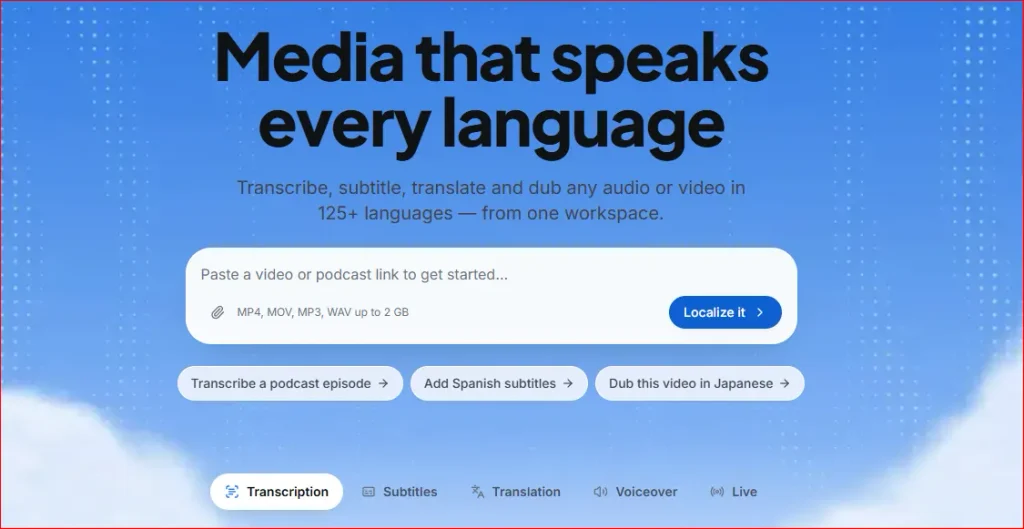
Start with the output you need. Transcription, subtitle creation, translation, and dubbing address related but different tasks. You can use the relevant feature without treating every recording as a complete localization project.
| Voicina | What to Know |
|---|---|
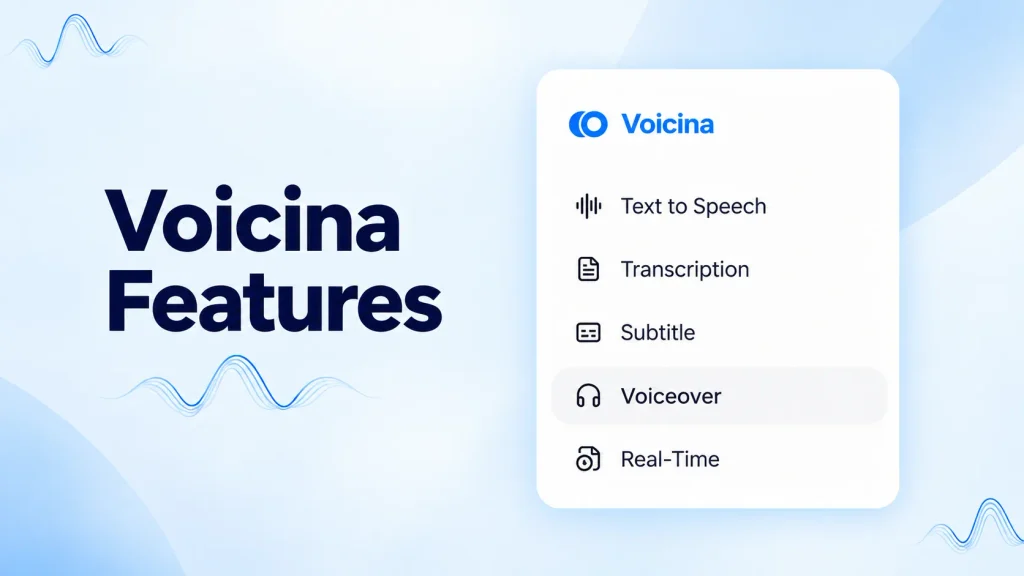
| Main features | Transcription, subtitles, translation, text-to-speech, dubbing, voice cloning, and live sessions |
| Access | Browser-based workspace |
| Text-language coverage | 125+ languages for transcription, subtitles, and translation |
| Dubbing coverage | Depends on voices available in the target language |
| Supported uploads | MP4, MOV, MP3, WAV, and M4A, up to 2 GB |
| Other starting points | Supported media links, browser recording, written scripts, and existing subtitle files |
| Free workspace plan | One transcription of media up to ten minutes |
| API access | Available on Pro and Ultra for supported operations |
What Is Voicina?
Voicina combines tools for processing recorded and live media. It can convert speech into editable text, create timed subtitles, translate content, and generate spoken audio.
Each function produces something different. A transcript makes speech readable and searchable. A subtitle track displays text at particular moments in a recording. Translation changes the language of the content. Dubbing creates spoken output corresponding to the original media.
These outputs can support the same project, but they should be reviewed separately. An accurate transcript does not automatically establish that a translation is correct or that generated speech sounds appropriate.
The workspace provides a connected production process. Your review determines whether the results are ready for their intended audience.
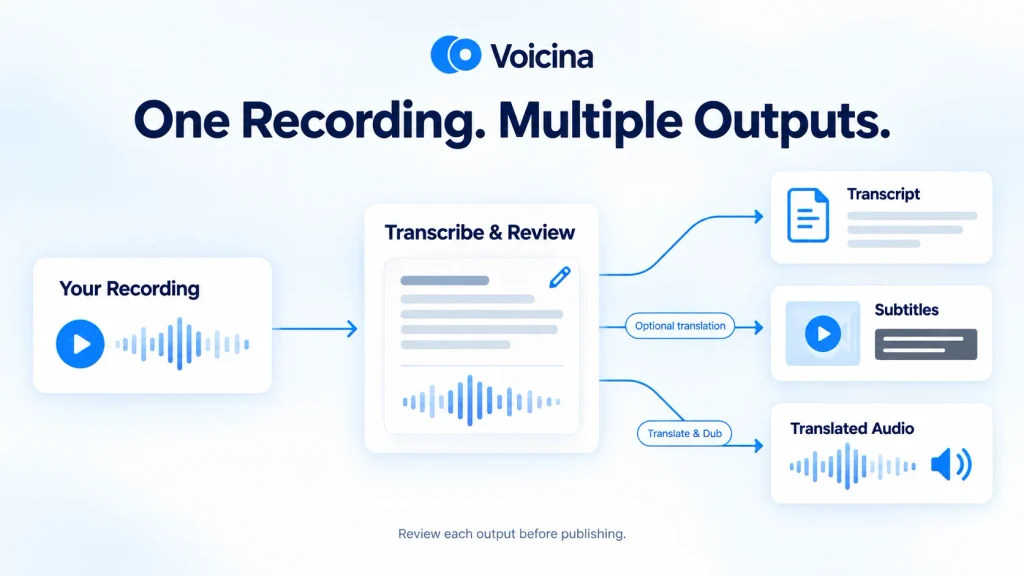
How Voicina media localization fits into the workflow
Media localization means adapting content for another language audience. Translation is part of that work, but timing and presentation matter too.
Translated subtitles need to fit their display time. Narration needs to be understandable at the intended pace. Instructions should match the actions or interface shown on screen.
This is why localization usually involves more than translating individual sentences. The final media needs to work as a complete viewing or listening experience.
Who Is Voicina For?
Voicina, the all-in-one AI media localization workspace is relevant to people who regularly prepare several outputs from recorded content.
Creators may need transcripts, captions, and language versions. Educators may need accessible course materials and translated lessons. Businesses may need localized training, presentations, or product demonstrations.
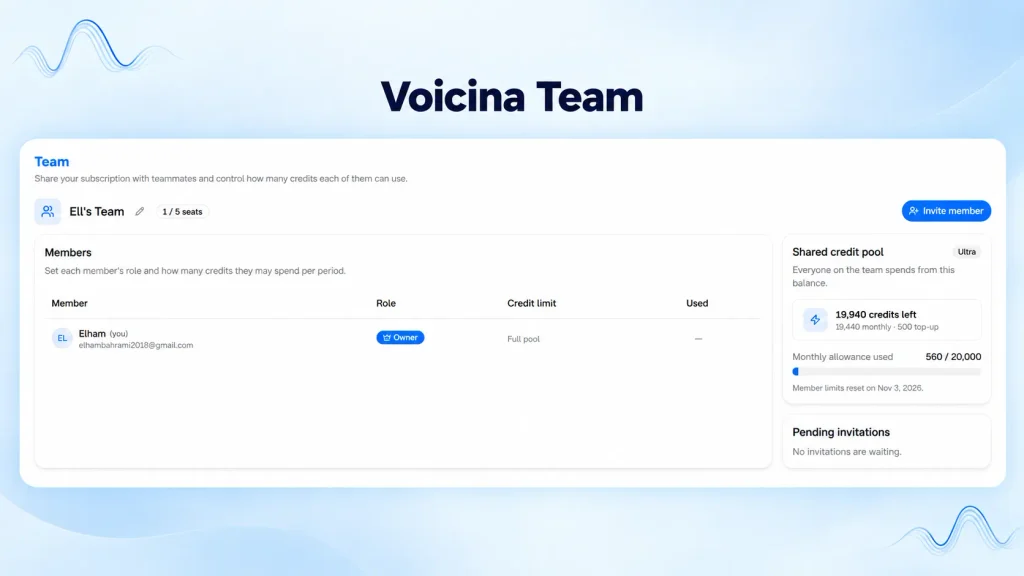
Production teams also need a way to coordinate corrections. When several people review the same content, project access and timestamp-specific feedback can help identify which passage needs attention.
Live features address a different setting: communication happening during a meeting or event.
The fit depends on your task. A basic dictation tool may be sufficient for writing a short message by voice. A media localization workspace becomes more useful when you need to edit recordings, create subtitles, or prepare translated outputs.
Why Voicina Connects Transcription, Translation & Dubbing?
Separate tools can work well when the process is simple. Problems become more likely when edited transcripts, translations, and audio versions stop matching.
A source correction made after translation may need to be carried into several files. A reviewer may approve one version while production exports another.
Voicina’s connected workflow can reduce these handoffs and provide opportunities to inspect the content between stages.
Correcting a name before translation is usually easier than correcting it in every language version afterward. Reviewing translated text before speech generation can also prevent unnecessary audio revisions.
These are practical workflow benefits, not guaranteed time savings. Measure the result using your own recordings. Editing effort, reviewer availability, and export preparation all affect how quickly a project reaches approval.
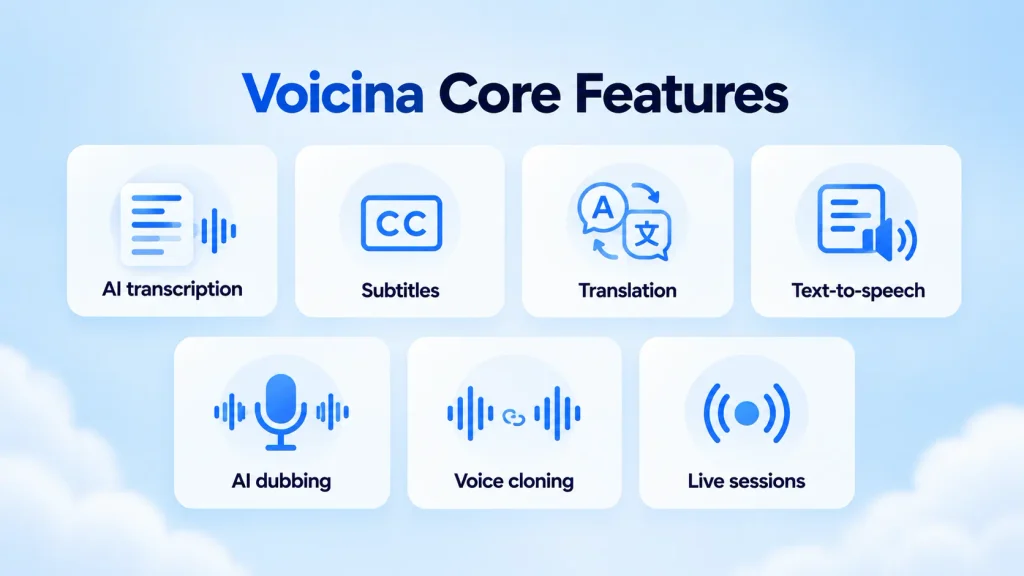
Core Voicina Features
| Feature | What It Produces | Main Review Priority |
|---|---|---|
| AI transcription | Editable text from recorded speech | Words, numbers, and speaker attribution |
| Subtitles | Timed text and styled captions | Reading speed and synchronization |
| Translation | Target-language text | Meaning, terminology, and context |
| Text-to-speech | Narration from a script | Pronunciation and delivery |
| AI dubbing | Localized speech for existing media | Wording, pacing, and alignment |
| Voice cloning | Speech using an authorized voice identity | Permission and language-specific quality |
| Live sessions | Captions and translated output during a session | Audio capture and audience access |
Voicina AI transcription
The AI transcription workspace converts recorded speech into editable text. Standard transcription includes punctuation, speaker detection, and word-level timestamps.
Speaker detection separates speech into speaker-associated segments. This can make discussions easier to follow, but assignments should still be checked when participants interrupt one another or have similar voices.
Timestamps connect the text to the recording. They help you find a passage while checking a quotation, correcting terminology, or preparing captions.
You can search and edit the transcript, then export supported formats such as TXT, SRT, and JSON.
Subtitle creation and editing
Voicina’s subtitle tools create timed cues and provide controls for wording, timing, and appearance.
Available outputs include SRT, VTT, SBV, and video with burned-in captions.
Separate subtitle files allow compatible players to offer selectable tracks. Burned-in captions remain visible as part of the video image.
Choose the format your publishing destination accepts. Retain editable subtitle files even when publishing burned-in versions, because later wording or timing corrections are easier to manage.
Voicina translation
The media translation workflow accepts existing SRT or VTT files and supports source-and-target comparison.
This lets you work from approved subtitles without starting again from the original recording.
Review the translated text for meaning as well as fluency. A natural-sounding sentence can still omit a condition, change a qualification, or use an unsuitable technical term.
For subtitle translation, check reading time too. Wording that works in a document may be too long for the interval available on screen.
Text-to-speech and voiceover
Voicina text-to-speech generates narration from written content. You can start with a new script or use text prepared from an existing transcript.
The workflow includes voice selection and tone controls, with WAV and MP3 exports.
This route is useful when your starting point is a script. It can support introductions, explanations, and other narration.
Listen to the result before adding it to a finished production. Names, abbreviations, measurements, and numbers may need particular attention because their intended pronunciation is not always obvious from the text.
Voicina AI dubbing and voice cloning
AI dubbing creates a spoken language version of existing media. It connects the source content, translation, generated speech, and timing.
The voiceover and dubbing tools also provide voice cloning for authorized use. Obtain permission before using another person’s voice identity and keep a record of the agreed scope.
Check the available voices in each target language. Text-language coverage does not establish identical voice options.
Review a representative passage before processing a long recording. Assess pronunciation, delivery, speaker distinction, and whether the translated speech fits the content.
How to Start Your First Voicina Project
Use a recording that resembles your regular work. A clean single-speaker clip may not reveal the editing effort needed for interviews, technical presentations, or overlapping discussions.
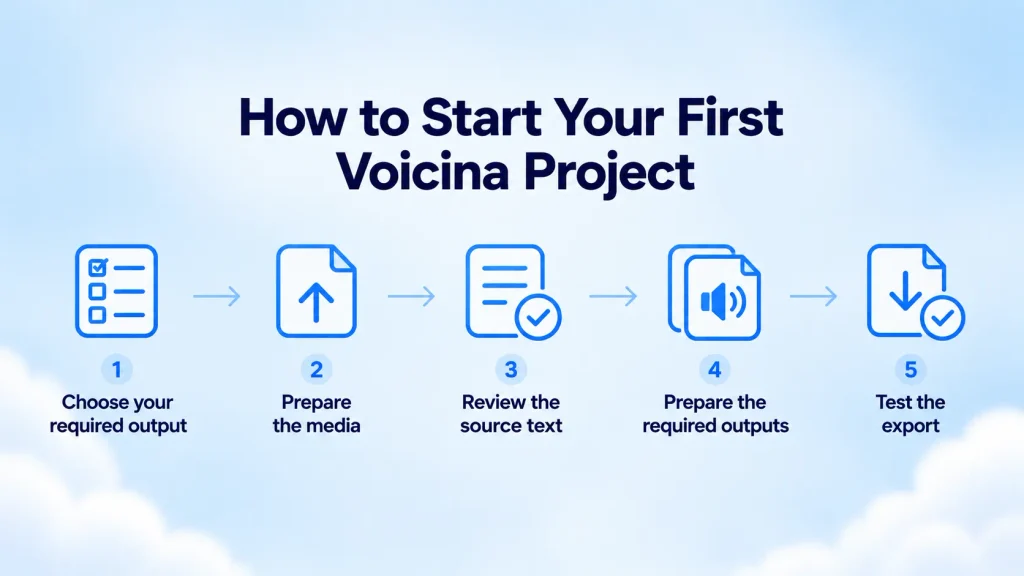
1. Choose your required output
Decide whether the immediate task is transcription, subtitles, translation, narration, or dubbing.
This helps you evaluate the appropriate feature and determine whether the Free plan covers your test.
2. Prepare the media
Supported uploads include MP4, MOV, MP3, WAV, and M4A files up to 2 GB. Supported media links and browser recording provide additional starting points.
Keep an original copy and prepare a short reference list for speaker names, abbreviations, and specialist vocabulary.
3. Review the source text
For recorded localization, correct the transcript before producing additional language versions.
Prioritize mistakes that affect meaning, including incorrect numbers, missing negations, and words assigned to the wrong speaker.
4. Prepare the required outputs
Use the subtitle, translation, or voice workflow appropriate to the project. Review each target language independently.
5. Test the export
Open the downloaded file in the actual destination player or publishing system. Confirm that the captions display correctly, the audio plays properly, and the output matches the approved version.
Voicina Free Plan and Paid Options
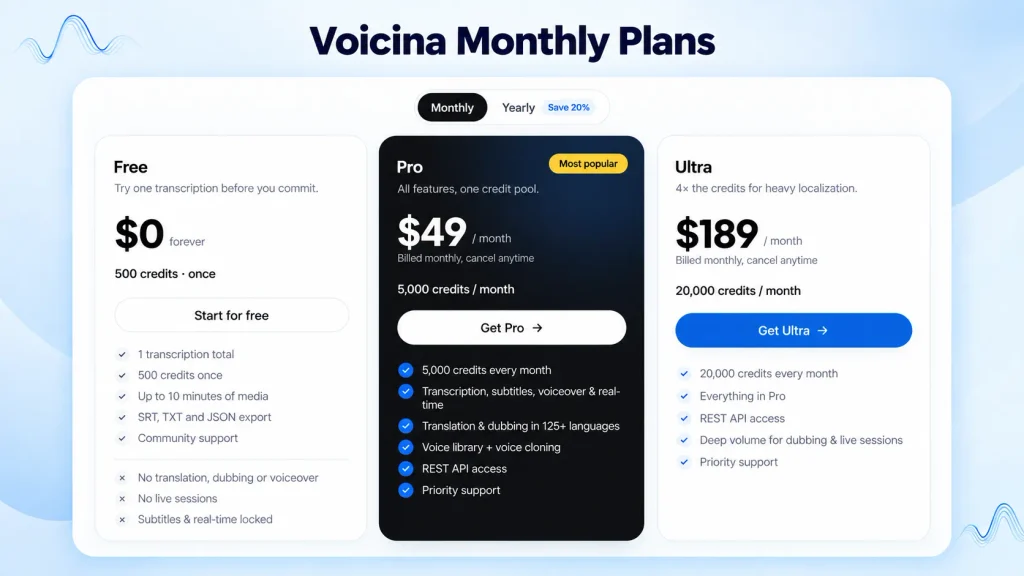
The Free workspace plan includes one transcription of media up to ten minutes, with a one-time allocation of 500 credits. Supported exports include SRT, TXT, and JSON.
It does not include the paid subtitle workflow, translation, dubbing, voiceover, live sessions, or API access.
This provides a limited opportunity to assess transcription quality. It does not provide a complete trial of every localization feature.
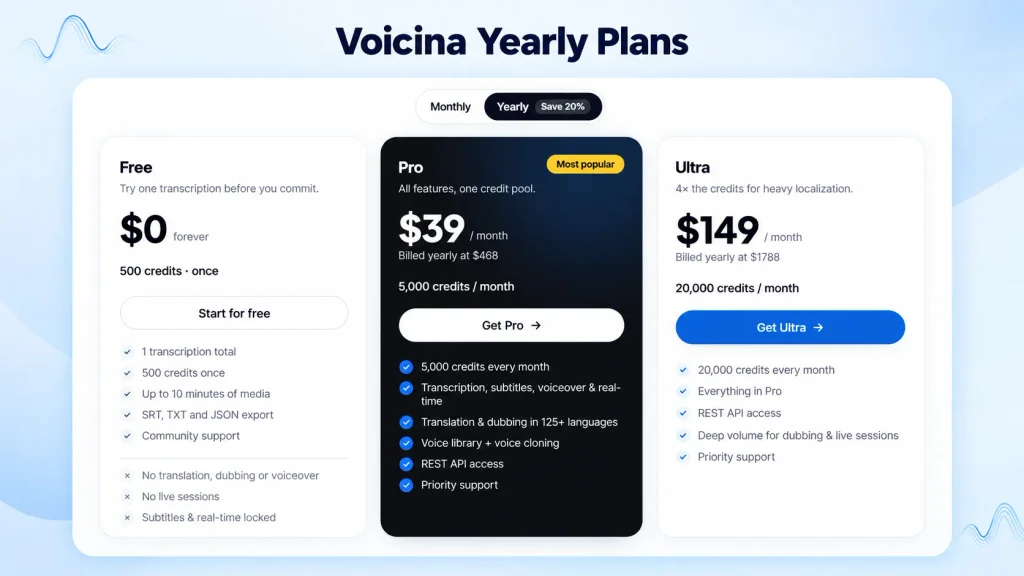
| Plan | Credit Allocation | Main Scope |
|---|---|---|
| Free | 500 credits once | One transcription, up to ten minutes |
| Pro | 5,000 credits per month | Paid localization features and API access |
| Ultra | 20,000 credits per month | The Pro feature set with a larger credit allocation |
Check the current pricing before subscribing, as plan details may change.
Public free tools are separate from workspace subscriptions. They have their own functionality and limits, so distinguish them from the Free workspace plan when evaluating access.
How to estimate your usage
Source duration alone does not establish the cost of a complete project. Target languages, generated speech, and repeated processing can affect credit usage.
Human review also contributes to the overall production cost, although it is separate from platform credits.
Run a small representative project before processing a large library. Record the operations performed, credits used, and time spent reviewing the outputs.
Confirm the selected operation’s charge in the account interface. Do not assume that transcription, translation, and dubbing have interchangeable costs.
Choose a plan based on measured usage and expected workload. A larger credit allowance does not replace checking whether the output meets your requirements.
Professional Workflows with Voicina
Adapt your localization workflow to the content format, audience, and review requirements of each project. It can transcribe, subtitle, translate and dub any audio or video in 125+ languages.
Podcasts and interviews
Use transcripts to review the conversation and prepare captions or selected language versions.
Pay attention to jokes, interruptions, unfinished sentences, and speaker attribution. These passages often depend on context.
For dubbed content, check that listeners can distinguish the speakers and follow the conversation comfortably.
Education and training
Review translated instructions against demonstrations, slides, and interface labels.
The education workflow supports lecture transcripts, course captions, and multilingual content.
Include visible text and diagrams in the review. Translating speech does not automatically adapt information embedded in the video image.
Social video
Check captions at the intended viewing size. Keep text clear of faces, demonstrations, and platform interface elements.
Prepare language versions your team can review and maintain. Retain editable text and timing files so updates do not require rebuilding captions.
Enterprise communication
Assign factual review to subject specialists and language review to fluent reviewers.
Invited collaborators, timestamp-specific comments, and project access controls help teams discuss individual passages.
Identify the approved version before export so production does not accidentally publish an earlier draft.
Voicina Live Captions and Translation
Live captions display speech as text in the original language. Live translation produces target-language captions. Live dubbing adds generated translated speech.
The live sessions feature runs in the browser and depends on the user’s connection and hardware.
Rehearse with the microphone, network, and audience setup you intend to use. Confirm that participants can access the text or audio output.
If the event will later be published as a recording, review that version separately. Recorded production provides an opportunity to correct recognition errors and refine translated wording before release.
How to Get Better Transcription and Localization Results
The purpose of review is to confirm that the audience receives the intended meaning. Different outputs require different checks.
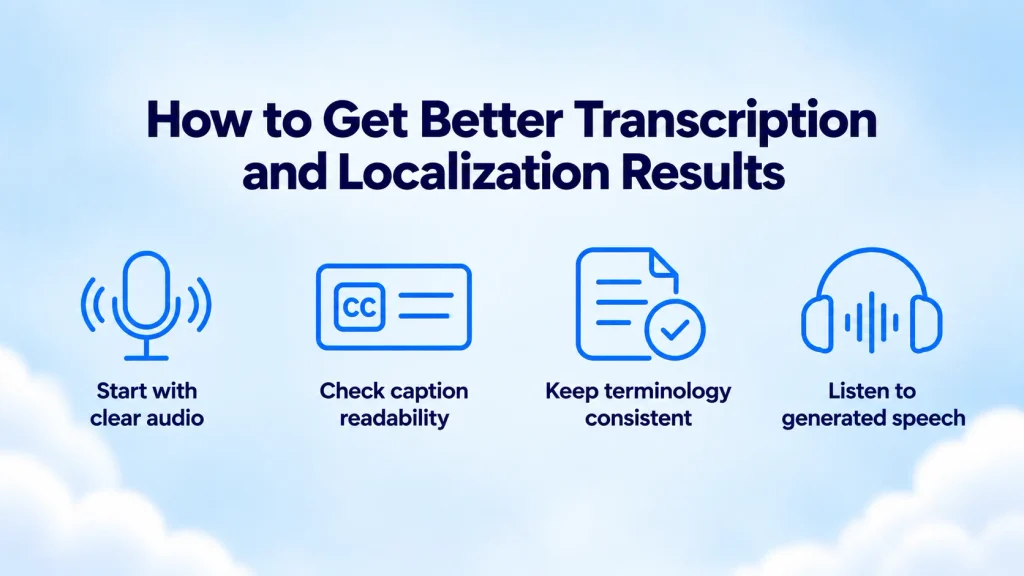
Start with clear audio
Reduce competing noise where possible and position microphones appropriately. Avoid overlapping speech in planned recordings when the format allows it.
Verify names, numbers, terminology, and speaker labels in the transcript. Leave uncertain passages unresolved until someone can check them against the source.
Check caption readability
Review cue duration, line breaks, and placement at the intended viewing size.
Accessible captions include relevant non-speech audio and speaker identification when needed for understanding. Inspect the finished track rather than assuming every necessary element has been supplied automatically.
Keep terminology consistent
Maintain a reference for approved names, product labels, and technical vocabulary.
Check conditions, negations, and degrees of certainty. Small changes in wording can alter an instruction or claim.
Listen to generated speech
Check pronunciation and pacing within the recording.
If a passage feels rushed, inspect the translated wording first. A shorter sentence may fit the available interval more comfortably while preserving its meaning.
Apply these checks early enough to prevent errors from spreading into additional outputs.
Privacy and Data Retention
Our privacy policy is in a way that stored data uses AES-256 encryption and that recordings, transcripts, and media are not used to train models.
Workspace media and generated speech have a sixty-day retention window, with earlier project deletion available. Account information, billing information, and cloned-voice profiles are excluded from that media window.
Public unauthenticated tools process files in temporary storage and delete them afterward instead of retaining them as workspace projects.
Keep originals and approved exports in your own archive. Review project access when collaborators complete their work.
Voicina API Access
Pro and Ultra accounts can use API keys for supported operations, including transcription, subtitles, voiceovers, text-to-speech, voice library access, voice cloning, and media exports.
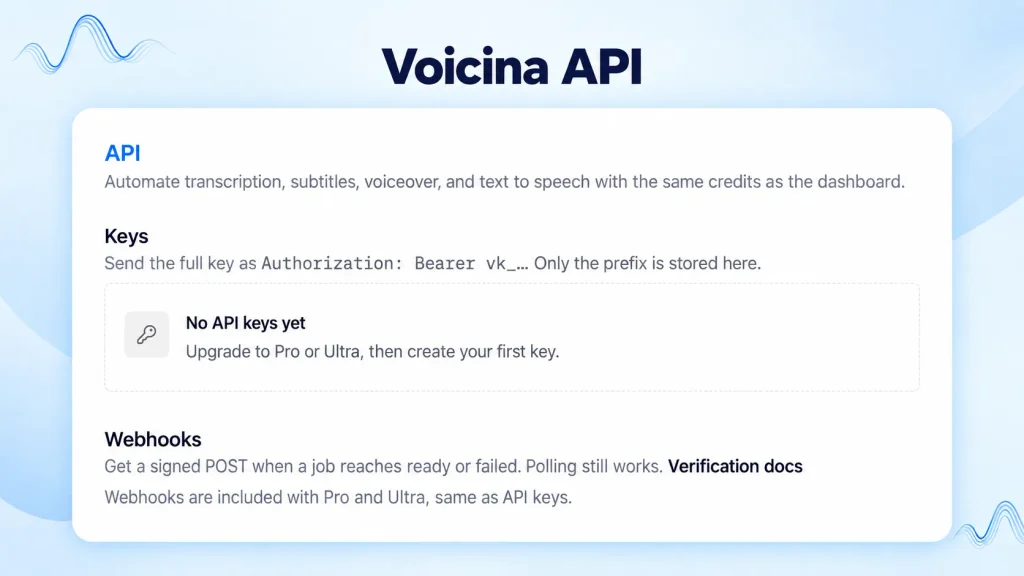
API processing uses the account’s existing credit balance. Real-time sessions remain outside API-key access and operate through the web app.
An integration should track processing status, associate outputs with the correct source, and handle failures.
Processing completion should not automatically mean publication approval. Apply the editorial checks appropriate to the content before releasing automatically generated assets.
Confirm current endpoints and authentication requirements in the product documentation before building a production workflow.
Common Problems and What to Check
| Problem | What to Check First | Next Step |
|---|---|---|
| Incorrect transcript words | Source audio and terminology | Correct the text before translation |
| Wrong speaker labels | Interruptions and similar voices | Review assignments against the recording |
| Captions feel rushed | Text density and cue duration | Adjust wording and timing |
| Translation sounds unnatural | Context and target-language phrasing | Request fluent-language review |
| Dub sounds hurried | Translated sentence length | Revise wording before regeneration |
| Export displays incorrectly | File format and destination player | Test the downloaded asset |
| Unexpected credit usage | Languages and repeated operations | Compare usage with the processing record |
Keep a release record with the source version, target language, reviewer, and final filename.
When the source changes, identify every affected subtitle and audio version. Correcting only one output can leave published assets inconsistent.
Bottom Line: Choosing Your Next Step
Voicina is relevant when you need connected transcription, subtitles, translation, and spoken media outputs.
Start with the feature that addresses your immediate task. Use the Free transcription allowance to assess a representative recording, then evaluate paid features against your language requirements and expected workload.
The useful question is whether you can produce an accurate, usable deliverable with a manageable amount of correction. Your own recordings and review process provide the clearest basis for that decision.
Try Voicina’s free transcription and subtitle tools
Turn audio or video into a timed transcript, generate subtitles, or translate an existing SRT or VTT file. No account required. Media uploads support clips up to 10 minutes and 25 MB. Fair-use limits apply.
Explore Free Voicina Tools
