
- Quick Answer: How to Turn On Voice Typing on Android
- How to Enable Voice Typing on Android with Gboard
- How to Use Voice Typing in Any Android App
- How to Enable Voice Typing on Samsung Keyboard
- Where Is the Voice Text Microphone on Android?
- Android Keyboard Voice Typing Settings to Check
- Useful Android Voice Typing Commands
- Why Voice to Text Is Not Working on Android
- Voice to Text Android Microphone Missing: Checklist
- How to Improve Android Voice Typing Accuracy
- Built-In Android Voice Typing vs VoiceDash
- When Should You Use VoiceDash on Android?
- Android Voice Typing vs iPhone Dictation
- Common Mistakes That Make Voice Typing Worse
- Recommended Android Voice Typing Setup
- Final Thoughts
- Frequently Asked Questions About Voice Typing on Android
How to Voice Type on Android
Voice typing on Android lets you speak instead of type in apps like Messages, Gmail, Google Docs, WhatsApp, Slack, Notion, search boxes, forms, and notes apps.
For most Android phones, voice typing works through your keyboard. If you use Gboard, you will usually tap the microphone icon near the top-right of the keyboard. If you use Samsung Keyboard, the microphone may appear in the toolbar or near the lower-left area of the keyboard.
If the microphone icon is missing, voice typing is usually disabled, hidden in the keyboard toolbar, blocked by microphone permission, or tied to the wrong keyboard.
Quick Answer: How to Turn On Voice Typing on Android
To turn on voice typing on Android:
- Open Settings.
- Go to System, Additional setteing, General management, or Languages & input.
- Open Keyboard or On-screen keyboard.
- Choose Gboard or Samsung Keyboard.
- Turn on Voice typing or choose your Voice input option.
- Open any app where you can type.
- Tap a text field.
- Tap the microphone icon on the keyboard.
- When you see “Speak now,” start talking.
| Need | Best action |
|---|---|
| Turn on Android voice typing | Enable voice typing in Gboard or Samsung Keyboard settings |
| Start dictating | Tap any text field, then tap the microphone icon |
| Use Google voice typing | Use Gboard and turn on “Use voice typing” |
| Use Samsung voice typing | Choose Samsung voice input in Samsung Keyboard settings |
| Fix missing microphone | Check keyboard toolbar, default keyboard, and microphone permission |
| Improve accuracy | Use the right language, speak clearly, and dictate in shorter sections |
| Get cleaner long-form text | Use VoiceDash when built-in dictation leaves too much cleanup |
Built-in Android voice typing is best for quick messages and simple notes. If you want cleaner long-form writing across apps, VoiceDash can help because it is live voice-to-text that works wherever there is a cursor.

How to Enable Voice Typing on Android with Gboard
Gboard is Google’s keyboard app and one of the most common ways to use voice typing on Android.
Gboard setup
- Open Settings on your Android phone.
- Go to System.
- Tap Keyboard or Languages & input.
- Tap On-screen keyboard.
- Select Gboard.
- Tap Voice typing.
- Turn on Use voice typing.
- Open an app where you can type.
- Tap the text field.
- Tap the microphone icon and start speaking.
On some Android phones, the path may be slightly different. You may see Additional settings, General management, Keyboard list and default, or Languages & input, depending on the phone brand.
| Android device or keyboard | Where to look |
|---|---|
| Google Pixel | Settings → System → Keyboard → On-screen keyboard → Gboard |
| Samsung Galaxy using Samsung Keyboard | Settings → General management → Keyboard list and default → Samsung Keyboard |
| Samsung Galaxy using Gboard | Settings → General management → Keyboard list and default → Gboard |
| Xiaomi, OnePlus, Motorola, Oppo | Settings → System or Additional settings → Languages & input |
| Gboard users | Gboard settings → Voice typing |
| Samsung Keyboard users | Samsung Keyboard settings → Voice input |
If you are new to dictation in general, this broader guide on how to use voice to text explains the basic workflow across devices.
How to Use Voice Typing in Any Android App
Once voice typing is enabled, you can use it in most places where the keyboard appears.
Here is the basic workflow:
- Open an app like Messages, Gmail, Google Docs, WhatsApp, Slack, Notion, or Keep.
- Tap where you want the text to appear.
- Wait for the keyboard to open.
- Tap the microphone icon.
- Wait for the “Speak now” prompt.
- Speak clearly.
- Say punctuation aloud when needed.
- Tap the microphone again to stop.
- Review the text before sending or saving.
Voice typing works best when you use it as a drafting tool. Speak the rough version first, then edit the result.
For example, instead of trying to dictate a perfect email in one long sentence, say one short paragraph, stop, review it, then continue.
If you mainly want to dictate into Google Docs, see this dedicated guide on how to voice type in Google Docs.
How to Enable Voice Typing on Samsung Keyboard
Samsung phones often use Samsung Keyboard by default. You can use Samsung voice input or switch to Google Voice Typing.
Samsung setup
- Open Settings.
- Tap General management.
- Tap Keyboard list and default.
- Make sure Samsung Keyboard is selected if you want to use Samsung voice input.
- Tap Samsung Keyboard.
- Tap Voice input.
- Choose Samsung voice input or Google Voice Typing.
- Open an app where you can type.
- Tap the microphone icon.
- Start speaking.
| Option | Best for | Notes |
|---|---|---|
| Samsung voice input | People who use Samsung Keyboard | Integrated with Samsung’s keyboard |
| Google Voice Typing | People who prefer Google dictation | Often used with Gboard |
| Gboard on Samsung | People who want Google’s keyboard on a Galaxy phone | Requires setting Gboard as the default keyboard |
If you are specifically troubleshooting a Galaxy phone, this separate guide on how to enable voice typing in Samsung goes deeper into Samsung settings.
Where Is the Voice Text Microphone on Android?
The voice text microphone is usually part of your keyboard, not a separate Android app.
You may find it here:
| Location | What to check |
|---|---|
| Top-right of Gboard | Look for the microphone icon above the keyboard |
| Gboard toolbar | Expand the toolbar if the mic is hidden |
| Samsung Keyboard toolbar | Look for the voice input icon in the toolbar |
| Lower-left area on Samsung Keyboard | Some Galaxy layouts place the mic near the bottom-left |
| Keyboard menu | Tap the arrow, four-square icon, or toolbar menu |
| Keyboard settings | Make sure voice typing is turned on |
| App permissions | Allow microphone access for the keyboard or Google app |
If you cannot see the microphone icon, do not assume your phone does not support voice typing. Most missing microphone problems are settings problems.
Android Keyboard Voice Typing Settings to Check
If you searched for “keyboard voice typing setting” or “voice typing setting,” this is the section to check first.
1. Default keyboard
If you have both Gboard and Samsung Keyboard installed, make sure the keyboard you want is actually active.
Go to:
Settings → System or General management → Keyboard → Default keyboard
Then choose Gboard, Samsung Keyboard, or your preferred keyboard.
2. Voice typing toggle
For Gboard:
Gboard settings → Voice typing → Use voice typing
For Samsung Keyboard:
Samsung Keyboard settings → Voice input
3. Microphone permission
Voice typing needs microphone access.
Go to:
Settings → Apps → Gboard, Google, or Samsung Keyboard → Permissions → Microphone
Choose Allow only while using the app.
4. Keyboard toolbar
The microphone icon may be hidden behind a toolbar menu. Expand the toolbar before changing deeper settings.
5. Language settings
If the keyboard language does not match the language you are speaking, accuracy can drop or voice typing may behave strangely.
Add your main dictation language in your keyboard settings.
6. Offline or automatic punctuation settings
Some Android devices and Gboard versions include options for offline voice typing or automatic punctuation. Availability depends on your device, language, and Android version.
Useful Android Voice Typing Commands
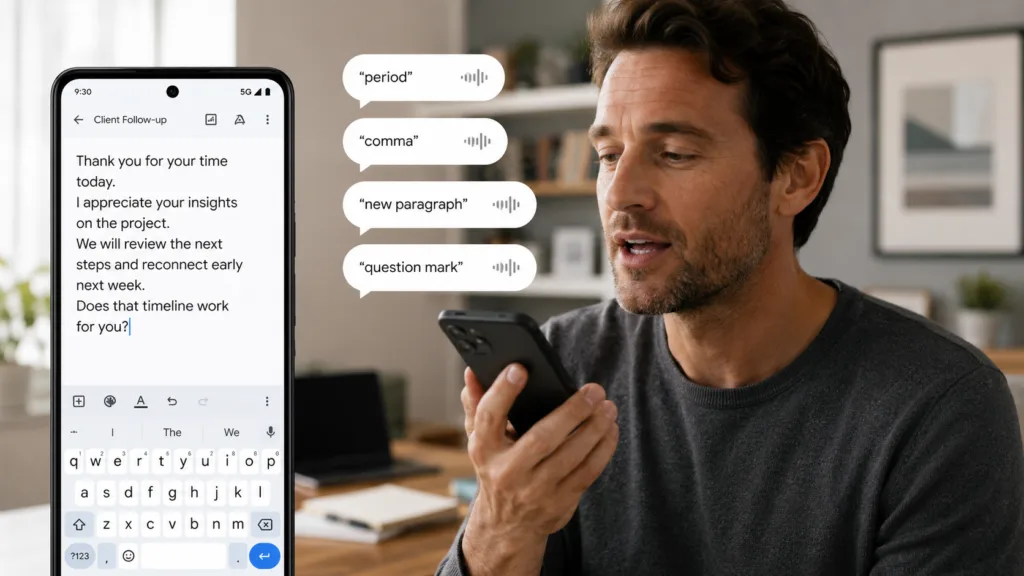
Most Android voice typing tools understand basic punctuation commands. Support varies by keyboard, language, app, and device.
| Say this | Result |
|---|---|
| “Period” | Adds . |
| “Comma” | Adds , |
| “Question mark” | Adds ? |
| “Exclamation point” | Adds ! |
| “New line” | Starts a new line |
| “New paragraph” | Starts a new paragraph |
| “Delete” | May delete recent text in supported workflows |
| “Clear all” | May clear dictated text in supported workflows |
| “Smiley face emoji” | May add an emoji if supported |
| “Send” | May send the message in supported messaging apps |
For best results, pause slightly before saying a command. If you speak too quickly, the keyboard may treat the command as normal dictated text.
Why Voice to Text Is Not Working on Android
Voice to text may stop working on Android because voice typing is disabled, microphone permission is blocked, the wrong keyboard is active, the keyboard app is outdated, or the language setting does not match your speech.
| Problem | Likely cause | Fix |
|---|---|---|
| Microphone icon missing | Voice typing is disabled or hidden | Enable voice typing and check the keyboard toolbar |
| “No permission to enable voice typing” | Microphone permission is blocked | Allow microphone access for Gboard, Google, or Samsung Keyboard |
| Dictation starts then stops | App, keyboard, or connection issue | Restart the app and update keyboard apps |
| Poor accuracy | Noise, accent mismatch, or wrong language | Change language and reduce background noise |
| Works in one app but not another | App input field issue | Test in Messages, Keep, Gmail, or Docs |
| Samsung microphone grayed out | Voice input option issue | Switch between Samsung voice input and Google Voice Typing |
| Slow response | App cache or outdated keyboard | Clear keyboard cache and update apps |
| Voice typing is not supported | Language, keyboard, or device limitation | Try Gboard, update Android, and check language support |
Fix 1: Check microphone permission
- Open Settings.
- Tap Apps.
- Select Gboard, Google, or Samsung Keyboard.
- Tap Permissions.
- Choose Microphone.
- Select Allow only while using the app.
This is the first place to check if Android says voice typing does not have permission.
Fix 2: Turn voice typing back on
For Gboard:
- Open Gboard settings.
- Tap Voice typing.
- Turn on Use voice typing.
For Samsung:
- Open Samsung Keyboard settings.
- Tap Voice input.
- Choose Samsung voice input or Google Voice Typing.
Fix 3: Update keyboard and speech apps
Voice typing depends on your keyboard, speech services, microphone permission, and sometimes Google app updates.
Update:
- Gboard
- Google app
- Samsung Keyboard
- Android System Intelligence, if available
- Your Android operating system
Fix 4: Test voice typing in a simple app
Open Google Keep, Gmail, Messages, or another basic text app.
If voice typing works there but not in another app, the problem may be that app’s text field, not Android voice typing itself.
Fix 5: Switch keyboards
If Samsung voice input is not working, install or enable Gboard and set it as your default keyboard.
If Gboard is not working, test Samsung Keyboard if you are on a Galaxy phone.
This helps you figure out whether the problem is Android-wide or keyboard-specific.
Voice to Text Android Microphone Missing: Checklist
If the microphone is missing from your Android keyboard, run through this checklist.
| Check | What to do |
|---|---|
| Keyboard toolbar | Tap the toolbar arrow or menu |
| Voice typing setting | Enable voice typing in Gboard or Samsung settings |
| Default keyboard | Make sure the keyboard you want is active |
| Microphone permission | Allow microphone access |
| App updates | Update keyboard and Google apps |
| Language settings | Add the language you dictate in |
| Keyboard cache | Clear keyboard cache if voice typing keeps failing |
| Restart | Restart the phone after changing settings |
| Test app | Try voice typing in Gmail, Messages, Keep, or Docs |
Most missing microphone problems are caused by settings, not hardware.
How to Improve Android Voice Typing Accuracy
The best way to improve Android voice typing accuracy is to speak clearly, reduce background noise, choose the correct language, and dictate in shorter sections.
Practical tips:
- Speak at a natural pace.
- Hold the phone close enough to capture your voice clearly.
- Avoid loud rooms.
- Use a headset in noisy places.
- Choose the right keyboard language.
- Say punctuation aloud.
- Pause before commands like “new paragraph.”
- Dictate one paragraph at a time.
- Review the text before sending.
- Add names, brands, and technical terms manually.
Voice typing gets messy when you dictate too much without structure. A better workflow is to speak one idea, review it, then continue.
For students, meetings, or lectures, this guide on how to take notes faster may be more useful than trying to dictate everything manually.

Built-In Android Voice Typing vs VoiceDash
Built-in Android voice typing is great for quick text entry. VoiceDash is better when you want cleaner text, less copy-paste, and more control over the final output.
| Feature | Built-in Android voice typing | VoiceDash |
|---|---|---|
| Best for | Quick messages, searches, and simple notes | Emails, documents, work updates, notes, and long-form drafts |
| Where it works | Most apps with a keyboard | Wherever there is a cursor |
| Platforms | Android device only, depending on keyboard | iOS, Android, Mac, and Windows |
| Editing | Mostly manual | Command mode can help edit, format, and control text by voice |
| Copy-paste workflow | Often needed if you use a separate transcription app | Designed for live voice-to-text directly where you write |
| Long-form writing | Usable, but often needs cleanup | Better when you want cleaner drafts from spoken thoughts |
| Best user | Casual phone dictation | People who write, edit, and work by voice often |
VoiceDash is not just a transcription tool. It is live voice-to-text. That means you can speak directly into emails, documents, browsers, forms, chat boxes, notes apps, and productivity tools instead of recording somewhere else and pasting the result later.
When Should You Use VoiceDash on Android?
Use built-in Android voice typing when you need to send a quick message, search Google, or capture a short note.
Use VoiceDash when the problem is not just “turn speech into text,” but “turn my spoken thoughts into usable writing.”
VoiceDash is especially helpful for:
- Longer emails
- Work updates
- Content drafts
- Study notes
- Product notes
- Support replies
- Slack or Notion workflows
- Cross-platform dictation
- Editing and formatting by voice
A simple setup works well for many people:
- Use Gboard or Samsung Keyboard for quick everyday dictation.
- Use VoiceDash when the text needs to be cleaner, longer, or more professional.
That gives you speed without forcing one tool to handle every writing situation.

Android Voice Typing vs iPhone Dictation
Android and iPhone both support voice-to-text, but the setup is different.
| Feature | Android | iPhone |
|---|---|---|
| Main tool | Gboard, Samsung Keyboard, or another keyboard | Apple Dictation |
| Setup area | Keyboard settings | Keyboard settings |
| Mic location | Keyboard toolbar or keyboard area | Apple keyboard microphone |
| Keyboard choice | More flexible | More integrated |
| Troubleshooting | Keyboard, permissions, languages, default input | Dictation setting, permissions, language |
| Best for | Flexible keyboard-based dictation | Built-in Apple dictation workflow |
If you also use Apple devices, see this dedicated guide to voice to text on iPhone. If you move between Android and desktop, you may also want the guide on speech to text on Mac.
Common Mistakes That Make Voice Typing Worse
Dictating too much at once
Long dictation creates long cleanup. Speak in sections.
Forgetting punctuation
If you never say “period” or “new paragraph,” the output becomes hard to read.
Using the wrong keyboard
If Samsung Keyboard and Gboard are both installed, make sure you know which one is active.
Ignoring permissions
Microphone permission can block voice typing completely.
Expecting perfect output
Voice typing is useful, but names, brands, technical terms, numbers, and unusual punctuation still need review.
Using it in the wrong environment
Background noise lowers accuracy. Move somewhere quieter or use a headset.
Treating raw dictation as finished writing
Dictation is often the fastest way to create a first draft. It is not always the fastest way to create polished final text. For cleaner writing, use a workflow that includes review, editing, and formatting.
If your goal is to write faster without typing more, the best approach is usually voice for drafting and keyboard or command mode for final cleanup.
Recommended Android Voice Typing Setup
For most people, this setup works best:
- Use Gboard or Samsung Keyboard as your main keyboard.
- Enable voice typing.
- Allow microphone permission.
- Add your main dictation language.
- Test voice typing in Gmail, Messages, Keep, or Docs.
- Learn basic punctuation commands.
- Dictate in short sections.
- Use VoiceDash for cleaner long-form writing.
- Proofread before sending.
If you only dictate short messages, built-in voice typing is usually enough.
If you dictate important emails, content, notes, or work updates, VoiceDash can save time because it helps reduce the cleanup that comes after raw dictation.
Final Thoughts
Voice typing on Android is one of the easiest ways to write faster on your phone. In most cases, the setup is simple: enable voice typing, tap the microphone on your keyboard, speak clearly, and review the result.
When something goes wrong, check the basics first: default keyboard, voice typing settings, microphone permission, language, app updates, and the keyboard toolbar.
For quick replies, Android’s built-in tools are usually all you need. For longer or more polished writing, VoiceDash is the better workflow because it works wherever there is a cursor and helps you write, edit, format, and control text by voice across Android, iOS, Mac, and Windows.
Frequently Asked Questions About Voice Typing on Android
Sources
- Google Gboard Help: official instructions for typing with your voice on Android.
- Samsung Support: official Samsung Keyboard and voice input guidance
