
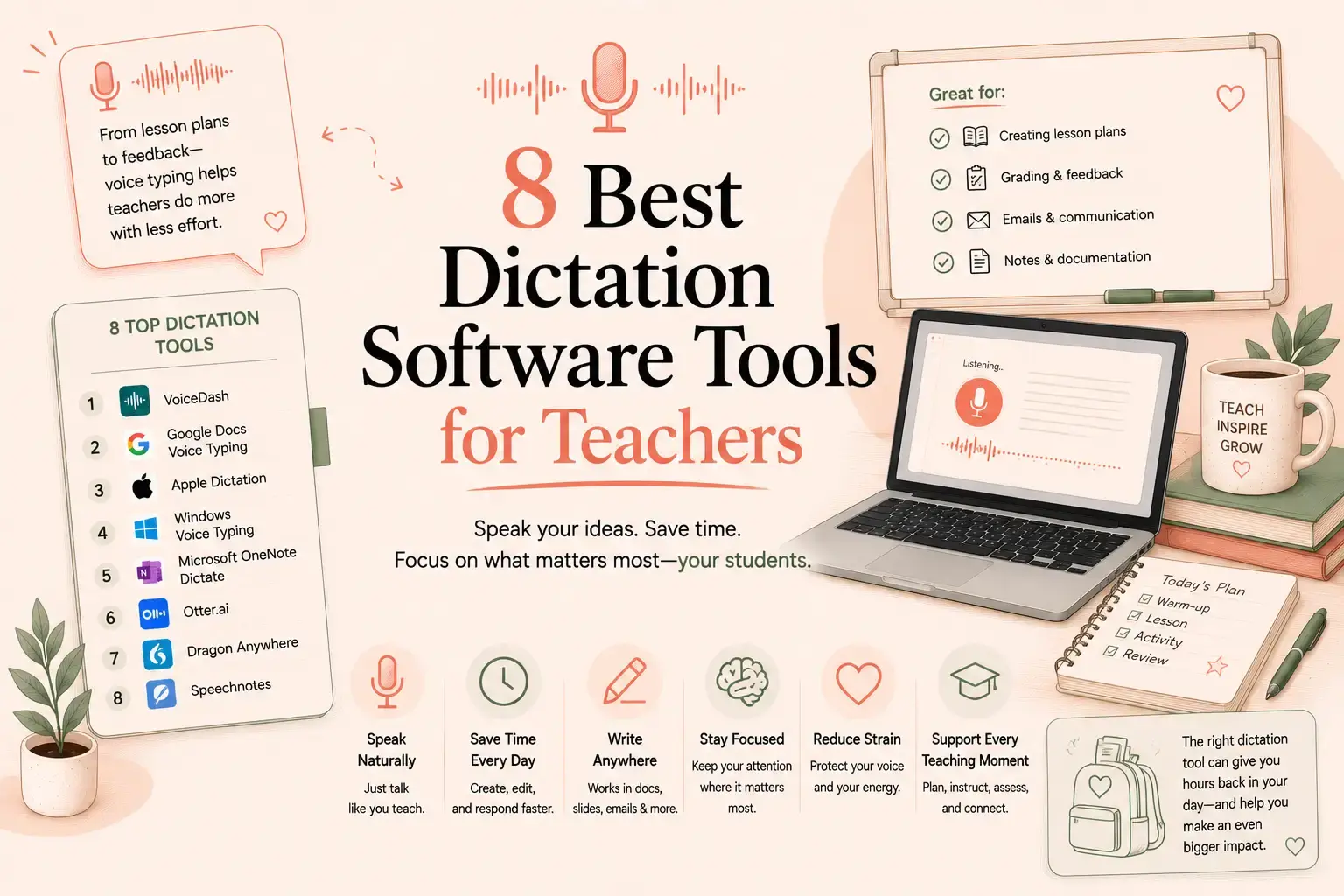
- The Best Teacher Dictation Tools at a Glance
- What Teachers Actually Need from Dictation Software
- 1. VoiceDash: Best Overall for Everyday Teacher Writing
- 2. Google Docs Voice Typing: Best Free Option for Google Docs
- 3. Microsoft Dictate: Best for Schools Using Microsoft 365
- 4. Dragon Professional: Best for Intensive Dictation and Voice Control
- 5. Apple Dictation: Best Built-in Option for Mac, iPhone, and iPad
- 6. Windows Voice Typing: Best Free Windows Option
- 7. Read&Write: Best for Accessibility and Literacy Support
- 8. Otter.ai: Best for Meetings, Lectures, and Discussions
- Which Tool Is Best for Each Teaching Task?
- Three Realistic Teacher Workflows
- Dictation and Transcription Are Not the Same
- How Teachers Can Improve Dictation Accuracy
- Student Privacy Comes Before Convenience
- How to Choose the Right Tool in Five Minutes
- Final Recommendation
- Frequently Asked Questions
8 Best Dictation Software Tools for Teachers in 2026
The best dictation software for most teachers is VoiceDash because it works directly inside Gmail, Google Docs, Word, Outlook, LMS fields, and other places where the cursor is active. It can also turn rough spoken instructions into structured writing. Google Docs Voice Typing is the best free option for teachers who mainly write in Docs, while Otter is better for recording meetings and lectures.
The Best Teacher Dictation Tools at a Glance
| Tool | Best for | Main advantage | Main limitation |
|---|---|---|---|
| VoiceDash | Writing across multiple school apps | Produces cleaner, structured text directly at the cursor | Not primarily a meeting transcription platform |
| Google Docs Voice Typing | Free document dictation | Free and easy to use in Docs | Mostly limited to Google Docs |
| Microsoft Dictate | Word and Outlook users | Built into Microsoft 365 | Less useful outside Microsoft apps |
| Dragon Professional | Heavy dictation and voice control | Advanced commands and vocabulary customization | Expensive and more complex |
| Apple Dictation | Basic dictation on Apple devices | Built into macOS, iPhone, and iPad | Limited AI rewriting |
| Windows Voice Typing | Basic Windows dictation | Free and already installed | Mostly produces literal speech-to-text |
| Read&Write | Accessibility and literacy support | Combines dictation with reading tools | More extensive than many teachers need |
| Otter.ai | Staff meetings and lectures | Records, labels, and summarizes conversations | Not built for direct writing inside every app |
What Teachers Actually Need from Dictation Software
Teachers rarely sit down to “dictate a document” from beginning to end.
They move between an LMS, email, lesson-planning documents, report-card systems, school forms, and messaging platforms. A useful dictation tool therefore needs to do more than recognize words accurately.
It should help with work such as:
- Writing feedback directly below a student submission
- Drafting a parent email without sounding abrupt
- Turning lesson ideas into an organized plan
- Recording observations while the details are still fresh
- Writing report comments without repeating the same sentence structure
- Preparing staff updates and substitute instructions
- Reducing keyboard use during long grading sessions
The biggest difference between the tools in this guide is not raw speech-recognition accuracy. Most modern tools can recognize clear speech reasonably well.
The practical difference is what happens after the speech is recognized.
Some tools insert exactly what the teacher says, including awkward pauses and repeated phrases. Others can remove filler words, organize the message, correct punctuation, and turn a rough spoken thought into usable writing.
1. VoiceDash: Best Overall for Everyday Teacher Writing
VoiceDash is our overall recommendation for teachers who write in several applications during the day.
It works directly where the cursor is active. A teacher can dictate inside Gmail, Google Docs, Microsoft Word, Outlook, an LMS feedback field, or a browser-based school platform without first creating a transcript somewhere else.
That matters more than it may sound.
A workflow that requires dictating into one app, cleaning up the result, copying it, opening the school platform, and pasting it into the correct field often saves less time than expected. VoiceDash removes most of that friction.
Where VoiceDash Is Most Useful
VoiceDash is a strong fit for:
- Student feedback
- Parent communication
- Lesson and unit plans
- Report-card comments
- Staff emails
- Classroom instructions
- School documentation
- Multilingual communication
It supports Windows, macOS, iOS, and Android and works with more than 50 languages.
The free plan includes 1,000 words per month. Teachers who need more time to judge whether it fits their workload can use the three-day unlimited trial. Card details are required, but no payment is taken during the trial, and the subscription can be canceled before the trial ends.
The Difference Between Dictation and Command Mode
Standard dictation works when the teacher already knows the exact sentence they want to write.
Command Mode is more useful when the teacher knows the purpose of the message but has not composed it word for word.
For example, a teacher could place the cursor in Gmail and say:
Hey VoiceDash, write a friendly email to Mrs. Carter. Tell her that Noah contributed well in class today, but he still has two missing assignments. Mention that I have reopened both assignments and that he can meet me during lunch on Thursday.
Instead of inserting those spoken instructions literally, VoiceDash can turn them into a finished email:
Hi Mrs. Carter,
I wanted to share that Noah contributed well during class today. He still has two missing assignments, so I have reopened both of them to give him another opportunity to complete the work.
I am also available to help him during lunch on Thursday.
Best,
[Teacher’s name]
The teacher still controls the facts, judgment, and final message. VoiceDash handles the sentence structure, punctuation, formatting, and cleanup.
It can also respond to instructions such as:
- Make this more concise.
- Turn this into bullet points.
- Rewrite this in a warmer tone.
- Remove repetition.
- Make this appropriate for a parent email.
- Correct the grammar without changing the meaning.
Our View
VoiceDash is most valuable when a teacher does not want to adapt their entire workflow around a dictation tool.
It follows the teacher into the existing workflow rather than asking the teacher to write everything inside a separate transcription application.
It is less suitable for recording a full staff meeting or separating several speakers in a classroom discussion. Otter is better for that type of work.
Schools should still review their own privacy requirements before teachers dictate names, grades, behavioral records, accommodation information, or other identifiable student data.
Teachers who want a broader comparison can read our guide to the best speech-to-text software.

2. Google Docs Voice Typing: Best Free Option for Google Docs
Google Docs Voice Typing is the easiest place to start when the budget is zero and most writing happens inside Google Docs.
Open a document, select Tools, choose Voice typing, click the microphone, and begin speaking.
It works well for:
- Lesson-plan drafts
- Worksheet instructions
- Classroom handouts
- Personal notes
- First drafts of grading comments
The main limitation becomes obvious as soon as the teacher leaves Google Docs.
Voice Typing does not provide the same consistent workflow inside an LMS, Outlook, Word, a report-card platform, or unrelated browser fields. Teachers may end up dictating in Docs and moving the text elsewhere.
It also tends to reproduce speech more literally. A clean result often requires the teacher to speak in complete sentences, say punctuation commands, and manually remove repetitions.
Google Docs Voice Typing is still an excellent free tool. It is simply better suited to document drafting than cross-platform teacher communication.
See our complete guide to using voice typing in Google Docs.
3. Microsoft Dictate: Best for Schools Using Microsoft 365
Microsoft Dictate makes sense when Word, Outlook, and PowerPoint already form the center of the school’s workflow.
A teacher can use it to:
- Draft lesson plans in Word
- Write emails in Outlook
- Add presenter notes in PowerPoint
- Create meeting notes
- Prepare classroom materials
Because Dictate is built into Microsoft 365, teachers do not need to learn a completely separate writing environment.
The tradeoff is that its value drops outside Microsoft applications. A teacher who spends much of the day writing inside an LMS or browser-based grading platform may still need another tool.
Microsoft Dictate is also primarily a speech-input feature. It can handle punctuation and basic voice commands, but it is not always designed to interpret a rough instruction and turn it into a polished, reorganized message.
For Microsoft-centered schools, it is practical and familiar. For teachers constantly switching between platforms, it can feel incomplete.
Related guides:
4. Dragon Professional: Best for Intensive Dictation and Voice Control
Dragon Professional is not the simplest tool on this list, but it remains relevant for people who depend heavily on voice input.
It offers deeper voice control, custom commands, and vocabulary training than most lightweight dictation apps. A teacher who regularly uses technical terminology, specialist names, or subject-specific language may benefit from that customization.
Dragon is most appropriate when dictation is not merely a convenience.
Examples include:
- A teacher who needs to minimize keyboard use
- A user who wants to navigate software by voice
- Someone dictating long documents every day
- A department using specialized terminology repeatedly
- An accessibility workflow that requires advanced voice commands
The disadvantages are cost, setup time, and complexity. Dragon can be excessive for a teacher who only wants to write a few emails and comments more quickly.
Application support can also vary. Some commands work better in certain programs than others, particularly in browser-based tools.
Our view is simple: Dragon is worth considering when voice control is central to the teacher’s work. It is probably not the first choice for occasional dictation.
5. Apple Dictation: Best Built-in Option for Mac, iPhone, and iPad
Apple Dictation is already available on macOS, iPhone, and iPad, making it a convenient option for teachers who want basic voice input without installing another application.
It is useful for:
- Short emails
- Notes
- Reminders
- Lesson ideas
- Brief feedback
- Simple document drafts
For straightforward sentences, it works well. A teacher can place the cursor in a supported field and begin speaking.
Its limitations appear with less structured speech.
Apple Dictation generally expects the user to dictate the intended wording. It does not consistently turn a collection of rough thoughts into a polished parent email or reorganize a paragraph based on a natural-language instruction.
That makes it a good built-in keyboard replacement, but not always a complete voice-writing assistant.
6. Windows Voice Typing: Best Free Windows Option
Windows Voice Typing can be opened by placing the cursor inside a text field and pressing:
Windows key + H
It is free, built into current versions of Windows, and useful on school computers where installing additional software is not possible.
For short passages, it may be all a teacher needs.
A teacher can use it for:
- Quick emails
- Short feedback comments
- Notes
- Search fields
- Simple form entries
The main weakness is that Windows Voice Typing mostly gives the teacher a transcript of what was said.
If the spoken version contains filler words, repetition, or a mid-sentence correction, the teacher will usually need to clean it up manually. It also offers less control over tone, restructuring, and document formatting than an AI-based dictation tool.
It is a sensible free starting point, especially for occasional use.
7. Read&Write: Best for Accessibility and Literacy Support
Read&Write is broader than a standard dictation tool.
Its speech-to-text feature sits alongside tools for text-to-speech, word prediction, dictionaries, highlighting, screen masking, and reading support.
That wider feature set can make it valuable for:
- Special education teams
- Accessibility coordinators
- Teachers with dyslexia
- Teachers with ADHD
- Schools already using assistive technology
- Users who need support with both reading and writing
The advantage is that dictation becomes part of a complete literacy toolkit.
The disadvantage is that a teacher who only wants faster voice typing may find the product larger and more involved than necessary.
Read&Write is therefore less of a direct replacement for VoiceDash or Microsoft Dictate and more of an accessibility platform that also includes speech-to-text.
For more on this topic, see our guide to speech-to-text for dyslexia.
8. Otter.ai: Best for Meetings, Lectures, and Discussions
Otter belongs on this list because teachers often search for “dictation software” when they actually need transcription.
The difference is important.
Dictation creates new writing from the teacher’s voice. Transcription captures something that has already been said in a meeting, lecture, or conversation.
Otter is designed for the second use case.
It can help with:
- Staff meetings
- Department discussions
- Training sessions
- Lectures
- Interviews
- Research conversations
- Meeting summaries
- Action items
Otter can identify different speakers and produce a searchable record of a conversation. That is useful when the teacher needs to remember what several people discussed.
It is not the best choice for placing the cursor inside an LMS feedback field and speaking a finished student comment directly into it.
Use Otter to capture a conversation. Use a dictation tool to create an email, lesson plan, or grading comment.
Teachers working with recorded classes can also read how to turn lecture recordings into notes.
Which Tool Is Best for Each Teaching Task?
| Teaching task | Best choice | Why |
|---|---|---|
| Grading feedback in an LMS | VoiceDash | Writes directly in the feedback field and can clean up the spoken draft |
| Parent emails | VoiceDash | Can turn rough instructions into a structured message |
| Free lesson-plan drafting | Google Docs Voice Typing | Free and easy to access in Docs |
| Word and Outlook workflows | Microsoft Dictate | Already built into Microsoft 365 |
| Advanced voice control | Dragon Professional | Strong commands and customization |
| Accessibility and literacy support | Read&Write | Includes reading and writing assistance |
| Staff meeting transcription | Otter.ai | Handles conversations and multiple speakers |
| Basic Apple dictation | Apple Dictation | Built into Apple devices |
| Basic Windows dictation | Windows Voice Typing | Free and already available |
Three Realistic Teacher Workflows
Workflow 1: Giving Feedback Without Typing Every Comment
A teacher finishes reading an essay and places the cursor in the LMS feedback box.
Instead of typing from the beginning, the teacher says:
Strong argument and good use of evidence in the second paragraph. The third paragraph needs a clearer topic sentence. Ask the student to explain how the quotation supports the main claim. End on an encouraging note.
A basic dictation tool may insert those instructions almost word for word.
An AI voice-writing tool can turn them into something closer to:
You have developed a clear argument and used evidence effectively in the second paragraph. The third paragraph would be stronger with a clearer topic sentence. You should also explain how the quotation supports your main claim. Overall, this is a strong draft with a clear direction for revision.
The teacher reviews it, checks that it matches the student’s work, and submits it.
The time-saving part is not merely speaking faster than typing. It is reducing the amount of editing required afterward.
Workflow 2: Writing a Parent Email After Class
The teacher has five minutes before the next meeting and needs to contact a parent.
They say:
Write a calm email to Mr. Wilson. Say that Ava was upset during group work today and left the room for a few minutes. She returned and completed the independent task. Ask whether there is anything we should be aware of and offer a phone call tomorrow afternoon.
A strong dictation workflow should preserve the facts, avoid dramatizing the incident, and organize the message clearly.
The teacher still needs to review the wording, especially because the message concerns a student. Dictation speeds up composition; it does not remove professional responsibility.
Workflow 3: Capturing a Lesson Plan Before the Idea Disappears
A teacher has an idea while reviewing the next unit:
Lesson on persuasive techniques. Start with two advertisements and ask students which one is more convincing. Model how to identify emotional language. Students work in pairs on a third example. Independent task is to rewrite a neutral paragraph to make it persuasive. Exit ticket asks them to name one technique and explain its effect.
A voice-writing tool can turn that into a usable structure:
- Objective: Identify and explain persuasive techniques.
- Starter: Compare two advertisements.
- Teacher modeling: Identify emotional language and explain its effect.
- Paired practice: Analyze a third example.
- Independent task: Rewrite a neutral paragraph using persuasive techniques.
- Exit ticket: Name one technique and explain its effect.
This is where formatting commands save as much time as speech recognition.
Dictation and Transcription Are Not the Same
Choose dictation when the teacher wants to create:
- An email
- A feedback comment
- A lesson plan
- A report
- An announcement
- A set of instructions
Choose transcription when the teacher wants to capture:
- A meeting
- A lecture
- A conversation
- An interview
- A training session
VoiceDash, Google Docs Voice Typing, Microsoft Dictate, Apple Dictation, Windows Voice Typing, and Dragon are mainly writing tools.
Otter is mainly a conversation-capture tool.
Choosing the wrong category often leads to a frustrating workflow. A good meeting transcription app is not necessarily good at writing inside an LMS, and a strong dictation app may not identify four speakers in a staff meeting.
How Teachers Can Improve Dictation Accuracy
Accuracy problems are often caused by the environment rather than the software.
A teacher will usually get better results by:
- Moving away from active classroom conversations
- Keeping the microphone at a consistent distance
- Speaking naturally rather than exaggerating every word
- Separating ideas with brief pauses
- Reviewing names, dates, grades, and numbers manually
- Using a headset microphone in a shared office
- Dictating shorter sections when the content is complex
- Adding specialist terms to a custom vocabulary when supported
Names and subject-specific terminology deserve extra attention. Even an accurate tool may confuse an unfamiliar surname, scientific term, or historical name.
For more detail, read how to improve speech-to-text accuracy.
Teachers working in noisy rooms may also benefit from a better microphone for dictation.
Student Privacy Comes Before Convenience
Teachers regularly work with information that should not be entered into an unapproved application.
This may include:
- Student names
- Grades
- Behavioral observations
- Disability information
- Accommodation details
- Medical information
- Family circumstances
- Disciplinary records
Using a well-known AI provider does not automatically mean a tool has been approved by the school or district.
Before dictating identifiable student information, teachers should check:
- Whether the school has approved the software
- What information the provider processes
- Whether audio or text is retained
- Whether the data is used for model training
- Whether administrators can manage the account
- Whether the school has an agreement with the provider
- Whether the teacher can remove identifying details
VoiceDash uses OpenAI services and treats security as an important part of the product. Schools should still evaluate it under their own policies before using it with protected student data.
When approval is unclear, the safer approach is to dictate a non-identifying draft and add the student’s name only after the text is inside the school-approved system.
How to Choose the Right Tool in Five Minutes
Ask these four questions.
Where Do I Write Most Often?
Choose Google Docs Voice Typing for Docs, Microsoft Dictate for Word and Outlook, or VoiceDash when writing is spread across several applications.
Do I Need Literal Dictation or Help Cleaning Up My Thoughts?
Built-in tools are usually enough for clear, sentence-by-sentence dictation.
Choose an AI voice-writing tool when you want help with formatting, tone, filler-word removal, or turning rough instructions into finished text.
Am I Writing or Recording?
Choose a dictation tool for writing.
Choose Otter or another transcription platform for meetings and lectures.
Is Dictation Optional or Essential?
For occasional use, start with a built-in free tool.
For daily use, accessibility, or heavy documentation, prioritize cross-application support, editing commands, custom vocabulary, and the amount of cleanup required.
Final Recommendation
VoiceDash is the best overall dictation software for teachers who write across several applications and want more than literal speech recognition.
Its main advantage is not simply that it converts voice to text. It works directly where the teacher is already writing and can turn rough spoken instructions into cleaner emails, feedback, lesson plans, and school documentation.
Google Docs Voice Typing remains the best free choice for teachers who mainly work inside Docs.
Microsoft Dictate is the most practical option for Microsoft 365 schools.
Dragon is the stronger choice for intensive voice control.
Read&Write is better when dictation is part of a wider accessibility requirement.
Otter is the right tool for meetings and lectures rather than day-to-day written communication.
Teachers can start with VoiceDash’s 1,000 free monthly words or use the three-day unlimited trial to judge whether it reduces the time spent typing and editing.
