
- How to Dictate an Email in Outlook
- Which Outlook Versions Support Dictation?
- How to Use Dictation in Each Outlook Version
- Outlook Dictate vs Windows Voice Typing vs Voice Access
- Outlook Dictation Commands and Punctuation
- Is Outlook Dictate Good Enough for Email?
- How to Dictate Emails in Outlook with VoiceDash
- Outlook Dictate vs VoiceDash
- Practical Ways to Dictate Better Outlook Emails
- Outlook Dictation Not Working: Problems and Fixes
- Is Outlook Dictation Private?
- Which Outlook Dictation Method Should You Use?
- Final Verdict
- Frequently Asked Questions About Outlook Dictate
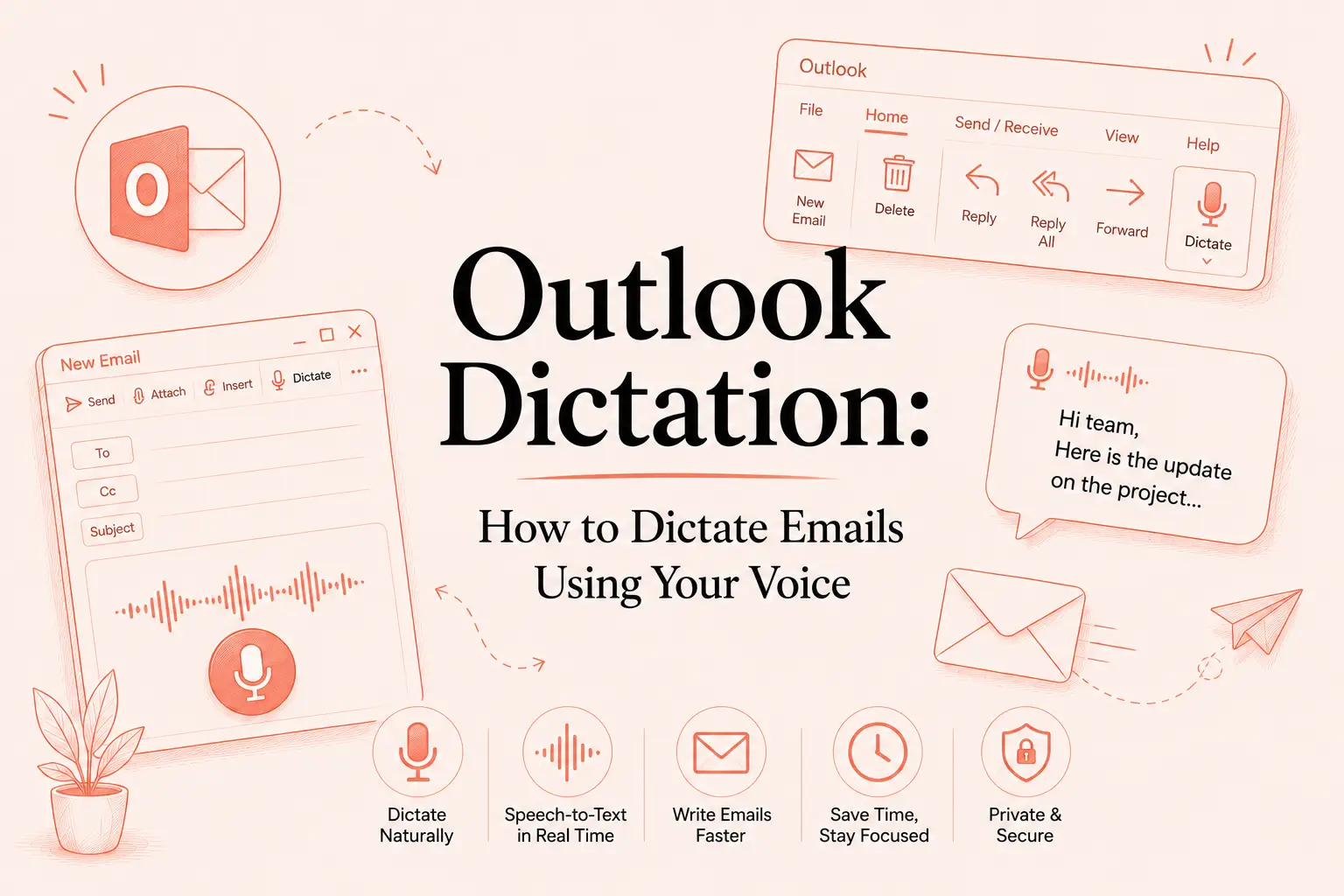
Outlook Dictation: How to Dictate Emails Using Your Voice
Outlook dictation converts your speech into text while you compose an email. Open a new message or reply, click inside the email body, select Message > Dictate, wait for the microphone to activate, and start speaking.
Microsoft’s built-in feature is suitable for basic transcription. VoiceDash is designed for users who also want filler-word removal, grammar correction, automatic punctuation, custom vocabulary, and the same voice-typing workflow across Outlook and other applications.
How to Dictate an Email in Outlook
To dictate an email in Outlook:
- Open Outlook.
- Start a new email or reply to a message.
- Click inside the email body.
- Open the Message tab.
- Select Dictate.
- Wait for the microphone to start listening.
- Speak naturally.
- Stop dictation and review the email before sending.
In new Outlook, you can resume dictation by pressing Alt + ` or selecting the microphone icon. Outlook for Mac also supports Option + F1.
Always verify names, email addresses, dates, prices, deadlines, and commitments before sending.

Which Outlook Versions Support Dictation?
Microsoft documents native dictation for new Outlook, classic Outlook, Outlook for Mac, Outlook.com, and Outlook on the web.
| Outlook version | Native dictation | Main requirement |
|---|---|---|
| New Outlook for Windows | Available | Microsoft 365 account, microphone, and internet |
| Classic Outlook | Available | Supported Microsoft 365 installation |
| Outlook on the web | Available | Browser microphone permission |
| Outlook for Mac | Available | Microsoft 365 and macOS microphone permission |
| Outlook Mobile | Dedicated feature retired | Use keyboard dictation or another mobile tool |
Microsoft states that Outlook Dictate is a subscriber-only feature and requires a microphone-enabled device.
How to Use Dictation in Each Outlook Version
Dictate emails in new Outlook for Windows
- Open new Outlook.
- Select New Mail or reply to an existing email.
- Click inside the message body.
- Select Message > Dictate.
- Wait for the listening indicator.
- Start speaking.
- Select the microphone again when finished.
Use Alt + ` to resume dictation without returning to the ribbon.
Suggested image: Dictate button in new Outlook
Alt text: Outlook Dictate button in the Message tab of new Outlook for Windows
Dictate emails in classic Outlook
- Open a new email or reply.
- Place the cursor inside the email body.
- Open the Message tab.
- Select Dictate.
- Wait for Outlook to begin listening.
- Speak your message.
If dictation works in new Outlook but fails in classic Outlook, the problem is probably related to the Office installation, account, privacy settings, or connected experiences rather than the microphone itself.
Users have reported cases where classic Outlook could not capture audio even though the same microphone worked in new Outlook and other applications.
Test Outlook on the web before reinstalling drivers or replacing your microphone.
Suggested image: Dictate control in classic Outlook
Alt text: Dictate option in the Message ribbon of classic Microsoft Outlook
Dictate emails in Outlook on the web
- Open Outlook in your browser.
- Start a new message or reply.
- Click inside the email body.
- Select Message > Dictate.
- Allow microphone access when requested.
- Start speaking.
If the microphone does not activate, open the browser’s site permissions and allow microphone access for Outlook. Reload the page after changing the permission.
Dictate emails in Outlook for Mac
- Start a new email or reply.
- Select Message > Dictate.
- Wait for the microphone to activate.
- Speak your message.
- Select the microphone again to stop.
You can also press Option + F1.
If Outlook cannot access the microphone, open:
System Settings > Privacy & Security > Microphone
Confirm that Outlook has permission.
Microsoft Dictate and Apple Dictation are separate tools. Apple Dictation operates at the system level, while Outlook Dictate is integrated into supported Microsoft applications.
Dictate Outlook emails on iPhone or Android
Microsoft began retiring the dedicated Outlook Mobile Dictate feature in September 2024 because iOS and Android already include system-level keyboard dictation.
On iPhone:
- Open Outlook.
- Start an email or reply.
- Tap inside the email body.
- Tap the microphone on the iPhone keyboard.
- Speak and review the result.
For additional setup and troubleshooting instructions, read the VoiceDash guide to voice-to-text on iPhone.
On Android:
- Open Outlook.
- Tap inside the email body.
- Select the microphone on your keyboard.
- Speak your message.
- Review the text before sending.
You can also use VoiceDash on iPhone and Android when you want AI-assisted cleanup rather than basic keyboard transcription.
Outlook Dictate vs Windows Voice Typing vs Voice Access
These Microsoft voice features perform different tasks.
| Tool | Main purpose | Where it works |
|---|---|---|
| Outlook Dictate | Speech-to-text inside Outlook | Supported Outlook versions |
| Windows Voice Typing | General dictation | Most Windows text fields |
| Windows Voice Access | Voice navigation and computer control | Windows 11 |
| VoiceDash | AI-refined voice typing | Supported apps, websites, desktop, and mobile |
Windows Voice Typing starts with Windows + H and can enter text in many Windows applications. It uses online speech recognition.
Voice Access is more suitable when you need to control applications and navigate Windows without a keyboard or mouse.
For a broader comparison, read the best speech-to-text software for Windows.
Outlook Dictation Commands and Punctuation
Outlook supports spoken commands for punctuation, symbols, line breaks, and paragraphs. Available commands vary by language.
| Say | Result |
|---|---|
| period or full stop | . |
| comma | , |
| question mark | ? |
| exclamation point | ! |
| new line | Line break |
| colon | : |
| semicolon | ; |
| open quotes / close quotes | “ ” |
| hyphen | – |
| at sign | @ |
| percent sign | % |
Do you need to say punctuation aloud?
Not always. Outlook includes an Auto Punctuation option for supported languages.
Select the gear icon in the Dictate toolbar to change:
- Spoken language
- Microphone
- Auto Punctuation
- Profanity filter
Microsoft notes that automatic punctuation is not available for every language.
Explicit commands remain useful when Outlook adds punctuation in the wrong place or when you need precise formatting.
Why does Outlook type punctuation commands as words?
Common causes include:
- The wrong spoken language is selected.
- The command is unsupported in that language.
- Background noise affects recognition.
- Automatic punctuation conflicts with spoken commands.
- Outlook interprets the command as normal sentence content.
Test a short sentence with simple commands such as “comma,” “period,” and “new line.”
Is Outlook Dictate Good Enough for Email?
Outlook Dictate is sufficient when:
- You write short emails.
- You speak in complete sentences.
- You work mainly inside Microsoft applications.
- You only need speech-to-text.
- You do not mind editing the draft.
Its limitation is not necessarily speech recognition. The main limitation is that spoken language and written language are different.
Natural speech often contains:
- Filler words
- Repetition
- Self-corrections
- Long sentences
- Incomplete thoughts
- Inconsistent structure
- Informal phrasing
A basic dictation tool may transcribe those words correctly while still producing an email that needs substantial editing.
How to Dictate Emails in Outlook with VoiceDash
VoiceDash works across Outlook and other text-entry environments instead of being restricted to one Microsoft application. VoiceDash states that it removes filler words, fixes grammar, adds punctuation, and converts natural speech into cleaner written text.
To use VoiceDash in Outlook:
- Open VoiceDash.
- Open Outlook desktop or Outlook on the web.
- Start a new message or reply.
- Place the cursor inside the email body.
- Activate your VoiceDash dictation shortcut.
- Speak naturally.
- Stop dictation.
- Review the inserted text.
- Verify important details.
- Send the email.
The text appears where your cursor is positioned, using the same type of cross-application workflow described in the VoiceDash Microsoft Word guide.
Basic transcription vs AI voice typing
Suppose you say:
Hi Sarah, um, thanks for getting back to me. I think Thursday should work. Actually, maybe Thursday afternoon would be better, and can you send the final brief before then?
A basic transcription may preserve the spoken wording:
Hi Sarah, um, thanks for getting back to me. I think Thursday should work. Actually, maybe Thursday afternoon would be better, and can you send the final brief before then?
AI-assisted cleanup may produce:
Hi Sarah,
Thanks for getting back to me. Thursday afternoon works better for me. Could you send the final brief before then?
Best,
[Name]
The exact VoiceDash output depends on what you say, your selected settings, language, and custom instructions.
You can also use the free email dictation tool to speak your ideas, choose a tone, and create a copy-ready draft without installing the application.
Outlook Dictate vs VoiceDash
Outlook Dictate is the simpler choice for occasional transcription inside Microsoft 365. VoiceDash is more suitable when you need cleaner writing across several applications.
| Feature | Outlook Dictate | VoiceDash |
|---|---|---|
| Basic speech-to-text | Yes | Yes |
| Works directly in Outlook | Yes | Yes |
| Automatic punctuation | Yes | Yes |
| Filler-word removal | Not its primary function | Yes |
| Grammar cleanup | Limited | Yes |
| Sentence restructuring | Limited | Yes |
| Personal dictionary | Not a core feature | Available on eligible plans |
| Reusable snippets | No | Available on eligible plans |
| Works outside Microsoft apps | No | Yes |
| Mobile support | System keyboard dictation | iPhone and Android apps |
| Microsoft 365 required | Yes for native Dictate | No |
| Internet required | Yes | AI features may require internet |
VoiceDash currently offers a free plan with basic voice-to-text and filler-word removal. Advanced AI editing, a personal dictionary, and snippets are included in higher plans.
VoiceDash can also support related workflows such as voice-to-text in Gmail without requiring a separate dictation system for each email client.
Practical Ways to Dictate Better Outlook Emails
Decide the outcome first
Before speaking, identify what the email must accomplish:
- Confirm a meeting
- Request information
- Summarize a call
- Assign a task
- Follow up
- Approve or reject a proposal
This reduces rambling and produces a clearer draft.
Speak one paragraph at a time
Pause after each main idea. For longer emails, use this structure:
- Context
- Main point
- Required action
- Deadline
- Closing
State names and numbers deliberately
Slow down when dictating:
- Names
- Email addresses
- Dates
- Times
- Prices
- Order numbers
- Contract terms
Use a personal dictionary
Names, acronyms, products, and technical terminology are common sources of speech-recognition errors.
VoiceDash’s Personal Dictionary lets eligible users add specific names, acronyms, and industry terminology.
Use snippets for repeated text
Reusable snippets are useful for:
- Signatures
- Scheduling instructions
- Support procedures
- Standard disclaimers
- Company addresses
- Recurring follow-ups
For a broader email workflow, read how to write emails faster.
Outlook Dictation Not Working: Problems and Fixes
The Dictate button is missing
Check the following:
- You are signed in to Microsoft 365.
- Your Outlook version supports Dictate.
- The cursor is inside the email body.
- Outlook is updated.
- Connected experiences are enabled.
- Your organization has not disabled the feature.
- The Dictate button has not been removed from the ribbon.
Microsoft identifies Dictate as a Microsoft 365 subscriber feature.
Outlook cannot access the microphone
Check:
- The microphone is connected.
- It is not muted.
- The correct input device is selected.
- Outlook has microphone permission.
- The browser has permission when using Outlook on the web.
- No other application is controlling the microphone.
Microsoft recommends checking the physical connection, system microphone settings, and other applications that may be using the microphone.
Outlook Dictate cannot hear you
If the microphone activates but no text appears:
- Increase the microphone input level.
- Move closer to the microphone.
- Reduce background noise.
- Test a headset.
- Confirm the spoken language.
- Test Outlook on the web.
- Test the microphone in another application.
Dictation works in new Outlook but not classic Outlook
This usually indicates a classic Outlook or Office configuration problem rather than microphone failure.
Try:
- Restarting classic Outlook.
- Updating Microsoft 365.
- Checking Office privacy settings.
- Enabling connected experiences.
- Repairing the Office installation.
- Testing a new Outlook profile.
- Using new Outlook or Outlook on the web temporarily.
This exact difference between new Outlook and classic Outlook has been reported by Microsoft 365 users.
Outlook replaces text after you pause
Some Office users report that temporary dictated text remains gray and is replaced after the next phrase instead of being committed.
When this happens:
- Restart Outlook.
- Test Outlook on the web.
- Update Microsoft 365.
- Run an Office repair.
- Use Windows Voice Typing or VoiceDash temporarily.
Outlook mishears words or misses spaces
Check:
- Internet stability
- Spoken language
- Background noise
- Speaking pace
- Microphone quality
- Specialist vocabulary
Users have also reported Office-specific spacing problems after punctuation. Test another Microsoft application and Outlook on the web to determine whether the issue is service-specific or installation-specific.
Is Outlook Dictation Private?
Microsoft states that Outlook Dictate does not store your audio data or transcribed text. Your speech utterances are sent to Microsoft and used to produce the text result.
VoiceDash also uses external processing. Its privacy policy states that voice recordings are transmitted to OpenAI for real-time transcription and response generation. VoiceDash states that it does not permanently store raw audio or resulting text, except for text deliberately saved by users in Notes.
Review the VoiceDash privacy policy before dictating regulated, legally privileged, medical, financial, or highly confidential information.
Neither service should be described as completely offline.
Which Outlook Dictation Method Should You Use?
| Requirement | Best option |
|---|---|
| Occasional short Outlook reply | Outlook Dictate |
| Native Microsoft integration | Outlook Dictate |
| Free dictation across Windows | Windows Voice Typing |
| Voice navigation and computer control | Windows Voice Access |
| Cleaner text from natural speech | VoiceDash |
| Filler-word removal | VoiceDash |
| Personal terminology | VoiceDash Personal Dictionary |
| Repeated email text | VoiceDash snippets |
| Dictation across Outlook, Gmail, Word, and other apps | VoiceDash |
| Mobile Outlook dictation | Keyboard dictation or VoiceDash |
| Strict offline use | A verified offline dictation tool |
Final Verdict
Outlook Dictate is a practical native option for basic speech-to-text. It works well for short emails when you speak clearly and are prepared to review the transcript.
VoiceDash is more appropriate when you want natural speech converted into cleaner written language across Outlook, Gmail, Microsoft Word, browsers, messages, and other applications.
Use Outlook Dictate for occasional transcription. Use VoiceDash when reducing the editing required after dictation matters as much as reducing typing.
