
- Quick diagnosis: Why is Mac Dictation not working?
- Does Mac Dictation have a 30-second time limit?
- How to fix Mac Dictation not working
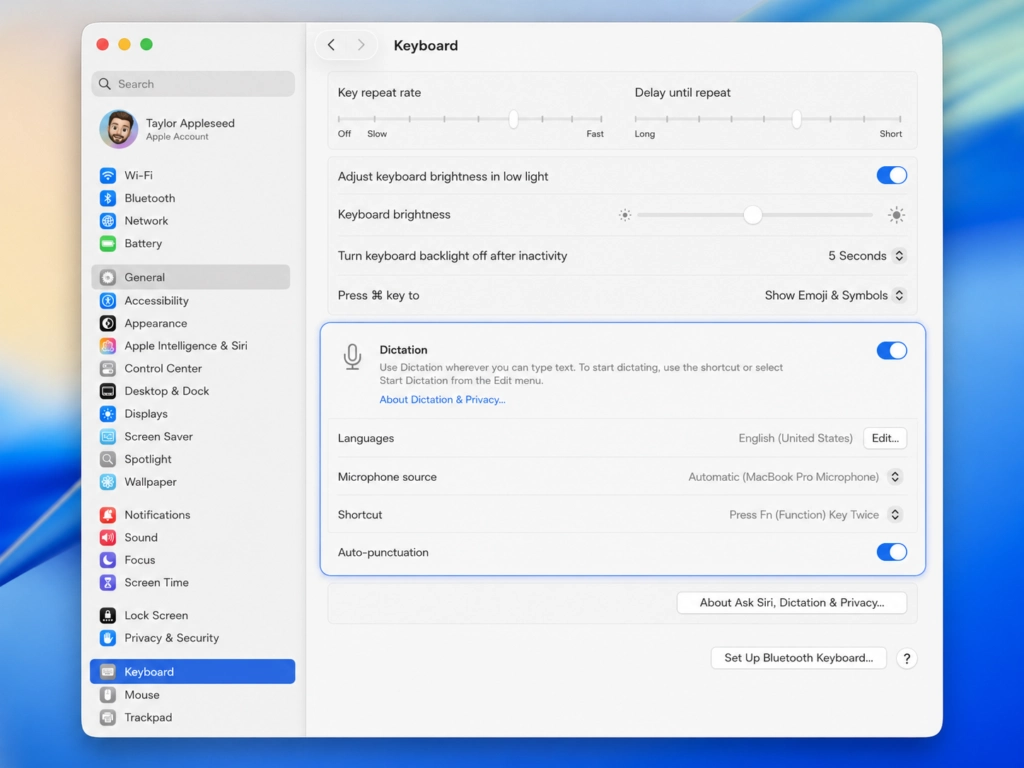
- 1. Make sure Apple Dictation is turned on
- 2. Click inside an editable text field
- 3. Check the Mac Dictation shortcut
- 4. Select the correct microphone
- 5. Check the microphone input level
- 6. Choose the correct language and region
- 7. Turn Dictation off and back on
- 8. Turn off Voice Control
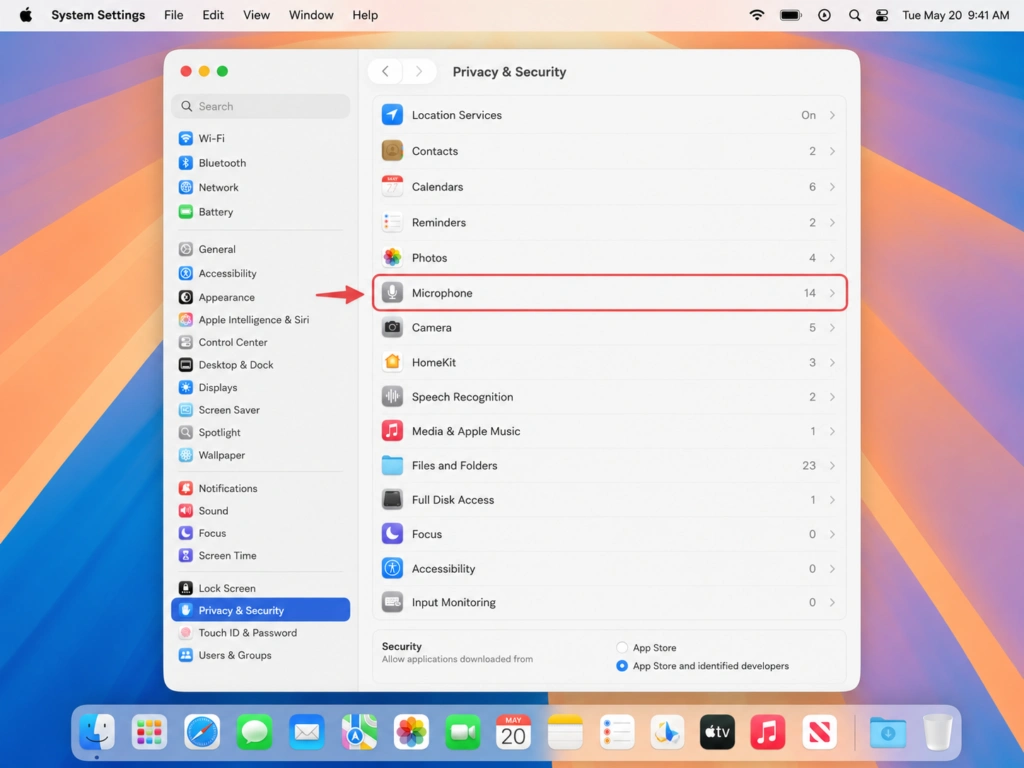
- 9. Check whether your setup requires internet access
- 10. Test without AirPods, Bluetooth, or virtual audio devices
- 11. Fix Dictation that works in Notes but not another app
- 12. Update macOS and check keyboard utilities
- When Apple Dictation works but the text still needs too much editing
- Apple Dictation vs VoiceDash
- Use VoiceDash when repeated troubleshooting interrupts your work
- How to improve Mac speech-to-text accuracy
- Final checklist
- Frequently Asked Questions About Fixing Apple Dictation
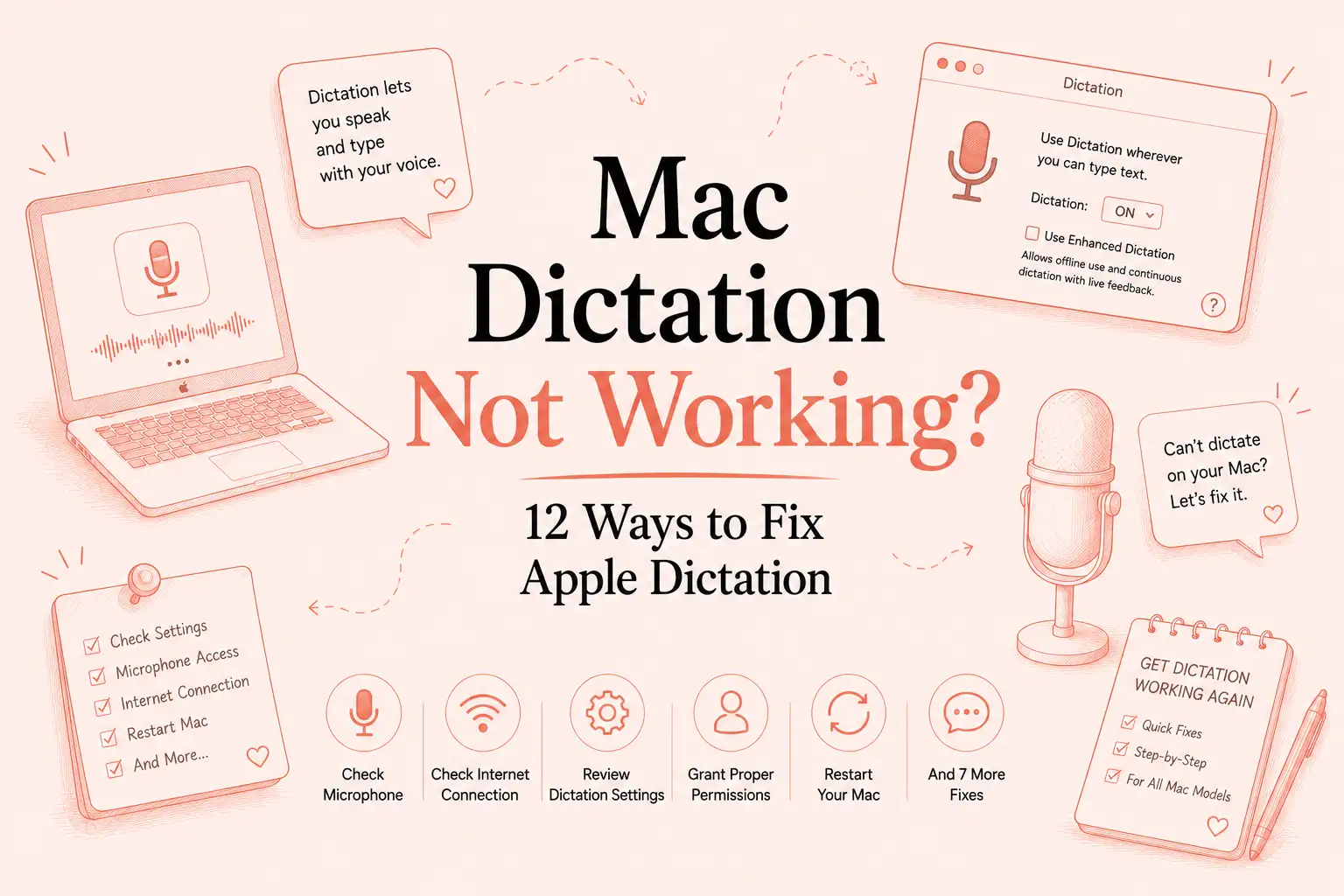
Mac Dictation Not Working? 12 Ways to Fix Apple Dictation
If Mac Dictation is not working, open System Settings → Keyboard → Dictation and confirm that Dictation is enabled, the correct microphone and language are selected, and the displayed keyboard shortcut is the one you are pressing.
Then test Dictation in a simple text field in Notes or TextEdit. If it works there but not in another app, the problem is probably related to that app, browser, or text editor rather than Apple Dictation itself.
This guide covers cases where:
- The Dictation shortcut does nothing
- The Mac makes a sound but no text appears
- F5 opens Siri instead of Dictation
- Dictation works in Notes but not Google Docs, Word, Chrome, or ChatGPT
- Dictation stops working until the Mac is restarted
- AirPods or another microphone are selected incorrectly
- Apple Dictation recognizes the wrong language
- Dictation stops after a pause
Quick diagnosis: Why is Mac Dictation not working?
| Symptom | First thing to check | Likely problem area |
|---|---|---|
| Nothing happens when you press the shortcut | Dictation setting and configured shortcut | Activation |
| You hear a tone, but no text appears | Microphone, language, or connection | Speech recognition |
| F5 opens Siri | Whether you pressed or held the Microphone key | Shortcut behavior |
| Dictation works in Notes but not another app | Cursor focus and the affected app | App-specific issue |
| Dictation works a few times, then stops | Restart and reset Dictation | Temporary system state |
| Words are consistently incorrect | Language, microphone, noise, and pronunciation | Accuracy |
| Dictation fails with AirPods | Selected microphone and audio routing | Input device |
| Dictation stops after a long pause | Thirty seconds without detected speech | Normal behavior |
| Standard Dictation will not start | Voice Control may be active | Accessibility conflict |
For voice-typing problems on Windows, iPhone, Android, browsers, and other devices, use the broader Voice Typing Not Working guide.
Does Mac Dictation have a 30-second time limit?
No. Apple states that you can dictate text of any length without a fixed session timeout.
Dictation stops automatically when it detects no speech for 30 seconds. That is an inactivity timeout, not a maximum 30-second Dictation session.
You can also end Dictation manually by pressing Escape, the Microphone key, or your configured Dictation shortcut.
This distinction matters because some troubleshooting guides incorrectly describe Apple Dictation as being limited to 30-second sessions. Apple’s current documentation does not support that claim.
How to fix Mac Dictation not working
Work through these fixes in order. Test Dictation after each change so you can identify the actual cause.
1. Make sure Apple Dictation is turned on
- Open the Apple menu.
- Select System Settings.
- Click Keyboard.
- Scroll to Dictation.
- Confirm that Dictation is turned on.
- Click Enable if macOS displays a confirmation message.
Test it immediately:
- Open Notes or TextEdit.
- Click inside a blank document.
- Press the shortcut displayed in Dictation settings.
- Speak a short sentence.
If text appears, Apple Dictation is functioning.
For complete setup instructions, read How to Use Speech to Text on Mac.
2. Click inside an editable text field
Your cursor must be positioned somewhere that accepts text.
Before starting Dictation:
- Open Notes or TextEdit.
- Create a new document.
- Click where you want the text to appear.
- Confirm that the insertion point is visible.
- Start Dictation.
Dictation may not respond when focus is on:
- A toolbar
- A menu
- A button
- A locked document
- A non-editable webpage element
- A sidebar
- A dialog box that does not accept text
Testing in Notes helps separate a system-wide problem from an app-specific one.
3. Check the Mac Dictation shortcut
Do not assume that F5, Fn twice, or the Globe key is your current shortcut. macOS allows it to be changed.
- Open System Settings.
- Select Keyboard.
- Scroll to Dictation.
- Open the Shortcut menu.
- Note the assigned shortcut.
- Test that exact shortcut in Notes.
You can also create a custom combination.
A custom shortcut can help when:
- Another app uses the same keys
- Your external keyboard has no Microphone key
- A keyboard utility intercepts Fn or F5
- The shortcut changed after switching keyboards
- The current shortcut is unreliable
Apple allows custom shortcuts such as Option-Z.
Why does F5 open Siri instead of Dictation?
On compatible Macs, the F5 Microphone key controls both Dictation and Siri:
- Press and release the key to start Dictation.
- Press and hold it to activate Siri.
If F5 keeps opening Siri, release it immediately instead of holding it.
If that remains unreliable, assign a custom shortcut under System Settings → Keyboard → Dictation → Shortcut.
4. Select the correct microphone
Your Mac may be listening through a different input device from the one you expect.
This commonly happens after connecting:
- AirPods
- A Bluetooth headset
- A USB microphone
- A webcam
- An external display
- A docking station
- A virtual audio device
To select the Dictation microphone:
- Open System Settings.
- Click Keyboard.
- Scroll to Dictation.
- Open the menu beside Microphone source.
- Select the microphone you want to use.
If the source is set to Automatic, select the built-in microphone manually while troubleshooting.
5. Check the microphone input level
A selected microphone may still be muted, obstructed, disconnected, or too quiet.
- Open System Settings.
- Select Sound.
- Scroll to Input.
- Select your microphone.
- Speak normally.
- Watch the input-level indicator.
If the indicator does not move:
- Increase the input volume
- Move closer to the microphone
- Check whether it is muted
- Disconnect and reconnect it
- Remove anything covering the built-in microphone
- Quit apps that control audio input
- Test the built-in microphone instead
Apple also recommends reducing background noise and excessive room echo.
Why do I hear the Dictation tone but no text appears?
The tone confirms that macOS received the shortcut. It does not confirm that usable audio is reaching the speech-recognition system.
Check these items:
- Make sure the cursor is inside an editable field.
- Select the built-in microphone.
- Confirm that the input meter moves.
- Check the selected Dictation language.
- Test the microphone in a recording app.
- Turn Dictation off and back on.
- Restart the Mac.
- Test without Bluetooth devices.
Do not start by deleting system files or running Terminal commands.
6. Choose the correct language and region
Apple Dictation should be configured for the language and regional variation you are speaking.
- Open System Settings.
- Select Keyboard.
- Scroll to Dictation.
- Click Edit beside Languages.
- Select the language and region you use.
- Remove languages you no longer need.
English (United States), English (United Kingdom), and English (Australia), for example, may interpret pronunciation, spelling, and vocabulary differently.
If several languages are enabled, verify which one is active when Dictation starts.
Apple notes that availability and features can vary by language and region.
7. Turn Dictation off and back on
Resetting Dictation can clear a temporary activation problem.
- Open System Settings → Keyboard.
- Turn Dictation off.
- Wait ten seconds.
- Restart the Mac.
- Turn Dictation on again.
- Recheck the language, microphone, and shortcut.
- Test it in Notes.
Why does Dictation work a few times and then stop?
If Dictation functions initially but later becomes unresponsive, the problem may be a temporary audio or speech-recognition state rather than a permanent setting.
Use this sequence:
- Test the microphone in Sound settings.
- Switch the microphone source to the built-in microphone.
- Turn Dictation off and back on.
- Restart the Mac.
- Install any available stable macOS update.
If the problem happens only inside one app, test that app separately rather than repeatedly resetting the entire Mac.
8. Turn off Voice Control
Voice Control and standard macOS Dictation are separate features.
- Dictation enters spoken text.
- Voice Control enters text and lets you control the Mac with commands.
Apple states that standard macOS Dictation is unavailable while Voice Control is active.
To check it:
- Open System Settings.
- Select Accessibility.
- Click Voice Control.
- Turn Voice Control off.
- Test standard Dictation again.
Keep Voice Control enabled if you intentionally use it for navigation and spoken commands. In that case, use Voice Control’s text-entry features rather than standard Dictation.
9. Check whether your setup requires internet access
Some Dictation processing happens on the device, while other voice input may require access to Apple’s servers.
To check your Mac:
- Open System Settings.
- Click Keyboard.
- Find the Dictation section.
- Read the message displayed beneath it.
Apple says this text indicates whether general Dictation is processed on the device or sent to Siri servers.
If your setup needs a connection:
- Confirm Wi-Fi or Ethernet is working
- Temporarily disconnect a VPN
- Test another network
- Check whether a corporate or school network blocks the service
- Test in Notes rather than a search field
Do not assume every Mac, language, or type of text field uses the same processing method.
10. Test without AirPods, Bluetooth, or virtual audio devices
AirPods and Bluetooth headsets are not always the cause, but they add another audio-routing variable.
To isolate the problem:
- Disconnect the headset.
- Set the Dictation source to the built-in microphone.
- Confirm that the built-in microphone receives audio.
- Test Dictation in Notes.
Temporarily quit applications that create or alter audio devices, including:
- Virtual microphones
- Noise-removal tools
- Audio-routing software
- Podcasting utilities
- Voice-changing software
- Aggregate-device tools
If Dictation starts working, reconnect each device or application individually until the issue returns.
Treat switching to the built-in microphone as a diagnostic test, not a rule that Bluetooth microphones never work.
11. Fix Dictation that works in Notes but not another app
If Dictation works in Notes or TextEdit, the core macOS feature is operating. The remaining issue is likely related to the affected app, webpage editor, browser, cursor focus, or a separate voice feature.
Why does Dictation work in Notes but not Google Docs or ChatGPT?
Start with these checks:
- Click directly inside the document or prompt field.
- Confirm that the field is editable.
- Reload the page or reopen the app.
- Try a new document or conversation.
- Assign a different Dictation shortcut.
- Disable keyboard extensions temporarily.
- Test another browser.
Apple Dictation, Google Docs Voice typing, Microsoft Dictate, and ChatGPT voice input are separate systems. One may fail while another continues to work.
Mac Dictation not working in Google Docs
Google Docs has its own browser-based Voice typing feature.
If Apple Dictation works in Notes but not Docs:
- Reload the document.
- Click inside the document body.
- Confirm that you have editing access.
- Disable browser extensions that alter text input.
- Try another browser.
- Test Tools → Voice typing separately.
Do not confuse Google’s Voice typing feature with Apple Dictation.
Mac Dictation not working in ChatGPT
If Dictation fails only inside ChatGPT:
- Click directly in the prompt field.
- Reload the page or app.
- Open a new conversation.
- Quit and reopen the browser or desktop app.
- Test another browser.
- Change the Dictation shortcut.
Browser microphone permission applies to ChatGPT’s own voice features. Standard Apple Dictation is a macOS text-input feature, so browser microphone permission does not explain every Apple Dictation failure.
Mac Dictation not working in Microsoft Word
Microsoft Word can use:
- Apple Dictation
- Microsoft’s own Dictate feature
Test them separately.
For Apple Dictation:
- Click inside the document
- Confirm that the cursor is active
- Use the macOS Dictation shortcut
For Microsoft Dictate:
- Open the Home tab
- Select Dictate
- Check Word’s microphone permission
- Confirm the required Microsoft service is available
For a complete Word workflow, read How to Use Voice to Text in Word.
12. Update macOS and check keyboard utilities
An operating-system update may contain fixes for audio, keyboard, language, or accessibility behavior.
- Open System Settings.
- Select General.
- Click Software Update.
- Install any available stable update.
- Restart the Mac.
- Recheck Dictation settings.
- Test in Notes.
Also quit keyboard-remapping and automation tools that alter:
- Fn
- F5
- Globe
- Control
- Option
- Function keys
- Double-press shortcuts
If Dictation works after one of these utilities is closed, either change that utility’s mapping or assign Apple Dictation a different shortcut.
When Apple Dictation works but the text still needs too much editing
A successful repair does not necessarily make Apple Dictation the right tool for every workflow.
Apple Dictation remains useful when you want:
- A feature built into macOS
- Quick messages and notes
- Basic speech-to-text
- No additional application
- Supported on-device processing where available
A dedicated voice-to-text application becomes more useful when you need:
- Cleaner long-form writing
- Filler-word removal
- Grammar correction
- More consistent formatting
- A personal dictionary for names and terminology
- Reusable text snippets
- Voice typing across multiple work apps
- Less editing after each session
For a broader comparison, read Best Dictation Software for Mac or Best Apple Dictation Alternatives.
Apple Dictation vs VoiceDash
Apple Dictation and VoiceDash solve related but different problems.
| Feature | Apple Dictation | VoiceDash |
|---|---|---|
| Included with macOS | Yes | Separate application |
| Basic speech-to-text | Yes | Yes |
| Automatic punctuation | Available in supported languages | Included with AI text refinement |
| Filler-word removal | Not a core Dictation feature | Yes |
| Grammar cleanup | Limited | Yes |
| Personal dictionary | Not documented as a standard Dictation feature | Available |
| Reusable snippets | No | Available |
| Cross-app voice typing | Supported in editable text fields | Designed for everyday writing across apps |
| Best fit | Quick built-in voice input | Cleaner daily writing with less manual editing |
VoiceDash is designed to turn natural speech into clearer written text by correcting grammar and punctuation, removing filler words, and supporting personal vocabulary.
Apple Dictation remains the stronger choice when you need a built-in feature without installing another application.
VoiceDash is a better fit when the main problem is not whether the Mac can recognize speech, but how much work is required to clean up the result.
Use VoiceDash when repeated troubleshooting interrupts your work
VoiceDash is designed for voice typing in applications such as:
- Gmail
- Google Docs
- Microsoft Word
- Slack
- Notion
- ChatGPT
- Browser text fields
- Other desktop writing tools
It can remove filler words, improve grammar and punctuation, and use a personal dictionary for recurring names and specialized terms.
How to improve Mac speech-to-text accuracy
These practices help with both Apple Dictation and dedicated voice-to-text tools:
- Speak at a natural, steady pace.
- Maintain a consistent distance from the microphone.
- Reduce background conversations and room echo.
- Select the correct language and regional variation.
- Use a microphone with a stable input level.
- Review names, numbers, quotations, and technical terms.
- Add recurring names and terminology to a personal dictionary when supported.
- Compare tools using the same microphone and test script.
- Ignore accuracy percentages that provide no test methodology.
- Measure the editing required after transcription, not only the number of recognized words.
Final checklist
If Apple Dictation is not working:
- Confirm that Dictation is enabled.
- Click inside an editable text field.
- Check the configured shortcut.
- Press and release the Microphone key rather than holding it.
- Select the correct microphone.
- Confirm that the input meter moves.
- Choose the correct language and region.
- Turn Dictation off and back on.
- Restart the Mac.
- Turn off Voice Control.
- Check whether internet access is required.
- Test without Bluetooth and virtual audio devices.
- Test in Notes to identify app-specific failures.
- Update macOS.
- Use VoiceDash when built-in Dictation does not provide the output or workflow you need.
