
- TL;DR: The Best Dictation Apps
- Best Dictation Apps by Use Case
- Best Dictation App Overall: VoiceDash
- Best Free Dictation Apps
- Best Dictation App for Android
- Best Dictation App for iPhone
- Best Dictation Software for Windows and Mac
- Best Dictation Apps for Meetings and Transcription
- What Is the Best App Where You Speak and It Types?
- Dictation vs Transcription Apps
- How to Choose a Dictation App
- Best Dictation Apps for Writers
- Final Verdict: What Is the Best App for Dictation?
- Frequently Asked Questions About Dictation Apps
Best App for Dictation in 2026: The Best Voice Typing Tools for Clean, Fast Writing
The best dictation app depends on what you want after you stop speaking. Some speech-to-text tools give you a raw transcript. Better voice typing apps clean up your words, add punctuation, and work across Android, iPhone, Windows, and Mac. Free dictation apps are good for quick notes, but dedicated AI dictation tools are better when you want polished text for emails, documents, messages, and professional writing.
TL;DR: The Best Dictation Apps
If you want the shortest answer, here it is:
VoiceDash is the best app for dictation if you want clean, ready-to-use writing across your everyday apps. It is built for people who want to speak naturally and get polished text, not a messy transcript they need to rewrite.
Other tools are better for specific cases:
- Apple Dictation is the best free option for iPhone and Mac users.
- Gboard is the easiest free voice typing option for Android.
- Windows Voice Typing is the best built-in option for Windows.
- Dragon Professional is best for legal, medical, and high-volume professional dictation.
- Otter.ai and Notta are better for meeting transcription than everyday dictation.
- Google Docs Voice Typing is useful if you only write inside Google Docs.
- Superwhisper or MacWhisper-style tools are good if your top priority is local Mac transcription.
The real question is not only “Which app hears me correctly?” It is:
How much editing is left after the app finishes typing?
That is where modern AI dictation apps are starting to beat basic voice typing tools.
Best Dictation Apps by Use Case
| Use case | Best app | Why it fits |
|---|---|---|
| Best overall dictation app | VoiceDash | Turns natural speech into clean, formatted text across apps |
| Best free dictation app | Apple Dictation, Gboard, Windows Voice Typing | Built in, fast to start, good for short text |
| Best dictation app for Android | VoiceDash or Gboard | VoiceDash for polished writing, Gboard for quick free typing |
| Best dictation app for iPhone | VoiceDash or Apple Dictation | VoiceDash for cleaner output, Apple Dictation for built-in convenience |
| Best dictation software for Windows | VoiceDash or Dragon Professional | VoiceDash for everyday AI writing, Dragon for specialist workflows |
| Best dictation software for Mac | VoiceDash, Apple Dictation, Superwhisper | Different strengths for AI cleanup, free dictation, and local workflows |
| Best for meetings | Otter.ai or Notta | Built for recording, speaker labels, summaries, and meeting notes |
| Best for writers | VoiceDash | Better for drafts, emails, notes, outlines, and content ideas |
| Best browser-based free tool | Google Docs Voice Typing | Free and useful inside Google Docs |
| Best professional specialist tool | Dragon Professional | Strong for legal, medical, and trained vocabulary workflows |
Best Dictation App Overall: VoiceDash
VoiceDash is the best app for dictation for users who want polished writing instead of raw transcripts.
Most basic dictation apps type what you say. That sounds useful until you read the result and find filler words, broken sentences, missing punctuation, repeated phrases, and awkward spoken grammar.
VoiceDash is built for a different job. It turns speech into clean, ready-to-send text across common desktop and mobile workflows. That makes it useful for:
- emails
- documents
- Slack or team messages
- notes
- reports
- content drafts
- support replies
- captions
- business updates
- quick idea capture
The important difference is the editing layer. VoiceDash is not only listening for words. It helps remove filler words, fix grammar, clean up phrasing, and format speech into text that feels closer to something you would actually send.
VoiceDash also works across Mac, iPhone, Linux, Android, and Windows, which matters because many people do not write in only one place. A writer might draft in Google Docs, reply in Slack, edit inside a CMS, then answer messages on a phone. A dictation tool that only works inside one editor quickly becomes a copy-paste chore.
VoiceDash gives users the first 1,000 words free, which is enough to test whether voice typing fits your real workflow before committing.
Why VoiceDash ranks first here
VoiceDash is strongest when your goal is not transcription, but usable writing.
Choose VoiceDash if you want:
- an app where you speak and it types cleanly
- AI cleanup instead of raw dictation
- filler-word removal
- grammar correction
- personal vocabulary support
- reusable snippets
- cross-platform support
- faster writing across daily apps
It is not the best choice for every use case. If you need legal or medical dictation with deep specialist vocabulary, Dragon may still be better. If you need a bot to join Zoom meetings and identify speakers, Otter or Notta is a better category fit. If you need fully local Mac transcription, a local Whisper-based tool may be more appropriate.
But for everyday professional dictation, where the goal is clean text with less editing, VoiceDash is the strongest overall choice.

Best Free Dictation Apps
Free dictation apps are better than they used to be. For short messages, quick notes, and casual use, they may be all you need.
The tradeoff is that free tools usually focus on typing your words, not improving them.
Apple Dictation
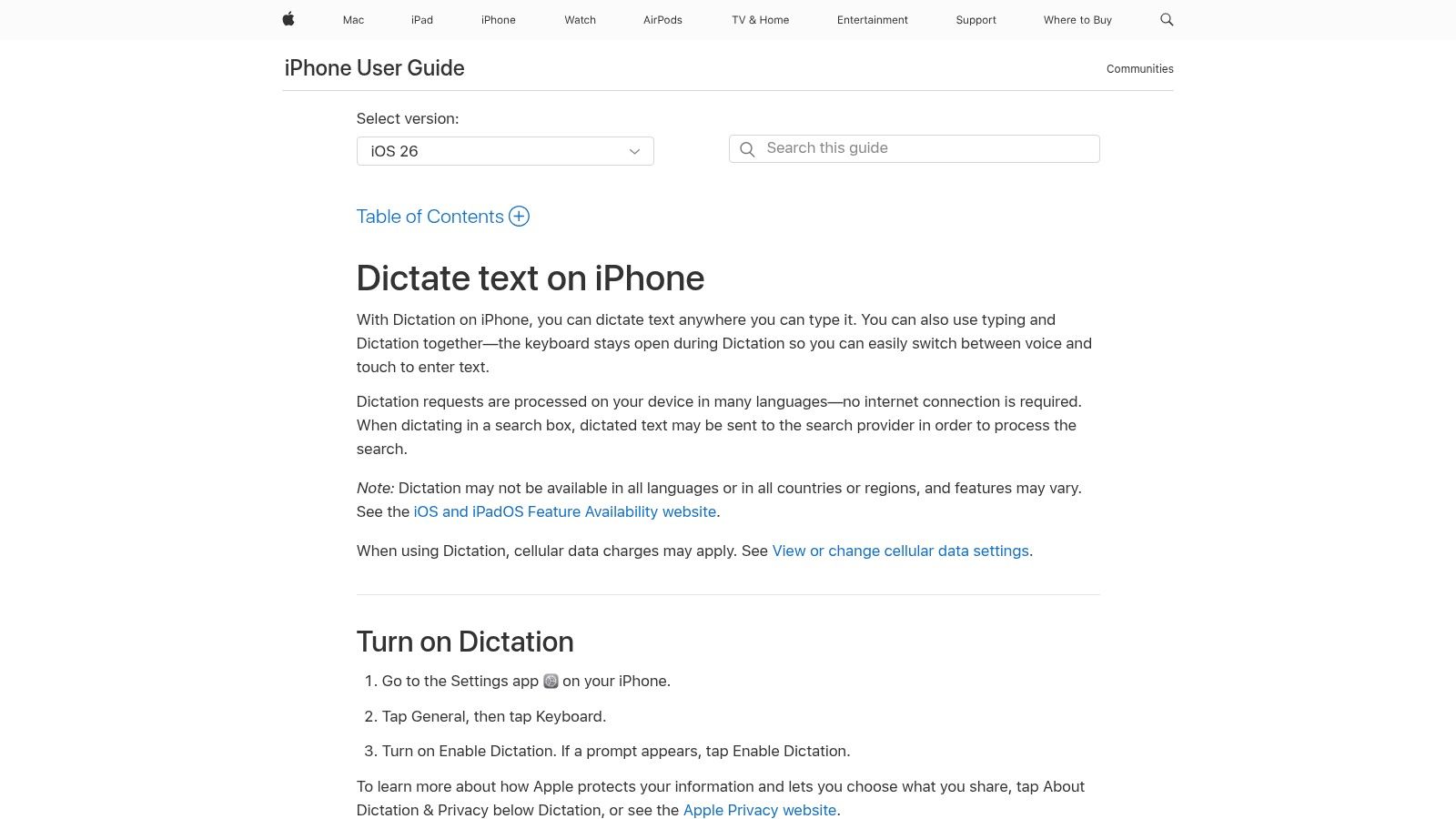
Apple Dictation is the easiest free option for iPhone, iPad, and Mac users. On iPhone, Apple says you can dictate anywhere you can type, and you can switch between typing and Dictation while the keyboard stays open. Apple also notes that many Dictation requests are processed on-device, depending on language and situation.
Apple Dictation is good for:
- short messages
- quick notes
- search boxes
- simple emails
- everyday iPhone dictation
- Mac users who want a free built-in option
Where it breaks down:
- long drafts
- professional writing
- messy spoken thoughts
- custom vocabulary
- advanced formatting
- removing filler words
If you mostly use Apple devices, our guide to voice to text on iPhone goes deeper into the iPhone workflow.
Gboard Voice Typing
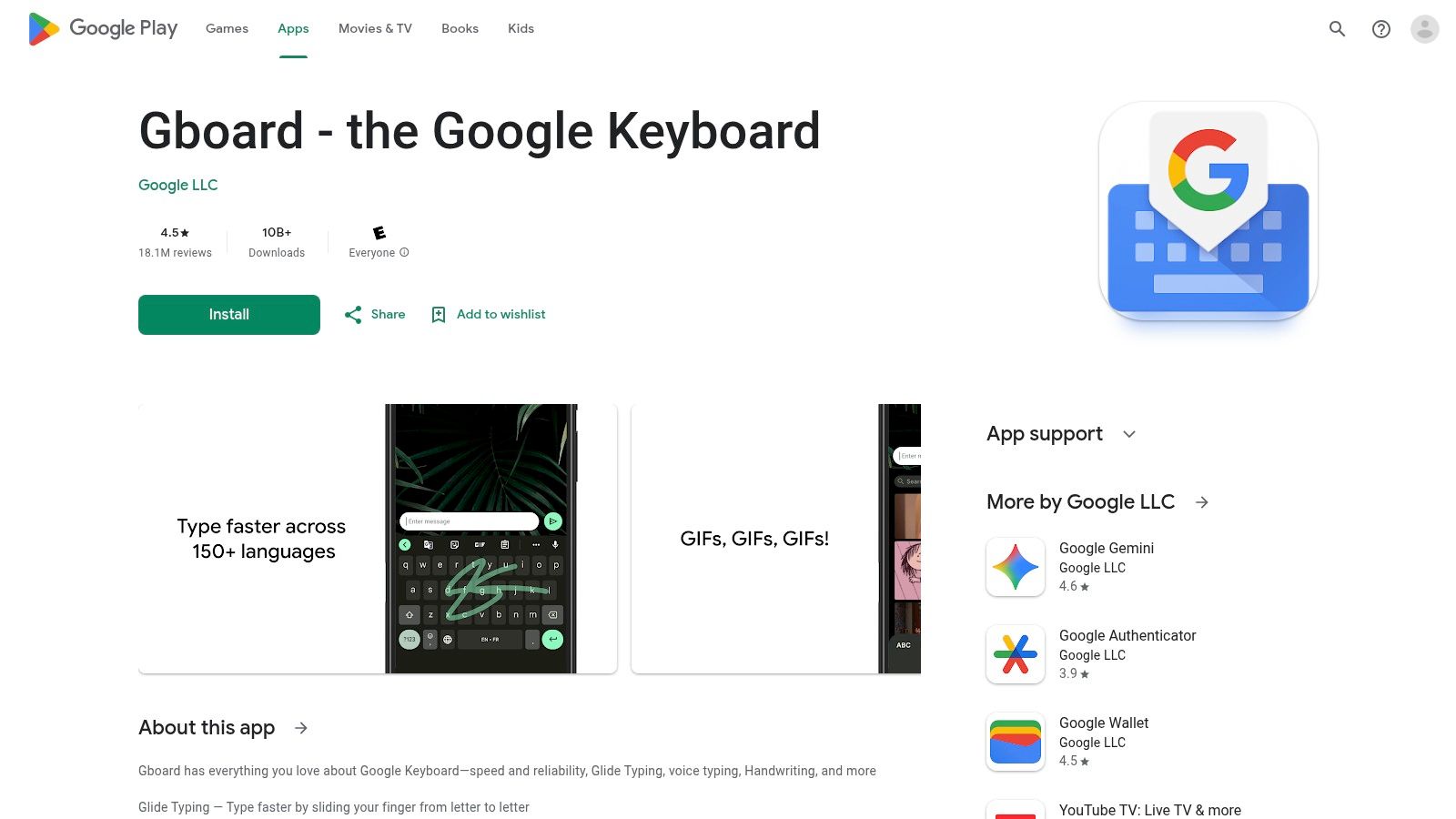
Gboard is often the easiest free dictation app for Android users because the microphone button is already inside the keyboard. It works well for short replies, quick searches, and casual text.
Gboard is good for:
- WhatsApp replies
- SMS messages
- Google searches
- short emails
- quick Android voice typing
Where it breaks down:
- long notes
- polished writing
- structured content
- business emails
- editing-heavy workflows
If you want to improve the built-in experience, start with this guide to voice typing on Android.
Windows Voice Typing
Windows Voice Typing is built into Windows 10 and Windows 11. Microsoft says it lets you enter text by speaking, using online speech recognition powered by Azure Speech services. You need an internet connection, a working microphone, and your cursor in a text box.
Windows Voice Typing is good for:
- free PC dictation
- short notes
- simple documents
- basic speech typing
- users who do not want to install another app
Where it breaks down:
- advanced cleanup
- brand tone
- custom snippets
- polished output
- complex writing workflows
For setup and shortcuts, see the guide to speech to text in Windows.
Google Docs Voice Typing
Google Docs Voice Typing is one of the best free browser-based dictation tools. Google says it works in Google Docs and Google Slides speaker notes using supported browsers, and the browser controls how speech is processed before text is sent into Docs or Slides.
Google Docs Voice Typing is good for:
- students
- Google Docs users
- simple essays
- quick browser dictation
- people who want a free speech dictation app
Where it breaks down:
- it is not system-wide
- it does not work across all apps
- it requires you to write inside Google Docs
- it does not provide advanced AI writing cleanup
Free tools are excellent for testing voice typing. Dedicated AI dictation apps become more valuable when you are tired of cleaning up the same problems every day.
Best Dictation App for Android
The best dictation app for Android depends on how much cleanup you want.
If you only need quick typing, Gboard is enough. It is already on many Android phones, opens quickly, and works inside most apps.
If you want cleaner output, VoiceDash is the better Android dictation app because it focuses on turning spoken thoughts into structured, polished text. That matters when you are writing more than a one-line reply.
Use Gboard for:
- short messages
- simple replies
- searches
- casual voice typing
Use VoiceDash for:
- professional emails
- longer notes
- social posts
- content drafts
- business messages
- structured writing
- fewer manual edits
A common Android problem is that voice typing feels fast at first, then slow later because you spend time fixing punctuation, filler words, and sentence structure. That hidden editing cost is why many users eventually move from free keyboard dictation to a dedicated app.
For Android-specific setup, see the guide to Android voice typing.
Best Dictation App for iPhone
The best dictation app for iPhone is either Apple Dictation or VoiceDash, depending on your use case.
Apple Dictation is best if you want a free, built-in way to speak instead of type. It is convenient, fast, and already available on iPhone.
VoiceDash is better if you want your dictated text to sound more polished. That makes a difference for:
- work emails
- client messages
- long notes
- LinkedIn posts
- content drafts
- business updates
- professional replies
Apple Dictation is good at turning speech into text. VoiceDash is designed to turn speech into clean writing.
That difference matters because iPhone dictation often happens in rushed moments. You are walking, commuting, replying between tasks, or capturing an idea before it disappears. The best iPhone voice typing app should not leave you with a paragraph that sounds like you were speaking into a phone while distracted.
For a deeper iOS comparison, see our guide to the best voice to text app for iPhone and the practical guide to iPhone speech-to-text.
Best Dictation Software for Windows and Mac
Desktop dictation is different from mobile dictation. On a phone, many users dictate short messages. On Windows and Mac, people often dictate longer work:
- reports
- proposals
- documentation
- emails
- essays
- scripts
- support replies
- internal updates
- product notes
That means the best dictation software for Windows and Mac needs more than a microphone button.
Best for everyday desktop writing: VoiceDash
VoiceDash is a strong desktop choice because it works across major platforms and daily writing environments. The main benefit is that you can dictate where you already work instead of opening a separate recorder, transcribing, copying, pasting, and cleaning up the result.
It is best for:
- marketers
- founders
- creators
- consultants
- freelancers
- students
- small teams
- operators
- people who write across many apps
Best for professional specialist dictation: Dragon Professional
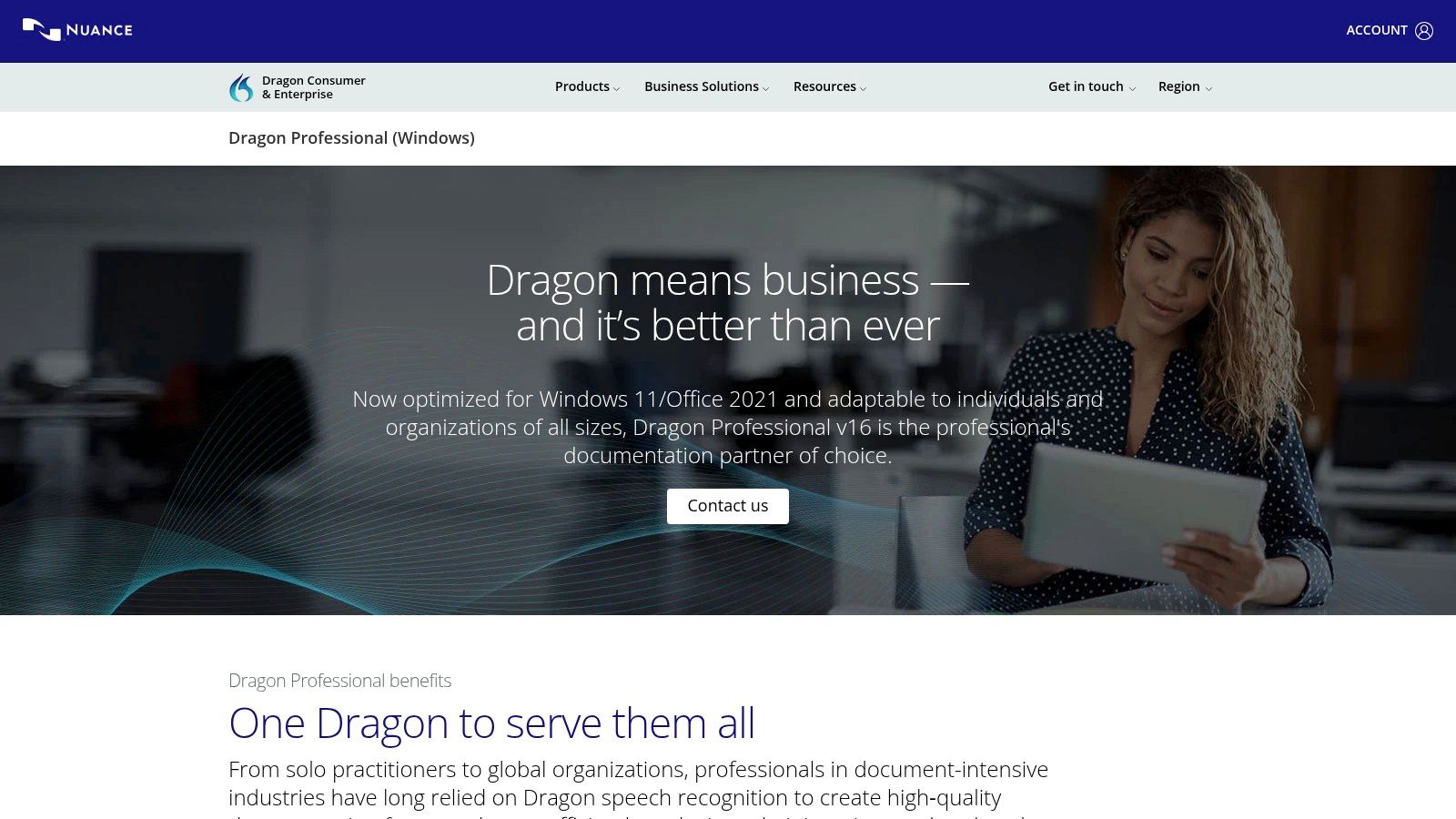
Dragon Professional remains a serious option for people who dictate large volumes of specialized text. Nuance positions Dragon Professional for document-intensive industries and professional documentation workflows.
Dragon is best for:
- legal dictation
- medical dictation
- high-volume documentation
- specialist vocabulary
- trained voice workflows
The tradeoff is that Dragon can feel more complex than newer AI dictation apps. It is powerful, but not always the easiest choice for casual daily writing.
Best free Windows option: Windows Voice Typing
Windows Voice Typing is the simplest place to start on a PC. It is free and built in, but it depends on online speech recognition and lacks the cleanup features found in AI dictation tools.
Best free Mac option: Apple Dictation
Apple Dictation is the simplest place to start on Mac. Apple’s Mac support documentation explains that Dictation can be enabled from Keyboard settings, while Voice Control is a separate feature for controlling the Mac by voice.
If you are comparing Mac-specific tools, see our guide to the best dictation software for Mac.
Best Dictation Apps for Meetings and Transcription
This is where many “best dictation app” lists become confusing.
Dictation apps and transcription apps are not the same thing.
A dictation app helps you speak text into an app. A transcription app records audio or meetings and turns them into transcripts.
If you are writing an email, you want dictation.
If you are recording a meeting, you want transcription.
Otter.ai
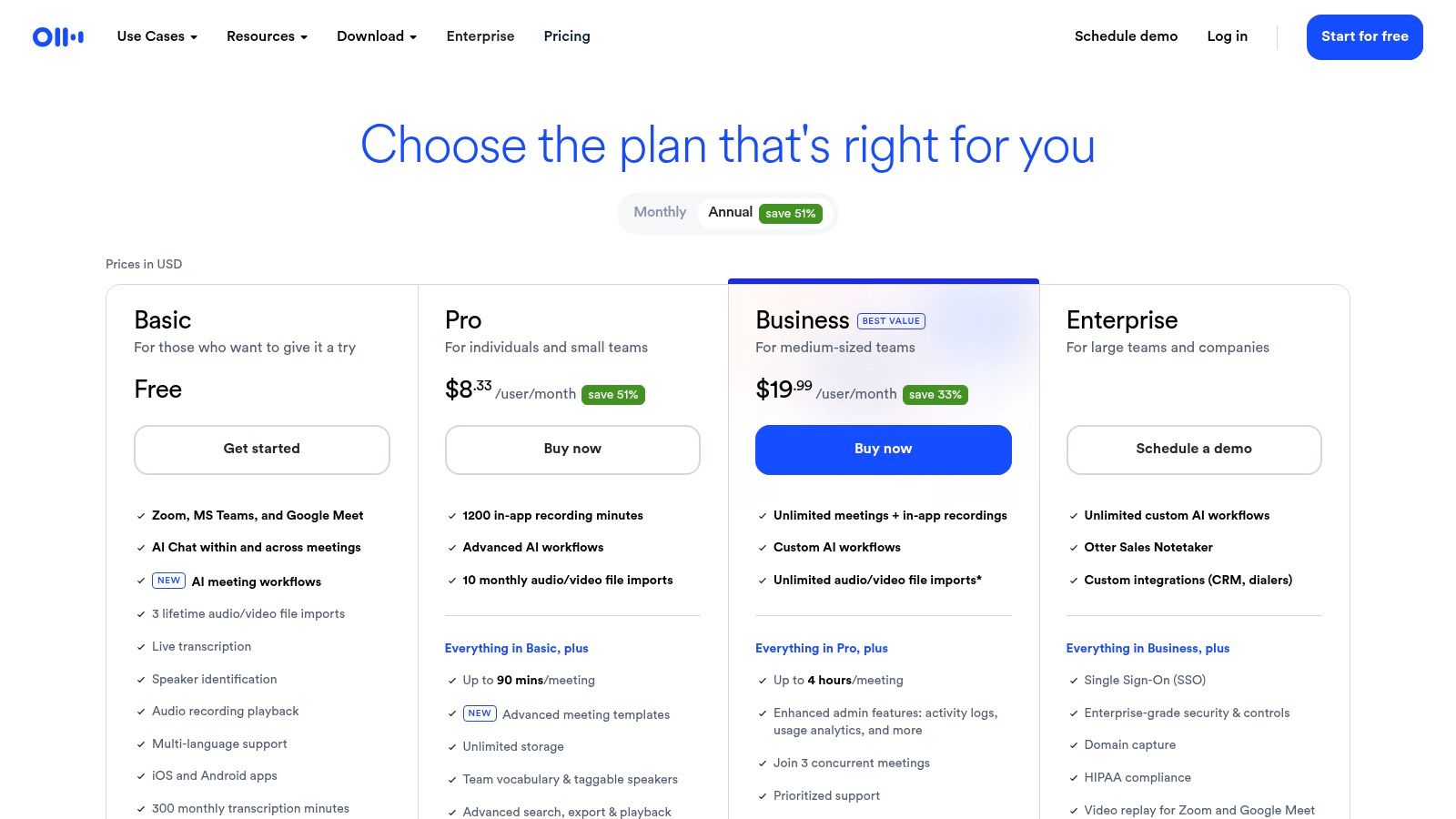
Otter.ai is one of the best-known meeting transcription tools. Its pricing page lists a free Basic plan with 300 monthly transcription minutes, live transcription, speaker identification, audio recording playback, and meeting integrations with Zoom, Microsoft Teams, and Google Meet.
Otter is good for:
- meetings
- interviews
- lectures
- team calls
- speaker labels
- meeting summaries
Otter is not ideal for:
- drafting emails
- writing in every app
- polished solo dictation
- private writing workflows
Notta
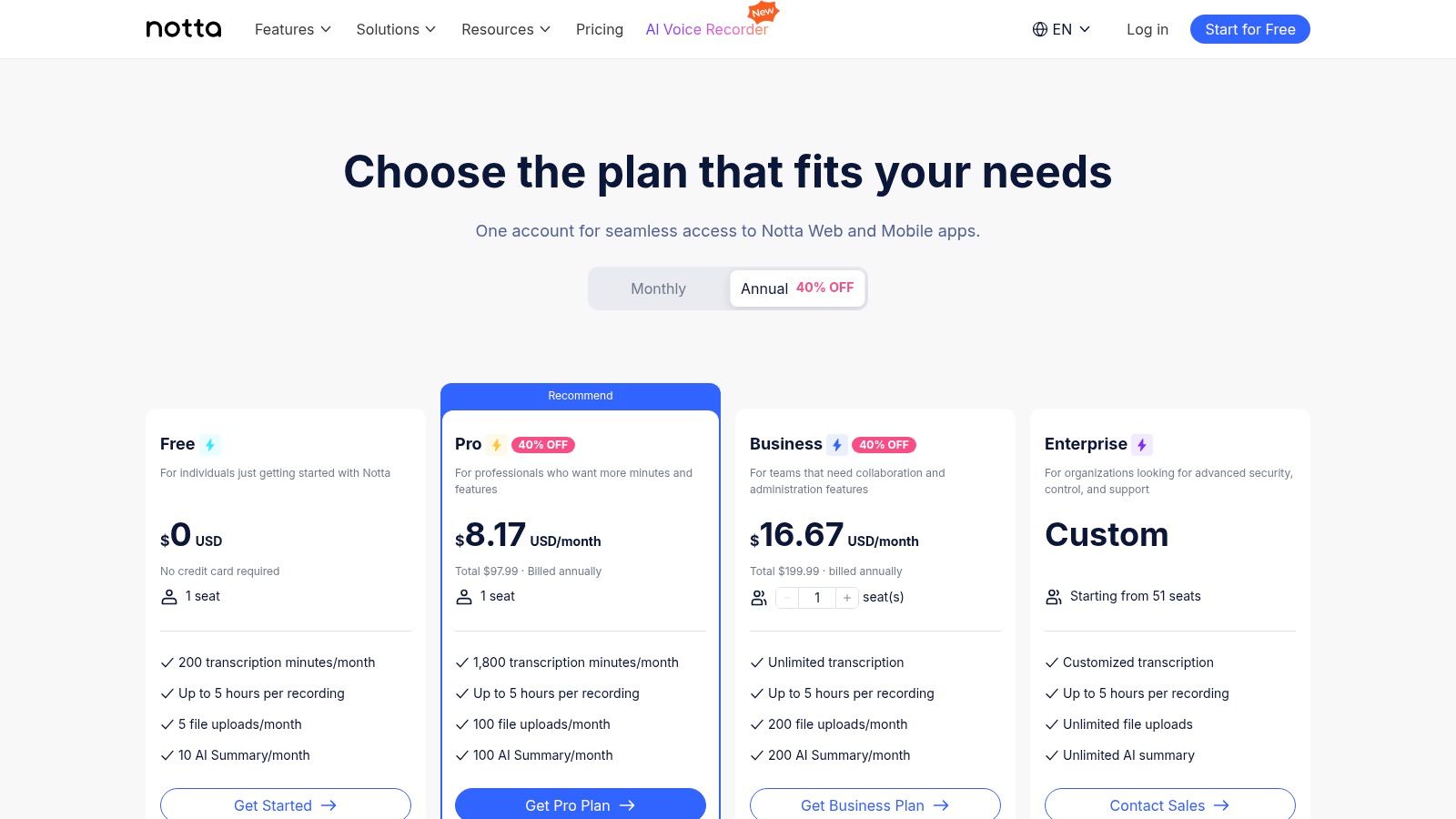
Notta is another meeting-focused transcription tool. Its pricing page describes a freemium model, with paid plans unlocking features such as transcript exports, translation, custom vocabulary, and collaboration.
Notta is good for:
- multilingual meeting transcription
- recorded calls
- team notes
- interviews
- summaries
- transcript exports
Notta is less ideal if you simply want an app where you speak and it types into your writing app.
Dictation vs meeting tools
If your main question is “What did everyone say in the meeting?” choose Otter or Notta.
If your main question is “How do I write faster without typing?” choose a dictation app like VoiceDash.
That distinction matters for searchers. Many people start with “dictation app” but actually need one of three different tools:
| Need | Better category |
|---|---|
| Speak into emails, docs, and messages | Dictation app |
| Record meetings and get speaker labels | Transcription app |
| Capture personal thoughts and summarize them | AI note app |
| Control computer actions by voice | Voice control software |
For broader category research, see our speech-to-text software comparisons.
What Is the Best App Where You Speak and It Types?
The best app where you speak and it types is VoiceDash if you want the final text to be clean enough to use with little editing.
If you want free built-in voice typing, use:
- Apple Dictation on iPhone or Mac
- Gboard on Android
- Windows Voice Typing on Windows
- Google Docs Voice Typing inside Google Docs
If you want professional specialist dictation, use Dragon.
If you want meeting transcripts, use Otter or Notta.
The simplest way to decide is this:
| What you want | Best choice |
|---|---|
| Fast, polished writing across apps | VoiceDash |
| Free iPhone dictation | Apple Dictation |
| Free Android voice typing | Gboard |
| Free Windows dictation | Windows Voice Typing |
| Free Google Docs dictation | Google Docs Voice Typing |
| Legal or medical dictation | Dragon Professional |
| Meeting transcription | Otter.ai or Notta |
Dictation vs Transcription Apps
A dictation app turns your speech into written text as you speak, usually inside a text field. It is meant for writing.
A transcription app turns recorded audio into a transcript. It is meant for meetings, interviews, lectures, podcasts, and calls.
A simple way to separate them:
| Category | What it does | Example tools |
|---|---|---|
| Dictation app | Lets you speak instead of type | VoiceDash, Apple Dictation, Gboard, Dragon |
| Transcription app | Converts recorded audio into a transcript | Otter, Notta, MacWhisper |
| AI note app | Summarizes notes and extracts action items | Otter, Notta, some note-taking tools |
| Voice control tool | Lets you control a device by voice | Apple Voice Control, Windows Voice Access |
This distinction helps prevent the wrong purchase. A meeting transcription app can be excellent and still feel clumsy for writing emails. A dictation app can be excellent and still not be the best tool for multi-speaker meetings.
How to Choose a Dictation App
Choosing the best dictation tool is easier when you ignore hype and look at workflow fit.
1. Look at the final text, not only accuracy
Accuracy matters, but output quality matters more.
Two apps can hear the same sentence correctly. One gives you a literal transcript. The other gives you a readable paragraph.
Ask:
- Does it add punctuation well?
- Does it remove filler words?
- Does it fix spoken grammar?
- Does it structure the output?
- Does it reduce editing time?
This is where AI dictation apps can outperform basic speech-to-text tools.
2. Check where it works
Some dictation tools work only inside one app. Others work across your system.
Ask:
- Does it work in email?
- Does it work in Google Docs?
- Does it work in Slack?
- Does it work in browsers?
- Does it work on desktop and mobile?
- Does it work on Android and iPhone?
- Does it work on Windows and Mac?
If your work happens across many apps, system-wide dictation matters.
3. Decide how much privacy you need
Privacy is one of the biggest differences between dictation apps.
Some tools process speech locally. Others use cloud processing. Some store audio. Others avoid voice data retention.
For sensitive work, check:
- Is audio stored?
- Is text stored?
- Is data used for training?
- Is processing local or cloud-based?
- Are there business privacy controls?
- Is there a clear privacy policy?
If you dictate legal, medical, financial, HR, or client information, do not treat privacy as a small feature.
4. Match the app to your platform
A great Mac app is not useful if you write mostly on Android. A strong meeting tool is not useful if you need mobile keyboard dictation.
Platform fit matters more than a generic “best” label.
5. Think about custom vocabulary
If you often mention client names, product names, acronyms, medical terms, code terms, or brand phrases, look for personal dictionary support.
This is especially useful for:
- consultants
- developers
- lawyers
- doctors
- marketers
- founders
- support teams
- writers
6. Consider snippets and repeated phrases
Snippets are underrated. If you often write the same replies, intros, disclaimers, follow-ups, or support messages, snippet support can save more time than raw dictation speed.
7. Test the free plan with real work
Do not test a dictation app by saying one perfect sentence into a quiet room.
Test it with your real workflow:
- a messy email
- a Slack reply
- a long note
- a paragraph with names
- a message while walking
- a draft you would normally avoid typing
VoiceDash gives the first 1,000 words free, which is useful for testing the actual editing difference.
For better results from any app, see this guide on how to use voice to text.
Best Dictation Apps for Writers
Writers need more than speech recognition. They need momentum.
The problem is not only typing speed. It is the friction between thought and draft. A weak dictation app can capture words quickly but still leave the writer with a cleanup job. A better dictation app helps preserve the shape of the idea.
For writers, VoiceDash is a strong choice because it is built around polished output. It fits:
- blog outlines
- first drafts
- newsletters
- emails
- social posts
- scripts
- book notes
- research notes
- client drafts
Built-in tools are fine for quick capture. But if you dictate long-form content, the editing burden becomes obvious. The best dictation software for writers should reduce the distance between spoken idea and usable draft.
For a deeper writing-focused comparison, see our guide to the best dictation software for writers.
Final Verdict: What Is the Best App for Dictation?
VoiceDash is the best app for dictation if you want to turn natural speech into polished writing across your daily apps.
It is the strongest fit for people who care about:
- clean output
- less editing
- cross-platform use
- everyday productivity
- writing in multiple apps
- personal vocabulary
- snippets
- professional communication
Free tools like Apple Dictation, Gboard, Google Docs Voice Typing, and Windows Voice Typing are good starting points. Dragon is still a serious option for specialist professional dictation. Otter and Notta are better if your real need is meeting transcription.
But if your search is really for an app where you speak and it types cleanly, VoiceDash is the most practical choice for modern AI dictation.
