
- Does Claude Have Voice Input?
- Claude Voice Mode vs Dictation: What Is the Difference?
- How to Use Claude Voice Input on the Web
- How to Use Claude Voice Input on Android and iPhone
- How to Use Claude Voice Input on Mac
- How to Use Voice Input in Claude Code
- When Claude’s Native Voice Input Is Enough
- How to Use VoiceDash With Claude
- Real Workflows Where Voice Input Makes Claude More Useful
- Claude Native Voice Input vs VoiceDash
- Claude Voice Input Not Working? Identify the Feature First
- Privacy: What Happens to Your Voice?
- Which Claude Voice Input Method Should You Choose?
- Final Thoughts
- Frequently Asked Questions
Claude Voice Input: How to Use Voice Typing on Web, Mobile, Desktop, and Claude Code
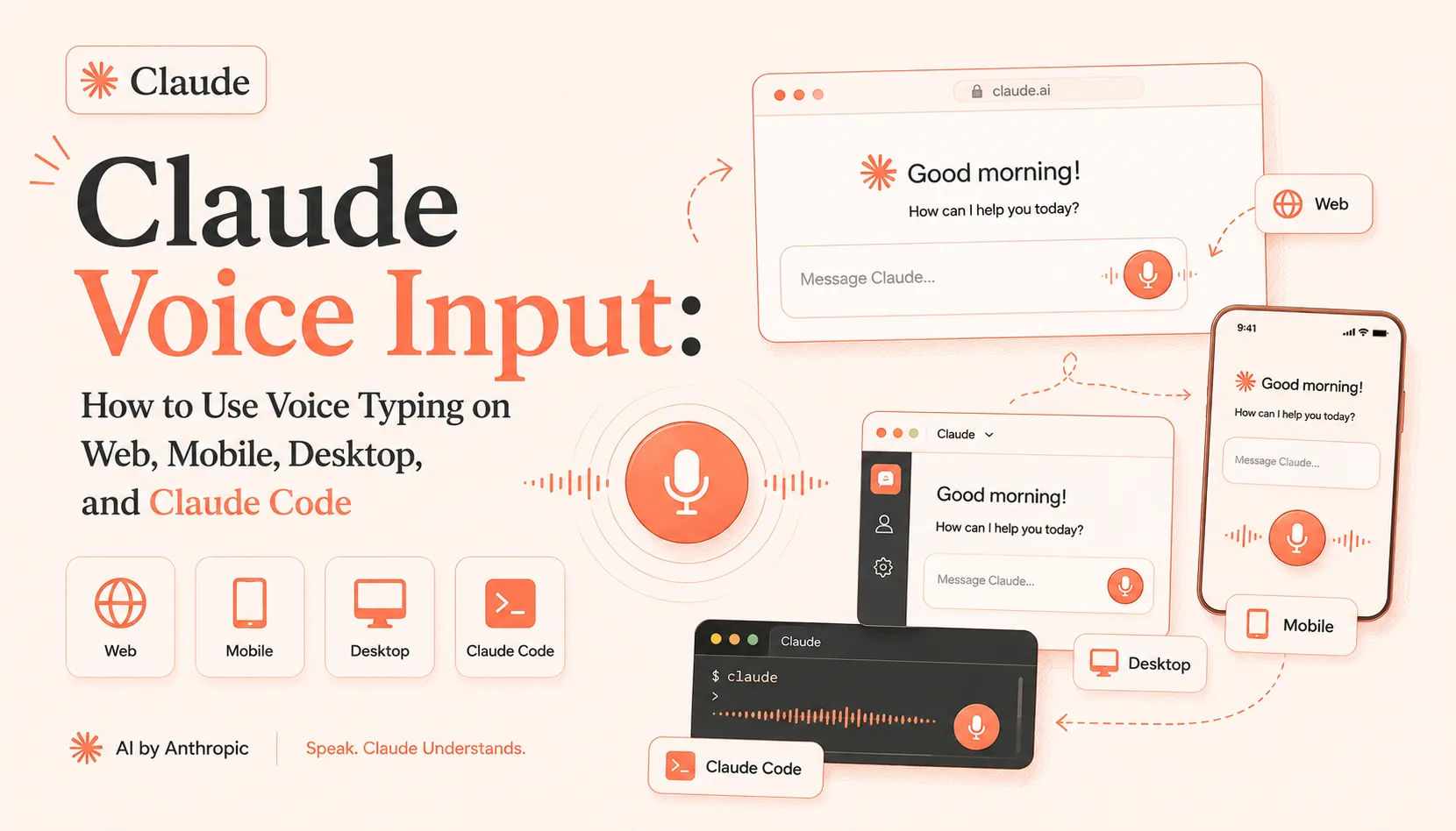
Claude has several ways to use voice input in 2026, but they do different jobs. Voice Mode is for spoken conversations, mobile dictation turns speech into editable prompts, Mac users can dictate through Quick Entry, and Claude Code has its own /voice command.
The best option depends on whether you want to talk with Claude, review a spoken prompt before sending it, or use voice typing across Claude and the rest of your apps.
This guide explains every current option, how to use it, what to try when voice input stops working, and where VoiceDash fits when your workflow goes beyond one Claude text box.
Does Claude Have Voice Input?
Yes. Claude currently supports several forms of voice input.
Claude Voice Mode provides a two-way spoken conversation. Claude Mobile offers separate dictation on iOS and Android. Claude Desktop on supported Macs can transcribe speech through Quick Entry, while Claude Code supports voice dictation with the /voice command.
Here is the quick comparison:
| Method | Best for | Editable before sending? | Works outside Claude? |
|---|---|---|---|
| Claude Voice Mode | Spoken conversations | Not the main workflow | No |
| Claude Mobile Dictation | Quick mobile prompts | Yes | No |
| Claude Desktop Quick Entry | Fast voice prompts on Mac | Yes | No |
Claude Code /voice | Developer prompts | Yes | No |
| VoiceDash | Voice typing across a wider workflow | Yes | Yes |
The most important distinction is simple:
Talking with Claude and writing with your voice are not the same thing.
Claude Voice Mode vs Dictation: What Is the Difference?
People often use “voice mode,” “dictation,” and “voice input” as though they mean the same thing.
They do not.
Voice Mode is a conversation
With Claude Voice Mode, you speak and Claude answers with a voice response.
It is useful when you want to:
- brainstorm out loud
- ask follow-up questions naturally
- learn through conversation
- practice an interview
- use Claude while your hands are occupied
Anthropic describes Voice Mode as a full two-way conversation and currently supports it on the web and Claude Mobile, with multilingual input available in beta.
Voice Mode works well when the conversation itself is the goal.
Dictation creates text you can review
Dictation is different.
You speak, your words become text, and you can review the result before sending it.
That makes dictation useful for prompts containing:
- multiple instructions
- technical requirements
- names and numbers
- formatting rules
- document feedback
- detailed constraints
For example:
Review our onboarding flow and identify why users may be leaving during step two. Group the possible causes into UX friction, trust problems, and technical issues. Do not suggest solutions yet.
For a prompt like that, being able to read the whole instruction before Claude starts working can be useful.
Claude Mobile supports this exact speech-to-editable-text workflow on iOS and Android.
System-wide AI voice typing goes beyond Claude
Claude’s native voice features work inside specific Claude experiences.
System-wide AI voice typing solves a broader problem.
Imagine a normal workday:
Claude → Slack → Gmail → Google Docs → Notion → Claude
A system-wide tool lets you keep using voice typing as you move between those different writing surfaces.
VoiceDash is built around this broader workflow. Its current product information says it converts natural speech into written text while cleaning up grammar, punctuation, filler words, and sentence structure. It also offers features such as a personal dictionary and reusable snippets.
For the basics of this workflow, see how to use voice to text.

How to Use Claude Voice Input on the Web
On the Claude web interface, the main native voice feature is Voice Mode.
To use it:
- Open Claude and start a chat.
- Select the sound wave icon.
- Start speaking.
- Let Claude respond.
- Continue naturally or select Stop when you want to leave Voice Mode.
Claude offers hands-free interaction and push-to-talk. Hands-free mode listens for natural pauses, while push-to-talk gives you more control in noisy environments.
Voice Mode is a good fit for a prompt such as:
Help me think through whether this product should be positioned for small teams or enterprise customers.
You can explore the problem through conversation, interrupt, clarify, and change direction.
Now compare that with:
Analyze this positioning strategy. First identify weaknesses in differentiation. Then review the target audience assumptions. Finally, compare the value proposition with three competitor categories. Do not rewrite anything until the analysis is complete.
For a structured prompt like this, many users will prefer dictation or voice typing that lets them review the complete text first.
How to Use Claude Voice Input on Android and iPhone
Claude’s mobile apps provide both Voice Mode and dictation.
They are separate features.
To use mobile dictation:
- Open Claude on Android or iPhone.
- Start a new chat.
- Tap the microphone icon beside the input field.
- Choose your speech input language if prompted.
- Speak your prompt.
- Review the text.
- Send it.
Anthropic currently documents Claude Mobile dictation on iOS and Android. The transcribed prompt appears as text, and Claude responds in text rather than continuing as a spoken conversation.
For Voice Mode, use the sound wave icon instead.
The easiest rule to remember is:
Want Claude to speak back? Use Voice Mode.
Want to review the text first? Use dictation.
Claude also provides quick access to dictation through mobile widgets. The Android widget includes a microphone shortcut that opens a new chat and begins voice dictation, while Claude’s iOS widget can also open the app directly in dictation mode.
For broader mobile workflows, see the VoiceDash guides to voice typing on Android and choosing a voice-to-text app for iPhone.
How to Use Claude Voice Input on Mac
Claude Desktop on Mac has a feature called Quick Entry.
Quick Entry lets you access Claude without switching back to the main Claude window. On supported Macs, it also supports voice dictation.
To use it:
- Enable the Voice shortcut in Claude Desktop settings.
- Press Caps Lock to start dictating.
- Speak your message.
- Watch the transcription appear in real time.
- Press Caps Lock again to stop.
- Review the text.
- Send it to Claude.
Anthropic says Quick Entry voice dictation requires macOS 14 or later and Speech Recognition permission. The voice shortcut can also be customized or disabled in Claude Desktop settings.
Quick Entry is useful when you are already working in another app and want to ask Claude something quickly.
For dictation that is not limited to Claude, see the VoiceDash guide to speech to text on Mac.
How to Use Voice Input in Claude Code
Claude Code has its own native voice dictation feature.
To enable it, run:
/voice
The default workflow is hold mode. Hold Space while speaking and release it when you finish.
You can also switch to tap mode:
/voice tap
In tap mode, press once to start recording and again to stop.
Claude Code transcribes speech into the prompt input, so you can combine dictation and typing in the same message. The transcription system is also tuned for coding vocabulary, and Anthropic says project names and Git branch names are added as recognition hints.
Current requirements include:
- Claude Code v2.1.69 or later
- v2.1.116 or later for tap mode
- a Claude.ai account
- access to a local microphone
- a compatible local environment
The native feature does not work in remote environments such as SSH sessions or VS Code Remote because microphone access is local to the machine running the interface.
Claude Code voice input is especially useful when the problem takes longer to explain than to summarize.
For example:
The production API has a memory leak. Heap usage grows gradually under normal load. The service uses Node.js, Express, Mongoose, and Redis. Help me design a debugging plan, but begin with measurement and reproduction before suggesting code changes.
Speaking the full context can be easier than reducing it to:
Find my Node memory leak.
For developers using other AI coding environments, VoiceDash also has a guide to voice typing in Cursor.
When Claude’s Native Voice Input Is Enough
Claude’s native voice tools are useful, and for many people they are all that is needed.
Use Voice Mode if you want a conversation.
Use mobile dictation if you want to speak and edit a prompt on your phone.
Use Quick Entry if you work on a supported Mac and want fast access to Claude.
Use /voice if your main need is native dictation inside Claude Code.
The limitations become more noticeable when your work does not stay inside Claude.
You might ask Claude to analyze a problem, then:
- summarize the decision for Slack
- write an email to a client
- add documentation to Notion
- create a task
- write a GitHub issue
- return to Claude with more context
At that point, the question changes.
It is no longer:
How do I talk to Claude?
It becomes:
How do I write with my voice throughout the rest of my workday?
That is where a system-wide tool such as VoiceDash becomes relevant.

How to Use VoiceDash With Claude
The workflow is simple.
1. Open Claude where you already work
Click into the prompt box.
VoiceDash is designed to enter polished text across applications and websites rather than being tied to one AI assistant.
2. Speak naturally
The value of voice input is not that you can speak perfect written sentences.
It is that you can get the full thought out.
A rough spoken instruction might sound like this:
Okay, so we’re looking at our onboarding funnel and basically a lot of users disappear around the second step, and I want Claude to figure out why, but don’t give me solutions straight away. First I want the possible reasons separated into UX issues, trust problems, and technical friction.
A cleaned version could read:
Analyze why users may be leaving during the second step of our onboarding funnel. Do not suggest solutions yet. First, group the possible causes into three categories: UX issues, trust problems, and technical friction.
That is the difference between raw transcription and AI-assisted voice writing.
VoiceDash says its system automatically removes filler words, improves grammar and punctuation, and structures rough spoken input into cleaner written text.
3. Review important details
Voice typing can reduce typing, but it should not remove judgment.
Before sending an important prompt, check:
- names
- numbers
- dates
- URLs
- technical identifiers
- uncommon acronyms
- exact quotations
VoiceDash offers personal dictionary features for recurring terms and names, but critical information still deserves a quick review.
4. Send the finished prompt to Claude
The goal is not simply:
voice instead of keyboard
A more useful workflow is:
rough thought → spoken context → cleaner written prompt → better instruction
Real Workflows Where Voice Input Makes Claude More Useful
Voice input is most valuable when the task needs context.
Explain a complex problem without shortening it
Typing friction often causes people to remove important details.
They leave out:
- background
- failed attempts
- constraints
- edge cases
- the actual goal
Speaking can make it easier to explain the complete situation before editing the final prompt.
A product manager, for example, can describe what a feature is supposed to do, what users are complaining about, which metrics changed, and what constraints the team has.
Claude then has a better starting point.
Talk through a debugging problem
Developers can dictate:
- expected behavior
- actual behavior
- recent changes
- infrastructure details
- error patterns
- previous fixes they already tried
The resulting explanation can be used in Claude Code, a normal Claude conversation, or a wider developer workflow.
Give detailed feedback on a document
Instead of typing:
Make section two better.
You can say:
Section two feels too generic. Keep the data, but connect each number to a business consequence. The first paragraph should focus on retention, and the second should explain the effect on acquisition cost. Do not make the tone more promotional.
That gives Claude clear editing criteria.
Move between Claude and the rest of your work
This is where system-wide voice typing has the clearest advantage.
You can speak a detailed prompt into Claude, then use the same voice workflow to:
- send the conclusion in Slack
- write a follow-up email
- document the decision
- create a task
- write meeting notes
- fill in a form or CRM field
VoiceDash positions itself around this cross-app workflow.
For related AI workflows, see voice typing in ChatGPT and voice typing in Cursor.
Claude Native Voice Input vs VoiceDash
There is no honest reason to declare one method the winner for every use case.
| What you need | Better fit |
|---|---|
| A spoken conversation with Claude | Claude Voice Mode |
| Quick editable prompts on mobile | Claude Mobile Dictation |
| Fast native Claude access on Mac | Claude Quick Entry |
| Native dictation in Claude Code | Claude Code /voice |
| Voice typing across Claude and other apps | VoiceDash |
| Automatic cleanup of rough spoken writing | VoiceDash |
| Personal vocabulary for recurring terms | VoiceDash |
| Reusable writing snippets | VoiceDash |
The practical difference is straightforward:
Use Claude’s native voice tools when the entire job happens inside Claude.
Use VoiceDash when voice writing needs to continue across the rest of your workflow.

Claude Voice Input Not Working? Identify the Feature First
The phrase “Claude voice input not working” can describe several different problems.
Before changing random settings, identify which feature is failing.
Claude Voice Mode is not working
Try these checks in order:
- Check microphone permission for Claude or your browser.
- Confirm that your internet connection is stable.
- Move to a quieter place or use push-to-talk.
- Check whether you have reached your Claude usage limit.
- Leave Voice Mode and start it again.
- Restart the Claude app or browser if the problem continues.
Anthropic’s Voice Mode troubleshooting guidance points users toward microphone permissions, connection quality, device resources, background noise, and usage limits depending on the symptom.
Claude voice input is not working on Android
First identify whether the issue affects Voice Mode or dictation.
For dictation, try:
- Check Claude’s microphone permission in Android settings.
- Update the Claude app.
- Open a fresh chat.
- Tap Claude’s microphone icon.
- Confirm that the speech input language matches the language you are speaking.
- Test a short sentence before trying a long prompt.
- Restart the app.
- Test the microphone in another app to rule out a device-level issue.
Claude Mobile dictation is officially supported on Android, and Anthropic’s documentation explains that language selection is part of the dictation setup.
The Claude Android widget also offers a microphone shortcut for starting a new voice dictation session.
For general device-level setup, see the VoiceDash Android voice typing guide.
Claude Code /voice is not working
Use this checklist:
| Problem | First thing to check |
|---|---|
/voice is unavailable | Claude Code version and account authentication |
| Recording does not start | Microphone permission |
| You are using SSH | Native voice requires local microphone access |
| Holding Space types spaces | Confirm hold mode or try /voice tap |
| Transcription language is wrong | Check /config language settings |
| No speech is detected | Check microphone input and volume |
| Connection fails | Check network connectivity |
Anthropic documents these requirements and troubleshooting paths in the Claude Code voice dictation guide.
Claude Desktop voice input is not working on Mac
For Quick Entry voice dictation, check:
- whether your macOS version supports voice dictation
- whether the Voice shortcut is enabled
- Speech Recognition permission
- Accessibility permission required for Quick Entry
- shortcut conflicts with other apps
- whether Claude Desktop is still running
Anthropic says Quick Entry voice dictation requires macOS 14 or later and Speech Recognition permission.
Privacy: What Happens to Your Voice?
Privacy depends on the specific feature or tool you use.
Claude Mobile Dictation
Anthropic says mobile dictation audio is deleted after conversion to text and is not retained for generative model training.
Claude Code /voice
Claude Code voice dictation streams recorded audio to Anthropic’s servers for transcription and does not process the audio locally.
VoiceDash
According to the VoiceDash Privacy Policy, voice recordings are transmitted to OpenAI for real-time processing. VoiceDash says it does not store voice files or transcriptions on its servers, with text deliberately saved in the Notes section listed as an exception to its general non-storage policy.
For confidential, regulated, or highly sensitive work, review the latest privacy and data-processing policies for the exact tools and account configuration you use.
Which Claude Voice Input Method Should You Choose?
Start with the task.
Choose Claude Voice Mode when you want a natural spoken conversation and spoken replies.
Choose Claude Mobile Dictation when you want to speak an editable prompt into Claude on Android or iPhone.
Choose Claude Desktop Quick Entry when you work on a supported Mac and want fast native access to Claude by voice.
Choose Claude Code /voice when you want native voice dictation inside a compatible local Claude Code workflow.
Choose VoiceDash when you want to dictate prompts into Claude and continue using the same voice-writing workflow across email, documents, messages, productivity apps, and other text fields.
You do not have to choose only one method.
A practical setup could use Voice Mode for brainstorming, /voice for native Claude Code sessions, and VoiceDash when the work moves between Claude and the rest of your applications.
The best choice is the one that removes friction from the work you actually do.
Final Thoughts
Claude voice input is no longer one feature with one setup.
You can talk with Claude through Voice Mode, dictate editable prompts on mobile, use Quick Entry voice dictation on a Mac, or speak directly into Claude Code with /voice.
For many people, one of those native options will be enough.
A broader tool becomes useful when voice input needs to follow the rest of your workday.
When you want to explain a detailed idea to Claude, send the conclusion in Slack, document the decision, write an email, and continue working without changing input methods, system-wide AI voice typing solves a different problem.
That is where VoiceDash fits.
The goal is not to speak every sentence simply because you can. It is to spend less time shortening good ideas for the keyboard and more time giving Claude the context it needs to be useful.
Frequently Asked Questions
Claude Voice Mode is for spoken conversation with Claude.
VoiceDash is designed for creating and editing written text with your voice across a broader set of apps and workflows.
