
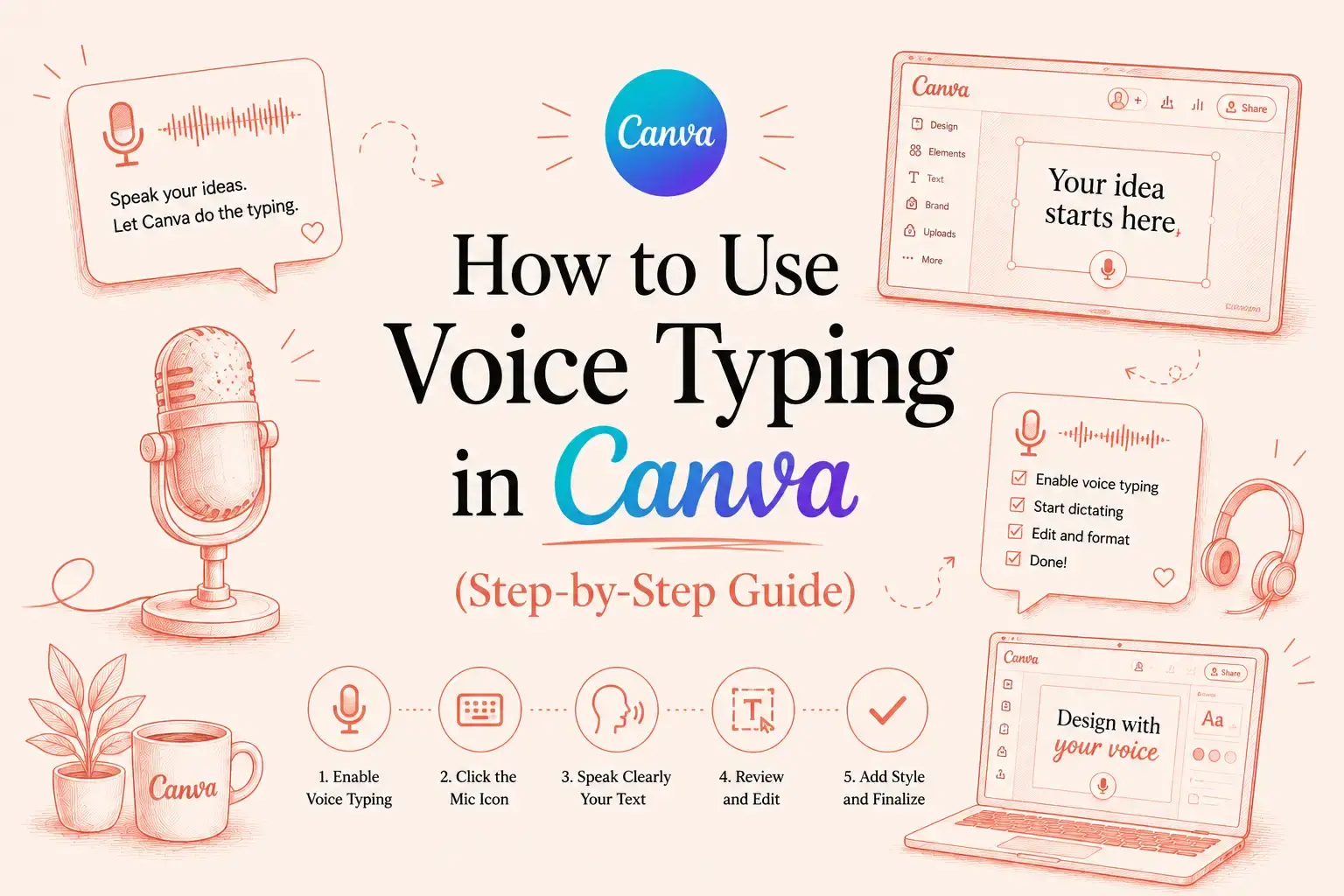
- Quick Answer
- What Is Voice Typing in Canva?
- Does Canva Have Built-in Voice Typing?
- The 3 Ways to Voice Type in Canva
- How to Use Voice Typing in Canva on Windows
- How to Use Voice Typing in Canva on Mac
- How to Use Voice Typing in Canva on iPhone and iPad
- How to Use Voice Typing in Canva on Android
- How to Convert Audio to Text in Canva
- Voice Typing Not Working in Canva? Try These Fixes
- Why VoiceDash Is the Better Choice for Serious Canva Users
- Quick Comparison of Voice Typing Methods in Canva
- Conclusion
- Frequently Asked Questions
How to Use Voice Typing in Canva (2026 Guide)
Create Canva designs faster without touching your keyboard.
I believe you all unanimously agree upon the fact that every piece of brilliant Canva design, in essence, starts with an idea. However, the crux of the matter is that ideas, indeed, undeniably come faster than your fingers can ever type.
Whether you’re:
- A content creator building presentations
- A designer creating Instagram carousels or marketing graphics
- A UX writer writing headlines and captions
- A marketer producing visual content for campaigns
One of the biggest bottlenecks in your workflow is typing in Canva. Voice typing removes that bottleneck by letting you capture ideas as quickly as you can speak.
In this guide, you’ll learn how to use voice typing in Canva on every major device, understand Canva’s voice features, troubleshoot common issues, and discover why many professionals choose VoiceDash for the fastest voice typing experience.
Quick Answer
Voice typing in Canva isn’t complicated, select a text box, then dictate through whatever you’ve got: your device’s speech recognition, a browser extension, or an AI dictation tool.
Canva hasn’t built in native live speech-to-text yet, but that hardly matters, since these methods already let you put together presentations, social posts, documents, and graphics almost entirely by talking.
What Is Voice Typing in Canva?
Voice typing simply means speaking instead of typing.
Rather than writing every heading, paragraph, or caption manually, your words are converted into text automatically while you speak. For Canva users, this can speed up tasks like:
- Creating presentation slides
- Writing Instagram carousel text
- Drafting social media captions
- Adding descriptions to infographics
- Brainstorming ideas without stopping to type
Instead of switching constantly between thinking and typing, you can focus on getting your ideas onto the page naturally. For many creators, that’s the fastest way to overcome writer’s block while designing.
Does Canva Have Built-in Voice Typing?
Direct answer: No.
No native live dictation exists in Canva that converts speech into text in real time across every text box. Several voice-related AI tools do exist within the platform, though, and the resulting confusion tends to stem from each one being built for a different task entirely.
| Canva feature | What it actually does |
| Speech to Text / Transcribe Audio | Uploads a recorded audio or video file and converts it into text or captions |
| Text to Speech / AI Voice | Turns written text into an AI-generated spoken voiceover |
| Video to Text | Generates captions from a video file’s audio track |
Helpful as these tools are, they stop short of real-time dictation while you’re actually designing. If the goal is simply to talk and have your words show up inside a Canva text box as you speak, the methods below will get you there.
The 3 Ways to Voice Type in Canva
Fortunately, adding voice typing to Canva is straightforward. The best method depends on the device you’re using and how much editing you want after dictation.
1- Use an AI Dictation Tool
The fastest workflow for most professionals is using an AI-powered dictation tool. Unlike standard speech recognition, AI dictation tools can:
- Remove filler words automatically
- Fix punctuation
- Format paragraphs
Instead of speaking like a robot and saying “comma” or “period,” you can simply talk naturally. This makes AI dictation especially useful for:
- Long presentations
- Blog outlines and Marketing copies
- Educational materials
- Content planning
For users who spend hours inside Canva every week, this approach usually produces the best results.
2- Use Your Device’s Built-in Dictation
Every major operating system now includes free speech recognition.
Examples include:
- Windows Voice Typing
- macOS Dictation
- Android Voice Typing
- Apple Dictation
- ChromeOS Dictation
Since Canva runs inside your browser or app, these tools can enter text directly into Canva whenever a text field is active.
The advantage is that they’re completely free and require almost no setup.
3- Use a browser dictation extension
If you spend most of your day working in Canva through Chrome or Microsoft Edge, a browser-based dictation extension can be an easy way to add voice typing to your workflow.
Once installed, these extensions let you dictate directly into text fields across a wide range of websites, including:
- Canva
- Google Docs
- Slack
- Notion
Many extensions also go beyond basic speech-to-text by offering features such as:
- Automatic punctuation
- Support for multiple languages
- Voice commands for editing and navigation
The biggest advantage is convenience. Instead of switching between apps or copying and pasting text, you can speak directly into Canva and other tools you use every day. If your work happens primarily in a web browser, a reliable dictation extension can make your entire content creation process much smoother.
Pro Tip: If Canva is part of your regular workflow — presentations, social graphics, marketing content — VoiceDash outperforms standard dictation. It turns speech into clean, well-formatted text with automatic punctuation and grammar, leaving more time for design.
How to Use Voice Typing in Canva on Windows
Windows includes Microsoft’s built-in Voice Typing feature, making it one of the easiest ways to dictate inside Canva.
- Open Canva: Launch Canva in your browser and open the design you’re working on.
- Select a Text Box: Click inside any editable text field. Voice typing only works once your cursor is active there.
- Start Windows Voice Typing: Press Windows + H to bring up the Voice Typing toolbar.
- Allow Microphone Access: Grant Windows permission to use your microphone if prompted. A decent external mic will noticeably improve accuracy over your laptop’s built-in one.
- Begin Speaking: Talk naturally. Windows converts your speech to text, and Canva receives it exactly like normal typing, you can keep editing right away.
How to Use Voice Typing in Canva on Mac
- Enable speech to text on Mac: Go to System Settings → Keyboard → Dictation and turn it on.
- Open Canva: Launch Canva and open your project.
- Click a Text Box: Place your cursor wherever you’d normally type.
- Start Dictation: Trigger your Dictation shortcut. A small microphone icon appears once it’s listening.
- Speak Normally: Your words populate the text box in real time. Turn off Dictation and clean up any small errors when you’re done.
How to Use Voice Typing in Canva on iPhone and iPad
- Open the Canva App: Open an existing design or start a new one.
- Select a Text Box: Tap the text field so the on-screen keyboard appears.
- Tap the Microphone Icon: It’s built into the iOS keyboard — tap it to start dictating.
- Speak Clearly: iOS transcribes your speech into the text box in real time.
- Review Your Text: Give it a quick read-through before you move on with the design.
How to Use Voice Typing in Canva on Android
Good news for Android users: voice typing on Android comes built into Gboard, which means speech-to-text is available across most apps, Canva being one of them.
- Open Canva: Launch the app and open your project.
- Tap a Text Field: Select the text box you want to fill.
- Tap the Gboard Microphone: It sits right on your keyboard.
- Start Speaking: Talk at a normal pace, no need to spell things out slowly.
- Edit as Needed: Scan the generated text for any misheard words before continuing.
How to Convert Audio to Text in Canva
Already have a recorded meeting, interview, podcast, or voice memo? If you’d rather transcribe audio to text for free first, Canva can also help you turn that audio into editable text without manually typing everything.
Follow these steps:
Step 1: Open Canva Apps
Log in to your Canva account and open the design where you want to use the transcript. From the Canva editor, click Apps from the sidebar to access Canva’s available tools.
Step 2: Search for Transcribe Audio
In the Apps search bar, type “Transcribe Audio” and select the transcription tool from the results. This tool allows Canva to analyze your uploaded audio file and convert spoken words into text.
Step 3: Upload Your Audio File
Upload your recorded audio file directly into Canva. You can use recordings such as:
- Meeting discussions
- Podcast clips
- Recorded presentations
Make sure the audio quality is clear, as background noise can affect transcription accuracy.
Step 4: Generate the Transcript
After uploading your file, click Transcribe and wait while Canva processes the audio. The time required depends on the length of your recording.
Step 5: Review and Edit the Text
Once Canva generates the transcript, review the text carefully. Pay special attention to:
- Names and proper nouns
- Industry-specific terms
- Numbers and dates
- Punctuation and formatting
Speech-to-text tools are improving constantly, but a quick review helps ensure accuracy.
Step 6: Add the Text to Your Design
After editing the transcript, you can use the text in your Canva project. For example, you can turn it into:
- Presentation content
- Video captions
- Social media posts
- Blog graphics
This method works best when you already have a recorded audio file and want to quickly transform spoken content into editable text.
Voice Typing Not Working in Canva? Try These Fixes
Voice typing problems usually aren’t caused by Canva itself. Most issues come from your browser, operating system, or microphone settings. Here are the fixes that solve the majority of speech-to-text problems.
- Microphone Permissions: If your browser or operating system blocks microphone access, voice typing won’t work. Verify that microphone permissions are enabled for both your browser and your operating system, then refresh Canva and try again.
- Browser Compatibility: Modern versions of Chrome, Edge, Safari, and Firefox generally provide the best compatibility with speech recognition tools. If voice typing suddenly stops working, updating your browser often resolves unexpected issues.
- Extension Conflicts: Speech recognition performs best when the selected language matches the language you’re speaking. Double-check your dictation language before starting a long session to improve transcription accuracy.
- Make Sure the Canva Text Box Is Active: Voice typing only sends text to the field that’s currently selected; Before you begin speaking, click inside the Canva text box so the cursor is visible.
- Check Bluetooth Microphones: Wireless microphones occasionally disconnect or switch to another audio device. If your voice isn’t being recognized, reconnect the microphone or choose the correct recording device in your system settings.
Why VoiceDash Is the Better Choice for Serious Canva Users
Built-in dictation tools are excellent for occasional use, but they weren’t designed for people who spend hours every day creating content.
If you’re producing presentations, social media graphics, client proposals, ebooks, online courses, or marketing assets, you’ll probably spend just as much time editing dictated text as you do creating it.
That’s where VoiceDash offers a more efficient workflow.
Instead of simply converting speech into text, VoiceDash uses AI to transform natural conversation into polished, ready-to-use writing.
VoiceDash Key Features
- VoiceDash works across all major devices and various operating systems
In contrast to the majority of platforms that are totally incapable of being responsive across different operating systems, it is designed to serve you well on Android, iOS, Windows, and macOS. So regardless of your OS, you can have the assurance that it will work seamlessly for you. - Command Mode: write by voice
Command Mode lets you create polished content by speaking naturally instead of typing or using a separate AI tool. Just place your cursor where you want to write, give VoiceDash a clear instruction, and it turns your words into a ready-to-use email, message, or document with the right structure and tone.
- Supports more than 50 languages
We’ve all had the experience where, although the voice tool works quite well in English, it completely falls apart in other languages, am I right? The good news is that VoiceDash supports 50 languages across the board. If you’re managing a multilingual team, regardless of their language, VoiceDash handles dictation in a matter of seconds.
- Works on all platforms where you write
Jira. Slack. Google Docs. Cursor. ChatGPT. VoiceDash works across all of them, and that’s the point. You don’t reshape your workflow around the tool. The tool fits into the workflow you already have, on whatever platform you happen to be writing in.
- Includes custom prompts for tone control
Most voice tools give you one output style and leave the tone adjustment entirely up to you. VoiceDash lets you set the tone before the text even arrives, professional, casual, persuasive, whatever the moment calls for. Want it to sound formal? Done. Casual? Done. Persuasive enough to move someone? Also done.
Whether you’re outlining a presentation, drafting carousel copy, or writing an ebook inside Canva, VoiceDash helps you move from idea to finished design much faster than traditional voice typing.
Quick Comparison of Voice Typing Methods in Canva
Occasional Canva use is served fine by built-in dictation, with browser extensions filling a convenient middle tier above it. But when speed, accuracy, and minimal editing matter most, an AI dictation tool like VoiceDash usually comes out ahead.
| Method | Best For | Pros | Ease of Use |
| AI Dictation (VoiceDash) | Professionals and content creators | Cleaner text, automatic formatting, fewer corrections | ⭐⭐⭐⭐⭐ |
| Device Dictation | Casual Canva users | Free, built into your device, easy to start | ⭐⭐⭐⭐⭐ |
| Browser Extension | Browser-based workflows | Works across multiple websites | ⭐⭐⭐⭐☆ |
Conclusion
So that’s really everything worth knowing about voice typing in Canva , how it works, the dictation options depending on whether you’re on Windows, Mac, iPhone, and Android, where Canva’s AI voice tools stop and live dictation picks up, and the fixes that actually work when speech-to-text starts acting up.
Canva still hasn’t built native live voice typing into every text box, sure, but pairing it with your device’s dictation, or something AI-powered, genuinely speeds up your workflow.
If Canva’s part of your regular routine — presentations, social graphics, ebooks, marketing materials — VoiceDash takes that even further as part of your content creation process, handing back cleaner, better-formatted text with a lot less editing left for you to do.
