
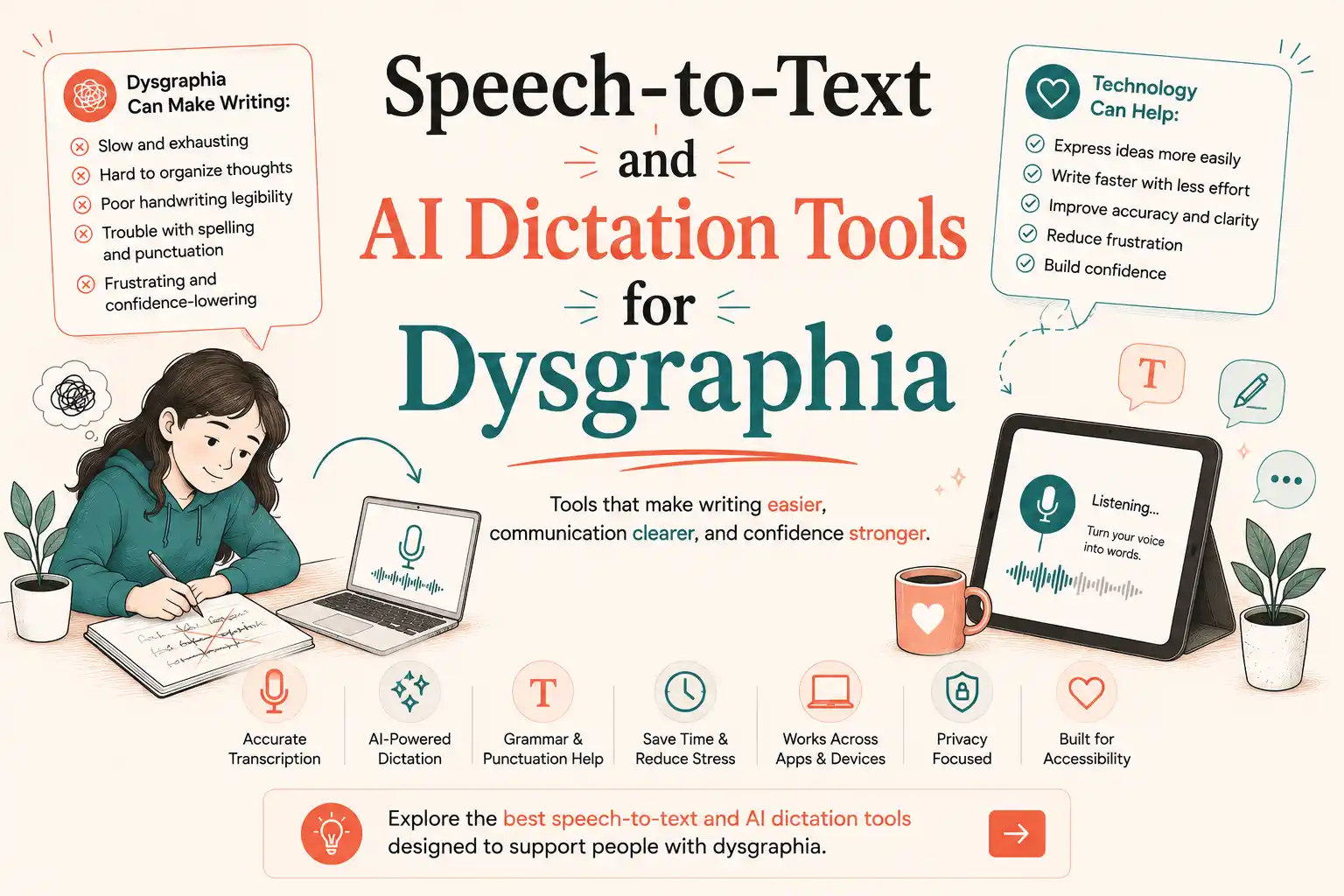
- AI Dictation Decision Framework for Dysgraphia
- 1. VoiceDash AI Dictation: More Than Speech-to-Text
- 2. Dragon Professional
- 3. Superwhisper
- 4. Wispr Flow
- 5. Soniox
- 6. Aqua Voice
- 7. Typeless
- 8. VoiceInk
- 9. Windows Voice Access
- 10. Apple Dictation
- 11. Apple Voice Control
- 12. Google Docs Voice Typing
- 13. Gboard Voice Typing
- 14. Otter
- 15. Read&Write
- 16. FUTO Voice Input
- 17. MacWhisper
- Bottom Line
- Frequently Asked Questions
AI Dictation Tools for Dysgraphia That Make Writing Easier
The right tools for dysgraphia can make writing and learning easier. AI dictation and speech-to-text tools that may be useful for people with dysgraphia include VoiceDash, Dragon Professional, Superwhisper, Wispr Flow, Aqua Voice, Typeless, Soniox, and other voice-input tools. While basic dictation can replace typing with speech, some tools go further by helping users turn spoken ideas into clearer, more polished text. VoiceDash is one example, combining voice-to-text with AI-assisted editing features in the same workflow.
Not every tool below is a dedicated AI dictation app. Some are built-in voice-accessibility features or transcription tools that can still reduce the need for typing and note-taking.
AI Dictation Decision Framework for Dysgraphia
Choose a dictation tool based on the specific writing challenge you want to solve:
| Your main challenge | Look for | Tools to consider |
|---|---|---|
| Typing is slow or effortful | Voice-first dictation | VoiceDash, Wispr Flow, Superwhisper |
| You want to speak naturally and then clean up the text | Dictation + AI-assisted editing | VoiceDash, Typeless, Aqua Voice |
| Spelling or word selection is difficult | Word prediction, spell-checking, custom vocabulary, or literacy support | Read&Write and other writing-support tools |
| You need hands-free computer control | Voice commands, navigation, and text editing | Dragon Professional, Windows Voice Access, Apple Voice Control |
| Privacy is a priority | Check local/on-device processing and data-retention controls | Superwhisper, VoiceInk, MacWhisper, FUTO Voice Input, Wispr Flow |
| You need to dictate schoolwork | Dictation that works with your writing environment | VoiceDash, Google Docs Voice Typing, Read&Write |
| You need to capture lectures or meetings | Recording, transcription, and summaries | Otter, MacWhisper |
Quick decision: If your main challenge is getting ideas onto the page without typing and then cleaning up the result, VoiceDash is one of the first tools worth testing. It combines voice dictation with AI-assisted editing rather than stopping at basic speech-to-text.
1. VoiceDash AI Dictation: More Than Speech-to-Text
VoiceDash is an AI-powered voice-to-text and dictation tool designed to turn natural speech into cleaner, more usable writing. Unlike basic dictation that primarily transcribes what you say, VoiceDash can remove filler words, improve grammar and punctuation, and help structure spoken ideas. Its Personal Dictionary and Snippet Library can also help with specialized terms and frequently used phrases. For someone with dysgraphia who finds typing or written output effortful, this can reduce both keyboard input and some of the editing work that follows. VoiceDash is an assistive writing tool, not a treatment for dysgraphia.
- Platform: Mac, Windows, iPhone and Android.
- Price: Free plan with 1,000 words per month. Pro costs $15/month or $12/month when billed annually.
- Pros: AI text editing, filler-word removal, grammar and punctuation correction, Personal Dictionary, Snippet Library, voice-first workflow, and a free plan for testing.
- Cons: Advanced AI editing features require Pro.
- Why VoiceDash stands out for dysgraphia: VoiceDash combines three steps in one workflow: dictation, AI-assisted editing, and personalization. That means users can speak their ideas, turn them into text, and refine the result without relying as heavily on keyboard input or manual cleanup.
2. Dragon Professional
Dragon Professional is established speech recognition and dictation software designed for intensive voice-based writing. It combines voice typing with advanced commands, custom vocabulary, and hands-free computer control, making it relevant for users who need to produce substantial amounts of text without relying heavily on a keyboard.
- Platform: Windows
- Price: Paid license; pricing varies by edition and region.
- Pros: Advanced speech recognition, voice commands, custom vocabulary, extensive dictation controls.
- Cons: Higher cost than built-in dictation; Windows-focused; more complex for beginners.
- Why consider it for dysgraphia: Its extensive voice-control features can reduce keyboard use and make long-form professional writing more accessible.
3. Superwhisper
Superwhisper is an AI voice-to-text, dictation, and transcription tool that works across applications. It supports 100+ languages and offers both local and cloud AI models, giving users flexibility in how their speech is processed.
- Platform: Mac, Windows, iOS
- Price: Free tier; Pro $8.49/month or $84.99/year.
- Pros: Supports multiple languages, voice-to-text across apps, local and cloud AI models, custom prompts, audio and video transcription
- Cons: Advanced AI models require Pro
- For dysgraphia: Reduces reliance on keyboard input by letting users turn spoken language into text across applications.
4. Wispr Flow
Wispr Flow is an AI voice typing and dictation tool that converts natural speech into written text across supported applications. It supports 100+ languages and includes AI editing, custom dictionaries, snippets, and Privacy Mode.
- Platform: Mac, Windows, iPhone, Android
- Price: Free plan with usage limits; Pro starts at $15/month, with annual billing available at a lower monthly rate.
- Pros: 100+ languages, natural voice typing, AI editing, custom dictionary, snippets, AI commands, Privacy Mode
- Cons: The free plan has platform-specific word limits, while unlimited words and additional Pro features require a paid plan.
- For dysgraphia: Useful for people who find speaking easier than typing and want voice input across their everyday applications.
5. Soniox
Soniox combines speech-to-text, voice typing, transcription, translation, and AI features in one platform. Its multilingual capabilities make it particularly useful for people who regularly work across different languages.
- Platform: Mobile, web, and desktop apps
- Price: Free plan with weekly credits; Pro $19.99/month or $120/year
- Pros: Multilingual speech recognition, voice typing, transcription, translation, AI actions
- Cons: Free usage is credit-based; Pro can be expensive for basic dictation
- For dysgraphia: Helps reduce typing effort while combining dictation, transcription, and translation in one workflow.
6. Aqua Voice
Aqua Voice is an AI voice dictation and speech-to-text tool focused on natural voice input. Its paid plans add unlimited dictation, custom vocabulary, custom instructions, and advanced voice features.
- Platform: Mac, Windows, iOS
- Price: Free with 1,000 words; Pro $8/month billed annually; Max $24/month
- Pros: Unlimited words on Pro, custom dictionary, custom instructions, real-time mode, voice commands on Max
- Cons: Free plan is limited to 1,000 words; advanced features require paid plans
- For dysgraphia: Its customizable dictionary can help users who frequently dictate names, technical terms, or specialized vocabulary.
Aqua Voice or VoiceDash? Read the comparison and see which one makes more sense for you.
7. Typeless
Typeless is an AI voice-to-text and dictation tool designed to transform natural, unstructured speech into clearer written content. It includes personalized writing styles, a personal dictionary, translation, and support for 100+ languages.
- Platform: Desktop and mobile
- Price: Free with 8,000 words/week; Pro $12/month billed annually or $30/month billed monthly
- Pros: 8,000 free words/week, AI rewriting, personal dictionary, 100+ languages, personalized writing styles, translation
- Cons: Enhanced accuracy and unlimited words require Pro; monthly billing costs more than annual billing
- For dysgraphia: Particularly useful for users who can express their ideas more easily through spoken language than keyboard-based writing.
Wispr Flow vs Typeless? Read the comparison and see which one makes more sense for you.
8. VoiceInk
VoiceInk is a Mac-focused voice dictation tool designed for local speech-to-text processing. Its privacy-oriented approach makes it relevant for users who prefer keeping speech processing closer to their own device.
- Platform: macOS on Apple Silicon Macs; macOS 14.4 or later is required.
- Price: One-time purchase starting at $29 for one Mac, with higher-priced lifetime plans available for multiple Macs.
- Pros: Local processing, privacy-focused workflow, fast voice-to-text, simple dictation
- Cons: Mac-only; requires an Apple Silicon Mac running macOS 14.4 or later; offers a more focused dictation workflow than broader AI productivity tools.
- For dysgraphia: Useful for users who want straightforward voice typing without relying heavily on keyboard input.
9. Windows Voice Access
Windows Voice Access combines speech-to-text with hands-free computer control. Because it is built into Windows, users can test voice-based writing and navigation without purchasing separate dictation software.
- Platform: Included with supported Windows 11 versions
- Price: Free with supported Windows versions
- Pros: No separate subscription, dictation, hands-free navigation, voice commands, accessibility features
- Cons: Fewer AI writing and rewriting features than dedicated AI dictation tools; Windows only
- For dysgraphia: Useful for reducing both keyboard and mouse dependence during everyday computer use.
10. Apple Dictation
Apple Dictation provides built-in speech-to-text across Apple devices. It is a straightforward way to reduce reliance on keyboard input with spoken words without installing additional software.
- Platform: Mac, iPhone, iPad
- Price: Free with supported Apple devices
- Pros: Built in, easy to use, no additional subscription, integrated across Apple’s ecosystem
- Cons: Fewer AI editing and customization features than dedicated dictation apps
- For dysgraphia: A practical starting point for users who primarily need to reduce typing and handwriting demands.
11. Apple Voice Control
Apple Voice Control goes beyond ordinary dictation by allowing users to dictate, select and edit text, navigate the interface, and control supported device functions with their voice.
- Platform: Mac, iPhone, iPad
- Price: Free
- Pros: Dictation, navigation, text editing, hands-free device control
- Cons: Advanced commands can take time to learn; less focused on AI rewriting
- For dysgraphia: Particularly useful when the difficulty extends beyond typing to other forms of keyboard and device interaction.
12. Google Docs Voice Typing
Google Docs Voice Typing lets users dictate directly into Google Docs, making it particularly practical for essays, assignments, notes, and other school or academic writing.
- Platform: Google Docs on supported web browsers
- Price: Free
- Pros: Free, simple setup, works directly inside Google Docs, useful for long-form writing
- Cons: Primarily designed for Google Docs; fewer advanced AI editing features than dedicated voice-to-text apps
- For dysgraphia: A convenient option for students who want to replace keyboard typing with speech without paying for specialized dictation software.
13. Gboard Voice Typing
Gboard Voice Typing adds speech input to mobile typing, allowing users to dictate messages, searches, notes, emails, and other text directly from their phone.
- Platform: Android and iOS, with platform-specific voice-input features.
- Price: Free
- Pros: Easy to access, fast voice input, works across many everyday text fields
- Cons: Fewer specialized AI editing and customization features than dedicated dictation tools
- For dysgraphia: Helpful for users who find touchscreen typing particularly difficult and want a simple mobile speech-to-text option.
14. Otter
Otter.ai is primarily an AI transcription platform rather than a dedicated everyday voice-typing tool. It records and transcribes conversations, meetings, lectures, and interviews, then adds features such as summaries and searchable transcripts. For people with dysgraphia, it can be useful when the goal is to capture spoken information without manually typing notes.
- Platform: Web, Windows, Mac, iOS, Android
- Price: Free Basic plan; paid plans start at $8.33/user/month when billed annually.
- Pros: Automatic transcription, meeting notes, summaries, searchable transcripts, speaker identification
- Cons: Cloud-based; more focused on meetings and recorded audio than system-wide dictation
- For dysgraphia: Useful for students and professionals who need to capture lectures, meetings, or spoken information without extensive note-taking.
15. Read&Write
Read&Write is a literacy support tool that helps learners with reading, understanding unfamiliar words, researching assignments, and proofing written work, with additional accessibility features available across supported platforms. This makes it different from standalone dictation apps because it addresses several parts of the writing process rather than voice input alone.
- Platform: Chrome, Windows, Mac, Microsoft Edge, Android, and iPad.
- Price: Subscription; education access varies
- Pros: Speech-to-text, text-to-speech, word prediction, reading tools, vocabulary support
- Cons: More expensive and feature-heavy than a simple dictation app
- For dysgraphia: Particularly relevant when voice typing needs to be combined with reading, spelling, word prediction, and other writing accommodations.
16. FUTO Voice Input
FUTO Voice Input is an Android voice-to-text keyboard focused on on-device speech recognition and privacy. Unlike cloud-based speech recognition services, it can perform speech recognition directly on compatible devices, making privacy one of its main differentiators.
- Platform: Android
- Price: Free
- Pros: On-device speech recognition, privacy-focused processing, and system-wide keyboard input.
- Cons: Android-focused; requires a compatible device and may need more setup than mainstream voice typing
- For dysgraphia: A useful choice for Android users who want system-wide voice typing without depending on cloud transcription.
17. MacWhisper
MacWhisper uses Whisper-based speech recognition to transcribe audio and video locally on Mac. It is more focused on transcription than everyday voice typing, making it useful for converting recordings, lectures, interviews, and other spoken content into text.
- Platform: Mac, with companion versions available for iPhone and iPad.
- Price: Free version; paid Pro upgrade
- Pros: Local transcription, Whisper models, audio/video transcription, privacy-focused workflow
- Cons: Primarily a transcription tool rather than a dedicated system-wide dictation solution
- For dysgraphia: Helpful when users need to turn recorded speech into text without manually transcribing it.
Bottom Line
If dysgraphia makes writing harder than thinking, the right dictation tool can change the workflow. But the important question is not simply which tool transcribes speech; it is how much work remains after you speak.
That is where VoiceDash stands out in this comparison. It combines voice-to-text with AI editing, filler-word removal, grammar and punctuation cleanup, Personal Dictionary, and Snippets to help turn natural speech into cleaner, more usable writing.
Other tools may be a better fit for specific needs: Dragon Professional for advanced Windows voice control, Read&Write for broader literacy support, and Otter for lectures and meetings. But if your goal is to speak naturally and turn those spoken ideas into polished, usable text with less manual cleanup, VoiceDash is one of the first tools worth testing.
Want to see whether voice-first writing works for you? Try VoiceDash on something you already need to write: a school assignment, email, article draft, or set of notes. Dictate it naturally, review the result, and compare how much typing and editing you had to do.
Frequently Asked Questions
The right choice depends on factors such as accuracy, AI editing, privacy, platform support, and price.
This can reduce the physical demands of writing and make it easier to get ideas onto the page, although it does not treat or cure dysgraphia.
Even accurate tools can make mistakes with names, technical terms, punctuation, or similar-sounding words, so dictated text should always be reviewed before use.
However, dictation does not treat underlying spelling difficulties. Depending on the tool, features such as AI editing, word prediction, custom vocabulary, or spell-checking may provide additional support.
