
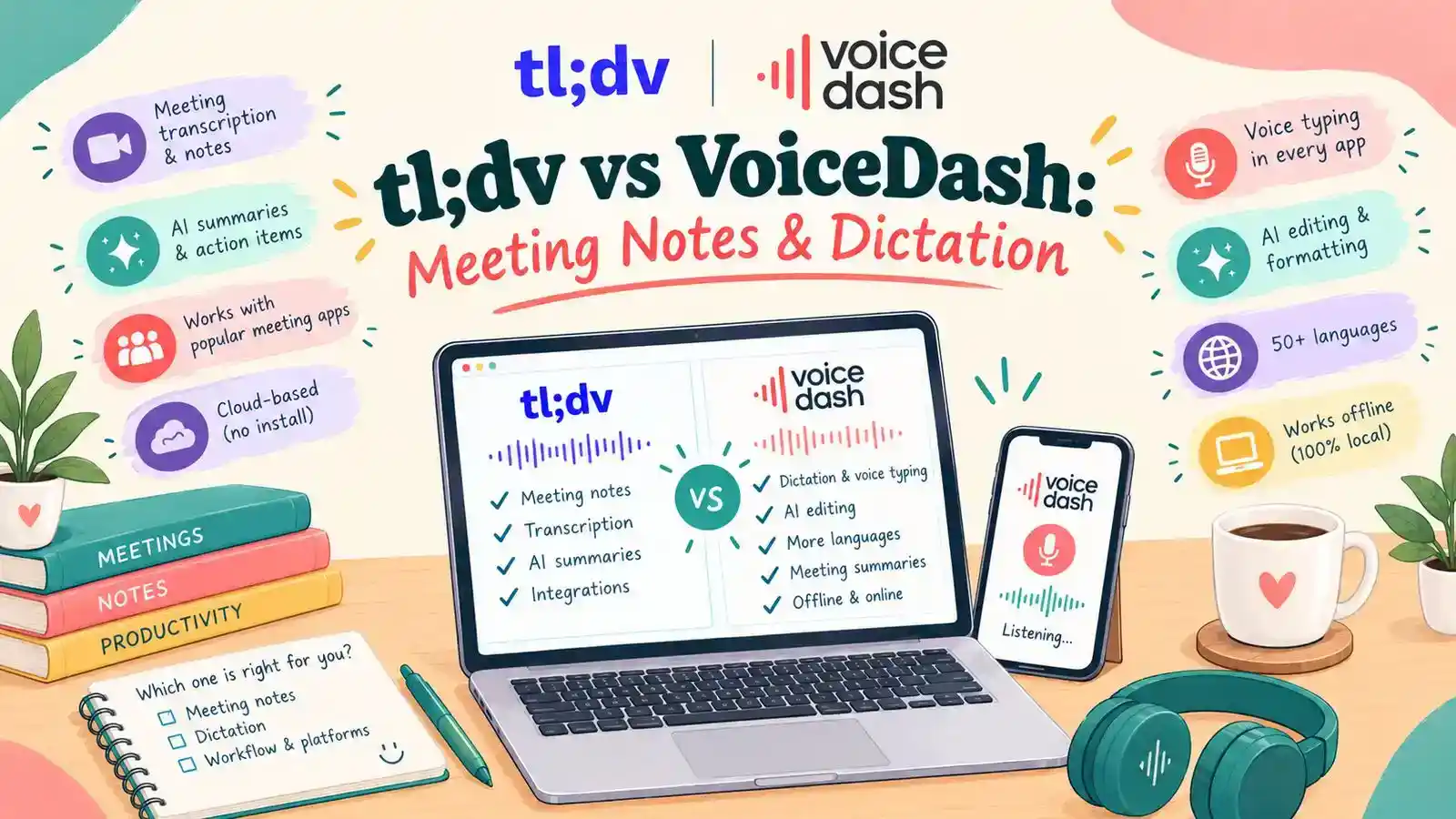
- VoiceDash vs. tl;dv at a Glance
- Why Choose VoiceDash Over tldv?
- Is VoiceDash the Right tl;dv Alternative for Meeting Summary?
- Why Look Beyond Your Current Meeting Note Taker?
- tl;dv vs VoiceDash: Compare the Work You Need to Complete
- Where Meeting Notes and Dictation Work Well Together
- How to Evaluate a Meeting Notes Alternative
- A Practical Workflow from Meeting to Follow-Up
- Compare Pricing and Allowances Carefully
- What to Check Before Switching from tl;dv
- Make Your Meetings Useful Beyond the Call
- Frequently Asked Questions
tl;dv vs VoiceDash: Which Tool Fits Your Workflow?
Voice Dash is a tl;dv alternative that combines AI meeting transcription, summaries, and everyday voice dictation. While tl;dv focuses on meeting recordings, searchable transcripts, and team workflows, VoiceDash also helps users write emails, reports, and follow-ups through dictation and voice commands. It’s particularly useful for professionals who need both meeting notes and voice-powered writing.
This guide explains where that combination is useful, how it compares with tl;dv, and what to check before switching. The goal is to help you choose around your actual work, with clear expectations about features, recording methods, and usage limits.
VoiceDash vs. tl;dv at a Glance
VoiceDash combines AI meeting transcription and summaries with system-wide voice dictation and editing. tl;dv focuses only on meeting recording, searchable transcripts, and team integrations. The main distinction is how each tool supports work during and after meetings.
| Feature | VoiceDash | tl;dv |
|---|---|---|
| Meeting Transcription | AI-powered transcription that converts conversations into readable text | Meeting transcription with searchable transcripts |
| AI Meeting Summaries | Structured summaries covering key decisions, discussion points, and follow-up actions | AI-generated summaries, meeting notes, and action items |
| Everyday Voice Dictation | Dictation directly into supported applications, including emails, documents, and CRM fields | Primarily focused on meeting transcription |
| AI Voice Editing | Command Mode supports writing, rewriting, and editing text through voice instructions | AI tools focus on meeting notes and follow-up workflows |
| Bot-Free Experience | Transcribes and summarizes meetings without adding a bot | Bot-free audio recording through the desktop application |
| Platform Support | Windows, macOS, iOS, and Android | Windows, macOS, Chrome extension, and iOS |
| CRM Workflow | Dictate customer notes, updates, and follow-ups directly into supported CRM fields | CRM integrations for meeting data synchronization |
| Pricing | Free plan; Pro from $12/month with annual billing | Free plan; Pro from $18/user/month with annual billing |
| Best For | Professionals who need meeting summaries, everyday dictation, and voice-based editing | Teams that need meeting archives, searchable records, and CRM automation |
Important: Bot-free functionality differs between the products. VoiceDash provides meeting transcription and AI summaries without adding a meeting bot. tl;dv’s desktop application supports bot-free audio recording, but that mode does not capture video, screen sharing, or chat messages.
VoiceDash is suited to workflows where meeting information needs to become written output, such as reports, client updates, and project documentation. Its system-wide dictation and Command Mode extend its use beyond meeting transcription.
Why Choose VoiceDash Over tldv?
VoiceDash is a suitable tl;dv alternative for professionals who need AI meeting summaries and a way to complete the writing tasks that follow. Its main advantage is combining meeting transcription with system-wide dictation and voice editing across everyday applications.
Meeting Notes and Dictation in One Tool
VoiceDash supports meeting transcription and AI-generated summaries that help users identify decisions, discussion points, and follow-up tasks. It also lets users dictate emails, reports, and documents without relying on a separate writing application.
Unlike a meeting-only workflow, VoiceDash supports both reviewing what was discussed and creating new content afterward. Its Command Mode can rewrite, shorten, and format dictated text through spoken instructions.
Write Follow-Ups Without Switching Tools
VoiceDash allows users to prepare follow-ups directly in supported applications, including email clients, documents, and CRM text fields.
For example, after reviewing a client meeting summary, a consultant can open an email, dictate a recap, and use Command Mode to adjust its wording. The same approach works for project updates, reports, and internal messages.
The benefit is direct text creation in the destination application, reducing the need to copy drafts between writing tools. VoiceDash does not require automatic CRM synchronization for this workflow.
Is VoiceDash the Right tl;dv Alternative for Meeting Summary?
Yes, VoiceDash is a practical tl;dv alternative for professionals who need the best ai meeting summary tool alongside everyday voice dictation and editing.
Consider our platform, VoiceDash if you want meeting notes alongside a practical way to dictate emails, documents, messages, and project updates. Evaluate meeting access separately from dictation allowances, and test the applications you use most.
tl;dv remains a relevant comparison for teams that depend on shared recordings, CRM workflows, and insights across multiple meetings. It also offers bot-free recording like VoiceDash, so the choice should go beyond whether a bot joins your call.
| Your Priority | What to Evaluate |
|---|---|
| Meeting notes and daily writing | Test meeting capture alongside dictation in your email, documents, and project tools. |
| Recording without a meeting bot | Check the desktop recording mode, audio permissions, and what the recording includes. |
| Team automation | Verify the exact integrations, permissions, and destination fields your team requires. |
| Predictable costs | Compare dictation allowances, meeting access, additional usage, and billing terms separately. |
Why Look Beyond Your Current Meeting Note Taker?
You may need the best AI meeting note taker when your current tool captures conversations but leaves too much manual work for writing follow-ups, editing documents, or updating project records. Before comparing products, identify the task you want to improve. A different tool is useful when it addresses a specific problem in your current process.
Your notes capture the conversation but leave the follow-up unfinished
A transcript preserves what people said; however, your next task may require a shorter explanation tailored to a different audience. Since a client may need the agreed scope and outstanding questions. Your internal team needs responsibilities and dependencies. Perhaps, a manager only needs the decision and its business implications.
These outputs require judgment. Evaluate how easily you can move from reviewed notes to the message or document you actually need. This is where VoiceDash can play a significant roles.
Typing slows down work between meetings
Meeting documentation is only one part of a working day. You may also write proposals, support replies, research notes, and instructions.
If those tasks create a larger bottleneck, include everyday dictation in your evaluation. A meeting-only comparison would miss an important part of your requirements. Here, a more comprehensive tool like VoiceDash including both AI dictation and meeting summary feature can solve the problem
Your current setup adds unnecessary steps
Perhaps you repeatedly move text between a recorder, an editor, and your project workspace. Perhaps summaries are useful, but the final document still takes substantial effort.
Map those steps before changing tools. The best improvement may come from simplifying how you produce and revise text, rather than collecting a longer transcript.
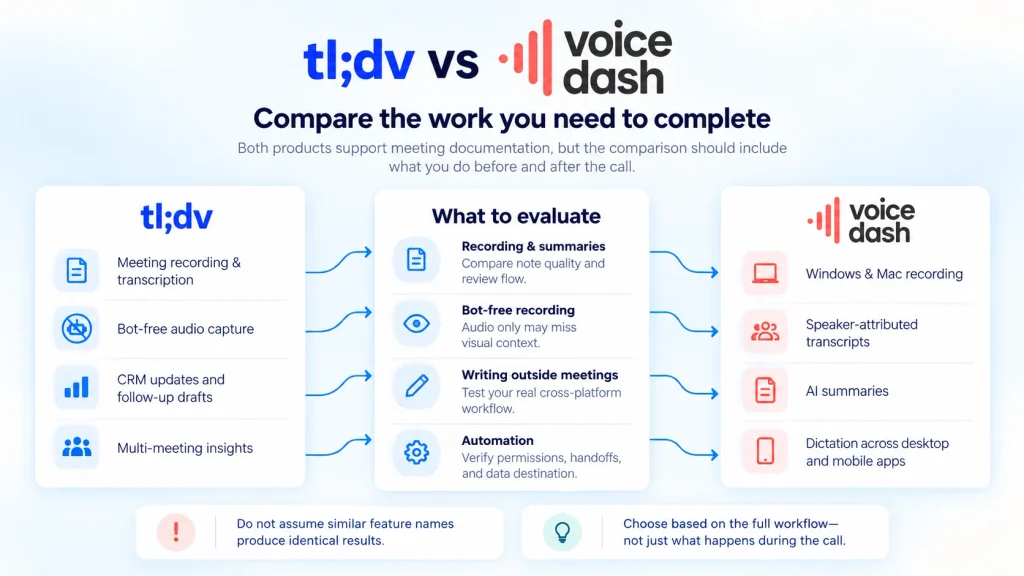
tl;dv vs VoiceDash: Compare the Work You Need to Complete
VoiceDash is better suited to workflows that combine meeting documentation with everyday dictation, while tl;dv focuses more on searchable meeting records, team collaboration, and automated integrations. However, both products support meeting documentation, but the comparison should include what you do before and after the call.
Recording and meeting summaries
Our meeting notetaker supports recording, speaker-attributed transcripts, and AI summaries on Windows and Mac. Meeting access and allowances depend on your account.
tl;dv supports recording and transcription for Zoom, Google Meet, and Microsoft Teams, with features such as transcript search, speaker recognition, and clips.
Do not assume that similar feature names produce identical results. Test whether each setup captures your actual conversations and creates notes that are easy to review.
Curious how well AI can summarize your meetings? Give VoiceDash a try for free and see if it works for you.
Curious how well AI can summarize your meetings? Give Free VoiceDash AI Meeting Summary Generator a try and see if it works for you.
Bot-free recording
Bot-free capture is available in both products. For tl;dv, the desktop mode records microphone and system audio. It does not capture video, screen sharing, or chat messages.
That distinction matters for demonstrations, design reviews, and spreadsheet discussions. A spoken reference such as “use the figure in this cell” may be difficult to interpret without the visual material.
Decide whether audio is sufficient before choosing a recording mode!
Writing outside meetings
VoiceDash dictation tools let you write into supported applications across Windows, macOS, Android, and iPhone. Desktop use includes emails, documents, browsers, and chat applications.
For example, you can dictate a project update after reviewing the meeting notes, then write a separate client message in your email application.
Device support does not mean every meeting feature is identical across platforms. Therefore, check the specific workflow you intend to use.
If you want to test voice typing before adding dictation to your workflow, try VoiceDash Free Speech to Text tool. It provides a simple way to evaluate whether voice transcription fits your everyday writing tasks.
Shared knowledge and automation
tl;dv documents CRM updates, follow-up drafts, multi-meeting insights, and sales coaching features.
If your team relies on those functions, evaluate them individually. Writing into a CRM field by voice is different from an integration automatically transferring structured meeting information.
A replacement should meet your required workflow, including its permissions and handoffs.
Where Meeting Notes and Dictation Work Well Together
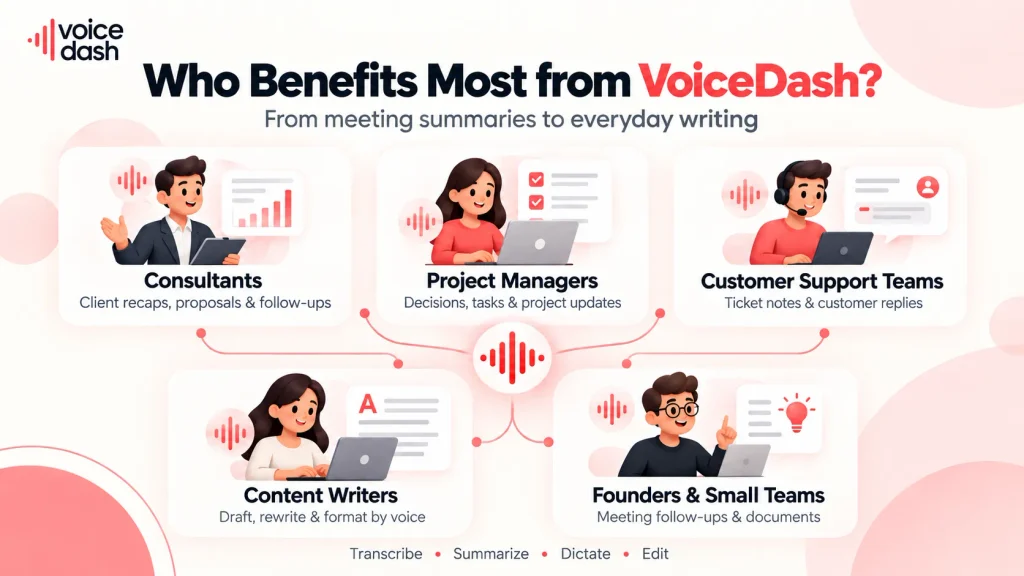
Meeting notes and dictation work best together for consultants, project managers, customer support teams, and founders who need to turn conversations into emails, reports, tasks, and client updates.
Consultants and client-facing professionals
After a discovery call, a consultant may need to explain the client’s goals, document assumptions, and prepare a proposal outline.
Start by reviewing the meeting record. Then dictate the proposal in your own words, keeping confirmed requirements separate from your recommendations.
This helps preserve an important distinction: the client’s request is evidence, while your proposed solution is professional judgment.
Product and project managers
A planning meeting can produce decisions, unresolved questions, and dependencies that belong in different documents.
Use the reviewed notes to establish what was agreed. Then dictate the context into the relevant brief or task description.
Include the reason behind the decision when it matters. “Postpone the release” is less useful than explaining which dependency must be resolved before a new date can be set.
Customer support teams constantly switch between ticketing systems, internal documentation, live chat tools, CRMs, and team communication apps. This slows response times, increases repetitive typing, and makes it harder to keep full customer context across conversations.
Founders and small teams
In a small organization, the same person often attends a call, writes the recap, assigns the work, and updates stakeholders.
A useful trial should cover that entire sequence. Measure whether dictation makes those writing tasks easier and whether the meeting output provides enough context to support them.
Avoid judging the tool only by the appearance of its summary.
Customer support and account management
A customer conversation may reveal a problem, a requested workaround, and an expectation about timing.
Review those details before drafting a reply. Dictate the response in language appropriate for the customer, and verify every commitment.
The purpose is to make communication easier while retaining responsibility for what you promise.
Make customer support easier with VoiceDash. Spend less time switching between tools and typing repetitive responses, and more time solving customer problems. Try VoiceDash for your support team today.
How to Evaluate a Meeting Notes Alternative
When selecting a tl;dv meeting notes alternative, judge the information before the formatting.
A summary can sound confident while changing the meaning of a discussion. Your evaluation should test whether it preserves decisions, uncertainty, and responsibilities.
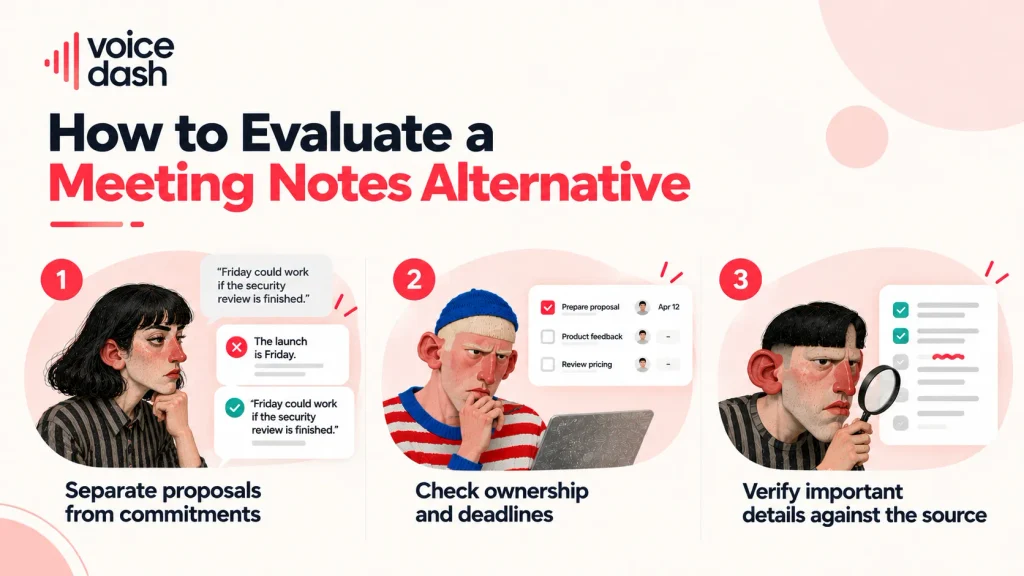
Separate proposals from commitments
Consider this fictional statement:
“Friday could work if the security review is finished.”
A summary that says “The launch is Friday” removes a condition. A useful recap should preserve both the proposed date and the dependency.
Include tentative language in your trial meetings. It reveals whether the output distinguishes possibilities from agreements.
Check ownership and deadlines
An action item needs an owner and a deadline when those details are agreed. When they were not, the missing information should remain visible.
Do not reward a summary for filling every field. An explicit “owner not assigned” can be more useful than an unsupported name.
Verify important details against the source
Use a short checklist to review each trial output consistently.
| Check | Useful Output | Problem to Catch |
|---|---|---|
| Decisions | Separates approved actions from proposals. | Turns a suggestion into a commitment. |
| Owners | Identifies explicitly assigned responsibilities. | Assigns work based only on who spoke. |
| Dates and Numbers | Preserves deadlines, quantities, and conditions. | Changes a figure or drops a dependency. |
| Open Questions | Keeps unresolved issues visible. | Makes an unfinished discussion sound settled. |
A Practical Workflow from Meeting to Follow-Up
To turn meeting notes into actionable follow-ups, record the conversation, identify decisions and responsibilities, review the AI summary, dictate your response, and edit the final text before sharing it. Long story short, use a representative project meeting to test the complete process.
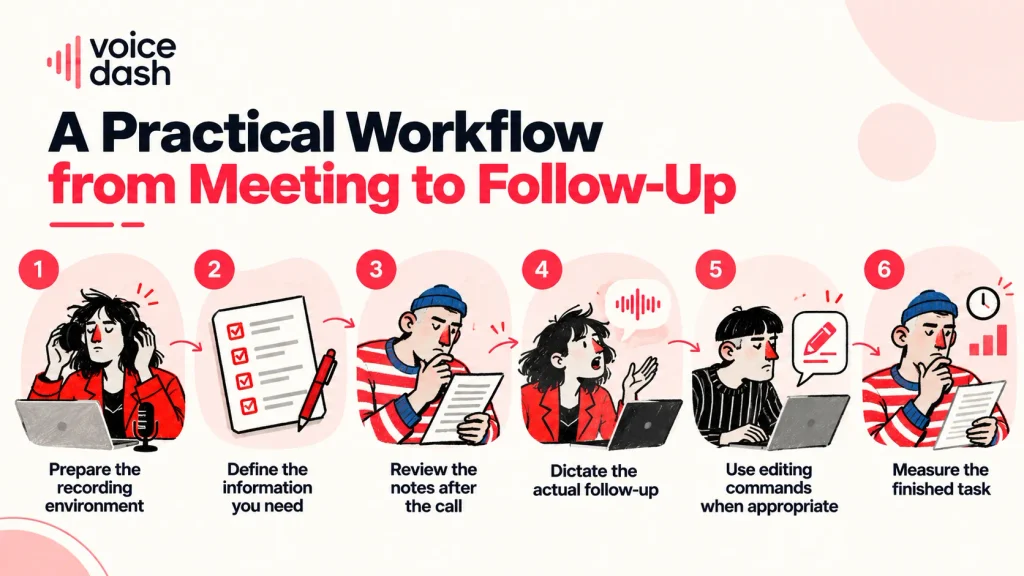
1. Prepare the recording environment
Check your microphone, headphones, and recording permissions. Confirm that the selected mode captures both your voice and the other participants.
Inform participants before recording. A mode without a visible bot may not provide the same notification experience as a participant joining the meeting.
2. Define the information you need
Before the call, prepare a simple checklist:
- Decisions.
- Actions and owners.
- Deadlines and dependencies.
- Unresolved questions.
- Context needed by absent colleagues.
This prevents you from treating a lengthy recap as evidence of completeness.
3. Review the notes after the call
Check names, figures, and commitments first. Compare uncertain statements with the source or your contemporaneous notes.
If the discussion left something unresolved, keep it unresolved in the recap. Ask for clarification instead of turning uncertainty into a firm instruction.
4. Dictate the actual follow-up
Open the destination application and speak the message you want to write.
For example:
“Hi Alex, we approved the revised scope today. The launch date remains provisional until the security review is complete. Please confirm who will coordinate that review.”
This is dictation: your spoken message becomes written text.
Want to turn your voice into text without wasting time on manual typing? We’ve rounded up the best voice-to-text tools to help you find the right fit.
See the Best Voice to Text Software
5. Use editing commands when appropriate
Command Mode supports spoken editing and formatting instructions. Use it with relevant text available in the supported workflow.
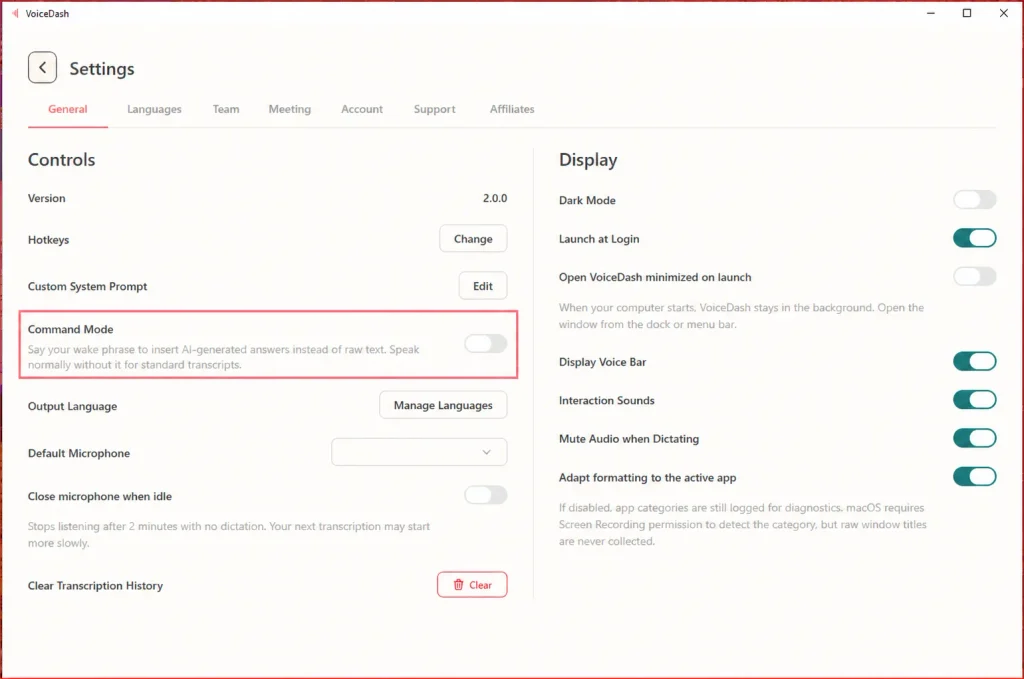
You can simply turn on Command Mode by toggling it on in VoiceDash.
Keep that task separate from ordinary dictation. An instruction to summarize a meeting should not be assumed to retrieve the meeting automatically. Review the result for meaning as well as grammar.
6. Measure the finished task
Track the time from the end of the meeting to a checked, usable follow-up.
Also record corrections, missing details, and any questions from recipients. Those observations give you a practical basis for deciding whether the new workflow helps.
Compare Pricing and Allowances Carefully
A subscription can include generous dictation usage while applying separate conditions to meeting features.
VoicDash subscription lists a Free plan with 1,000 words per month. Pro is listed at $15 monthly or the equivalent of $12 per month billed annually, with unlimited dictation words. These figures do not establish an unlimited meeting allowance. Confirm meeting access and usage separately before choosing a plan.
For tl;dv, check the current account-level terms for AI features, integrations, and recording access. Its public documentation does not describe every free allowance consistently, so avoid building your decision around an unverified reset schedule.
| Cost Factor | Question to Answer |
|---|---|
| Dictation Usage | How many words are included, and when does any allowance reset? |
| Meeting Access | Is meeting capture included, and what usage limits apply? |
| Team Requirements | Which users, integrations, and administrative features require payment? |
| Review Effort | How much time does your team spend correcting and preparing the final output? |
What to Check Before Switching from tl;dv
Before switching from tl;dv, check recording reliability, transcription accuracy, AI summary quality, supported integrations, export options, and pricing limits. Test these features using real meetings before canceling your existing subscription.
- Begin with a small pilot using meetings that resemble your normal work. Include technical terminology, several speakers, and at least one discussion where decisions change.
- Check essential exports before ending an existing subscription. A downloaded transcript may not preserve comments, timestamps, shared permissions, or the usefulness of the original workspace.
- Also distinguish writing into an application from integrating with it. Dictating a note into a project tool does not prove that meeting tasks will synchronize automatically.
- Set a clear success condition: for example, producing reliable follow-ups with less editing. If the new workflow does not meet it, identify the remaining problem before expanding the rollout.
If your workflow also involves writing reports, meeting notes, or detailed follow-ups, choosing the right dictation tool can make a difference. Check out our guide to the best dictation software for writers to compare your options and find one that fits your workflow.
Make Your Meetings Useful Beyond the Call
A suitable tl;dv alternative should support the work that follows the conversation.
VoiceDash is worth trying when your requirements include both meeting documentation and everyday writing by voice. The practical opportunity is to review what was discussed, then create the messages and documents your work requires.

Start with one representative meeting, confirm your account’s meeting access, and try dictation on a real follow-up. Compare the clarity of the result and the effort needed to finish it. Choose based on a workflow you have tested, with expectations that match your plan and devices.
Tired of taking notes during meetings? Download VoiceDash to turn meeting conversations into clear, actionable summaries and stay focused on the discussion.
