
- AI Meeting Note Takers in a Nutshell
- What Is an AI Meeting Note Taker?
- Best AI Meeting Note Takers: Which Tool Fits Your Workflow?
- Free vs. Paid AI Meeting Note Takers: What Should You Compare?
- Bot-Free Recording vs. Meeting Bots
- How Do You Choose an AI Meeting Notes App for Multilingual Meetings?
- What Should a Good AI Meeting Summary Include?
- How to Test an AI Meeting Notes App
- A Practical Workflow for Better Meeting Summaries
- Privacy and Team Administration
- Bottom Line: Which AI Meeting Note Taker Should You Choose?
- Frequently Asked Questions
Best AI Meeting Note Taker in 2027: Compare Tools and Meeting Summaries
Choose an AI meeting note taker by what you need after the call: a summary, a transcript, or follow-up work in your team’s tools. VoiceDash combines AI meeting summaries with dictation; Fathom offers free recording; Otter emphasizes live transcripts; Fireflies connects meeting information to team workflows. Start with your required output, then check capture compatibility and plan limits.
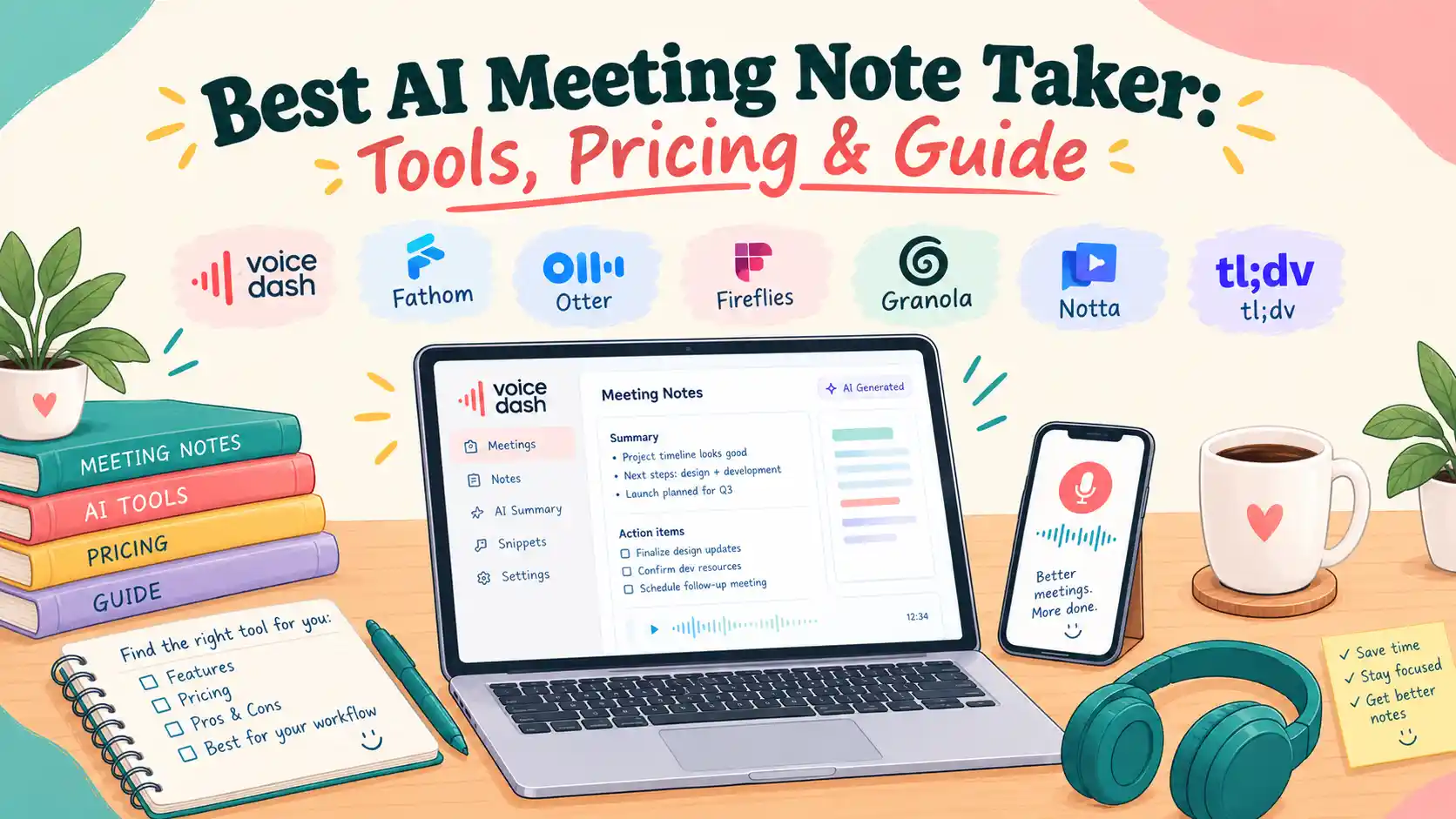
AI Meeting Note Takers in a Nutshell
For summaries, start with the recap you need; for transcripts, start with capture and search; for team automation, check the actual integration. The shortlist below narrows the options by job. Several products overlap, so treat each recommendation as a starting point rather than an exclusive category winner.
| Your main need | Tool to shortlist | Why it fits | What to verify |
|---|---|---|---|
| Meeting summaries plus everyday voice writing | VoiceDash | Combines bot-free meeting capture with dictation | Meeting allowance, desktop support, and output quality |
| Free recording for individual use | Fathom | Unlimited recordings and transcriptions on Free | Advanced-summary limits |
| Live transcription during conversations | Otter | Real-time text and searchable meeting information | Session limits, language support, and imports |
| Meeting information connected to team workflows | Fireflies | Integrations, task features, and conversation intelligence | Required tier, storage, and AI credits |
| Personal notes enhanced by meeting context | Granola | Combines your notes with captured conversation | History access and lack of stored audio |
| Recordings, transcription, and translation | Notta | File transcription and transcript translation | Per-recording limits and language combinations |
| Patterns across customer or sales calls | tl;dv | Cross-meeting analysis and reporting | Advanced-analysis plan requirements |
How We Compared These Meeting Note Takers
This guide compares documented features and plan limits using vendor pricing pages, help centers, product documentation, and VoiceDash’s founder announcement, reviewed on October 25, 2026. Recommendations describe potential fits, not proven performance advantages.
What Is an AI Meeting Note Taker?
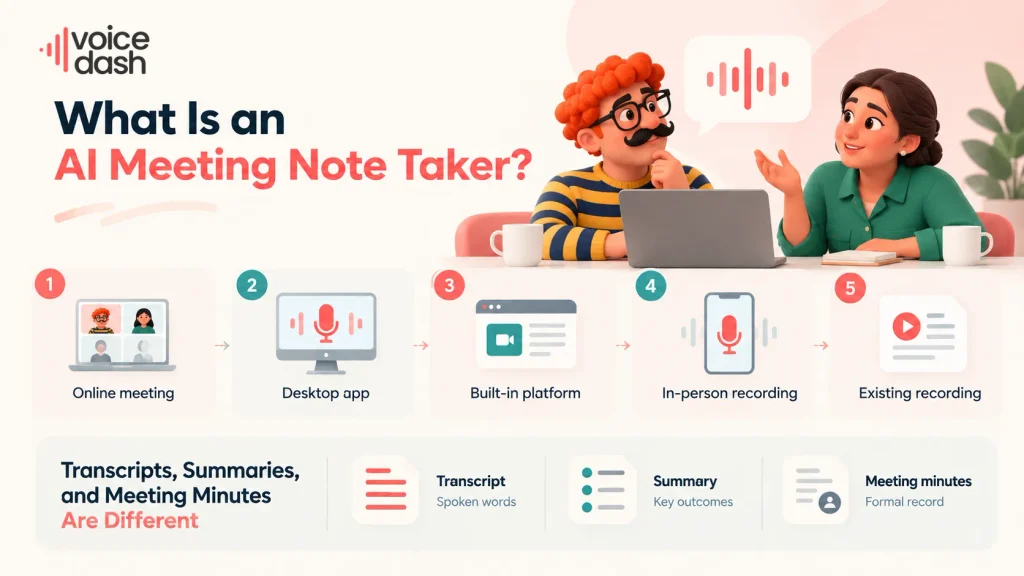
An AI meeting note taker turns a recorded or live conversation into a transcript, organized notes, or both. Some products also label speakers, extract decisions, identify possible action items, and search previous meetings. Those capabilities vary by plan and capture method.
- A bot joins an online meeting.
- A desktop application captures microphone and system audio.
- A meeting platform generates notes using its built-in features.
- A mobile device records an in-person conversation.
- A tool processes an existing recording or transcript.
Best AI Meeting Note Takers: Which Tool Fits Your Workflow?
The seven tools below address different parts of meeting documentation, from capturing a call to reviewing patterns across conversations. Compare the output you need, the way audio is captured, and the limits of the plan you would actually use. A product’s position in this list is not an accuracy ranking.
1. VoiceDash: For AI Meeting Summaries and Follow-Up
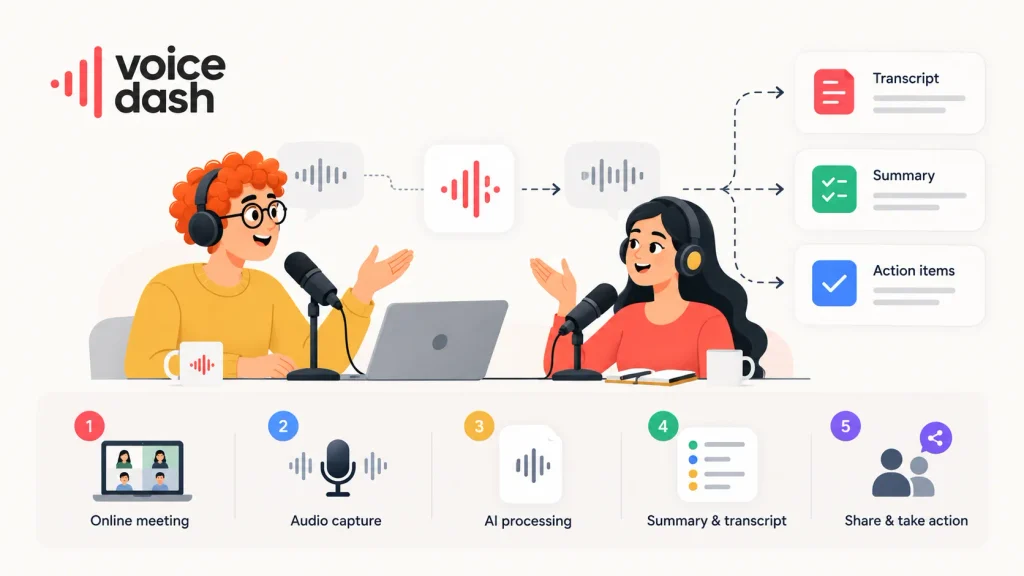
VoiceDash’s Meeting Notetaker generates AI meeting summaries covering key points, decisions, and action items, alongside speaker-attributed transcripts. Consider it when your main task is reviewing what mattered after a call and preparing the next update. Dictation adds a separate way to write that follow-up.
Turn your meeting into clear next steps. Use our Free AI Meeting Summary Generator to capture key points, decisions, and action items in a concise recap.
Try the Free AI Meeting Summary Generator
VoiceDash does bot-free capture on Windows and Mac, with access from desktop version v1.0.20 onward. However, AppSumo customers receive meeting access according to their tier and can purchase meeting packs inside the app. These are AppSumo-specific terms; check the allowance attached to your account.
VoiceDash also provides dictation and text-cleanup features, allowing users to create new writing by speaking into their working application.
For writers turning reviewed meeting notes into articles or client documents, the best dictation software for writers guide compares tools for drafting new text. Dictation complements a meeting summary; it serves a different job.
What to verify: meeting allowances, your audio setup, and whether generated summaries preserve the decisions and terminology that matter to you.
Turn your next meeting into clear next steps. Use VoiceDash’s AI meeting summaries to review key points, decisions, and action items. Download VoiceDash to get started and check the meeting allowance included in your plan.
2. Fathom: For Free Recording and Straightforward Recaps
Fathom is worth comparing when your priority is free recording and transcription. Its recording allowance is generous, but the advanced-summary allowance is separate.
Its Free plan includes unlimited recordings and transcriptions. Advanced summaries are a separate allowance: the help documentation limits them to the first five calls each month, after which only the General/Enhanced template remains available.
Fathom also lists bot-free capture as a Mac beta. Confirm the capture mode available on your device rather than assuming feature parity across operating systems.
What to verify: which summary features remain after the free allowance and whether the capture mode fits your meetings.
3. Otter: For Live Transcription and Searchable Conversations
Otter fits a transcript-centered shortlist when you want to read the conversation as it happens and search it afterward. Check language support and meeting duration before relying on it for regular calls.
It offers live transcription and speaker recognition, alongside a desktop option that records without a bot on Mac and Windows.
What to verify: recording length, imports, terminology recognition, and whether your required language combination works in the intended mode.
The Otter vs VoiceDash comparison examines how that workflow differs from combined dictation and meeting documentation.
4. Fireflies: For Connected Team Workflows
Consider Fireflies when meeting notes need to reach shared tools and support team follow-up. Evaluate the specific operation you need: copying a summary, creating a task, and updating a CRM field are different requirements.
What to verify: integration depth, permissions, storage, AI credits, and the tier that includes your required features.
The Fireflies vs VoiceDash comparison is useful when weighing team automation against a more individual writing-and-summary workflow.
5. Granola: For Personal Notes Enhanced With Meeting Context
Granola is worth comparing if you want AI to expand your own notes using meeting context. Its approach suits personal note-taking, but the lack of replayable audio matters if your review process depends on listening again.
The tradeoff is source replay: Granola does not retain meeting audio for playback. Its desktop workflow transcribes audio in real time, while its mobile workflow temporarily caches audio for transcription. Transcripts and notes are retained.
Basic provides access to 30 days of meeting history; Business includes unlimited meeting notes and history. Limited history access should not be confused with a guarantee that older data has been deleted.
What to verify: whether transcript-based review is sufficient or whether your work requires replayable audio.
6. Notta: For Transcription, Files, and Translated Output
Notta belongs on the shortlist when you need file transcription or translated text alongside live meeting notes. Check the translation mode separately from the transcription allowance; they have different limits.
Its Pro offering lists transcript export, translation, and custom vocabulary. The published allowance includes 1,800 transcription minutes monthly, recordings up to five hours, and 100 AI summaries per month. Custom vocabulary is listed for English and Japanese. Some translation modes include limited trial usage. Additional capacity has separate allowances and add-on requirements: the pricing page separately lists Monolingual Translation and Bilingual Transcription & Translation add-ons. Verify the specific translation mode you need.
The free-plan limitation is easy to misunderstand. A monthly allowance of 120 minutes does not mean any 120-minute conversation is usable: its pricing table specifies a three-minute transcription limit per recording on Free.
What to verify: source language, translation language, simultaneous language switching, and which exports are included.
The Notta vsVoiceDash comparison helps distinguish transcription-heavy work from voice-driven writing and meeting summaries.
7. tl;dv: For Insights Across Multiple Meetings
Consider tl;dv when you need answers across multiple meetings, such as recurring objections or repeated customer requests. Check whether answers identify supporting conversations and whether your required query volume needs a higher plan.
Its published Business features include unlimited multi-meeting Ask AI, scheduled reports, coaching, and team CRM field mapping. Some related capabilities are available on lower tiers with different limits, so Business should not be treated as mandatory for every cross-meeting query or CRM connection. It also offers bot-free desktop recording.
What to verify: reporting limits, source traceability, permissions, and whether the necessary features require Business.
Free vs. Paid AI Meeting Note Takers: What Should You Compare?
A free plan works when all its relevant limits fit your workload: meeting length, monthly usage, summaries, history, and export. “Unlimited recordings” does not automatically include unlimited advanced summaries or every export format.
If you mainly need transcripts from existing recordings, our Best Free Transcription Software comparison helps you evaluate free allowances, file limits, and exports before paying for meeting features.
Need text from speech before choosing a meeting tool? Try VoiceDash free speech to text tool to turn spoken audio into text, then review the result before sharing.
Published Pricing
Compare the price of the plan that includes your required features, not just the lowest advertised number. The examples below mix monthly subscriptions with monthly equivalents of annual payments; allowances and promotional terms differ.
| Tool and plan | Published price | Qualification |
|---|---|---|
| Fathom Free | $0 | Advanced summaries for the first 5 calls each month |
| Otter Pro | $8.33 per user/month, billed annually | Listed annual rate; regional offers and usage limits apply |
| Fireflies Pro | $10 per seat/month, billed annually | 8,000 storage minutes per seat; AI credit limits apply |
| Granola Business | $14 per user/month | Includes unlimited meeting notes and history |
| Notta Pro | $97.99 billed annually, approximately $8.17/month | Displayed with a 40% discount label; check offer and renewal terms |
| tl;dv Pro | $18 per user/month, billed annually | Published in vendor materials; verify the current checkout price |
Prices reflect the USD amounts displayed in vendor materials reviewed on October 25, 2026. Promotional offers, regional pricing, taxes, and renewal terms may differ. Notta’s displayed annual amount carries a discount label; no assumption is made about the price at renewal. A monthly equivalent on an annual plan is not the price of a cancellable monthly subscription.
Bot-Free Recording vs. Meeting Bots
A meeting bot joins the call; desktop capture records through your device without another participant joining. Choose the method that fits your access and device setup. Neither method alone establishes better summary quality, permission to record, or local-only processing.
| Method | Useful when | Main weakness to test |
|---|---|---|
| Meeting bot | An eligible assistant can join the call | Admission, host permissions, and blocked bots |
| Desktop capture | You attend and want no extra participant | System audio, microphone permissions, and device sleep |
| Native platform notes | You want existing workspace administration | Account eligibility and organizer settings |
| Mobile recording | The conversation happens in a room | Distance, background noise, and shared microphones |
| Uploaded recording | Audio already exists | File limits, processing time, and missing context |
| Pasted transcript | Only summarization is needed | Quality and completeness of the source text |
Bot-Free Does Not Mean Offline
Bot-free describes how audio is captured, not where it is processed. A desktop recorder may still send audio to cloud services. Before using it for sensitive discussions, establish:
- Where is audio captured?
- Where is it processed?
- What is stored afterward?
- Who can access it?
For browser-based work, compare the best speech to text extensions for Chrome. Check whether an extension supports meeting capture, live captions, or only dictation into text fields; these functions are different.
If your follow-up work happens on mobile, review the best voice to text apps for iPhone. Confirm mobile recording and summarization support separately from desktop availability.
How Do You Choose an AI Meeting Notes App for Multilingual Meetings?
Test the languages you actually speak, including switches within the same conversation. Supported transcription languages, mixed-language recognition, translation, and summary language are separate capabilities. A large language count cannot establish accuracy for your accent, terminology, or language combination.
| Capability | What it means | Practical test |
|---|---|---|
| Transcription language | Recognizes the spoken language | Run a representative conversation |
| Mixed-language recognition | Handles switching within a session | Include realistic language changes |
| Transcript translation | Converts source text into another language | Check names, technical terms, and meaning |
| Summary language | Produces the recap in a chosen language | Verify both meaning and terminology |
What Should a Good AI Meeting Summary Include?
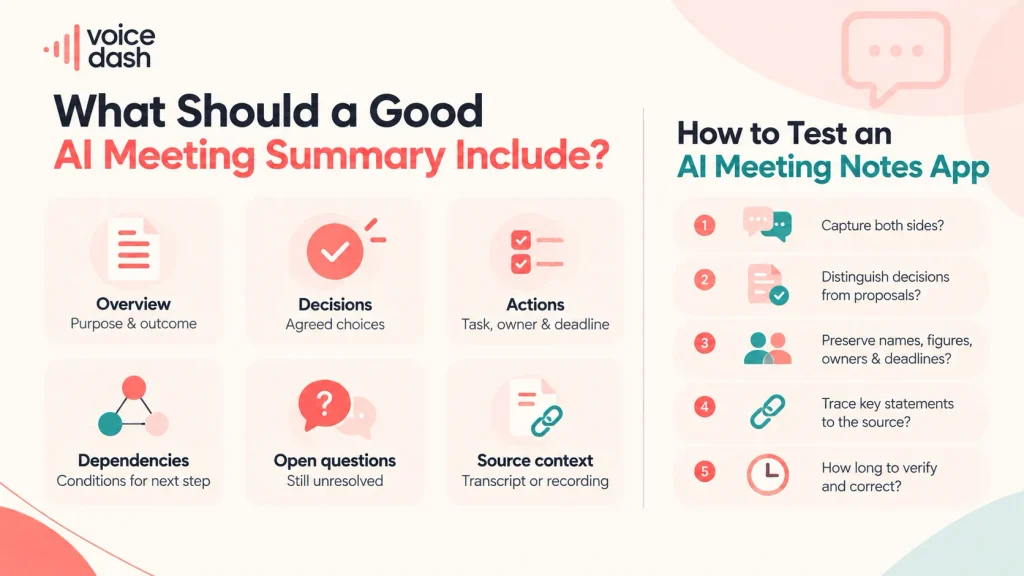
A useful AI meeting summary states what changed, what was agreed, who accepted each task, and what remains unresolved. Missing owners or deadlines should stay unspecified. A complete-looking recap is less useful than one that accurately preserves uncertainty.
| Section | Include | Avoid |
|---|---|---|
| Overview | Purpose and meaningful outcome | Generic statements that a discussion occurred |
| Decisions | Explicitly agreed choices | Proposals presented as approvals |
| Actions | Task, owner, and stated deadline | Invented responsibilities |
| Dependencies | Conditions affecting the next step | Missing qualifications |
| Open questions | Matters still awaiting resolution | False certainty |
| Source context | Supporting transcript or recording location, where available | Unverifiable claims |
How to Test an AI Meeting Notes App
Compare two tools against a human-checked record of the same meeting, then measure errors and correction time. Test live capture separately from imported recordings. A polished demo shows what a product can produce; your own material shows whether it fits your work.
- Did the tool capture both sides completely?
- Were decisions distinguished from proposals?
- Were names, figures, owners, and deadlines preserved?
- Could you trace important statements to their source?
- How long did verification and correction take?
Transcripts, Summaries, and Meeting Minutes Are Different
A transcript records spoken words; a summary selects the important outcomes; formal minutes follow an organization’s recording and approval requirements. If you need to verify a quotation, use the transcript or recording. If you need the next steps, review the summary and action list.
If your needs extend beyond meetings, compare the best voice to text software for dictation, recorded audio, and everyday writing. Choose by output rather than treating every speech tool as a meeting assistant.
A Practical Workflow for Better Meeting Summaries
Prepare the capture setup, state decisions clearly, and verify the recap before sharing it.
Before the Meeting
Before the meeting, define the intended outcome, prepare an agenda, and confirm the recording setup and permissions.
Confirm the intended recipients and whether capture is appropriate for the discussion.
Where supported, add relevant terminology or use a suitable template.
During the Meeting
During the meeting, state decisions, owners, deadlines, and unresolved proposals explicitly. For example:
- “We agree to use option B.”
- “Sam owns the draft.”
- “The deadline is Friday.”
- “This remains a proposal.”
- “We have not approved the budget.”
After the Meeting
After the meeting, verify consequential facts and commitments before sharing the summary or assigning work. Review:
- Decisions and any reversals.
- Names, amounts, dates, and technical terms.
- Task ownership.
- Conditional commitments.
- Unresolved questions.
- Sharing permissions.
VoiceDash’s AI meeting summaries feature and dictation can fit this sequence: review the recap, then dictate the next project update or client message in your working application. This connects the recap to follow-up writing without implying automatic task synchronization.
If you prepare follow-up documents in Google Docs, learn how to voice type on Google Docs. Use dictation to add your interpretation after reviewing the summary, while keeping confirmed decisions separate from personal commentary.
Privacy and Team Administration
Check who can access each record, how long it is retained, and whether your organization can remove it. Audio, transcripts, summaries, and shared links may have different controls. A privacy label alone does not answer these questions.
| Area | Question to resolve |
|---|---|
| Capture controls | Who can start, pause, and stop recording? |
| Data storage | What is retained, and where? |
| Sharing | Who can open a note or forwarded link? |
| Model training | What settings and contractual terms apply? |
| Retention | Can the organization define deletion periods? |
| Account ownership | Are notes controlled by individuals or the company? |
| Administration | Can access be removed centrally? |
| Export and deletion | What remains after account closure? |
Bottom Line: Which AI Meeting Note Taker Should You Choose?
Choose the tool that produces a usable record of your meetings with acceptable review effort. Capture compatibility, factual reliability, and usable plan limits matter more than a universal “best” label.
If your priority is a recap of key points, decisions, and action items, consider VoiceDash’s AI meeting summaries. Its dictation features can help draft the communication afterward. If you mainly need free recordings, live transcripts, or shared automation, compare the relevant alternatives above. Test representative meetings and confirm your allowance before choosing.
Put your next meeting into action. Turn the conversation into key points, decisions, and action items with VoiceDash—then use dictation to draft your follow-up.
Try VoiceDash for Your Next Meeting
