

- Quick Answer: How to Transcribe Apple Voice Memos
- Can Apple Voice Memos Transcribe Audio to Text?
- Apple Voice Memos Transcription Requirements
- How to Transcribe Voice Memos on iPhone
- How to Transcribe Old Voice Memos
- How to Copy a Voice Memos Transcript
- Can You Export a Voice Memos Transcript?
- Why Voice Memos Transcription Is Not Showing
- Why Do Some Voice Memos Not Have Transcripts?
- How to Transcribe Voice Memos on iPad
- How to Transcribe Voice Memos on Mac
- Apple Voice Memos vs Apple Dictation vs VoiceDash
- Apple Voice Memos vs VoiceDash
- Best Workflow by Use Case
- When Apple Voice Memos Is Enough
- When VoiceDash Is Better
- Tips for Better Voice Memo Transcriptions
- A Faster Workflow: Speak Directly Where You Want the Text
- Final Thoughts
- Frequently Asked Questions About Apple Voice Memos Transcription
How to Transcribe Apple Voice Memos on iPhone, iPad, and Mac
Yes, you can transcribe Apple Voice Memos on supported iPhone, iPad, and Mac devices. Open Voice Memos, select a recording, view the transcript, then copy the text if you want to use it in Notes, Docs, email, or another app.
If the transcript option does not appear, your device, software version, language, region, or audio quality may not support transcription.
This guide shows you how to transcribe Voice Memos, copy transcripts, fix missing transcripts, and decide when a live voice-to-text tool like VoiceDash is faster than recording first and copying text later.
Quick Answer: How to Transcribe Apple Voice Memos
To transcribe a Voice Memo:
- Open the Voice Memos app.
- Select the recording you want to transcribe.
- Open the transcript view.
- Read the transcript.
- Copy the transcript if you want to use the text somewhere else.
Apple Voice Memos transcription works best for clear speech on a supported device in a supported language.
Use Voice Memos when you already have a recording.
Use VoiceDash when you want to speak and have text appear directly where your cursor is, such as in an email, document, browser, form, note, or chat box.

Can Apple Voice Memos Transcribe Audio to Text?
Yes. Apple Voice Memos can transcribe audio recordings into text on supported Apple devices.
This helps when you want to:
- read a recording instead of replaying it
- search inside a memo for a word or phrase
- copy spoken text into another app
- review lectures, interviews, meetings, and ideas faster
- turn short recordings into notes or drafts
For example, you might record an idea on your iPhone, open the transcript later, copy the useful part, and paste it into Notes, Google Docs, Pages, Notion, Slack, or an email.
That works well when the recording already exists.
The limitation is that Voice Memos is still a recording app. It gives you a transcript, but you may still need to clean up filler words, fix names, add paragraphs, remove repetition, and move the text into another workspace.
That is the main difference:
- Apple Voice Memos turns recordings into transcripts.
- VoiceDash turns your voice into live text where you are already working.
Apple Voice Memos Transcription Requirements
Before you troubleshoot, check whether your device supports transcription.
| Requirement | What to check |
|---|---|
| iPhone | iPhone 12 or later |
| iOS | iOS 18 or later |
| iPad | A supported iPad running iPadOS 18 or later |
| Mac | macOS 15 or later |
| Mac hardware | Apple silicon Mac |
| Language | Supported transcription language |
| Region | Availability may vary by country or region |
| Audio quality | Clear speech works best |
Apple’s supported languages include English, Spanish, Portuguese, Italian, French, German, Japanese, Korean, Simplified Chinese, and Traditional Chinese. Availability can vary by country or region.
If the transcript button is missing, the feature may not be broken. Your device, language, region, or recording may simply not be eligible.
How to Transcribe Voice Memos on iPhone
Most people looking for Voice Memos transcription want to do it on iPhone. Here is the simplest workflow.
1. Open Voice Memos
Open the Voice Memos app on your iPhone.
You can record a new memo or choose an existing recording.
2. Select the Recording
Tap the recording you want to transcribe.
If you are making a new recording, tap the red record button, speak clearly, then stop the recording when you are done.
3. Open the Transcript
Open the recording details and look for the transcript option.
Depending on your iOS version, you may see a transcript button, a waveform view, or a menu with more options.
4. Read the Transcript
If transcription is available, Voice Memos will show the spoken words as text.
This is useful when you want to find:
- names
- quotes
- ideas
- decisions
- action items
- dates
- important details
5. Copy the Transcript
If you want to use the transcript somewhere else, copy it and paste it into another app.
You might paste it into:
- Apple Notes
- Google Docs
- Pages
- Notion
- Slack
- Gmail
- Messages
- Word
- a project management tool
- a content outline
This is fine for short recordings.
But if you are recording only because you want text, the workflow can become slow: record, transcribe, copy, paste, clean up, and format.
With VoiceDash’s speech-to-text tool, you can speak directly into the place where the text belongs.
For more iPhone voice typing options, read how to use voice to text on iPhone.
How to Transcribe Old Voice Memos
Apple Voice Memos can transcribe some older recordings if your device supports transcription and the recording includes clear speech.
To transcribe an old Voice Memo:
- Open Voice Memos.
- Tap the old recording.
- Open the transcript view.
- Wait for the transcript if it needs to process.
- Copy the transcript if you want to use the text elsewhere.
If the transcript does not appear, the old recording may not be eligible.
Common reasons include:
- unsupported device
- unsupported language
- unavailable region
- unclear speech
- low volume
- too much background noise
- overlapping speakers
- long silence
- music instead of speech
Old recordings often need more review than new recordings. Names, dates, numbers, technical terms, and quotes can be wrong, especially if the audio is noisy.
How to Copy a Voice Memos Transcript
To copy a Voice Memos transcript:
- Open Voice Memos.
- Select the recording.
- Open the transcript.
- Choose the text you want to copy, or copy the full transcript if that option is available.
- Paste it into another app.
This is useful when you want to move the text into:
- Notes
- Google Docs
- Word
- Notion
- Slack
- Pages
- a school document
- a work summary
- a follow-up email
Copying works well for short transcripts.
For longer recordings, the copied text may still need editing. Raw speech often includes filler words, repeated phrases, false starts, and unfinished sentences.
If you always copy Voice Memos transcripts into another app before doing the real work, a live dictation workflow may be easier. VoiceDash lets you speak directly into the document, email, form, or chat box instead of moving text from app to app.
Can You Export a Voice Memos Transcript?
Apple Voice Memos is good for viewing and copying transcripts, but it is not built as an advanced transcript editor.
For simple use cases, copying the transcript is usually enough.
For longer recordings, you may still need to create:
- headings
- paragraphs
- bullet points
- summaries
- action items
- cleaned-up quotes
- polished notes
- client-ready documents
- content drafts
If you need to transcribe an existing audio file, use a file-first transcription workflow such as an audio-to-text tool.
If you do not need the audio file and only want written text, live voice-to-text is usually more direct.
Why Voice Memos Transcription Is Not Showing
If Voice Memos transcription is not showing, check these issues first.
| Problem | Why it happens | What to try |
|---|---|---|
| No transcript button | Your device may not support it | Check device compatibility |
| iPhone too old | Voice Memos transcription requires newer iPhone hardware | Use iPhone 12 or later if available |
| Software outdated | The feature depends on newer iOS, iPadOS, or macOS versions | Update your device |
| Mac not supported | Mac transcription requires Apple silicon | Check your Mac model |
| Language unsupported | Apple does not support every language | Try a supported language or another tool |
| Region unavailable | The feature is not available everywhere | Use another transcription method |
| Audio unclear | Speech is hard to detect | Use Enhance Recording or re-record |
| Recording still processing | Long recordings may take time | Wait, close and reopen Voice Memos, or restart the device |
Your Device May Not Support Transcription
A device can support iOS 18 but still not support every Voice Memos transcription feature.
If the transcript option is missing, check the device model first.
Your Software May Be Outdated
On iPhone or iPad:
Go to Settings > General > Software Update.
On Mac:
Go to System Settings > General > Software Update.
After updating, reopen Voice Memos and check the recording again.
The Language May Not Be Supported
Voice Memos transcription does not support every language.
It may also struggle if the recording switches between languages or includes names, acronyms, technical vocabulary, or strong background noise.
The Feature May Not Be Available in Your Region
Some Apple features vary by country or region.
If your device is supported, your software is updated, and your audio is clear, regional availability may still be the reason the transcript option does not appear.
The Audio May Be Too Noisy
Transcription tools need clear speech.
Voice Memos may struggle with:
- wind
- music
- traffic
- background conversations
- overlapping speakers
- low volume
- echo
- distorted audio
- a speaker too far from the microphone
If possible, try Enhance Recording in Voice Memos and check again.
Why Do Some Voice Memos Not Have Transcripts?
Some Voice Memos do not have transcripts because Apple cannot detect or process the speech clearly enough.
This often happens when the recording has:
- unsupported language
- noisy audio
- unclear speech
- multiple speakers talking at once
- silence
- music
- low volume
- distorted sound
- an unsupported device or region
This is common with meetings, interviews, lectures, podcasts, public recordings, and group conversations.
A recording can still be useful even if it does not produce a transcript. But if you regularly need clean written output, it may be better to start with a writing-first tool instead of a recording-first app.
How to Transcribe Voice Memos on iPad
The iPad workflow is similar to iPhone.
To transcribe a Voice Memo on iPad:
- Open Voice Memos.
- Select an existing recording or make a new one.
- Open the transcript view if it is available.
- Review the transcript.
- Copy the text if you want to use it elsewhere.
The iPad can be easier than iPhone for reading and organizing longer transcripts because of the larger screen.
You might use it to review:
- class recordings
- research notes
- lecture clips
- meeting notes
- interview excerpts
- personal ideas
But the workflow is still the same: record first, transcribe second, copy third, edit somewhere else.
If you want to write directly into Notes, Docs, email, or a browser field, VoiceDash is more direct because the text appears where your cursor already is.
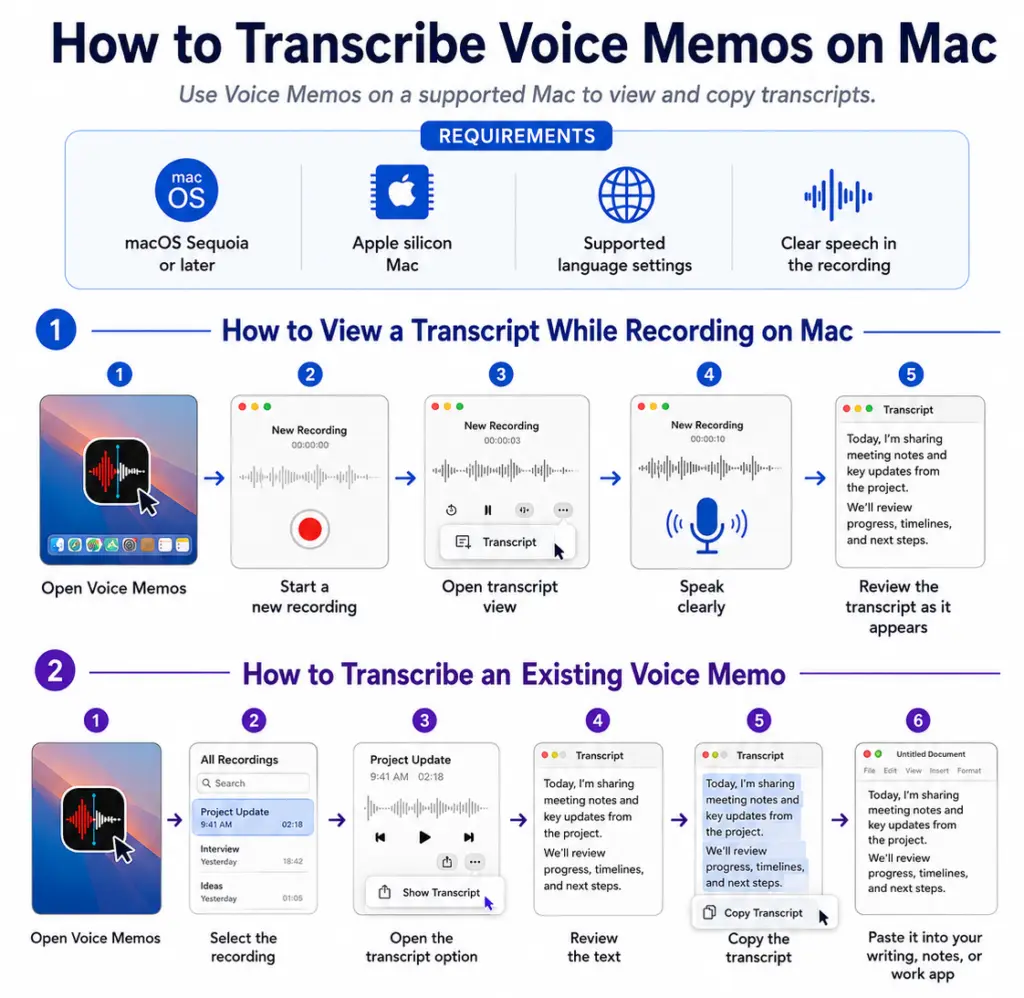
How to Transcribe Voice Memos on Mac
Mac is a good place to work with Voice Memos transcripts because it is easier to read, copy, edit, and organize text on a larger screen.
To use Voice Memos transcription on Mac, you generally need:
- macOS 15 or later
- a Mac with Apple silicon
- a supported language
- clear speech in the recording
- availability in your country or region
How to View a Voice Memos Transcript on Mac
To view a transcript on Mac:
- Open Voice Memos.
- Select the recording.
- Click the transcript option.
- Review the text.
- Copy the part you need.
- Paste it into another app.
You can paste a transcript into Mail, Notes, Google Docs, Pages, Word, Notion, Slack, or another workspace.
If you want to write directly by voice on your Mac, though, you may not need Voice Memos at all.
VoiceDash works wherever your cursor is, so you can dictate into documents, browsers, emails, forms, and chat boxes.
For more Mac voice typing options, read how to use speech to text on Mac.
Apple Voice Memos vs Apple Dictation vs VoiceDash
Apple Voice Memos, Apple Dictation, and VoiceDash are often mentioned together, but they are not the same type of tool.
| Tool | Best for | Main limitation |
|---|---|---|
| Apple Voice Memos | Recording audio and reviewing transcripts later | Recording-first workflow |
| Apple Dictation | Short dictation inside Apple text fields | Basic writing and editing control |
| VoiceDash | Live voice-to-text where your cursor is | Best when your goal is written output |
Voice Memos is best when the audio file matters.
Apple Dictation is useful for quick text entry.
VoiceDash is better when you want to write, edit, and format by voice across everyday apps.
For example:
- Use Voice Memos to record a lecture.
- Use Apple Dictation to speak a short text message.
- Use VoiceDash to draft an email, fill a form, write a document, or create notes directly inside the app where you are working.
For comparison-based research, read the best voice-to-text app for iPhone or the best dictation software for Mac.
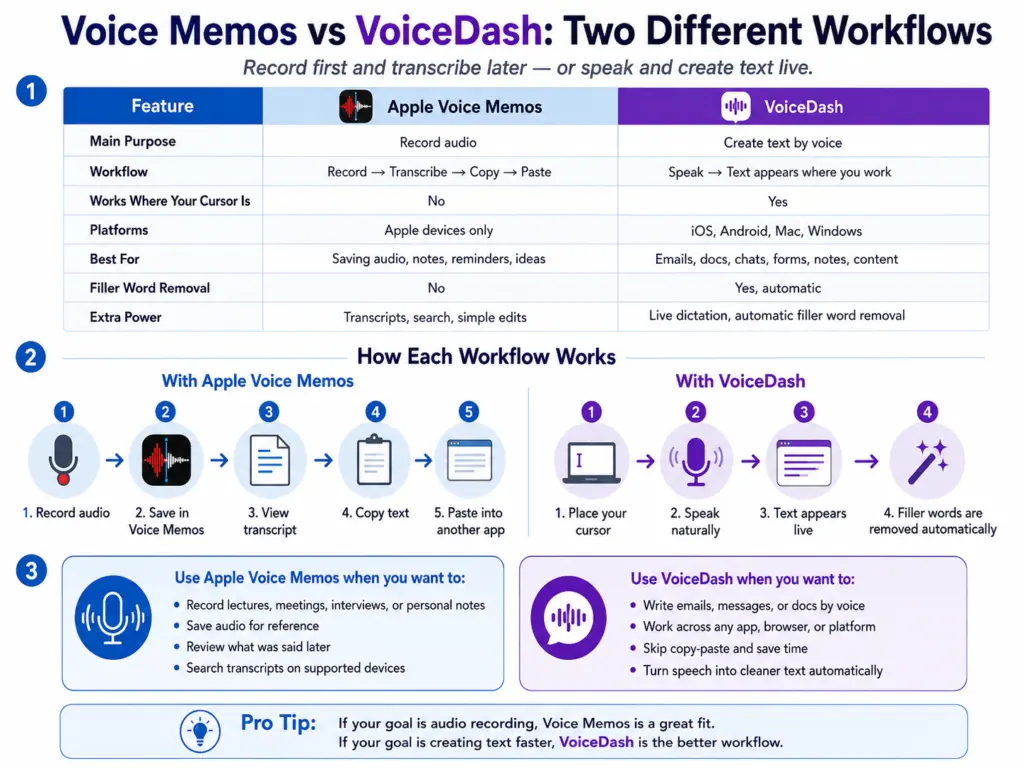
Apple Voice Memos vs VoiceDash
The simplest difference is this:
Apple Voice Memos turns recordings into transcripts. VoiceDash turns your voice into live text where you are already working.
| Feature | Apple Voice Memos | VoiceDash |
|---|---|---|
| Main purpose | Record audio | Create text by voice |
| Best workflow | Record now, use transcript later | Speak directly where text belongs |
| Works on iPhone | Yes | Yes |
| Works on iPad | Yes | Yes |
| Works on Mac | Yes | Yes |
| Works on Windows | No | Yes |
| Works on Android | No | Yes |
| Works inside everyday apps | No | Yes |
| Usually requires copy and paste | Yes | No |
| Voice editing and formatting | Limited | Yes, with command mode |
| Best for | Saving audio | Writing, editing, forms, messages, and documents |
Use Voice Memos when you need the recording.
Use VoiceDash when you need usable text.
That difference matters. Many people use Voice Memos as a workaround for typing. They record an idea, wait for the transcript, copy it, paste it, and then edit it.
That works, but it adds steps.
With VoiceDash, you can put your cursor in the text field, speak naturally, and keep working from there.
Best Workflow by Use Case
| Use case | Best option | Why |
|---|---|---|
| Quick personal audio note | Voice Memos | Simple recording and later review |
| Old recording you want as text | Voice Memos transcript | Built into supported Apple devices |
| Short iPhone message | Apple Dictation | Free and already on the keyboard |
| Lecture recording | Voice Memos | Keeps the audio for replay |
| Study notes | VoiceDash | Helps create usable text directly |
| Meeting notes | Voice Memos or VoiceDash | Use Voice Memos for audio, VoiceDash for written notes |
| Emails and messages | VoiceDash | Text appears where you are already writing |
| Browser forms | VoiceDash | Avoids recording and pasting |
| Mac writing workflow | VoiceDash | Works across apps and documents |
| Windows or Android voice typing | VoiceDash | Voice Memos is Apple-only |
When Apple Voice Memos Is Enough
Apple Voice Memos is enough when your needs are simple.
Use it for:
- quick reminders
- personal thoughts
- short notes
- casual recordings
- short interview clips
- single-speaker audio
- reviewing something you said earlier
If the recording is short and clear, Apple’s built-in transcript may be all you need.
You can record the memo, open the transcript, copy the useful text, and move on.
When VoiceDash Is Better
VoiceDash is better when your goal is to create text, not just store audio.
Use VoiceDash when you want to:
- write faster with your voice
- dictate directly into a text field
- avoid recording first and transcribing later
- avoid copying and pasting between apps
- use voice input across iOS, Android, Mac, and Windows
- edit and format text with command mode
- work inside the app, browser, document, or form you already use
This is useful for:
- emails
- messages
- notes
- documents
- blog drafts
- meeting notes
- project updates
- forms
- outlines
- content ideas
- follow-up messages
A simple rule:
If you need to keep the audio, use Voice Memos.
If you need to create written text, use VoiceDash.

Tips for Better Voice Memo Transcriptions
Better audio usually produces better transcripts.
Record in a Quiet Place
Background noise makes transcription harder.
Avoid traffic, wind, music, public transport, crowded rooms, and loud conversations.
Keep the Speaker Close to the Microphone
Distance matters.
A recording made close to the speaker is easier to transcribe than one recorded across the room.
Avoid Overlapping Speakers
When two people talk at the same time, transcription accuracy drops.
For meetings or interviews, try to let one person speak at a time.
Use Enhance Recording
Voice Memos includes an enhancement feature that can reduce background noise and improve clarity.
It may help if the audio has echo, room noise, or distance from the speaker.
Review Important Details
No transcription tool is perfect.
Always check:
- names
- numbers
- dates
- quotes
- product names
- acronyms
- technical terms
- decisions
- action items
This matters for business, school, research, client work, legal notes, medical notes, and published content.
A Faster Workflow: Speak Directly Where You Want the Text
Voice Memos is useful when you need a recording. But if you already know you want text, the workflow can be slow.
With Voice Memos, you usually have to:
- Record audio.
- Wait for transcription.
- Open the transcript.
- Copy the text.
- Paste it somewhere else.
- Edit and format it.
That is fine for saved audio.
It is not always the fastest way to write.
VoiceDash is built for direct voice-to-text. You place your cursor where the text should go, speak naturally, and the text appears there.
That means you can use your voice inside the tools you already use:
- documents
- emails
- browsers
- forms
- messages
- chat boxes
- notes apps
- productivity tools
- content editors
With command mode, you can also control and format text by voice. That makes it easier to keep writing without constantly switching back to the keyboard.
Final Thoughts
Apple Voice Memos transcription is useful when you already have a recording and want to turn it into text.
On supported iPhone, iPad, and Mac devices, you can open a recording, view the transcript, search the text, and copy it into another app.
For short recordings, reminders, personal notes, and simple ideas, that may be enough.
But Voice Memos is still a recording-first tool. If your real goal is to write faster, fill forms, reply to messages, draft documents, or work across apps by voice, recording first can slow you down.
Use Apple Voice Memos when you need to save audio.
Use VoiceDash when you want your voice to become usable text immediately.
