
- TL;DR: Best Chrome Extensions for Productivity
- How We Chose These Productivity Tools
- Quick Comparison: Best Chrome Productivity Tools at a Glance
- 1. uBlock Origin Lite: Best Chrome Extension for Blocking Ads and Trackers
- 2. Recall: Best Chrome Extension for Saving, Summarizing, Organizing and Chatting with your Content
- 3. Todoist: Best Chrome Extension for Task Management
- 4. Grammarly: Best Chrome Extension for Writing Quality
- 5. Clockify: Best Chrome Extension for Time Tracking
- 6. BlockSite or Forest: Best Chrome Extensions for Blocking Distractions
- 7. Momentum: Best Chrome Extension for a Focused New Tab
- 8. Noisli: Best Chrome Extension for Focus Sounds
- 9. Notion Web Clipper: Best Chrome Extension for Saving Research
- 10. Raindrop.io: Best Chrome Extension for Bookmark and Research Organization
- 11. OneTab: Best Chrome Extension for Reducing Tab Overload
- 12. Toby: Best Chrome Extension for Visual Tab Workspaces
- 13. Workona: Best Chrome Extension for Browser Workspaces
- 14. Loom: Best Chrome Extension for Async Communication
- 15. Bitwarden: Best Free Chrome Extension for Password Management
- 16. 1Password: Best Chrome Extension for Polished Password Management
- 17. Dark Reader: Best Chrome Extension for Reducing Eye Strain
- 18. Vimium: Best Chrome Extension for Keyboard Navigation
- Chrome Extensions vs System-Wide Productivity Apps
- Build a Simple Productivity Setup
- Are Chrome Productivity Extensions Safe?
- How to Choose the Best Chrome Extension for Productivity
- Final Recommendation
- Frequently Asked Questions
18 Best Chrome Extensions for Productivity
The best Chrome extensions for productivity include Todoist for task management, Recall for content summaries, Grammarly for writing, Clockify for time tracking, uBlock Origin Lite for distraction-free browsing, OneTab for tab management, and Notion Web Clipper for saving research.
These extensions help you stay focused, organize tasks, manage tabs, and work more efficiently. This guide compares 18 productivity tools based on features, pricing, pros, cons, and best use cases.
For faster writing beyond Chrome, VoiceDash is an AI voice typing app that works across browsers, desktop apps, and mobile devices.
TL;DR: Best Chrome Extensions for Productivity
| Need | Best Tool | Price | Why It Stands Out |
|---|---|---|---|
| Block ads and trackers | uBlock Origin Lite | Free | Manifest V3-compatible ad and tracker blocking for cleaner browsing. |
| Save and summarize content | Recall | Free; Plus from $10/month (yearly) | Summarizes YouTube videos, podcasts, PDFs, and web pages, then organizes saved content into a searchable knowledge base you can chat with. |
| Manage tasks | Todoist | Free; Pro from $5/month (yearly) | Quick task capture, projects, reminders, and cross-device sync. |
| Improve writing quality | Grammarly | Free; Pro from $12/month (yearly) | Grammar, spelling, tone, clarity, and AI writing assistance. |
| Track work time | Clockify | Free; paid from $3.99/user/month (yearly) | Project timers, timesheets, and detailed time reports. |
| Block distractions | BlockSite or Forest | Free and paid options | Block distracting websites and protect focused work sessions. |
| Build a focused new tab | Momentum | Free and paid plans | Replace Chrome’s new tab with a focus dashboard and daily goals. |
| Use focus sounds | Noisli | Free; Pro from $10/month (yearly) | Custom background sound mixes for concentration and deep work. |
| Save research | Notion Web Clipper | Free extension | Save articles, web pages, and research directly into Notion. |
| Organize bookmarks | Raindrop.io | Free; Pro available | Searchable bookmark collections, tags, and visual previews. |
| Reduce tab overload | OneTab | Free | Collapse open tabs into a restorable list to reduce clutter. |
| Organize browser workspaces | Toby or Workona | Free and paid plans | Group browser tabs and resources into project workspaces. |
| Record async updates | Loom | Free; Business from $18/user/month | Record and share screen walkthroughs and video updates. |
| Manage passwords | Bitwarden or 1Password | Bitwarden Free; Premium from $1.65/month (yearly) | Secure password storage, autofill, and password generation. |
| Reduce eye strain | Dark Reader | Free/open-source | Customizable dark mode for websites. |
| Browse with keyboard shortcuts | Vimium | Free/open-source | Navigate tabs, links, and pages without relying on a mouse. |
Pricing checked in October 2026. Prices are in USD and may vary by billing cycle, region, taxes, and promotions. Check official provider websites for current pricing.
How We Chose These Productivity Tools
The best Chrome productivity extension is the one that removes a real bottleneck, not the one with the longest feature list.
We evaluated tools against seven criteria:
- Problem-solving: Does it address a real productivity need?
- Ease of use: Is it useful without lengthy onboarding?
- Workflow fit: Does it do one job well?
- Performance: Does it avoid slowing down Chrome?
- Security: Are its permissions justified and understandable?
- Free-plan value: Is the free version useful enough to evaluate?
- Workflow flexibility: Does it work beyond Chrome?
Quick Comparison: Best Chrome Productivity Tools at a Glance
| Tool | Best For | Chrome Extension? | Standalone or Cross-Device Access? | Price (USD) | Best User |
|---|---|---|---|---|---|
| uBlock Origin Lite | Blocking ads and trackers | Yes | No standalone app | Free | Anyone wanting cleaner browsing |
| Recall | AI second brain for summarizing, organizing, and chatting with saved content | Yes | Yes, web app; saved content syncs to your knowledge base | Free; Plus from $10/month (yearly) | Researchers, students, and lifelong learners |
| Todoist | Task management | Yes | Yes, web and mobile/desktop apps | Free; Pro $5/month (annual billing) | Individuals, students, and teams |
| Grammarly | Writing quality | Yes | Yes, with platform limitations | Free; Pro $12/month (annual billing) | Writers, students, and professionals |
| Clockify | Time tracking | Yes | Yes, web and desktop/mobile apps | Free; Basic from $3.99/user/month (annual billing) | Freelancers, agencies, and teams |
| BlockSite | Website blocking | Yes | Mobile apps available; features vary | Free and paid options; check pricing | People needing stricter focus control |
| Forest | Focus sessions | Yes | Mobile app available | Free options; mobile upgrades vary | Students and deep-work users |
| Momentum | New-tab focus | Yes | Mobile app available; features vary | Free; Plus pricing varies | People wanting a focused new-tab page |
| Noisli | Focus sounds | Yes | Web access; mobile functionality varies | Free; Pro $10/month (annual billing) | Remote workers and deep-work users |
| Notion Web Clipper | Research capture | Yes | Notion works across devices; clipper is browser-based | Free extension | Notion users and researchers |
| Raindrop.io | Bookmark organization | Yes | Yes, web and desktop/mobile apps | Free; Pro available | Researchers and content teams |
| OneTab | Tab cleanup | Yes | No standalone app | Free | Heavy tab users |
| Toby | Visual tab workspaces | Yes | Browser-based workspace access | Free and paid plans; check pricing | Project-based browser users |
| Workona | Browser workspaces | Yes | Web-based workspace access | Free individual plan; paid plans available | Power users and teams |
| Loom | Async video communication | Yes | Yes, desktop and mobile apps | Free; Business $18/user/month | Remote teams and support teams |
| Bitwarden | Password management | Yes | Yes, desktop and mobile apps | Free; Premium $19.80/year | Security-conscious users |
| 1Password | Password management | Yes | Yes, desktop and mobile apps | Individual $3.99/month (annual billing); promotional offers may apply | Families, teams, and business users |
| Dark Reader | Dark mode | Yes | Browser extension; separate mobile options vary | Free/open-source on Chrome | People spending long hours browsing |
| Vimium | Keyboard navigation | Yes | No standalone app | Free/open-source | Developers and keyboard-first users |
1. uBlock Origin Lite: Best Chrome Extension for Blocking Ads and Trackers
Price: Free
Best for: cleaner browsing, fewer trackers, fewer distractions
Chrome extension: Yes
Works outside Chrome: No
Main limitation: The Lite version is more limited than the original uBlock Origin
A cleaner browser is a faster browser, at least mentally.
Ads, pop-ups, trackers, autoplay videos, cookie banners, and unnecessary scripts all add friction. They slow pages down, crowd the screen, and compete for your attention.
uBlock Origin has long been one of the most respected content blockers. For Chrome users in 2026, the important detail is Manifest V3. The original uBlock Origin experience has been affected by Chrome’s extension changes, so many Chrome users now use uBlock Origin Lite, the Manifest V3-compatible version.
uBlock Origin Lite blocks ads, trackers, miners, and other unwanted content. It is still a strong first install for people who want Chrome to feel cleaner and less distracting.
Pros
It is free, lightweight, and focused on one clear job: blocking unwanted content.
It can make pages easier to read and reduce the number of attention traps on busy websites.
Cons
The Lite version is not identical to the original uBlock Origin. Advanced users may notice fewer filtering capabilities compared with the older Manifest V2 extension.
Some websites may also break or behave strangely when content blockers are active. In those cases, you may need to adjust settings or whitelist a site you trust.
Verdict
Use uBlock Origin Lite if you want a cleaner, less distracting Chrome experience. It is one of the best Chrome extensions for productivity because it removes noise before you even start working.

2. Recall: Best Chrome Extension for Saving, Summarizing, Organizing and Chatting with your Content
Price: Free unlimited saves; Plus for unlimited summaries from $10/month billed yearly
Best for: Summarizing YouTube videos, articles, PDFs and web pages in one click, which will all be saved in your second brain that’s organized for you and that you can chat with.
Chrome extension: Yes
Works outside Chrome: Yes
Main limitation: The free plan includes 10 AI summaries per month, and features like auto-tagging and AI chat need a paid plan
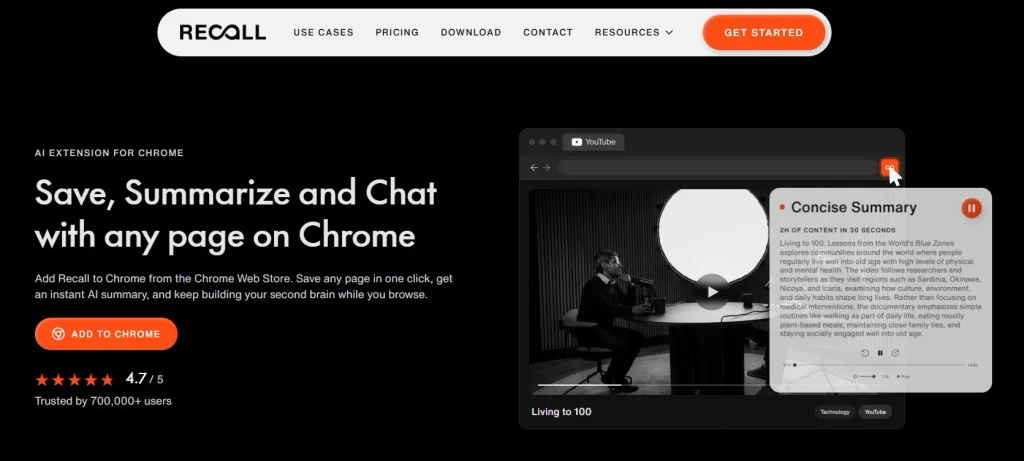
Recall is the best productivity chrome extension which turns the pages you save into a personal knowledge base you can search and ask questions about.
You click the Recall icon on any page, and it saves the content and creates an AI summary. You can read the summary or listen to it. It works with articles, YouTube videos, podcasts and PDFs, so a two-hour video can become a short summary you can read in a few minutes.
Bookmarks pile up. Recall adds tags and links related content for you, so each save goes into an organized library. You can then chat with the page you’re on, with everything you’ve saved, or with the web. Recall can also bring up related past saves while you browse. That means research you did weeks ago can show up when it’s relevant again.
Compared with Notion Web Clipper, Recall doesn’t need an existing workspace. Compared with Raindrop.io, Recall helps you understand and reuse your saved content, while Raindrop mainly organizes links.
Pros
Recall saves you from reading, watching and listening to everything in full, it will transcribe YouTube videos, podcasts, and social posts.
Summaries let you decide quickly whether a page is worth your time.
Saving is unlimited on every plan, including free, so it also works as a read-it-later app. Recall doesn’t train AI on your content, and you can export your data at any time.
Cons
The free plan includes 10 AI summaries per month. Unlimited summaries, smart tags, AI chat and resurfacing related saves while you browse all require Plus.
Verdict
Use Recall if you save a lot of youtube videos, articles and podcasts but rarely go back to them. It turns that pile into a knowledge base you can search, review and ask questions about.
3. Todoist: Best Chrome Extension for Task Management
Price: Free; Pro from $5/month billed yearly or $7/month billed monthly
Best for: task capture, projects, due dates, reminders, and team organization
Chrome extension: Yes
Works outside Chrome: Yes
Main limitation: Advanced features require a paid plan
Todoist is one of the best Chrome productivity extensions because it makes task capture fast.
That matters more than people think. A task management system only works if adding tasks is easy. If it takes too many steps, you will stop using it.
With the Todoist Chrome extension, you can add tasks from the browser, save websites as tasks, organize work into projects, add due dates, set priorities, and keep your task list synced across devices.
This is useful for personal planning, team projects, content workflows, student assignments, operations work, and recurring tasks.
Pros
Todoist is simple enough for daily use but structured enough for serious work. Labels, projects, filters, priorities, and recurring due dates make it flexible without feeling too heavy.
It is also cross-platform, so your browser tasks do not stay trapped inside Chrome.
Cons
The free plan is useful, but reminders, advanced filters, and collaboration features may push serious users toward a paid plan.
Verdict
Use Todoist if you need a reliable task capture system that works inside Chrome but also follows you across devices.

4. Grammarly: Best Chrome Extension for Writing Quality
Price: Free; Pro from $12/month billed yearly or $30/month billed monthly
Best for: AI-assisted writing across the whole process, from drafting and rewrites to grammar, tone, and clarity
Chrome extension: Yes
Works outside Chrome: Partly, depending on app and platform
Grammarly is one of the most useful AI writing tools for people who write in the browser.
It supports the full writing process across web-based text fields, from drafting and rewrites to grammar, punctuation, tone, and clarity. That makes it useful for Gmail, Google Docs, social posts, forms, comments, and other browser writing surfaces.
Its generative AI features can also help with brainstorming, creating drafts, rewriting text, and refining ideas without leaving the place where you are writing.
For many professionals, the strongest workflow is:
- Use VoiceDash to speak your ideas and get a first draft out quickly.
- Use Grammarly for drafting, rewrites, refinement, and polish.
- Make the final human edit before sending.
VoiceDash helps you get your thoughts into text quickly. Grammarly provides AI-assisted writing support across the whole process.
Pros
Grammarly is easy to use, widely supported, and useful throughout the writing process.
It is especially helpful for emails, reports, social posts, and professional communication, whether you are drafting, rewriting, or refining text.
Verdict
Use Grammarly if you write inside Chrome and want an AI writing partner for drafting, rewrites, and polish. Pair it with VoiceDash when you want to get your ideas into text quickly and then refine your writing.

5. Clockify: Best Chrome Extension for Time Tracking
Price: Free; paid plans from $3.99/user/month billed yearly
Best for: tracking time by project, client, task, or activity
Chrome extension: Yes
Works outside Chrome: Yes
Main limitation: Time tracking only works if you use it consistently
Clockify is one of the best Chrome extensions for productivity if you want to understand where your time actually goes.
The extension lets you start and stop timers from the browser, track time by project or task, and review reports later. This is useful for freelancers, agencies, consultants, remote teams, and anyone who bills by the hour.
It is also useful even if you do not bill time. Many professionals underestimate how much time they spend on admin, meetings, context switching, research, or communication. Clockify makes those patterns visible.
Pros
Clockify is simple to start with and has a generous free plan. It also integrates with many common work tools.
The reports are useful for spotting time leaks and improving planning.
Cons
Manual time tracking requires discipline. If you forget to start or stop timers, your data becomes less useful.
Verdict
Use Clockify if you need better visibility into your workday, project time, or billable hours.

6. BlockSite or Forest: Best Chrome Extensions for Blocking Distractions
Price: BlockSite has free options and lifetime access from $39.99; Forest has a free core experience with optional upgrades
Best for: blocking distracting websites and protecting focus sessions
Chrome extension: Yes
Works outside Chrome: Yes, depending on plan and platform
Main limitation: Blocking tools do not fix unclear priorities
Distraction blockers are useful when willpower is not enough.
BlockSite lets you block distracting websites and apps, set schedules, and create stricter focus rules. Forest takes a more playful approach. You start a focus session, grow a virtual tree, and avoid distracting websites while the timer runs.
Both tools work best when you already know what you are supposed to be doing. If you block YouTube but have no clear task, you may just find another distraction.
A better workflow is:
- Choose one task.
- Start a focus session.
- Block distracting sites.
- Use a timer.
- Write a quick summary or follow-up when the session ends.
VoiceDash can help with that last step. After a focus session, you can dictate a project update, meeting note, or task summary without losing momentum.
Pros
Focus blockers reduce the chance of accidental browsing and help protect deep work time.
They are especially useful for students, remote workers, writers, developers, and people who frequently lose time to social media or video sites.
Cons
They can feel restrictive if your work requires frequent context switching.
They also do not solve the deeper problem of unclear priorities. Use them with a task manager, not instead of one.
Verdict
Use BlockSite if you want stricter website blocking. Use Forest if you prefer a lighter, gamified focus habit.

7. Momentum: Best Chrome Extension for a Focused New Tab
Price: Free; Plus from $3.33/month billed yearly or $4.95/month billed monthly
Best for: daily focus, simple planning, and calmer browsing
Chrome extension: Yes
Works outside Chrome: No
Main limitation: It is not a full task management system
Momentum replaces Chrome’s new tab page with a personal focus dashboard.
Instead of opening a blank tab and drifting into distraction, you see the time, a background image, a daily focus prompt, and a simple to-do area.
This is not a complex productivity system. That is part of the appeal.
Momentum is best for people who open new tabs constantly and want a gentle reminder of what they planned to do.
Pros
Momentum is visually calm and easy to use. It can reduce the feeling of browser chaos and bring attention back to your main priority.
Cons
The free version is limited, and advanced integrations or customization require Momentum Plus.
Verdict
Use Momentum if your new tab page is a common distraction point and you want a calmer start to each browsing session.

8. Noisli: Best Chrome Extension for Focus Sounds
Price: Free; Pro from $10/month billed yearly
Best for: background sounds, concentration, remote work, and deep work
Chrome extension: Yes
Works outside Chrome: Yes
Main limitation: The free plan has limits on sounds and streaming time
Noisli provides background sounds such as rain, wind, coffee shop noise, fire, and white noise. You can mix sounds, save favorites, and use them during focus sessions.
This is useful if silence feels distracting or your work environment is inconsistent. Remote workers, students, writers, and deep work users often benefit from having a repeatable sound environment.
Noisli works best as part of a ritual. Choose a sound mix, set a timer, define one task, and start.
Pros
Noisli is simple, calming, and practical. It can help mask distracting noise without needing music or podcasts.
Cons
The free plan is limited, and some users may want more variety than the basic sound library provides.
Verdict
Use Noisli if background sound helps you focus and you want an easy way to create a consistent work environment.

9. Notion Web Clipper: Best Chrome Extension for Saving Research
Price: Free extension; Notion has free and paid plans
Best for: saving pages, articles, ideas, and research into Notion
Chrome extension: Yes
Works outside Chrome: No
Main limitation: Most useful only if you already use Notion
Notion Web Clipper is a simple but useful research tool.
It lets you save web pages directly into your Notion workspace, choose a destination, and organize research without manually copying URLs.
This is useful for writers, students, marketers, product teams, founders, and researchers who already use Notion as a workspace.
Pros
It reduces copy-paste work and keeps research closer to the place where you plan, write, or organize projects.
Cons
If you do not use Notion, this extension probably does not belong in your stack.
Verdict
Use Notion Web Clipper if Notion is already your notes, research, or project hub.

10. Raindrop.io: Best Chrome Extension for Bookmark and Research Organization
Price: Free; Pro available
Best for: visual bookmarks, saved links, research collections, and searchable libraries
Chrome extension: Yes
Works outside Chrome: Yes
Main limitation: Advanced search and archiving features are paid
Raindrop.io is a better bookmark manager for people who save a lot of links.
Regular browser bookmarks often become a graveyard. You save something, forget the folder, and never find it again.
Raindrop.io helps by organizing links into collections with tags, previews, and search. It is useful for content teams, SEO professionals, researchers, students, designers, and anyone who collects examples or reference material.
Pros
It is cleaner and more searchable than traditional bookmarks.
It also works across browsers and devices, which makes it more flexible than a Chrome-only bookmarking setup.
Cons
The most powerful features, such as deeper search and permanent copies, are part of the Pro plan.
Verdict
Use Raindrop.io if saving links is part of your job and you need a real research library, not just a bookmark folder.

11. OneTab: Best Chrome Extension for Reducing Tab Overload
Price: Free
Best for: collapsing open tabs into a restorable list
Chrome extension: Yes
Works outside Chrome: No
Main limitation: It can become a dumping ground if you never review saved tabs
OneTab is for the person who has 40 tabs open and cannot remember what half of them are for.
With one click, it turns your open tabs into a list. You can restore them individually or all at once. This reduces visual clutter and can lower browser memory usage because fewer tabs remain active.
OneTab is not a full knowledge management system. It is a quick rescue tool for tab overload.
Pros
It is simple, fast, and useful immediately.
It is especially helpful when research spirals into too many open tabs.
Cons
If you keep saving tabs without reviewing them, OneTab can become another messy archive.
Verdict
Use OneTab when you need quick tab cleanup without building a full workspace system.

12. Toby: Best Chrome Extension for Visual Tab Workspaces
Price: Free starter plan; paid from $4.50/month billed yearly or $6/month billed monthly
Best for: organizing tabs into collections and workspaces
Chrome extension: Yes
Works outside Chrome: Partly
Main limitation: The free plan limits saved tabs
Toby is a visual tab manager that helps you organize browser sessions into collections.
This is useful if you work across multiple projects and want to save related tabs together. For example, you might have one collection for client research, another for analytics, another for writing, and another for admin work.
Compared with OneTab, Toby is more organized. OneTab is best for quick cleanup. Toby is better for reusable tab workspaces.
Pros
Toby makes it easier to return to a project without rebuilding your browser setup from scratch.
It is especially useful for researchers, sales teams, marketers, students, and anyone who works in project-based browser sessions.
Cons
The free plan has limits, and it takes some setup before the system becomes useful.
Verdict
Use Toby if you want your browser tabs organized by project, not just collapsed into a list.
13. Workona: Best Chrome Extension for Browser Workspaces
Price: Paid from $7/month for Pro; team plans from $8/user/month
Best for: organizing tabs, docs, and cloud resources by project
Chrome extension: Yes
Works outside Chrome: Partly
Main limitation: More structured than casual users may need
Workona is another strong option for tab and workspace management.
It is designed around spaces. Each space can hold tabs, documents, links, and resources for a specific project. This makes it useful for people who switch between different clients, roles, or workstreams throughout the day.
Workona is more powerful than a simple tab saver, but it also requires more commitment.
Pros
Workona is strong for project-based work and team workflows.
It helps reduce context switching by keeping project resources together.
Cons
It may feel like too much structure for users who only need quick tab cleanup.
Verdict
Use Workona if you manage many ongoing projects and want a more complete browser workspace system.

14. Loom: Best Chrome Extension for Async Communication
Price: Free starter plan; paid plans available
Best for: screen recording, walkthroughs, async updates, and quick explanations
Chrome extension: Yes
Works outside Chrome: Yes
Main limitation: Video is not always the best format for long-term documentation
Loom helps you explain something faster than writing a long message.
You can record your screen, camera, or browser tab and share the recording with a link. This is useful for product walkthroughs, bug reports, client updates, onboarding, sales explanations, internal feedback, and support replies.
In remote teams, Loom can reduce unnecessary meetings. If a five-minute video solves the problem, it may be better than a 30-minute call.
Pros
Loom is fast and easy to share.
It is useful when visual context matters more than polished writing.
Cons
Video is harder to scan than text. For long-term knowledge, pair Loom with written notes or summaries.
A practical workflow is to record the Loom, then use VoiceDash to dictate the written summary, action items, or follow-up message.
Verdict
Use Loom when showing something is faster than explaining it in writing.

15. Bitwarden: Best Free Chrome Extension for Password Management
Price: Free; Premium from $1.65/month billed yearly
Best for: passwords, autofill, secure sharing, and password generation
Chrome extension: Yes
Works outside Chrome: Yes
Main limitation: Interface is practical rather than luxurious
A password manager is a productivity tool because logging in should not slow you down.
Bitwarden stores passwords securely, generates strong passwords, autofills login details, and works across browsers and devices. It is especially appealing because the free plan is strong enough for many users.
This saves time, but it also reduces risk. Reusing weak passwords may feel convenient until one account compromise creates problems everywhere.
Pros
Bitwarden is affordable, cross-platform, and security-focused.
It is one of the best options if you want a generous free password manager with browser extension support.
Cons
Some users may prefer the more polished interface of 1Password.
Verdict
Use Bitwarden if you want a secure, affordable password manager with a strong free plan.

16. 1Password: Best Chrome Extension for Polished Password Management
Price: From about $48/year for individuals; family pricing from about $72/year
Best for: password management, secure vaults, autofill, and team/family use
Chrome extension: Yes
Works outside Chrome: Yes
Main limitation: No free personal plan like Bitwarden
1Password is another excellent password manager, especially for users who want a polished interface and strong cross-device experience.
It stores passwords, payment details, secure notes, and other sensitive information. The Chrome extension helps autofill logins and generate strong passwords without leaving the browser.
Pros
1Password is easy to use and polished across devices. It is especially strong for families, teams, and business users.
Cons
It costs more than Bitwarden and does not have the same kind of free individual plan.
Verdict
Use 1Password if you want a premium password manager with a refined experience across personal or team workflows.

17. Dark Reader: Best Chrome Extension for Reducing Eye Strain
Price: Free/open-source on Chrome
Best for: dark mode across websites
Chrome extension: Yes
Works outside Chrome: No
Main limitation: Some websites may not render perfectly
Dark Reader applies dark mode to websites that do not offer it natively.
This is useful if you spend long hours reading, researching, writing, or working in browser-based tools. You can adjust brightness, contrast, sepia, and per-site settings.
Dark mode does not make someone productive by itself, but reducing visual discomfort can make long work sessions easier.
Pros
Dark Reader is open-source, privacy-focused, and highly customizable.
It is especially helpful for people who work at night or in low-light environments.
Cons
Some websites may look strange with forced dark mode. You may need to disable it on specific pages.
Verdict
Use Dark Reader if bright websites make long browsing sessions uncomfortable.

18. Vimium: Best Chrome Extension for Keyboard Navigation
Price: Free/open-source
Best for: keyboard shortcuts, faster navigation, and reduced mouse use
Chrome extension: Yes
Works outside Chrome: No
Main limitation: Learning curve for non-technical users
Vimium adds keyboard-based navigation to Chrome.
You can scroll, open links, switch tabs, search, and move around the browser using keyboard shortcuts. It is popular with developers, power users, writers, researchers, and people who prefer keyboard-first workflows.
The productivity gain does not come from one dramatic action. It comes from hundreds of tiny saved movements across the day.
Pros
Vimium makes browser navigation faster once you learn the shortcuts.
It can also reduce mouse use, which some users prefer for comfort or speed.
Cons
It takes time to learn, and some commands may not work perfectly on complex web apps.
Verdict
Use Vimium if you spend a lot of time in Chrome and like keyboard shortcuts.

Chrome Extensions vs System-Wide Productivity Apps
Chrome extensions improve browser-based workflows, from managing tabs and saving research to writing and blocking distractions. But writing also happens in desktop apps, email clients, messaging platforms, and AI tools.
Build a Simple Productivity Setup
Start with a few tools that solve your biggest productivity bottlenecks:
- uBlock Origin Lite: Cleaner browsing
- Todoist: Task management
- Bitwarden: Password management
- OneTab: Tab organization
- Recall: Saving, summarizing, and organizing research
If writing across apps is your biggest bottleneck, consider VoiceDash separately. It is a system-wide AI voice typing app, not a Chrome extension.
Are Chrome Productivity Extensions Safe?
Most Chrome productivity extensions are safe when developed by reputable teams and granted only the permissions they need. However, some can access page content, browsing data, or text fields.
Before installing an extension, check its developer, reviews, update history, permissions, and privacy policy. Permissions should match the tool’s purpose: a grammar checker may need access to text fields, while an ad blocker may need access to page content.
Be cautious of unknown extensions requesting broad access without a clear reason. Remove tools you no longer use to reduce unnecessary permissions, memory usage, and clutter.
How to Choose the Best Chrome Extension for Productivity
Choose extensions based on your biggest productivity bottleneck:
- Writing: VoiceDash for system-wide voice typing; Grammarly for writing quality.
- Research: Recall for summarizing and organizing content; Notion Web Clipper or Raindrop.io for saving it.
- Tasks and time: Todoist for task management; Clockify for time tracking.
- Focus: uBlock Origin Lite for cleaner browsing; BlockSite or Forest for fewer distractions; Momentum for a focused new tab; Noisli for background sounds.
- Tabs and navigation: OneTab, Toby, or Workona for tab management; Vimium for keyboard navigation.
- Communication and security: Loom for async video; Bitwarden or 1Password for passwords.
- Reading comfort: Dark Reader for dark mode.
Keep only the tools that solve recurring problems. If an extension adds friction or goes unused, remove it.
Final Recommendation
The best Chrome productivity extensions solve everyday friction: uBlock Origin Lite blocks ads, Recall summarizes and organizes content, Todoist captures tasks, Grammarly improves writing, Clockify tracks time, BlockSite and Forest protect focus, and OneTab, Toby, and Workona manage tabs. Loom simplifies communication, Bitwarden and 1Password manage passwords, Dark Reader improves readability, and Vimium speeds up keyboard navigation.
For faster writing across email, documents, AI tools, messaging apps, and desktop workflows, VoiceDash offers a different solution. It is a system-wide AI voice typing app, not a Chrome extension, that helps you write faster wherever you work.
Choose Chrome extensions to improve your browsing. Choose VoiceDash to write faster everywhere.
