
How to Use Voice to Text on iPhone Like a Pro
Voice to text on iPhone is a fast and convenient way to write without typing. Using Apple Dictation, you can speak messages, notes, and emails directly on your iPhone, saving time and effort. While Dictation is useful for everyday tasks, it can have limits when you need polished, ready-to-use text. VoiceDash improves the workflow by turning spoken words into clean, structured writing automatically. In this guide, you will learn how to turn on voice to text on iPhone, use dictation efficiently, troubleshoot common issues, and discover when a dedicated tool like VoiceDash makes sense.
Looking for the best voice to text app for iPhone? Check our full comparison here.
How to Turn On Voice to Text on iPhone
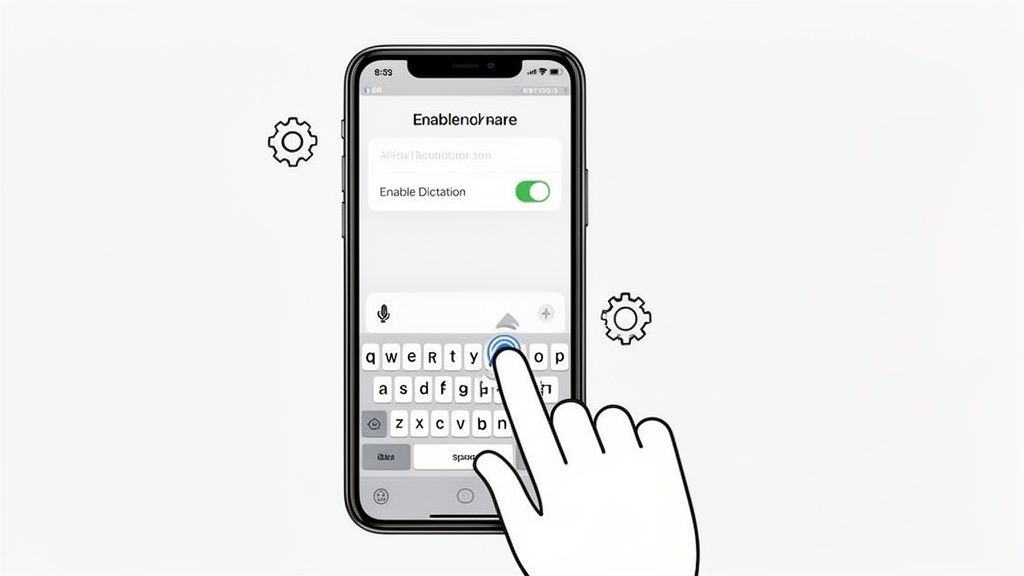
Turning on dictation is simple and works across iPhone 16, iPhone 17, and older models.
- Open the Settings app.
- Tap General.
- Tap Keyboard.
- Scroll down and toggle Enable Dictation to on.
- Confirm by tapping Enable Dictation when prompted.
You can also customize Auto-Punctuation and select dictation languages for better accuracy. These settings help make your iPhone voice-to-text experience smoother and more precise.
How to Use Voice to Text on iPhone Like a Pro
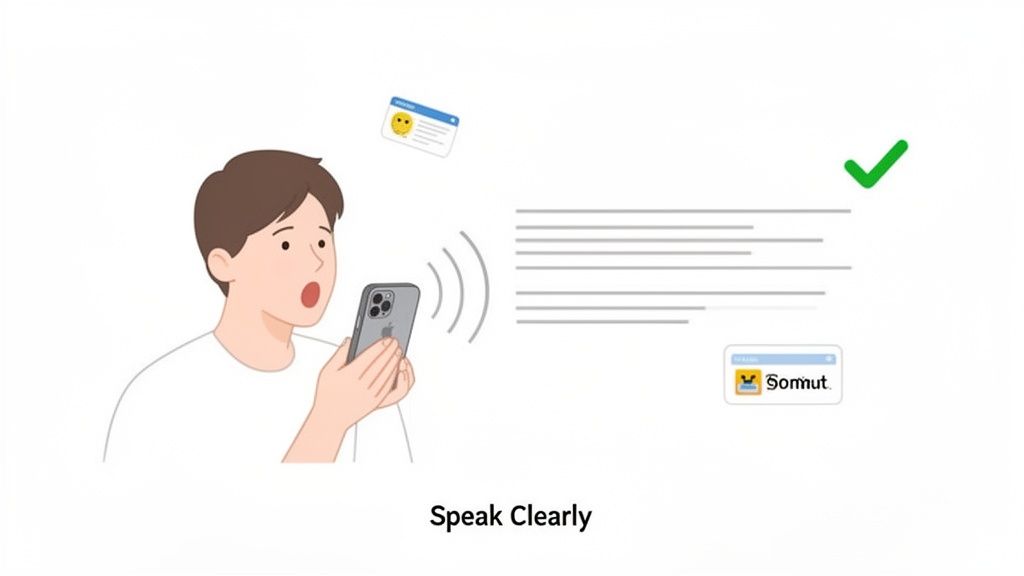
After enabling dictation, using it is straightforward:
- Open an app with a text field, like Messages or Notes.
- Tap the text field to bring up the keyboard.
- Tap the microphone icon.
- Speak clearly, and your words appear as text.
- Tap the keyboard icon when done.
To improve accuracy and formatting, use dictation commands. Say “period” for a dot, “comma” for a comma, “new line” for a line break, and “new paragraph” for a paragraph. These commands make your text cleaner without manual editing.
Voice to Text Not Working on iPhone 10 Proven Fixes
Voice-to-text can stop working occasionally. Here are ten ways to fix it:
1. Make Sure Dictation Is Turned On
Go to Settings > General > Keyboard > Enable Dictation. Turn it off and back on to refresh services.
2. Check Your Microphone
Open Voice Memos and record a short clip. If your voice is faint or missing, the microphone may be blocked or malfunctioning.
3. Restart Your iPhone
A simple restart refreshes Dictation, Siri, and microphone services.
4. Update iOS
Go to Settings > General > Software Update to install updates that may fix dictation issues.
5. Refresh Siri Settings
Go to Settings > Siri & Search, turn off Listen for Hey Siri, Press Side Button for Siri, and Allow Siri When Locked. Wait a few minutes, then turn them back on and test dictation again.
6. Check App Permissions
Ensure apps have microphone access at Settings > Privacy & Security > Microphone.
7. Test Dictation in Another App
Try Notes, Messages, and Mail. If it works in one app but not another, the problem may be app-specific.
8. Check Language and Keyboard Settings
Dictation may not support all languages or keyboard layouts.
9. Disable Low Power Mode
Low Power Mode can limit background services. Turn it off in Settings > Battery.
10. Reset Keyboard Dictionary
Go to Settings > General > Transfer or Reset iPhone > Reset > Reset Keyboard Dictionary to remove conflicts.
Apple Dictation vs Best Voice to Text Apps for iPhone
Apple Dictation works well for short messages and quick notes, but users often switch to dedicated apps for more polished results. Many iPhone users also want to transcribe Apple Voice Memos accurately, which is easier with VoiceDash. It converts recordings into structured text that is ready for editing or sharing.
| App | Best for | Free plan | Offline support | Why people use it |
|---|---|---|---|---|
| VoiceDash | Writing and polished dictation | Yes | No | Cleans up speech into ready-to-use text |
| Apple Dictation | Free everyday voice typing | Yes | Yes, for many languages | Built into iPhone and works in any text field |
| Otter.ai | Meetings and team notes | Yes | No | Speaker labels, summaries, shared notes |
| Notta | Multilingual transcription | Yes | No | Live transcription and file import |
| Dragon Anywhere | Professional dictation | Trial | No | Strong accuracy and custom vocabulary |
| Rev | High-stakes accuracy | No | No | AI plus human transcription option |
| Ava | Accessibility and captions | Yes | No | Real-time captions for conversations |
| Just Press Record | Simple personal recording | No | Yes | Fast capture and Apple ecosystem fit |
| Transcribe+ | Audio and video files | Trial | No | Good for importing files |
| Voice Memos + Notes | Built-in recording workflow | Yes | Partly | Easy native Apple workflow |
VoiceDash is ideal when you want your text polished automatically. For more details on all tools, see our guide to the best voice to text app for iPhone.
Advanced Tips and Hidden Features
VoiceDash also works well with longer recordings. You can transcribe Apple Voice Memos directly, turning spoken ideas into ready-to-use text. Combining iPhone Dictation with VoiceDash makes it easy to capture quick notes and then clean them up for writing or sharing.
Other tips include:
- Offline dictation with Apple Dictation in supported languages.
- Using dictation in apps like Notes, Messages, and Gmail for productivity.
- Combining Apple Dictation for quick input with VoiceDash for polished output.
Many users also look at desktop tools. For Mac users, see the best dictation software for Mac to maintain a consistent workflow across devices: https://voicedash.ai/best-dictation-software-for-mac/.
Conclusion
Voice to text on iPhone is a convenient way to type without touching the keyboard. Apple Dictation is good for messages and quick notes, but VoiceDash transforms spoken words into polished, ready-to-use writing. It saves time, reduces editing, and works seamlessly with iPhone Dictation or Apple Voice Memos.
Start using VoiceDash today to turn your speech into clean, professional text.
Try VoiceDash for free and make dictation effortless.
