
- TL;DR: What Is the Best Voice to Text App for iPhone?
- Best Voice to Text Apps for iPhone: Quick Comparison
- How to Choose the Right iPhone Voice to Text App
- Apple Dictation vs VoiceDash: Which Should You Use?
- Best Free Voice to Text Options on iPhone
- Best Paid Voice to Text App for iPhone
- The 10 Best Voice to Text Apps for iPhone in 2026
- Best iPhone Voice to Text Apps by Use Case
- How to Use Voice to Text on iPhone
- Best iPhone Voice to Text Workflows
- How to Get Better Voice to Text Results on iPhone
- Offline vs Online Dictation on iPhone
- Voice to Text vs Text to Speech on iPhone
- Final Verdict: What Is the Best Voice to Text App for iPhone?
- FAQs
Best Voice to Text App for iPhone in 2026: Free, AI, and Paid Options Compared
Finding the best voice to text app for iPhone is not just about picking the app with the highest transcription accuracy.
For most iPhone users, the real question is simpler:
Which app helps me speak instead of type, works smoothly on iPhone, fits my budget, and gives me text I can actually use?
Some people only need a free voice to text app for short messages. Some want a better dictation app for emails, notes, WhatsApp, forms, and mobile writing. Others need meeting transcripts, multilingual transcription, accessibility captions, or professional dictation accuracy.
This guide compares the best iPhone voice to text apps by real use case, not just by app name.
If you want the simplest free option, start with Apple Dictation. If you want to dictate directly into apps and clean up your writing by voice, VoiceDash is the better upgrade. If your main job is meeting transcription, tools like Otter.ai or Notta may fit better.
TL;DR: What Is the Best Voice to Text App for iPhone?
The best voice to text app for iPhone depends on what you want your spoken words to become.
For most users:
- Best free built-in option: Apple Dictation
- Best AI voice typing and writing workflow: VoiceDash
- Best for meetings: Otter.ai
- Best for multilingual transcription and file import: Notta
- Best for professional dictation accuracy: Dragon Anywhere
- Best for high-stakes transcripts: Rev
- Best for accessibility captions: Ava
- Best simple Apple recording app: Just Press Record
Use Apple Dictation if you want a free way to speak into your iPhone instead of typing short text.
Use VoiceDash if you want live voice-to-text that works wherever your cursor is, across iOS, Android, Mac, and Windows. VoiceDash is strongest when you want to dictate into emails, documents, browsers, forms, chat boxes, notes apps, and productivity tools, then use command mode to edit or format the text by voice.
Use Otter.ai or Notta if you mainly need meeting notes, speaker labels, summaries, or audio/video transcription.
If you only dictate short messages or quick notes, Apple Dictation may be enough. If you speak longer thoughts and want cleaner writing with less copy-paste, VoiceDash is the stronger choice.
See the difference for yourself—try VoiceDash Pro free for 3 days.
Best Voice to Text Apps for iPhone: Quick Comparison
Pricing and plan details change often, so check each app’s current pricing before buying. The table below is meant to help you choose by workflow, not just price.
| App | Best for | Price | Works offline? | Key strength | Best iPhone workflow |
|---|---|---|---|---|---|
| VoiceDash | Live AI voice typing and command-based editing | Free plan; Pro starts at $15/month or $12/month billed yearly | No | Dictate where your cursor is and edit/format by voice | Mail, Notes, Gmail, Google Docs, browsers, forms, chat boxes |
| Apple Dictation | Free everyday voice typing | Free; built into iPhone | Yes, in many cases | Built into iOS keyboard | Messages, Notes, search, quick replies |
| Otter.ai | Meetings and team notes | Free plan; paid plans for heavier use | No | Speaker labels, meeting summaries, shared notes | Meetings, lectures, team calls |
| Notta | Multilingual transcription and file import | Free plan; paid plans available | No | Live transcription, uploads, summaries | Interviews, recordings, multilingual audio |
| Dragon Anywhere | Professional dictation | Trial, then paid subscription | No | Custom vocabulary and long-form dictation | Legal, medical, business documentation |
| Rev | High-stakes transcription | AI and human transcription options | No | Human transcription option | Interviews, media, research, legal review |
| Ava | Accessibility captions | Free captions; paid plans available | No | Real-time captions | Classes, conversations, live captions |
| Just Press Record | Simple Apple voice recording | Paid App Store app; varies by region | Yes | One-tap recording in Apple ecosystem | Voice notes, Apple Watch recording |
| Transcribe Plus | Audio/video file conversion | Free minutes; paid minute packs | No | File transcription | Saved recordings and videos |
| Voice Memos + Notes | Built-in Apple workflow | Free | Partly | Simple Apple-only capture | Casual voice notes and rough ideas |
How to Choose the Right iPhone Voice to Text App
A voice to text app converts your spoken words into written text. A dictation app is usually designed for writing by voice. A transcription app usually turns meetings, recordings, or audio files into transcripts.
Those jobs overlap, but they are not the same.
Use this quick decision guide:
| Your goal | Best option | Why |
|---|---|---|
| Free quick typing | Apple Dictation | Already built into iPhone |
| Cleaner messages, notes, and emails | VoiceDash | Turns rough speech into usable writing |
| Dictating into many apps | VoiceDash | Works wherever there is a cursor |
| Editing or formatting by voice | VoiceDash | Command mode helps edit text without copy-paste |
| Meeting transcripts | Otter.ai or Notta | Built for calls, speaker labels, and summaries |
| Multilingual transcription | Notta | Stronger for language and file workflows |
| Professional dictation | Dragon Anywhere | Custom vocabulary and long-form dictation |
| Human-reviewed transcripts | Rev | Better for high-stakes recordings |
| Live accessibility captions | Ava | Built for real-time captioning |
| Fast Apple voice recordings | Just Press Record | Simple recording across Apple devices |
The best app is not always the most powerful app. It is the app that fits the text you need at the end.
If you want a quick text message, use Apple Dictation.
If you want a polished email, note, or draft, use VoiceDash.
If you want a meeting transcript, use Otter or Notta.
If you want a transcript from an important recording, consider Rev.
Apple Dictation vs VoiceDash: Which Should You Use?
Apple Dictation and VoiceDash both help you speak instead of type, but they solve different problems.
Apple Dictation is the best free way to use voice to text on iPhone. It works from the iOS keyboard, so you can tap the microphone icon in many text fields and start talking.
VoiceDash is better when the problem is not just typing speed, but editing effort. It is built for live dictation and AI-assisted writing across iOS, Android, Mac, and Windows. It works wherever there is a cursor, so you can dictate directly into the tools you already use instead of recording in one app and pasting text somewhere else.
VoiceDash also has command mode, which lets you edit, format, and control text by voice.
For example, you might say:
“Tell Alex I’m running late, I’ll send the file tonight, and make it sound professional.”
A basic dictation tool may capture the words literally.
VoiceDash is designed to help turn that spoken thought into a cleaner message:
“Hi Alex, I’m running a little late, but I’ll send the file tonight. Thanks for your patience.”
That is the practical difference.
Apple Dictation helps you replace typing.
VoiceDash helps you replace typing, reduce cleanup, and keep writing directly where you work.
| Feature | Apple Dictation | VoiceDash |
|---|---|---|
| Best for | Free quick voice typing | Live AI dictation and writing |
| Price | Free | Free plan; paid Pro plan |
| Built into iPhone | Yes | No, separate platform |
| Works across iOS, Android, Mac, Windows | Apple ecosystem only | Yes |
| Works in text fields | Yes, through the iOS keyboard | Yes, wherever there is a cursor |
| Best for short messages | Yes | Yes |
| Best for long spoken thoughts | Limited | Stronger |
| Cleans up rough speech | Limited | Yes |
| Edits and formats by voice | Basic dictation commands | Command mode |
| Best for meetings | No | No, use Otter or Notta |
| Main advantage | Free and built in | Dictation plus AI writing workflow |
Read more: Best Apple Dictation Alternatives
Best Free Voice to Text Options on iPhone
If you are searching for a free voice to text app for iPhone, start with Apple Dictation.
Apple Dictation is built into the iPhone keyboard. You do not need to download anything. Open Notes, Messages, Mail, Safari, Gmail, WhatsApp, or almost any app with a text field, tap the microphone icon, and start speaking.
For short messages, quick notes, search queries, and simple emails, Apple Dictation is usually enough.
The limitation is not access. The limitation is output quality.
Apple Dictation turns speech into text, but it does not always turn rough speech into polished writing. If you pause, repeat yourself, change your mind mid-sentence, or speak in fragments, you may still need to edit the result.
That is where an AI voice typing app becomes useful.
VoiceDash is not just for capturing words. It is built for turning natural speech into cleaner text that feels more like something you would actually send.
Use this rule:
- If you need short texts and quick replies, start with Apple Dictation.
- If you need notes and emails, use Apple Dictation or VoiceDash.
- If you need long drafts, use VoiceDash.
- If you need meeting notes, use Otter.ai or Notta.
- If you need to transcribe recorded audio files, use Notta, Rev, or Transcribe Plus.
For free everyday dictation, Apple Dictation is the best place to start. For faster writing with less editing, VoiceDash is the better long-term option.
Read more: Voice to Text on iPhone guide
Best Paid Voice to Text App for iPhone
The best paid voice to text app for iPhone depends on what you are paying for.
If you are paying to write faster, choose VoiceDash.
If you are paying for meeting notes, choose Otter.ai.
If you are paying for multilingual transcription and file import, choose Notta.
If you are paying for professional dictation with custom vocabulary, choose Dragon Anywhere.
If you are paying for high-stakes transcript accuracy, choose Rev.
This matters because not every paid app solves the same problem.
A meeting transcription app may be worth paying for if you sit in meetings all day, but it may feel slow or awkward if your real goal is writing emails on your iPhone.
A professional dictation app may be worth paying for if you use specialized vocabulary, but it may be too expensive or too heavy for casual voice typing.
For most iPhone users who want to replace typing with speech, the best paid upgrade is the one that reduces editing after dictation. That is where VoiceDash has the clearest value.
Read more: Best App for Dictation
The 10 Best Voice to Text Apps for iPhone in 2026
1. VoiceDash
Best overall for live AI voice typing and polished writing
VoiceDash is the best voice to text app for iPhone users who want more than a raw transcript.
It is especially useful if you want to speak naturally and get text that already feels cleaner, more organized, and easier to send. That makes it a strong fit for emails, notes, messages, forms, browser fields, content drafts, LinkedIn posts, task updates, and everyday professional writing.
The biggest advantage is workflow.
Traditional transcription tools often make you record in one place, then copy the text into another app. VoiceDash is built for live dictation wherever there is a cursor. That means you can use your voice directly inside the app, browser, document, email, or form where you are already working.
VoiceDash also supports command mode. You can use your voice not only to write, but also to edit, format, and control text.
That matters because most people do not speak in perfect paragraphs. They pause, repeat words, change their mind, add filler words, and jump between ideas. A basic transcript keeps that mess. A stronger AI voice typing workflow helps clean it up.
Use VoiceDash if you want to:
- Write faster on iPhone
- Dictate directly into emails, notes, forms, and documents
- Turn rough speech into clearer writing
- Edit and format by voice with command mode
- Reduce copy-paste between apps
- Work across iOS, Android, Mac, and Windows
Pros
- Works wherever there is a cursor
- Strong fit for iPhone productivity workflows
- Works across mobile and desktop
- Helps turn rough speech into cleaner writing
- Useful for notes, emails, messages, forms, and drafts
- Command mode supports voice-based editing and formatting
- Free plan available
Cons
- Not the best choice for speaker-separated meeting transcripts
- Requires internet for AI processing
- Full value is strongest when you use voice writing regularly
Best for: iPhone users who want live voice-to-text, cleaner writing, and voice commands across their everyday apps.
Try VoiceDash when you want to dictate directly where you work instead of recording, copying, pasting, and rewriting.

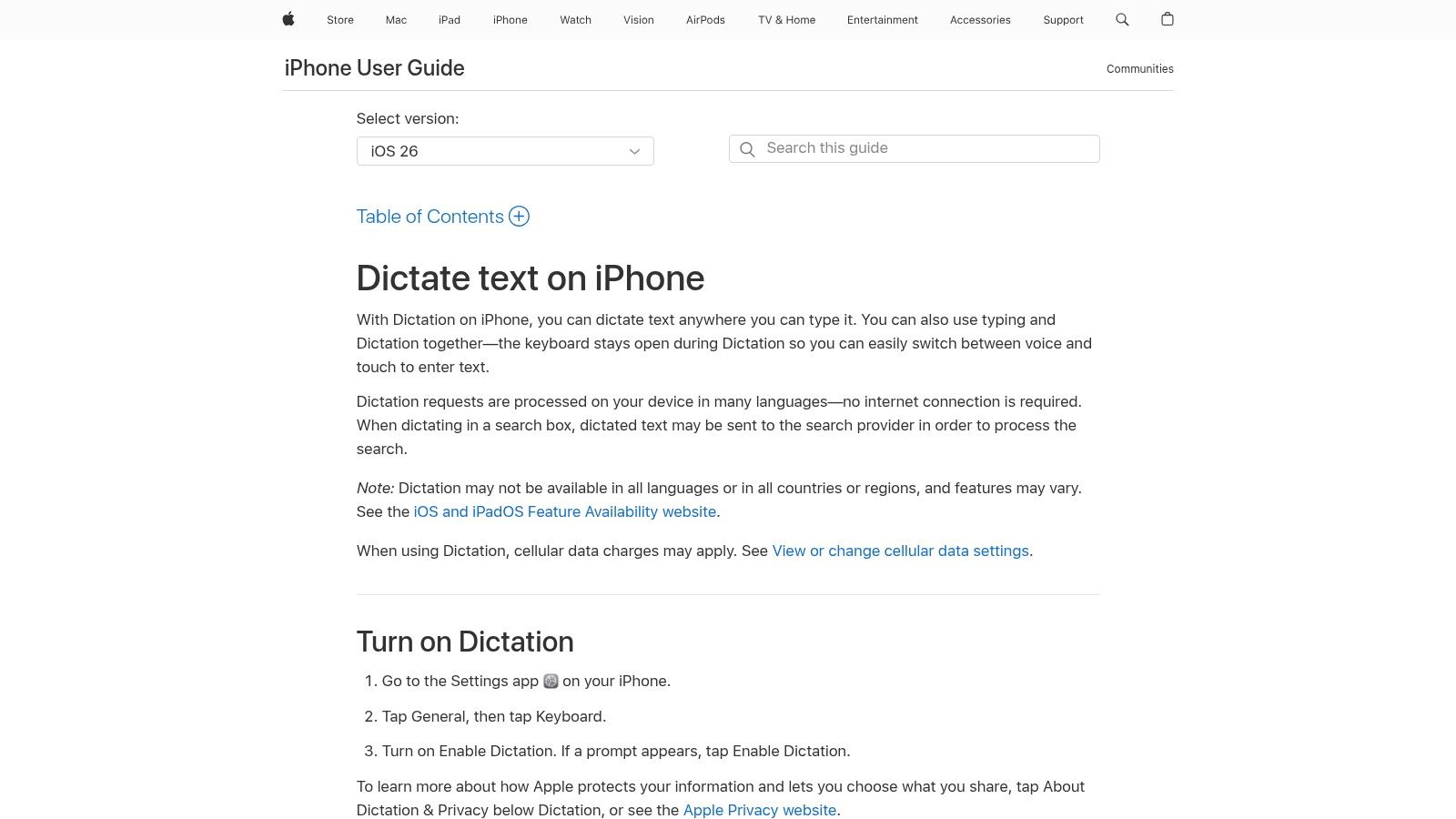
2. Apple Dictation
Best free voice to text app for iPhone
Apple Dictation is the best free voice to text option for most iPhone users because it is already built into iOS.
You do not need to install anything. You just tap the microphone icon on the iPhone keyboard and start speaking.
Apple Dictation is best for short messages, quick notes, simple emails, search queries, reminders, and everyday iPhone voice typing.
It is also a good first choice for users who care about privacy and do not want to send every dictation task through a separate third-party app.
The main downside is that Apple Dictation is still basic compared with AI writing tools. It can turn speech into text, but it does not always reshape rough speech into polished writing.
Use Apple Dictation if you want a free dictation app for iPhone, a built-in option with no setup, and a simple way to stop typing short messages.
Pros
- Free
- Built into iPhone
- Works in many places where the keyboard appears
- No separate app required
- Good for quick everyday voice typing
- Supports punctuation and line-break commands
Cons
- Less helpful for long, messy speech
- No meeting summaries
- No speaker labels
- Limited writing cleanup compared with AI tools
- Not ideal when you need polished output
Best for: anyone who wants a free voice to text app for iPhone without downloading anything.
3. Otter.ai
Best for meetings and collaborative notes
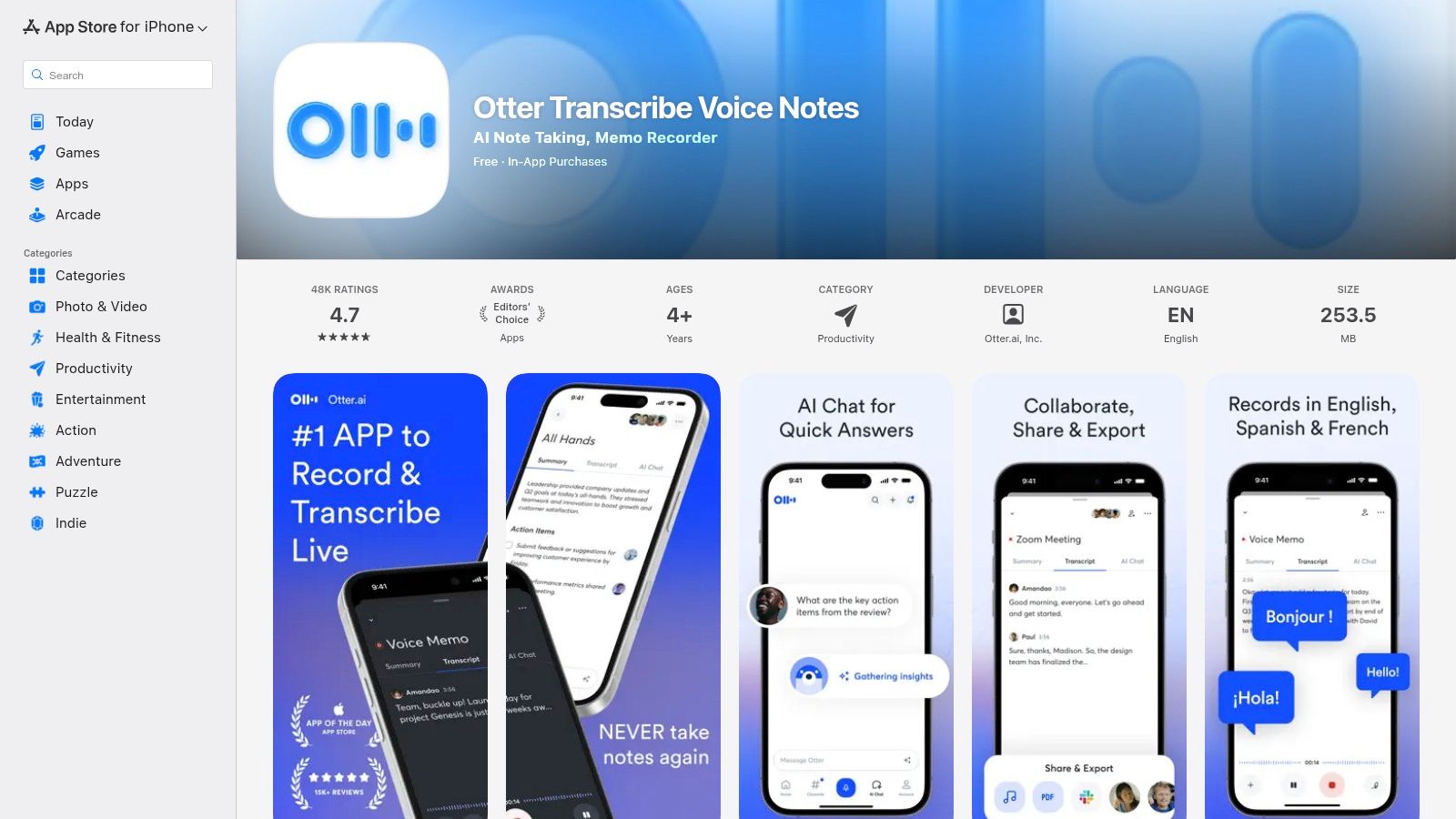
Otter.ai is one of the strongest iPhone options if your main goal is capturing meetings, lectures, interviews, or group conversations.
It is not really a direct replacement for iPhone typing. It is better understood as a meeting transcription and note-taking tool.
That makes Otter useful if you spend a lot of time in Zoom, Google Meet, Microsoft Teams, classes, calls, or team discussions.
Use Otter.ai if you want meeting transcripts, speaker labels, AI meeting summaries, searchable notes, and collaboration features.
Pros
- Strong meeting workflow
- Good for teams and group conversations
- Speaker identification is useful for meetings
- Summaries make long conversations easier to review
- Free plan available
Cons
- Not ideal for private everyday dictation
- Less focused on writing polished messages or emails
- Cloud-first workflow may not suit every privacy need
- Paid plans are more useful if meetings are your main workflow
Best for: iPhone users who want meeting notes, not daily voice typing.
Read more: VoiceDash vs Otter
4. Notta
Best for multilingual transcription
Notta is a strong option for users who work with multiple languages, recordings, interviews, lectures, or audio/video files.
It is more of a transcription tool than a voice writing tool. That means it is especially useful when your input is already recorded or when you need to convert speech from a longer session into text.
Use Notta if you want multilingual transcription, live transcription, audio or video file import, interview transcripts, lecture notes, or cross-language workflow support.
Pros
- Good for multilingual users
- Useful for imported audio and video
- Works well for researchers, students, and interview-heavy workflows
- Free plan available
- Stronger file transcription workflow than basic dictation tools
Cons
- Free usage is limited
- Not the best choice if your main goal is polished writing
- Less iPhone-native than Apple Dictation
- Annual pricing may be more attractive than monthly pricing
Best for: users who need transcription across languages or recorded files.

5. Dragon Anywhere
Best for professional dictation accuracy
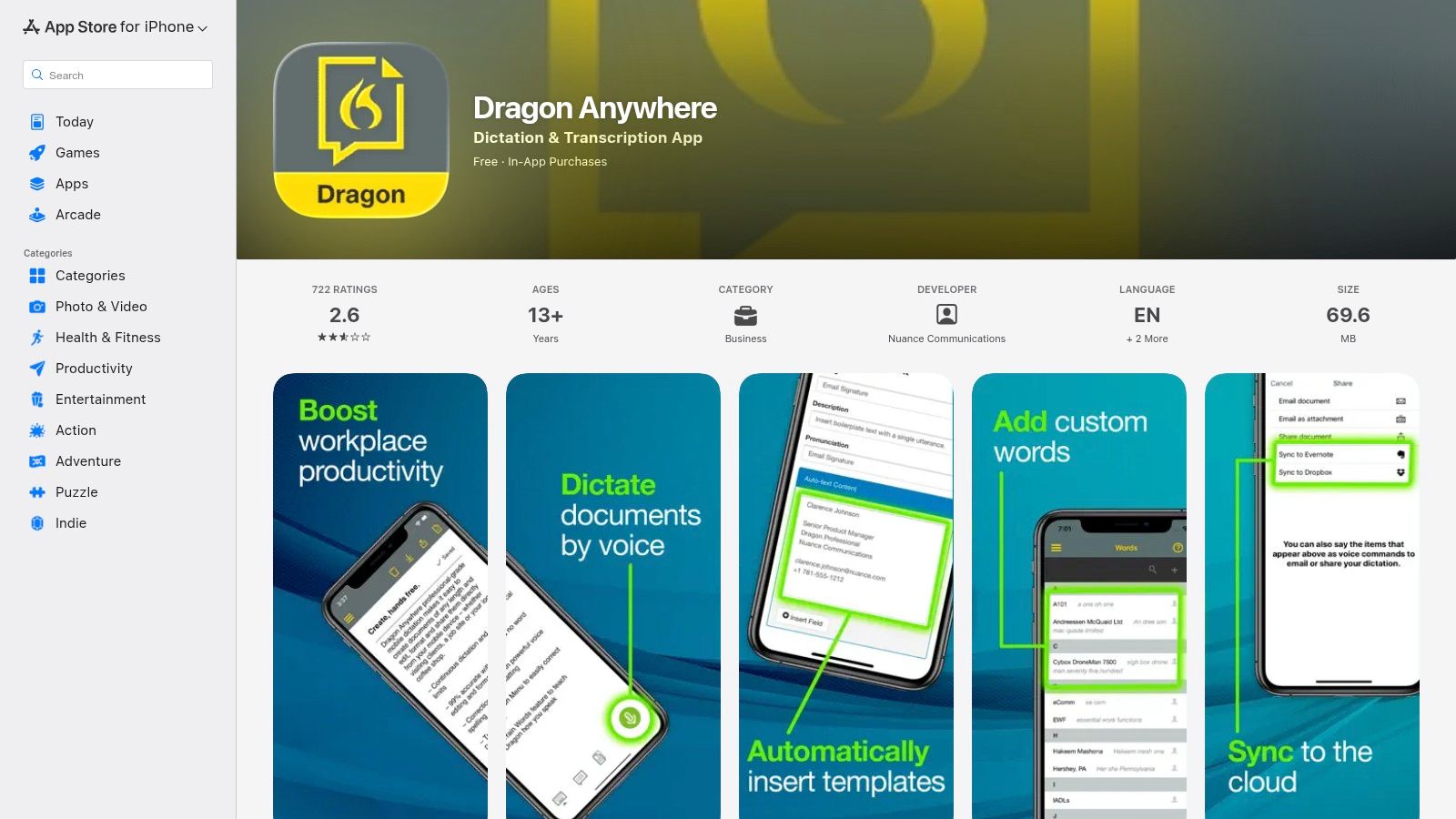
Dragon Anywhere is one of the classic names in professional dictation.
It is most useful for people who need accurate long-form dictation, custom vocabulary, and domain-specific terminology. That can include legal, medical, business, and documentation-heavy work.
Dragon is not the lightest or cheapest choice. But for users who dictate professionally, it still has a place.
Use Dragon Anywhere if you want long-form dictation, custom vocabulary, professional documentation, and higher control over specialized terms.
Pros
- Strong professional dictation features
- Good for terminology-heavy workflows
- Useful for long-form writing
- Custom vocabulary support
Cons
- More expensive than casual apps
- Not built mainly for modern AI writing cleanup
- Not the best meeting transcription tool
- May be too heavy for users who only need short iPhone voice typing
Best for: professionals who need dictation accuracy more than convenience.
6. Rev
Best for high-stakes transcription accuracy
Rev is a better fit when accuracy matters more than speed or convenience.
It is useful for interviews, legal content, research, media, and situations where transcription mistakes can create problems. Rev is more transcript-focused than voice typing-focused.
Use Rev if you want AI and human transcription options, audio or video transcription, and a stronger option for important recordings.
Pros
- Good for high-stakes transcription
- Useful for interviews and media workflows
- Better when transcript accuracy matters more than instant writing
- Human transcription option is useful when mistakes are expensive
Cons
- Not the best everyday voice typing app
- Not built for quickly writing messages or notes on iPhone
- Can become expensive for frequent or long recordings
- More transcript-focused than writing-focused
Best for: users who need dependable transcripts from recordings.

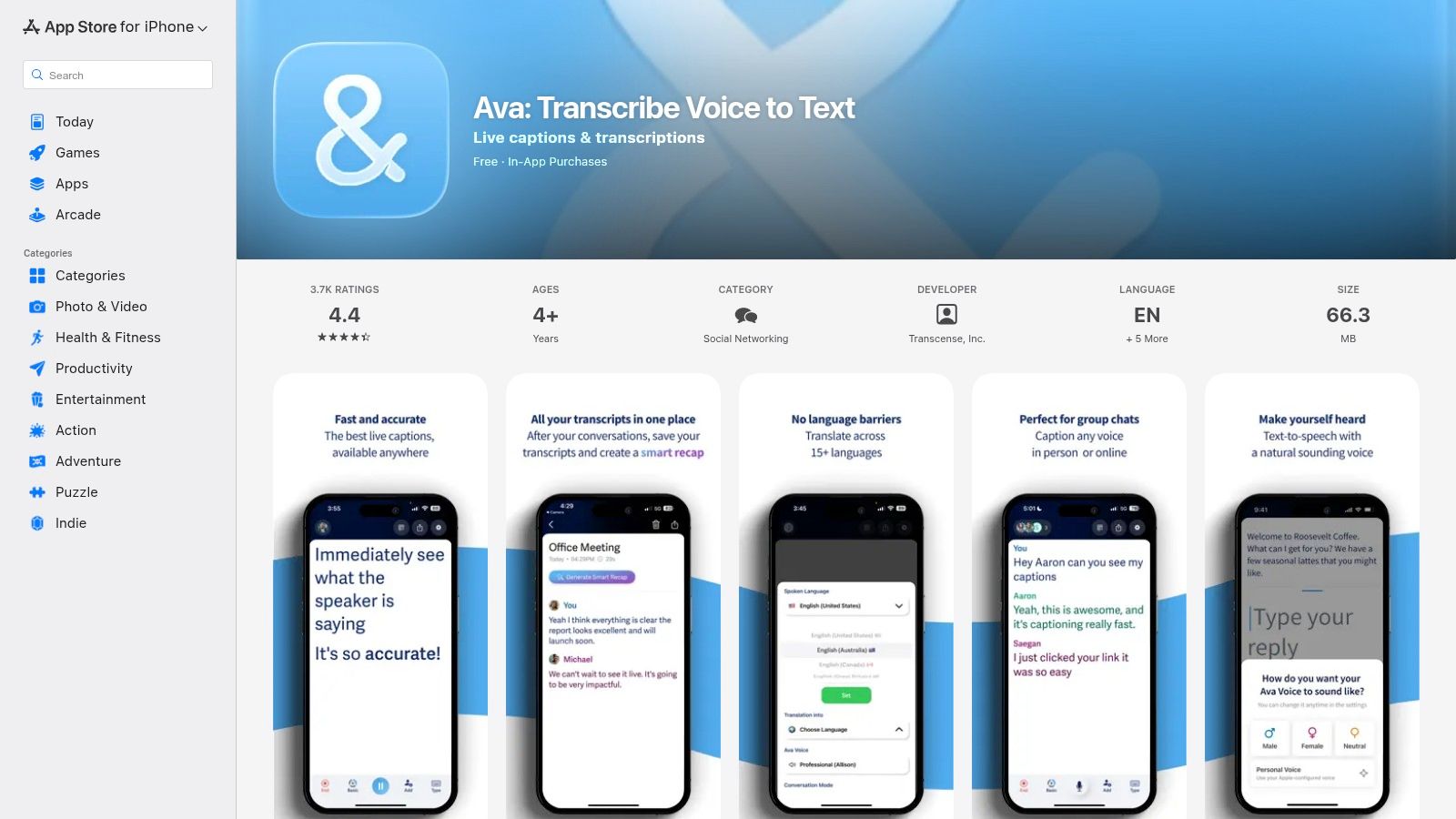
7. Ava
Best for accessibility and live captions
Ava is different from most apps in this list because it is built around accessibility and live captions.
It is useful for real-time conversations, classes, meetings, and situations where someone needs to read what is being said as it happens.
Use Ava if you want live captions, accessibility-focused communication, real-time conversation support, or support in classes, meetings, and group settings.
Pros
- Strong accessibility use case
- Helpful for live conversations
- Different from standard dictation apps
- Free captioning option available
- Paid captioning options support more serious accessibility needs
Cons
- Not designed as a general writing app
- Not the best option for emails, drafts, or polished notes
- Paid captioning needs can become specialized
Best for: users who need real-time captions and accessibility support.
8. Just Press Record
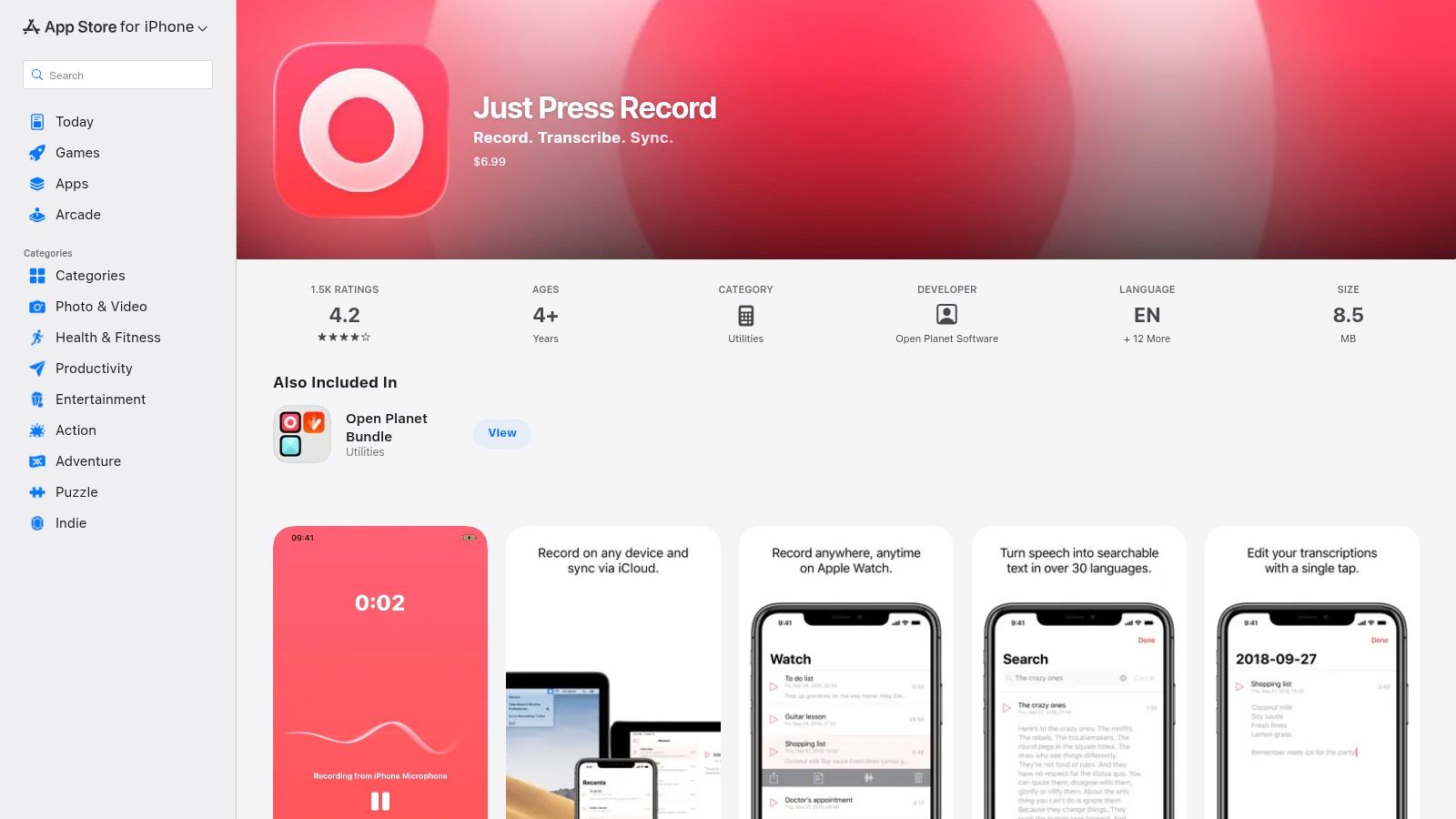
Best for simple personal voice capture
Just Press Record is a lightweight option for people who want to quickly record thoughts, reminders, ideas, and short voice notes.
It fits well into the Apple ecosystem and is simple compared with larger transcription platforms.
Use Just Press Record if you want fast personal recording, a simple voice note workflow, Apple Watch recording, and offline-friendly capture.
Pros
- Simple and fast
- Good Apple ecosystem fit
- Useful for quick idea capture
- One-time paid app model may appeal to users who dislike subscriptions
- Works well with Apple Watch
Cons
- Not as powerful for AI writing cleanup
- Not the best for meetings or team notes
- Not as feature-rich as larger transcription apps
- App Store pricing may vary by country
Best for: iPhone users who want quick personal voice capture.
9. Transcribe Plus
Best for audio and video file conversion
Transcribe Plus is useful when your main job is converting existing audio or video files into text.
That makes it different from Apple Dictation or VoiceDash. It is not mainly about speaking into your keyboard to write faster. It is more about taking an existing recording and turning it into a transcript.
Use Transcribe Plus if you want file-based transcription, audio-to-text conversion, video-to-text conversion, or a utility app for recordings.
Pros
- Good for imported files
- Useful when you already have audio or video
- Simple transcription-focused use case
- Free minutes may be available
- Pay-as-you-go minutes may be better than a subscription for light users
Cons
- Not the best daily voice typing replacement
- Less focused on polished writing
- Not as workflow-friendly for messages and emails
- Can become less ideal if you transcribe large amounts regularly
Best for: users who often need to transcribe saved audio or video files.

10. Voice Memos + Notes
Best built-in Apple workflow beyond Dictation
Some iPhone users do not need a third-party voice to text app at all.
They need a simple Apple workflow.
For example, you can record an idea in Voice Memos, summarize or rewrite it later in Notes, or use Apple Dictation directly inside Notes to capture thoughts.
This is not as advanced as a dedicated AI voice writing app, but it is good enough for many casual users.
Use Voice Memos + Notes if you want a built-in Apple workflow, simple personal recording, no extra app download, and a basic way to capture thoughts by voice.
Pros
- Free and already available on iPhone
- Good for casual voice notes
- Simple and familiar
- No extra app purchase required
Cons
- Not as polished as AI voice writing
- Not ideal for meetings
- Not the best for structured long-form output
- May require manual cleanup or rewriting
Best for: users who want a basic Apple-only workflow before trying third-party apps.
Read more: How to Transcribe Apple Voice Memos on iPhone

Best iPhone Voice to Text Apps by Use Case
If you still are not sure which app to choose, use this simpler guide.
| Use case | Best app | Why |
|---|---|---|
| Free everyday iPhone dictation | Apple Dictation | Built into the iPhone keyboard |
| Clean messages and emails | VoiceDash | Helps turn rough speech into polished writing |
| Dictating into forms and browser fields | VoiceDash | Works wherever there is a cursor |
| Editing text by voice | VoiceDash | Command mode helps edit and format |
| Long drafts | VoiceDash or Dragon Anywhere | VoiceDash for cleaner writing; Dragon for professional dictation |
| Meetings | Otter.ai or Notta | Speaker labels and summaries |
| Multilingual recordings | Notta | Stronger language and file workflows |
| Important interviews | Rev | Human transcription option |
| Accessibility captions | Ava | Real-time captions |
| Simple Apple voice notes | Just Press Record | Fast recording and Apple Watch support |
| Existing audio/video files | Notta, Rev, or Transcribe Plus | Better for uploaded recordings |
How to Use Voice to Text on iPhone
If your main goal is learning how to use voice to text on iPhone, the fastest method is Apple Dictation.
- Open any iPhone app with a text field.
- Tap the text field so the keyboard appears.
- Tap the microphone icon on the keyboard.
- Start speaking.
- Tap the keyboard or microphone again when you are done.
You can use this in apps like Notes, Messages, Mail, Safari, Gmail, WhatsApp, and many other iPhone apps.
Apple Dictation also supports commands for punctuation, formatting, capitalization, and line breaks. You can say things like:
- “period”
- “comma”
- “new line”
- “new paragraph”
- “question mark”
For short writing, this is fast and convenient.
For longer writing, the challenge is that you have to speak clearly and organize your thoughts as you talk. If you speak naturally, repeat yourself, or change direction, the final text may still need cleanup.
That is why many users start with Apple Dictation and then move to an AI voice to text app when they want cleaner writing.
Read more: How to Use Voice to Text
Best iPhone Voice to Text Workflows
The best app also depends on where you want to use voice to text on your iPhone.
Voice to Text for Messages and iMessage
For short replies, Apple Dictation is usually enough.
Open Messages, tap the text field, tap the microphone icon, and speak your reply. This is the fastest free way to stop typing on iPhone.
Use VoiceDash instead if your message needs to sound more polished, professional, or structured.
For example, if you are replying to a client, coworker, or customer, you may want more than a raw dictation result.
Voice to Text for WhatsApp on iPhone
WhatsApp users often have two different needs.
Voice messages are useful when the other person is willing to listen.
Voice to text is better when you want to send a written message without typing.
Apple Dictation works well for quick WhatsApp replies. VoiceDash is better when you want your spoken thought cleaned up before sending.
Voice to Text for Apple Notes
Apple Notes is one of the best places to use voice to text on iPhone.
You can use Dictation to capture ideas quickly, make lists, draft thoughts, or create rough notes. But if your notes become long and messy, you may need an AI tool to clean them up.
Use VoiceDash when you want your spoken notes to become structured writing, not just a transcript.
Read more: How to Take Notes Faster
Voice to Text for Mail and Gmail
Email is where polished output matters most.
Apple Dictation can help you draft a quick email, but it may not always produce the tone or structure you want.
VoiceDash is stronger when you want to speak naturally and get a cleaner email draft. This is useful for professional replies, follow-ups, status updates, customer messages, and longer mobile emails.
Because VoiceDash works wherever there is a cursor, you can use it in email fields, browser-based inboxes, and desktop email workflows without constantly moving text between apps.
Voice to Text for Forms, Browsers, and Productivity Tools
This is where built-in dictation often starts to feel limited.
If you need to fill in browser forms, CRM notes, project updates, chat boxes, support replies, or long text fields, you want a workflow that works directly where the cursor is.
VoiceDash is a better fit here because it is designed for live voice-to-text across apps and devices. You can dictate into the field you are already using, then use command mode to clean up, shorten, expand, or format the text.
Voice to Text for Voice Memos
Voice Memos is good for recording ideas, interviews, reminders, or longer thoughts.
But recording is not the same as writing.
If you want to turn a Voice Memo into a transcript, use a transcription workflow. If you want to turn your spoken idea into a clean note, summary, or draft, use an AI voice writing workflow.
Read more: How to Transcribe Apple Voice Memos on iPhone
How to Get Better Voice to Text Results on iPhone
No voice to text app is perfect. A few simple habits can make your results much better.
Use a clear microphone
Your iPhone microphone is good enough for most dictation, but background noise can still hurt accuracy. If you dictate often, try wired earbuds, AirPods, or another headset microphone.
Speak in complete thoughts
You do not need to sound robotic. In fact, modern dictation tools usually work better when you speak naturally.
But try to speak in complete thoughts. A clear sentence is easier to clean up than scattered fragments.
Add punctuation when needed
For Apple Dictation, learn the basic commands:
- “period”
- “comma”
- “new paragraph”
- “question mark”
VoiceDash can help reduce manual cleanup, but clear speaking still helps.
Pause before changing direction
If you change your mind mid-sentence, pause for a moment. Then continue with the corrected thought.
This gives the app a cleaner signal and makes the final text easier to edit.
Review before sending
Voice to text is faster than typing, but it is still worth reviewing anything important before you send it. Names, numbers, dates, and specialized terms are the most common places to check.
Offline vs Online Dictation on iPhone
Offline support matters because many iPhone users want voice to text that works quickly and privately.
Apple Dictation is strong here because many dictation requests can be processed on-device in supported languages and situations. That makes it a better free option than many users realize.
However, offline support is not the only thing that matters.
Online AI voice to text apps often provide better cleanup, formatting, summaries, and editing features because they use cloud-based AI processing.
So the tradeoff is simple:
Use Apple Dictation when you want a free, built-in, low-friction option.
Use a third-party AI app when you want better output and are comfortable with its privacy policy and cloud workflow.
Before choosing any app, check:
- Whether it needs internet
- Whether it stores recordings
- Whether it supports your language
- Whether it uses audio for training
- Whether it lets you delete data
- Whether it works with your iPhone workflow
For sensitive content, privacy should be part of the decision, not an afterthought.
Voice to Text vs Text to Speech on iPhone
Voice to text and text to speech are not the same thing.
Voice to text means your spoken words become written text.
Text to speech means written text is read aloud by your device.
If you want to talk and have your iPhone write for you, you need voice to text, speech to text, dictation, or AI voice typing.
If you want your iPhone to read articles, messages, or documents aloud, you need text to speech.
This article focuses on voice to text apps for iPhone.
Final Verdict: What Is the Best Voice to Text App for iPhone?
The best voice to text app for iPhone depends on what you want your spoken words to become.
If you want the simplest free option, Apple Dictation is the best place to start. It is built into the iPhone, easy to use, and good enough for everyday voice typing.
If you want cleaner writing, VoiceDash is the best overall choice. It is especially useful when you want to dictate directly into apps, forms, emails, notes, and documents, then use AI and command mode to clean up, edit, or format the text by voice.
If you need meeting transcripts, Otter.ai is a better fit.
If you need multilingual transcription or file import, Notta is worth considering.
If you need professional dictation accuracy, Dragon Anywhere still has a place.
If you need high-stakes transcripts, Rev is the safer choice.
For most iPhone users, the decision is simple:
Use Apple Dictation for free quick typing.
Use VoiceDash for live AI dictation, cleaner writing, and voice-based editing.
Use Otter or Notta for transcripts.
Use Dragon Anywhere only if professional dictation accuracy justifies the higher subscription price.
That is the clearest way to choose the right voice to text app for your iPhone in 2026.
