
- Typing With Arthritis: What Helps Most?
- Can Typing Cause Arthritis?
- Can Typing Make Existing Arthritis Worse?
- Why Typing Hurts When You Have Arthritis
- Match the Solution to the Symptom
- Seven Ways to Make Typing With Arthritis Easier
- What Is the Best Keyboard for Arthritis?
- When Voice Typing Is Better Than an Ergonomic Keyboard
- How VoiceDash Helps Reduce Keyboard Use
- Built-In Dictation vs. VoiceDash
- How to Improve Voice-Typing Accuracy
- Managing Computer Work During an Arthritis Flare
- When to See a Doctor or Occupational Therapist
- Workplace Adjustments for Arthritis
- Make Typing Optional
- Frequently Asked Questions
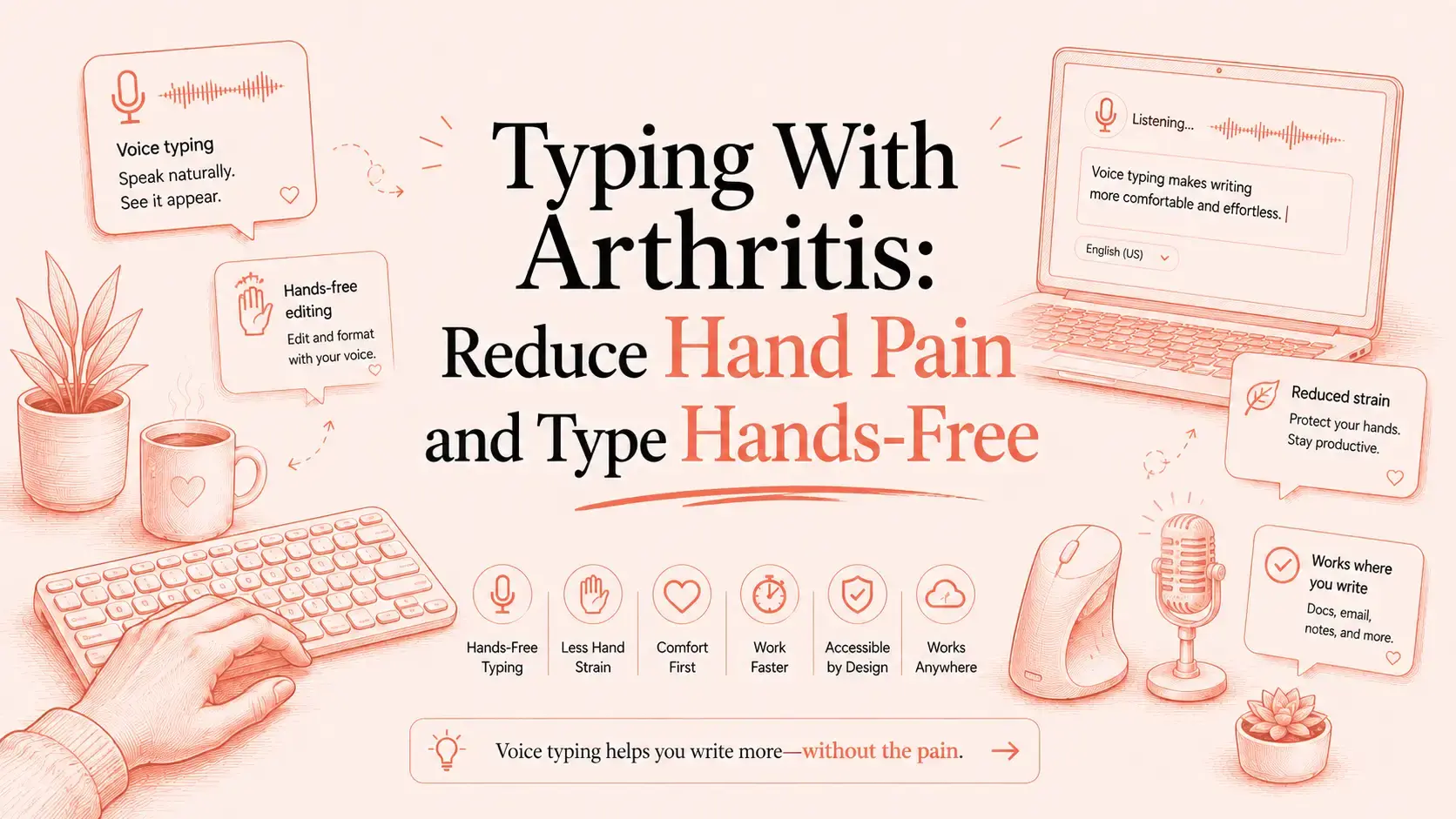
Typing With Arthritis: Practical Ways to Reduce Pain and Keep Working
Typing does not usually cause rheumatoid arthritis or other inflammatory forms of arthritis. However, repeated keyboard, mouse, and smartphone use can aggravate existing pain, stiffness, swelling, weakness, and reduced movement in arthritic hands.
The most effective approach is to reduce unnecessary keystrokes, improve your workstation, choose equipment that suits the joints affected, and use voice typing for longer writing tasks.
This guide explains how to make computer work more manageable without giving up emails, documents, forms, messages, notes, or other everyday tasks.
Medical note: This article provides general information about computer accessibility. It is not a substitute for medical diagnosis or treatment.
Typing With Arthritis: What Helps Most?
The right solution depends on which joints are affected and how severe your symptoms are.
The most useful adjustments usually include:
- Using a compact, low-force, split, or ergonomic keyboard
- Keeping the keyboard and mouse close to the body
- Replacing a standard mouse if gripping or clicking causes pain
- Using predictive text, templates, shortcuts, and autofill
- Dictating longer content instead of typing it
- Editing and formatting text with voice commands
- Switching to a lower-input workflow during arthritis flares
No single setup works for everyone. Symptoms can also change from one day to another, particularly for people with rheumatoid or psoriatic arthritis.
Can Typing Cause Arthritis?
Typing is not considered a direct cause of rheumatoid arthritis. Rheumatoid arthritis is an autoimmune condition in which the immune system attacks tissue around the joints.
Typing alone also does not explain most cases of osteoarthritis. Osteoarthritis develops through a combination of factors that may include:
- Age
- Genetics
- Previous injuries
- Joint structure
- Repeated joint stress
- Other health conditions
Repetitive computer use can still contribute to other conditions, including tendinitis, repetitive strain injury, and carpal tunnel syndrome. These conditions can produce pain, weakness, numbness, or stiffness that may feel similar to arthritis.
Do not assume that every painful hand after computer work is caused by arthritis. Persistent symptoms may need assessment by a doctor, occupational therapist, physiotherapist, or hand specialist.
Can Typing Make Existing Arthritis Worse?
Typing can aggravate existing arthritis symptoms because it repeatedly moves the fingers, thumbs, and wrists.
A normal workday may involve thousands of small movements:
- Pressing individual keys
- Reaching for keyboard shortcuts
- Holding modifier keys
- Clicking and dragging
- Moving a mouse
- Using a trackpad
- Holding a smartphone
- Typing with both thumbs
- Correcting and formatting text
When joints are already painful, swollen, or stiff, these repeated movements can make symptoms more noticeable.
Typing does not affect everyone in the same way. The result depends on:
- The type of arthritis
- Which joints are involved
- How long you type
- The amount of force required
- Your keyboard and mouse
- Your workstation position
- Whether you are experiencing a flare
The goal is not necessarily to stop using your hands. It is to reduce repetitive or painful movement while preserving comfortable activity.
Why Typing Hurts When You Have Arthritis
Finger pain and stiffness
Typing requires the finger joints to bend and straighten repeatedly. Arthritis can make it harder to reach keys, press them consistently, or maintain accuracy.
You may notice:
- Missed letters
- Accidental repeated characters
- Difficulty reaching keys
- Reduced typing speed
- Increased mistakes later in the day
- Pain after writing long emails or documents
Thumb-base pain
The thumb plays a large role in both computer and smartphone use.
It may be used for:
- Pressing the spacebar
- Holding modifier keys
- Clicking a trackpad
- Operating mouse buttons
- Gripping a phone
- Typing text messages
People with thumb arthritis may find that smartphone use is more uncomfortable than standard keyboard typing because the phone requires both gripping and repeated thumb movement.
Wrist pain
A keyboard that is too high, too far away, or positioned at the wrong angle can force the wrists into an uncomfortable position.
A standard mouse may also require:
- Forearm rotation
- Repeated wrist movement
- Gripping
- Finger pressure
- Sideways reaching
These movements can become difficult when arthritis affects the hands, wrists, elbows, or shoulders.
Reduced grip strength
Some people can still press keyboard keys but struggle to hold a phone, move a mouse, or support a tablet.
A device stand, separate keyboard, trackball, hand-supporting mouse, or voice input may help more than changing typing technique alone.

Match the Solution to the Symptom
| Main difficulty | Common problem | First adjustment | Lower-input alternative |
|---|---|---|---|
| Finger stiffness | Reaching and repeated key presses | Compact or low-force keyboard | Voice typing |
| Swollen finger joints | Missed keys or repeated characters | Filter Keys, Sticky Keys, or a keyguard | Dictation |
| Thumb-base pain | Spacebar use, phone grip, or trackpad clicks | Phone stand or alternative mouse | Voice typing |
| Wrist pain | Bent wrist position or repeated mouse movement | Repositioned keyboard, vertical mouse, or trackball | Voice commands |
| Reduced grip | Difficulty holding a phone, tablet, or mouse | Device stand or hand-supporting mouse | Hands-free input |
| Pain in both hands | Most manual input becomes difficult | Reduce keyboard and mouse use | Dictation-dominant workflow |
| Changing symptoms | One setup works inconsistently | Keep several input options available | Switch between keyboard and voice |
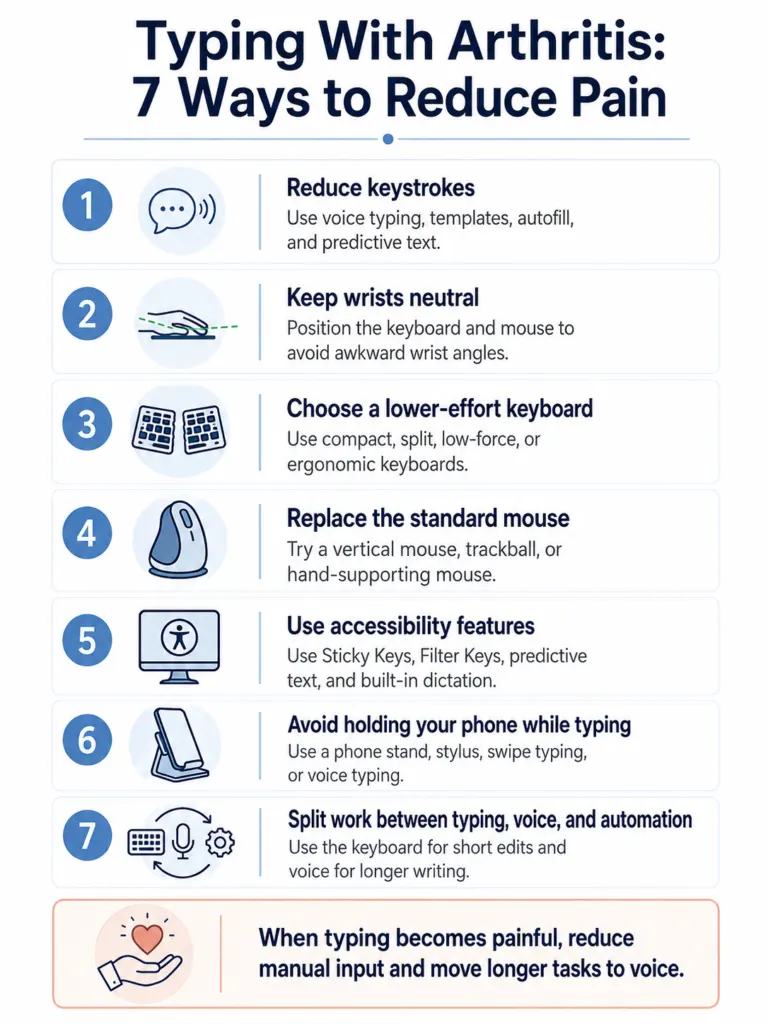
Seven Ways to Make Typing With Arthritis Easier
1. Reduce the Number of Keystrokes
An ergonomic keyboard may reduce the effort required for each key press, but it does not reduce how many times you press a key.
People who write thousands of words each day may continue to experience symptoms even after improving their workstation.
Reduce unnecessary typing with:
- Voice typing
- Predictive text
- Text expansion
- Saved replies
- Email templates
- Browser autofill
- Password managers
- Reusable document templates
- AI-assisted drafting
- Voice commands
Typing also creates work beyond the initial draft. Editing, correcting, formatting, and moving between applications add more keyboard and mouse activity.
The hidden cost of typing all day explains why keyboard-heavy workflows demand more physical and mental effort than the visible act of entering words.
2. Keep Your Wrists in a Neutral Position
Your wrists should not need to bend sharply upward, downward, or sideways to reach the keyboard.
Start with these adjustments:
- Place the keyboard directly in front of you.
- Keep it close enough that you are not reaching forward.
- Position the mouse near the keyboard.
- Adjust the chair or desk so your elbows remain relaxed.
- Avoid raising your shoulders while typing.
- Keep the monitor near eye level.
- Use a separate keyboard and mouse if your laptop is elevated.
A wrist rest may provide support for some users, but avoid placing constant pressure directly underneath the wrist.
3. Choose a Keyboard That Requires Less Effort
There is no single best keyboard for arthritis.
Useful features may include:
- Compact design: Reduces reaching and keeps the mouse closer.
- Split layout: Allows the hands to remain farther apart.
- Tented design: Reduces full downward rotation of the forearms.
- Low-force keys: Require less pressure to activate.
- Low-profile keys: Reduce finger travel.
- Larger keys: Make accurate placement easier.
- Keyguard: Helps prevent accidental key presses.
Choose a keyboard according to the movement that causes difficulty.
A person with wrist pain may prefer a split or tented keyboard. Someone with finger pain may benefit from lighter keys. Someone with thumb arthritis may need to reconsider the spacebar, trackpad, and shortcut layout.
When keyboard use remains comfortable, these methods for writing faster on a keyboard can help reduce unnecessary movement and correction.
4. Replace the Standard Mouse
A conventional mouse may be difficult to grip, move, or click.
Possible alternatives include:
- Vertical mouse: Holds the hand in a more upright position.
- Trackball: Moves the pointer while the device remains stationary.
- Rollerbar mouse: Sits in front of the keyboard and reduces sideways reaching.
- Hand-supporting mouse: Cradles the hand and reduces gripping.
- Touchscreen or stylus: May help with short tasks.
- Keyboard navigation: Reduces mouse use when shortcuts remain comfortable.
Do not automatically choose a thumb-operated trackball if thumb arthritis is the main problem. An index-finger or palm-operated device may be more suitable.
5. Use Accessibility Features
Modern operating systems include tools that reduce difficult key combinations and accidental repeated presses.
Sticky Keys
Sticky Keys allows modifier keys such as Shift, Ctrl, Alt, Command, or Windows to be pressed separately rather than held down together.
This can help when holding multiple keys is painful.
Filter Keys or Slow Keys
These settings can ignore brief or repeated key presses.
They may help when stiff or swollen fingers produce duplicate characters.
Predictive text
Predictive text suggests words before you finish typing them, reducing the number of letters you need to enter.
Built-in dictation
Windows, macOS, iOS, and Android include basic voice typing.
Built-in dictation may be enough for:
- Short messages
- Search queries
- Notes
- Simple emails
- Occasional text entry
People who rely on voice input throughout the workday may need a more consistent cross-application tool.
6. Avoid Holding Your Phone While Typing
Smartphone use combines two demanding actions: gripping the device and repeatedly moving the thumbs.
Reduce the load by using:
- A phone stand
- A case with a built-in stand
- A tablet holder
- An index finger instead of a thumb
- Swipe typing
- Predictive text
- A stylus
- Voice typing
For long messages, place the phone on a stable surface and dictate instead of holding it.
7. Divide Work Between Typing, Voice, and Automation
You do not need to abandon the keyboard completely.
Use the lowest-effort input method for each task:
| Task | Recommended input method |
|---|---|
| Long email | Voice typing |
| Short correction | Keyboard or voice command |
| Report draft | Voice typing |
| Repeated customer response | Saved template |
| Address or account form | Autofill |
| Password entry | Password manager |
| Short search query | Keyboard or dictation |
| Paragraph formatting | Voice command |
| Detailed chat message | Voice typing |
| Flare-day writing | Dictation-dominant workflow |
This approach reduces repetitive movement without making simple tasks unnecessarily complicated.
It also addresses why typing feels slow. The delay often comes from thinking, revising, formatting, and correcting rather than pressing the keys themselves.
What Is the Best Keyboard for Arthritis?
The best keyboard for arthritis is usually one that requires little force, reduces reaching, and allows the wrists to remain comfortable.
Depending on the affected joints, suitable options may include:
- Compact keyboards
- Split keyboards
- Tented keyboards
- Low-profile keyboards
- Low-force mechanical keyboards
- Keyboards with larger keys
- Keyboards used with keyguards
A mechanical keyboard is not automatically better for arthritis. Some mechanical switches require very little force, while others are heavier than standard laptop keys.
Consider:
- Activation force
- Key travel
- Spacing
- Layout
- Wrist position
- Thumb use
- Return policy
The best keyboard is the one that reduces the movement causing your symptoms, not necessarily the one marketed most aggressively as ergonomic.
When Voice Typing Is Better Than an Ergonomic Keyboard
An ergonomic keyboard changes how you type. Voice typing reduces how much you type.
Voice typing becomes especially useful when:
- Long emails increase pain
- Document writing causes stiffness
- Both hands are affected
- Flares make repeated key presses difficult
- Keyboard shortcuts are uncomfortable
- Mouse-based editing causes pain
- Smartphone typing aggravates the thumbs
- Work requires writing across several applications
- A keyboard change has not reduced symptoms enough
Basic voice typing converts speech into text, but it may still leave substantial manual work.
You may still need to:
- Correct words
- Select text
- Add formatting
- Delete sentences
- Move paragraphs
- Rewrite unclear sections
- Copy and paste between applications
For people with arthritis, the editing stage may create as much strain as the original typing.
How VoiceDash Helps Reduce Keyboard Use
VoiceDash is a live AI voice-to-text and dictation platform for iOS, Android, Mac, and Windows.
It works wherever there is a cursor, allowing you to dictate directly into:
- Emails
- Documents
- Browsers
- Online forms
- Chat boxes
- Notes applications
- AI tools
- Project-management platforms
- Customer-support systems
- Productivity software
You do not need to dictate into a separate window and then copy the result into another application.
Place the cursor where the text belongs and speak.
VoiceDash also includes command mode, which allows you to edit, format, and control text by voice.
This can reduce the need to:
- Highlight text manually
- Repeatedly press Backspace
- Drag sentences into a new position
- Open formatting menus
- Switch between the keyboard and mouse
- Copy and paste between applications
How to Use VoiceDash
- Open the email, document, form, note, browser, or chat box.
- Place the cursor where the text should appear.
- Start VoiceDash.
- Speak naturally.
- Use command mode to revise, shorten, restructure, or format the text.
- Review names, numbers, dates, and specialist terminology.
- Send or save the text inside the original application.
VoiceDash does not treat arthritis. It provides an alternative input method that can reduce dependence on repeated keyboard and mouse movements.
Download VoiceDash and test it on the task that currently requires the most typing.
Built-In Dictation vs. VoiceDash
Built-in dictation is a practical starting point for occasional voice input.
VoiceDash is intended for users who want voice to become a regular part of their writing workflow.
| Capability | Built-in dictation | VoiceDash |
|---|---|---|
| Basic speech-to-text | Yes | Yes |
| Works in common text fields | Usually | Yes |
| Cross-device experience | Varies by operating system | iOS, Android, Mac, and Windows |
| Direct dictation where the cursor is | Often | Yes |
| Voice-based editing | Limited or inconsistent | Command mode |
| Voice formatting | Limited | Command-based workflow |
| Separate copy-and-paste process | Sometimes required | Usually unnecessary |
| Best use | Short, occasional dictation | Regular cross-app writing |
Use built-in dictation for short and occasional messages.
Use VoiceDash when you need to dictate, edit, and format regularly across several applications and devices.
How to Improve Voice-Typing Accuracy
Speak in complete phrases
Speak a full thought before pausing. Frequent pauses between individual words can make sentence structure less clear.
Keep the microphone position consistent
Avoid repeatedly moving closer to and farther away from the microphone.
Reduce competing noise
Move away from loud fans, close a door, or use a headset in shared spaces.
Review important details
Always check:
- Names
- Dates
- Phone numbers
- Prices
- Measurements
- Medication names
- Legal terms
- Technical vocabulary
Use the right microphone for your environment
A built-in laptop or phone microphone may be sufficient in a quiet room. A headset or dedicated microphone may perform better in noisy spaces or during longer sessions.
This guide to choosing a microphone for dictation explains which microphone types suit home offices, shared workplaces, travel, and professional use.
Learn a Small Set of Commands
Start with commands for:
- New paragraph
- Delete
- Replace
- Shorten
- Rewrite
- Add a heading
- Create bullet points
- Correct punctuation
Learn the commands that replace your most frequent keyboard and mouse actions first.
Managing Computer Work During an Arthritis Flare
During a flare, reduce manual input before pain becomes severe.
Prioritize:
- Moving long-form writing to voice typing
- Replacing repeated messages with templates
- Using autofill for forms
- Placing phones and tablets on stands
- Avoiding prolonged gripping
- Using voice commands for editing
- Breaking large tasks into shorter sessions
- Following the treatment and activity guidance provided by your clinician
A broader set of AI productivity tools can also reduce repetitive tasks such as rewriting, summarizing, organizing information, and producing routine responses.
When to See a Doctor or Occupational Therapist
Seek professional assessment if symptoms are persistent, worsening, unexplained, or interfering with normal activities.
Relevant warning signs include:
- New joint swelling
- Redness or warmth
- Pain when you are not typing
- Numbness or tingling
- Weakness
- Dropping objects
- Reduced grip strength
- Visible changes in joint shape
- Difficulty bending or straightening the fingers
- Symptoms affecting both hands
Numbness and tingling may indicate nerve compression, such as carpal tunnel syndrome, rather than arthritis alone.
An occupational therapist can also help assess:
- Keyboard and mouse selection
- Workstation layout
- Device positioning
- Joint-protection techniques
- Assistive technology
- Task modification
- Workplace equipment
Workplace Adjustments for Arthritis
Possible workplace adjustments include:
- An ergonomic assessment
- A compact or split keyboard
- An alternative mouse
- Voice-recognition software
- A phone or tablet stand
- A separate keyboard for laptop use
- Reduced repetitive data entry
- Flexible task allocation during flares
- Templates and automated workflows
- More frequent task variation
- An occupational-therapy assessment
Employment and disability rules vary by country. Document which tasks cause difficulty and which adjustment would help you perform them.
Make Typing Optional
The best arthritis-friendly setup gives you more than one way to work.
Use the keyboard when it remains comfortable. Use templates and autofill for repetitive information. Use voice typing for longer writing. Use voice commands when editing creates as much strain as drafting.
VoiceDash lets you dictate, edit, and format text directly inside the applications you already use.
Download VoiceDash and replace your most typing-intensive task with voice.
