
- TL;DR: Apple Dictation vs Dragon in 2026
- What Apple Dictation Actually Offers in 2026
- What Dragon Professional Offers Today
- Head-to-Head Comparison: Apple Dictation vs Dragon for Mac Users
- Accuracy and Workflow Factors That Matter Most
- Privacy and On-Device Processing
- Best Choice by User Type
- Recommended Practical Workflow for Mac Users
- Conclusion
- Mac Dictation vs Dragon FAQ
- Resources
Apple Dictation vs Dragon for Mac: Which Speech-to-Text Option Is Better in 2026?
If you are comparing Mac Dictation vs Dragon, you are likely trying to decide whether to rely on Apple’s built-in tool, invest in Dragon NaturallySpeaking, or find a more suitable modern workflow for Mac. Speech-to-text has become a core productivity method for writers, developers, professionals managing repetitive strain, students, and teams who want to capture ideas faster than typing.
This guide provides a clear, balanced comparison based on current 2026 realities so you can choose the option that best matches your needs.
TL;DR: Apple Dictation vs Dragon in 2026
Apple Dictation offers free, convenient, system-wide speech-to-text on every Mac with strong on-device processing on Apple Silicon. Dragon Professional delivers powerful custom vocabulary and voice commands but remains a Windows-focused solution with no native Mac support. For most Mac users, Apple Dictation serves as an excellent free starting point, while many professionals seeking cleaner output, better handling of specialized terms, and smoother long-form workflows pair quality hardware with a modern voice-to-text platform like VoiceDash.
| Feature | Apple Dictation | Dragon Professional | VoiceDash (Modern Mac Alternative) |
|---|---|---|---|
| Price | Free (built into macOS) | Typically $500–$700+ one-time (Windows) | Free tier available; Pro for unlimited use |
| Native Mac Support | Excellent | None (discontinued years ago) | Excellent (system-wide) |
| Setup Time | Under 1 minute | 20–60+ minutes training + ongoing | Under 2 minutes |
| Handling of Specialized Terms | Limited (standard Dictation) | Excellent after training | Strong personal dictionary support |
| Long-Form Dictation | Good, stops after ~30 seconds of silence | Excellent in supported Windows apps | Excellent with intelligent editing |
| Privacy | On-device on Apple Silicon | On-device (Windows) | Privacy-focused, local-first |
| Best For | Everyday casual and general use | Windows-based professional documentation | Mac users wanting speed and polish |
Key takeaway: Start with Apple Dictation for simplicity. When you need more reliable long sessions, specialized vocabulary handling, or reduced editing time on Mac, a dedicated modern solution like VoiceDash often delivers excellent results as a practical companion.
What Apple Dictation Actually Offers in 2026
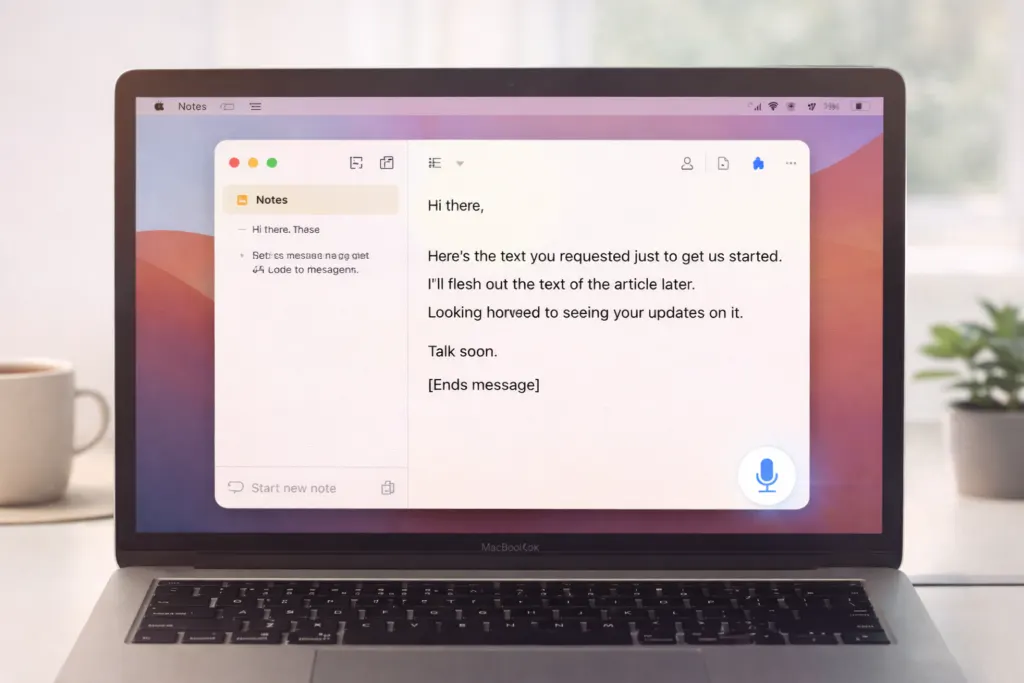
Apple Dictation is the free, built-in speech-to-text feature in macOS. On Apple Silicon Macs it processes locally for better speed and privacy. You enable it once in System Settings > Keyboard > Dictation and activate it with a shortcut (such as pressing the Fn key twice) in any text field.
It supports auto-punctuation, multiple languages, and works system-wide. Apple documentation states you can dictate text of any length, though the feature stops automatically when no speech is detected for approximately 30 seconds. This silence timeout can interrupt thoughtful or paused long-form dictation, requiring you to resume manually.
Strengths of Apple Dictation:
- Zero cost and no additional installation
- Fast activation and on-device processing on newer Macs
- Solid performance for everyday notes, emails, messages, and short-to-medium writing
- Works alongside typing on Apple Silicon
Limitations:
- Standard Dictation offers limited support for custom or specialized vocabulary (though the separate Voice Control accessibility feature allows adding custom words)
- The 30-second silence timeout can disrupt flow in longer sessions
- Less advanced handling of heavy technical jargon or highly structured professional documents without additional tools
For a detailed step-by-step setup guide, see our article on how to use speech to text on mac.
What Dragon Professional Offers Today
Dragon NaturallySpeaking (now Dragon Professional under Microsoft/Nuance) has a long history as a leading speech recognition solution. In 2026, Dragon Professional v16 focuses on Windows 11 compatibility, deep custom vocabulary, voice macros, and advanced commands for professional documentation, particularly in legal, healthcare, and enterprise environments.
Key strengths of Dragon:
- Excellent accuracy after training with specialized terminology
- Powerful voice commands and automation for Windows applications
- Custom vocabulary and AutoText features for repetitive structured work
Current realities for Mac users:
- No native Mac version (support discontinued years ago)
- Requires Windows environment; virtualization on Apple Silicon adds overhead and is not officially optimized
- Higher cost and more involved setup compared with built-in options
Dragon remains a capable tool for Windows-based professionals who need its depth, but it is not a practical choice for users committed to the Mac ecosystem.

Head-to-Head Comparison: Apple Dictation vs Dragon for Mac Users
Platform and Everyday Convenience
Apple Dictation wins clearly for Mac users with seamless native integration. Dragon excels in its Windows environment but lacks native Mac support.
Specialized Vocabulary and Accuracy
Dragon offers strong custom vocabulary and adapts with training. Apple Dictation handles general English well but has more limited built-in support for domain-specific terms (Voice Control provides some customization options). Many Mac users find that pairing a quality microphone with an intelligent modern tool like VoiceDash improves handling of specialized content and reduces post-dictation cleanup.
Voice Commands and Long-Form Workflow
Dragon provides advanced automation on Windows. Apple Dictation offers basic formatting commands, while the separate Voice Control feature adds broader navigation and editing capabilities. For smoother long-form dictation and intelligent editing on Mac, professionals often turn to dedicated solutions.
Privacy and Setup
Both tools emphasize on-device processing in their primary environments. Apple Dictation is ready in moments. Dragon requires more initial investment in training.
Here is a practical overview of real-world scenarios:
| Scenario | Apple Dictation Recommendation | Dragon Recommendation | VoiceDash as Companion |
|---|---|---|---|
| Short emails, notes, brainstorming | Excellent | Overkill | Excellent |
| Long-form writing or reports | Good with pauses | Strong (Windows) | Excellent |
| Technical or specialized terminology | Fair | Strong | Strong with dictionary |
| Daily professional Mac workflow | Solid starting point | Not native | Excellent |
Accuracy and Workflow Factors That Matter Most
Real-world results depend on more than the core engine. Important elements include:
- Microphone quality
- Background noise levels
- Natural speaking pace
- Support for your specific vocabulary
- Speed and ease of editing the final text
A high-quality USB or headset microphone paired with intelligent software often produces noticeably cleaner output. Many experienced Mac users combine good hardware with a modern platform like VoiceDash to achieve faster, more polished results while maintaining privacy and system-wide convenience.

Privacy and On-Device Processing
Privacy-conscious users appreciate on-device processing. Apple Dictation runs locally on Apple Silicon for supported languages. Dragon processes on-device in its Windows environment. Modern Mac-focused tools also prioritize local-first approaches, giving professionals confidence when handling sensitive content.
Best Choice by User Type
- Casual or new Mac users — Start with Apple Dictation for its simplicity and zero cost.
- Students and general writers — Apple Dictation handles most needs well; add modern editing support when sessions grow longer.
- Developers and technical writers — Look for solutions with strong system-wide performance and vocabulary tools. Explore options in the best dictation software for mac.
- Professionals needing specialized terms or reduced editing time — A modern Mac-native layer like VoiceDash often complements built-in tools effectively.
For technical workflows, many also reference resources on the best coding apps for mac.
Recommended Practical Workflow for Mac Users
A layered approach often works best:
- Use Apple Dictation for quick tasks and everyday writing.
- Invest in a good external microphone for clearer input.
- Add a modern voice-to-text platform like VoiceDash for longer sessions, automatic intelligent editing, personal dictionary support, and reduced manual cleanup.
This combination leverages the strengths of built-in tools while delivering the speed, accuracy, and polish many professionals need in 2026.

Conclusion
In 2026, Apple Dictation remains a strong, convenient free option for Mac users and covers the majority of everyday dictation needs effectively. Dragon Professional continues to serve Windows-based professionals who require its specialized vocabulary, macros, and deep integration, but it is no longer a practical native solution for Mac.
For users who want more than the built-in tool—smoother long-form dictation, better handling of specialized terms, intelligent editing, and reduced friction—a modern Mac-focused platform like VoiceDash stands out as an excellent companion. It builds on the convenience of Apple’s ecosystem while helping deliver faster, cleaner results without the complexity or platform limitations of legacy professional software.
Test Apple Dictation first since it is already on your Mac. When your workflow demands more speed, accuracy, or polish, explore dedicated modern options. Many professionals find that VoiceDash helps them move from spoken ideas to finished work more efficiently while keeping everything native and privacy-conscious on Mac.
Visit voicedash.ai to learn more and try the free tier.
Mac Dictation vs Dragon FAQ
Resources
- Apple Support: Dictate messages and documents on Mac
- Apple Support: Use a custom vocabulary with Voice Control on Mac
- Nuance Dragon Professional
